View the Total Bandwidth for Single-Region Traffic-Based Billing
Download
フォーカスモード
フォントサイズ
最終更新日: 2024-10-22 16:43:07
In a single region, the peak of the total bandwidth of all the instances billed by trafficdoes not exceed 5Gbps. The bandwidth peak for billing by hour is only taken as the upper limit peak of bandwidth, and it is not considered as a commitment metric. When there is competition for bandwidth resources, the bandwidth peak might be limited.
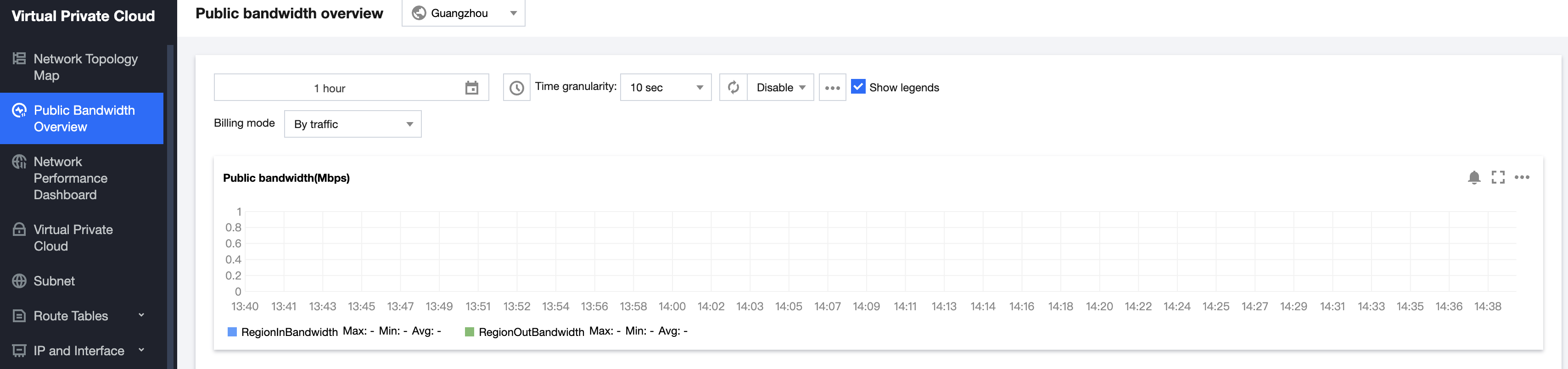
This document provides a monitoring view of total outbound and inbound bandwidth for hourly traffic in a single region to facilitate your real-time observation. You can also configure alarms to monitor whether the bandwidth exceeds the limit.
2. Select the region, time frame, and other information you desire to view, and you can view the current region. The billing model is based on hourly traffic outbound and inbound bandwidth metrics.
Metric Meanings:
Single-region public network outbound bandwidth: Represents the total outbound bandwidth of resources billed by hourly traffic in the selected region.
Single-region public network inbound bandwidth: Represents the total inbound bandwidth of resources billed by hourly traffic in the selected region.
Configure alarms
1. Click the alarm icon
, the interface will skip to the Create Alarm Policy page of Tencent Cloud Observability Platform.
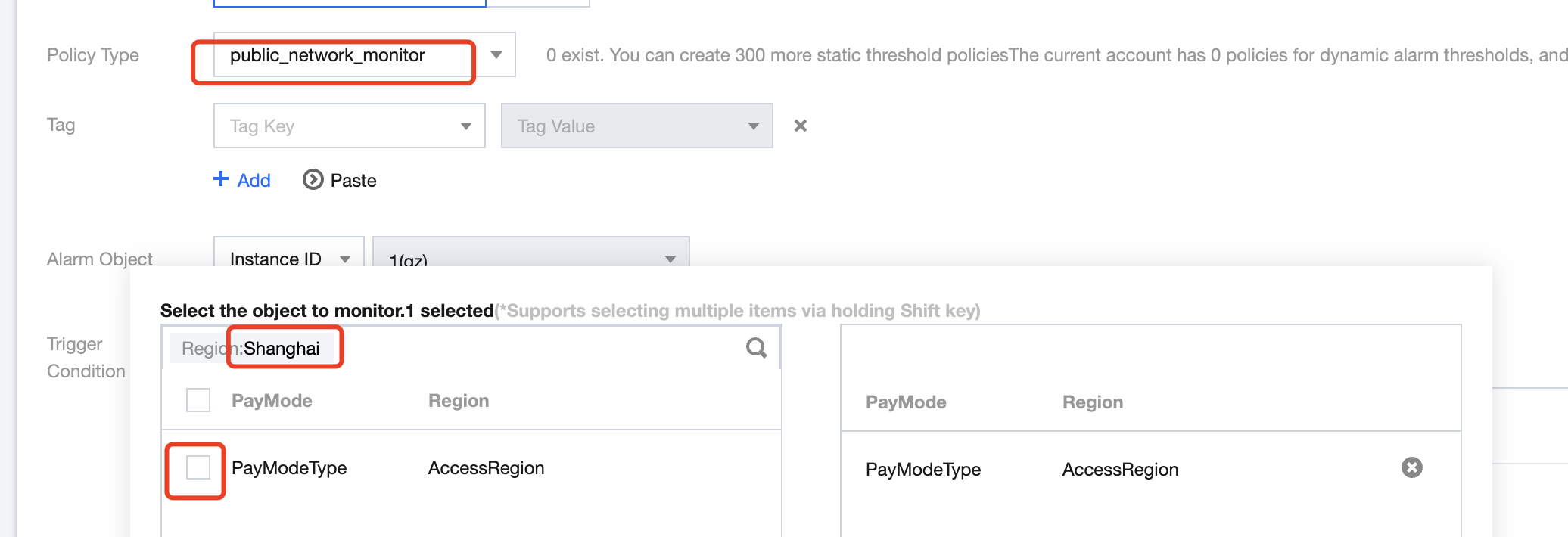
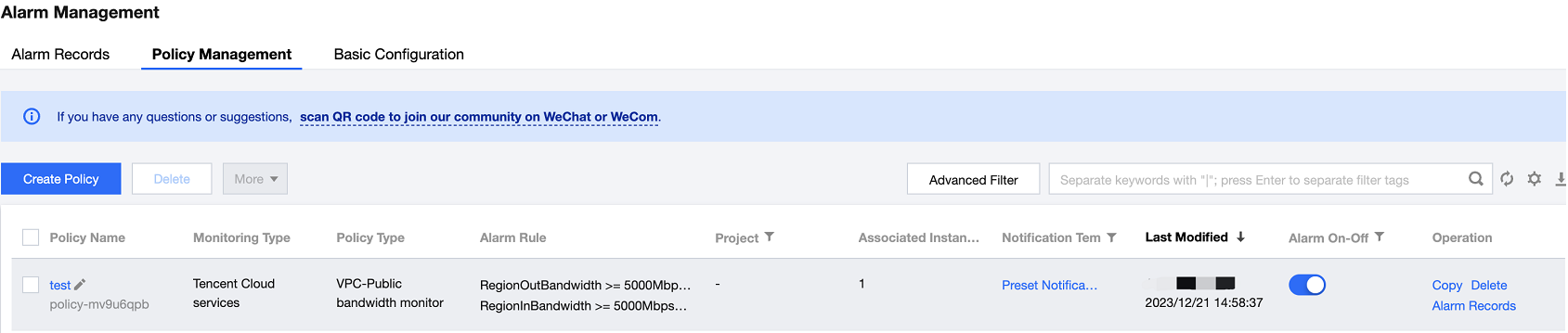
2. Set the Policy Name, select Monitor Type as Cloud Product Monitoring and Policy Type as Virtual Private Cloud / Public Network Bandwidth Monitoring, select the region ID that needs to be configured for Alarm Object, and check the Traffic-Based Billing Mode of the region. Multiple regions can be configured. Click OK after completion.
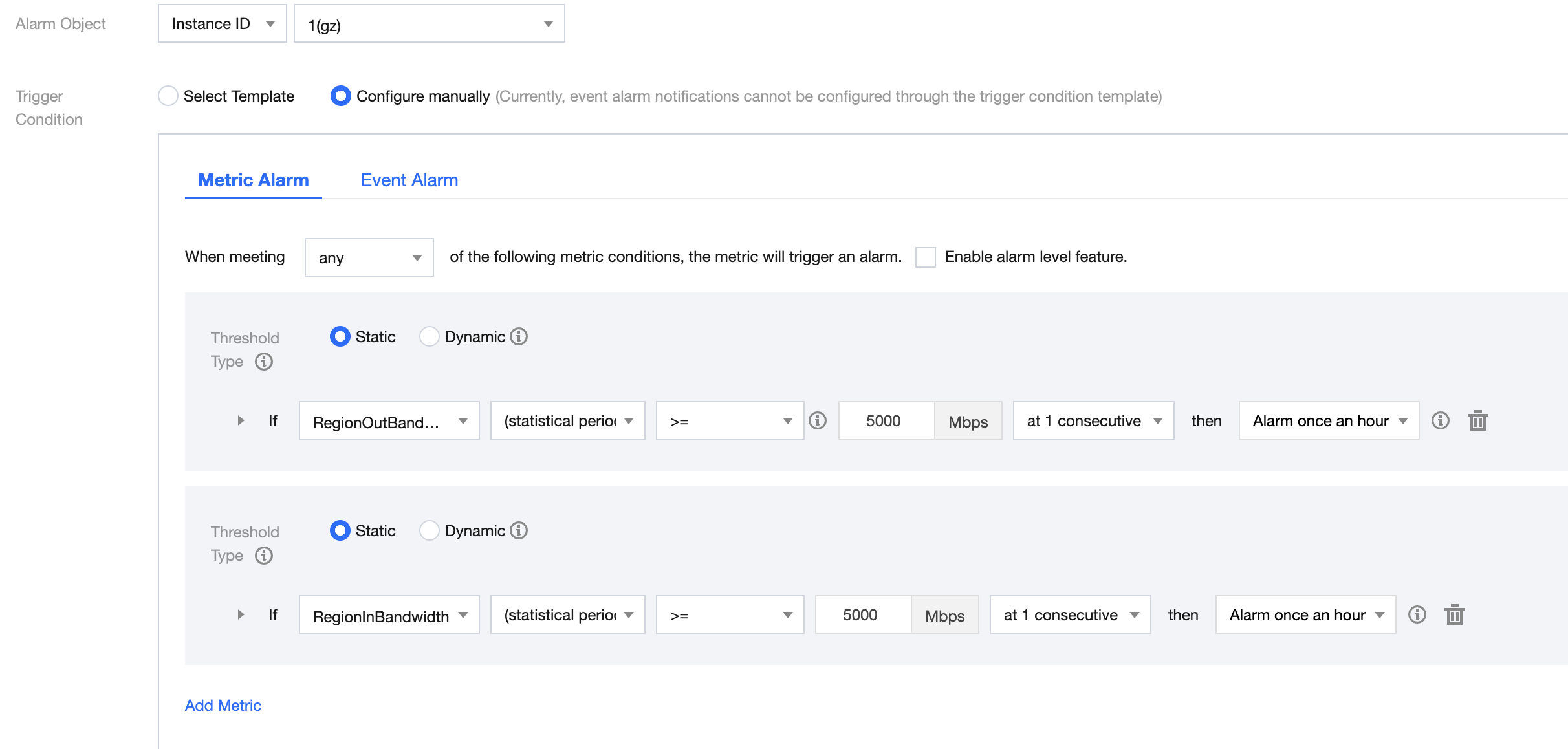
3. Continue to configure the alarm trigger conditions in Alarm Configuration Rules, select the metric name.
Metric Meanings:
Single-region public network outbound bandwidth: Represents the total outbound bandwidth of resources billed by hourly traffic in the selected region.
Single-region public network inbound bandwidth: Represents the total inbound bandwidth of resources billed by hourly traffic in the selected region.
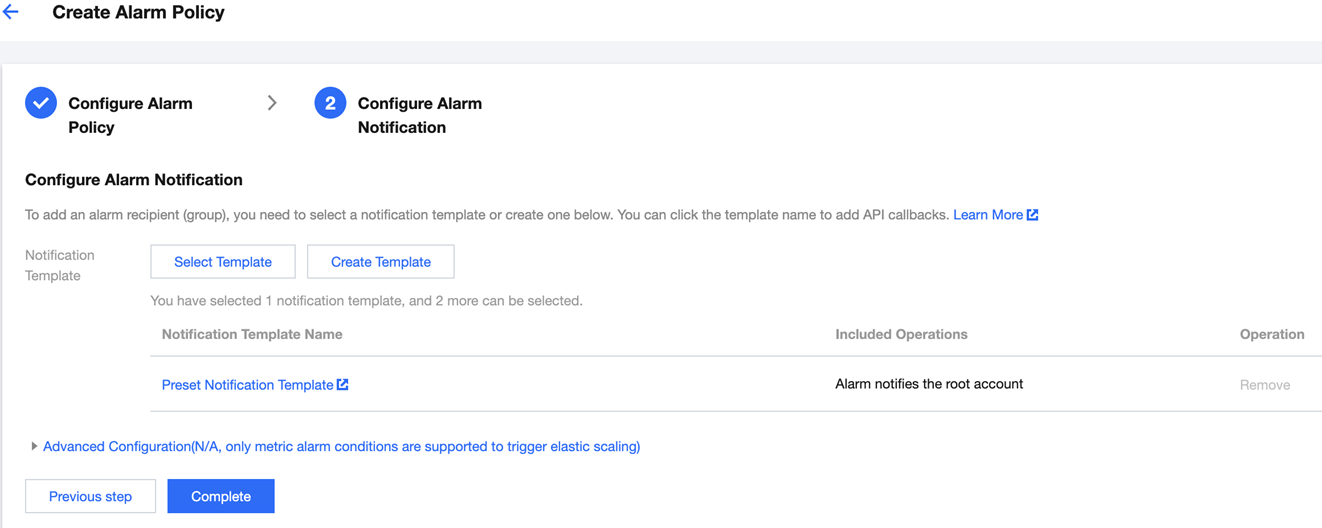
4. Configure an alarm notification template: You may select an existing template or create a new one. You need to set template name, recipient objects, notification cycle, receiving channels, etc. in the notification template. Once the settings are completed, click Confirm.
5. After completing all alarm configurations, click Complete.