TencentDB for MariaDB can be accessed in the following ways:
Private network access: You can use a CVM instance to access the private network address that is automatically assigned to a TencentDB instance. Both instances should reside in the same region, be under the same account, and use the same type of networks (both in the classic network or in the same VPC.
Public network access: You can install a database client on a Windows or Linux server in the public network and use it to access the public network address of the TencentDB for MariaDB instance .
Currently, public network access can be enabled in Guangzhou, Shanghai, Beijing, Chengdu, and Nanjing regions.
For public network access, the public IP of the database instance needs to be enabled, which may expose your database service to attacks or intrusions on the public network. Therefore, it is recommended to log in to the database over the private network.
To enable public network access, you need to associate the instance with a security group. You also need to configure the necessary policies in advance, such as configuring the information database access source in the inbound rules of the security group and opening the protocol ports (both the private and public network ports) as instructed in Security Group Configuration.
Prerequisites
No matter whether you access the instance from the private or public network, you need to create an account first.
2. Select the connection method based on the CVM operating system.
Login on Windows
(1) Download and install a MariaDB client. SQLyog is recommended.
(2) Open SQLyog, enter the private IP, port number of the TencentDB for MariaDB instance, the database account, and the password.
MySQL Host Address: Private IP.
Username: Username created in the prerequisites section.
Password: Password of the username.
Port: Port corresponding to the private IP.
(3) After successful login, a page will appear, where you can view the modes and objects of the MariaDB database, create tables, and perform operations such as data insertion and query.
Login on Linux
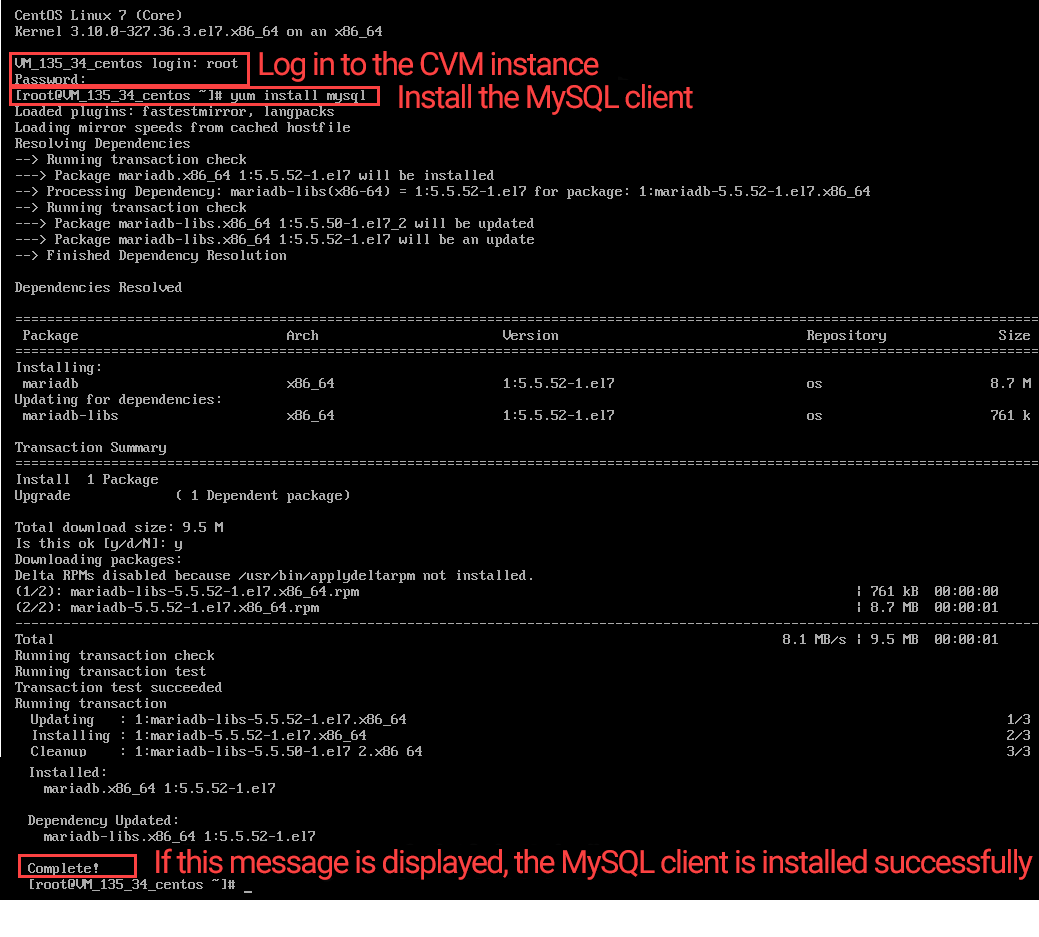
(1) Taking CentOS 7.2_64, you can use the built-in package manager YUM to download and install the MySQL client from the Tencent Cloud image source.
Install the client by running the following command:
sudo yum install mysql
The details are as follows:
(2) Use the MySQL command line tool to log in to the TencentDB for MariaDB
mysql -h hostname -u username -p
Replace "hostname" with the private IP address of the target TencentDB for MariaDB instance and "username" with the username previously created, and enter its password when prompted with "Enter password:".
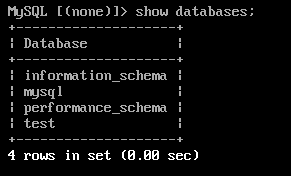
(3) Under the “MySQL>” prompt, you can send a SQL statement to the MariaDB server for execution. For specific command lines, see here.
Below uses show databases; as an example:
Public network access
1. Get the public network address of database.
(1) Log in to the TencentDB for MariaDB console. Click an instance ID or Manage in the Operation column.
(2) On the instance details page, click Enable after the public network address to enable it.
(3) Once enabled successfully, the public IP can be viewed.
2. Log in to the database
Login on Windows
(1) Download and install a MariaDB client. SQLyog is recommended.
(2) Open SQLyog, enter the public network domain name, port number of the TencentDB for MariaDB instance, the database account, and the password.
MySQL Host Address: Enter the public network domain name.
Username: Username created in the prerequisites section.
Password: Password of the username.
Port: Port number corresponding to the public network domain name.
(3) After successful login, a page will appear, where you can view the modes and objects of the MariaDB database, create tables, and perform operations such as data insertion and query.
Login on Linux
(1) Taking CentOS 7.2_64, you can download MySQL client at the official website and install it.
sudo yum install mysql
(2) Use the MySQL command line tool to log in to the TencentDB for MariaDB. Commands:
mysql -h hostname -P port -u username -p
Replace "hostname" with the public network domain name of the target TencentDB for MariaDB instance and "username" with the username previously created, and enter its password when prompted with "Enter password:".
(3) Under the “MySQL>” prompt, you can send a SQL statement to the MariaDB server for execution. For specific command lines, see here.
Below uses show databases; as an example: