Disable Database Audit
Download
フォーカスモード
フォントサイズ
Use Cases
This topic describes how to disable the Database Audit feature for your cloud database distributed cache instance via the console.
Note:
After the auditing service is disabled, auditing on instances will be stopped, and subsequently executed commands will no longer be recorded.
After the audit service is disabled, the saved historical audit logs will be cleared and cannot be restored. If you need to retain the logs, please download the audit logs before disabling it. For specific operations, see Managing Audit Logs.
After the audit feature is disabled, no audit-related costs will be incurred.
If you need to re-enable the audit feature, see Enabling Database Audit.
Prerequisites
A cloud database distributed cache instance has been created.
The instance has enabled the Database Audit feature. For specific operations, see Enabling Database Audit.
Operation Steps
1. Log in to the Tencent Cloud Distributed Cache console.
2. In the left sidebar, select Database Audit under the Distributed Cache (Redis OSS-Compatible) menu.
3. On the Database Audit page, select a region to view at the top. On the Audit Instances tab, you can view all instances with Database Audit enabled in that region.
4. In the audit instance list, select one or more instances that require audit to be disabled.
Disable a single instance: In the audit list, locate the target instance. In the Operation column, choose More > Disable Database Service.
Batch Disable: In the audit list, select multiple instances that require the audit feature to be disabled, click Disable Audit Service above the list.

5. In the Disable Database Audit dialog box that pops up, confirm the warning message and instance information.
Warning: After the audit service is disabled, auditing of instances will be stopped and historical audit logs will be cleared.
Instance information: Confirm whether the instance ID/name and region are correct.
Result Prompt: Displays the execution result of the disable operation.
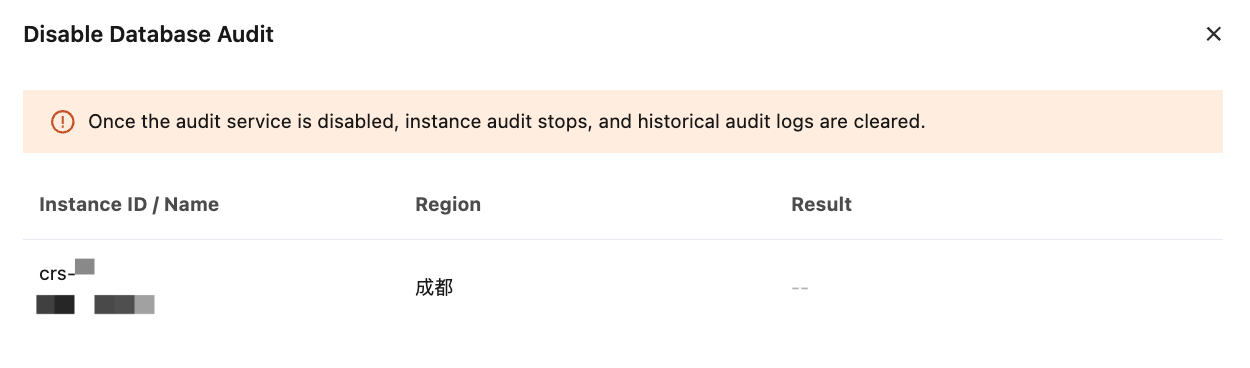
6. After confirming everything is correct, click OK.
FAQs
Q1: If I click "Disable Database Audit" in the "Operation" column, will the previously stored logs still be available?
Warning: Once you choose to disable the audit service for an instance, the system will immediately stop capturing new audit commands and simultaneously clear all historical audit logs generated by that instance (including both high-frequency and low-frequency data already persisted to disk). This operation is irreversible, and the data cannot be restored. Therefore, before disabling the service, be sure to download important historical logs to your local environment for proper backup using the "View Audit Logs" feature.
Q2: After disabling, if I re-enable the audit, can I still access the previous logs? (or: can the previous logs be restored?)
When the audit service is disabled, the system has physically cleared all historical logs, and this operation is irreversible. When you enable the audit service again, the system will treat it as a brand-new activation, and it will only record new command operations from the moment you re-enable it; previous historical data cannot be recovered.
フィードバック