tencent cloud

Serverless Cloud Function

Release Notes and Announcements
Release Notes
Announcements
User Guide
Product Introduction
Overview
Related Concepts
How It Works
Strengths
Scenarios
Related Products
Purchase Guide
Billing Overview
Billing Mode
Billable Items and Billing Modes
Function Computing Power Support
Free Tier
SCF Pricing
Billing Example
Payment Overdue
Getting Started
Creating Event Function in Console
User Guide
Quota Management
Managing Functions
Web Function Management
Log Management
Concurrence Management
Trigger Management
Function URL
A Custom Domain Name
Version Management
Alias Management
Permission Management
Running Instance Management
Plugin Management
Managing Monitors and Alarms
Network Configuration
Layer Management
Execution Configuration
Extended Storage Management
DNS Caching Configuration
Resource Managed Mode Management
Near-Offline Resource Hosting Model
Workflow
Triggers
Trigger Overview
Trigger Event Message Structure Summary
API Gateway Trigger
COS Trigger
CLS Trigger
Timer Trigger
CKafka Trigger
Apache Kafka Trigger
MQTT Trigger
Trigger Configuration Description
MPS Trigger
CLB Trigger Description
TencentCloud API Trigger
Development Guide
Basic Concepts
Testing a Function
Environment Variables
Dependency Installation
Using Container Image
Error Types and Retry Policies
Dead Letter Queue
Connecting SCF to Database
Automated Deployment
Cloud Function Status Code
Common Errors and Solutions
Developer Tools
Serverless Web IDE
Calling SDK Across Functions
Third-Party Tools
Code Development
Python
Node.js
Golang
PHP
Java
Custom Runtime
Deploying Image as Function
Web Framework Development
Deploying Framework on Command Line
Quickly Deploying Egg Framework
Quickly Deploying Express Framework
Quickly Deploying Flask Framework
Quickly Deploying Koa Framework
Quickly Deploying Laravel Framework
Quickly Deploying Nest.js Framework
Quickly Deploying Next.js Framework
Quickly Deploying Nuxt.js Framework
Quickly Deploying Django Framework
Use Cases
Overview
Solutions with Tencent Cloud Services
Business Development
TRTC Practices
COS Practices
CKafka Practice
CLS
CLB Practice
MPS
CDN
CDWPG
VOD
SMS
ES
Scheduled Task
Video Processing
Success Stories
Tencent Online Education
Online Video Industry
Tencent Online Education
Best Practice of Tencent IEG Going Global
API Documentation
History
Introduction
API Category
Making API Requests
Other APIs
Namespace APIs
Layer Management APIs
Async Event Management APIs
Trigger APIs
Function APIs
Function and Layer Status Description
Data Types
Error Codes
SDK Documentation
FAQs
General
Web Function
Billing FAQs
Network FAQs
Log FAQs
SCF utility class
Event Handling FAQs
API Gateway Trigger FAQs
Related Agreement
Service Level Agreement
Contact Us
Glossary

Performing Scheduled Task

PDF
フォーカスモード
フォントサイズ
最終更新日: 2024-12-02 17:40:41

Overview

This document uses an SCF function and Puppeteer to perform scheduled tasks on webpage content such as data collection and storage. You can also perform complicated scheduled web tasks like data crawling, scheduled sign-in, and webpage inspection.

Directions

Creating function

1. Log in to the SCF console and select Function Service on the left sidebar.
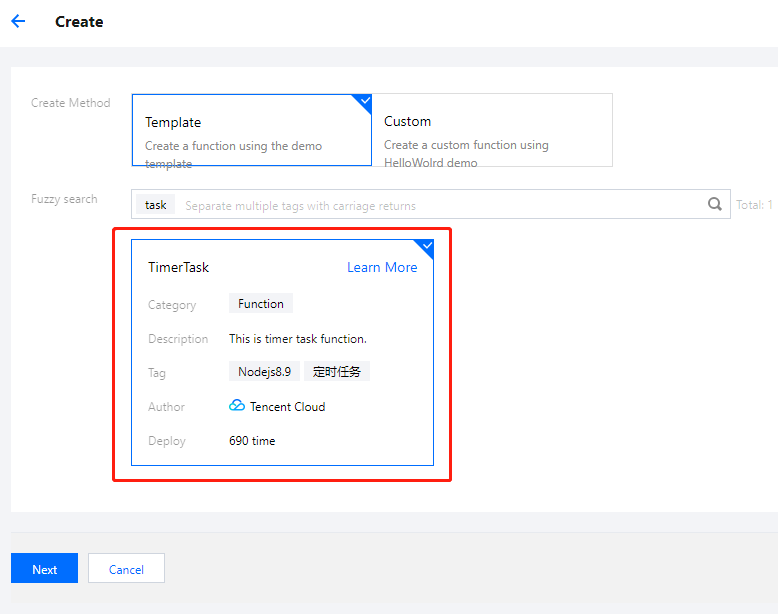
2. At the top of the Function Service page, select the Beijing region and click Create to enter the function creating page and configure the function as shown below:


Creation method: select Template.
Fuzzy search: enter TimerTask and search. Click Learn More in the template to view relevant information in the Template Details pop-up window, which can be downloaded.
3. Click Next, and the function name will be automatically generated by default. If you need to modify the function code, click to expand the Function Code block and make changes as instructed in Modifying function template.
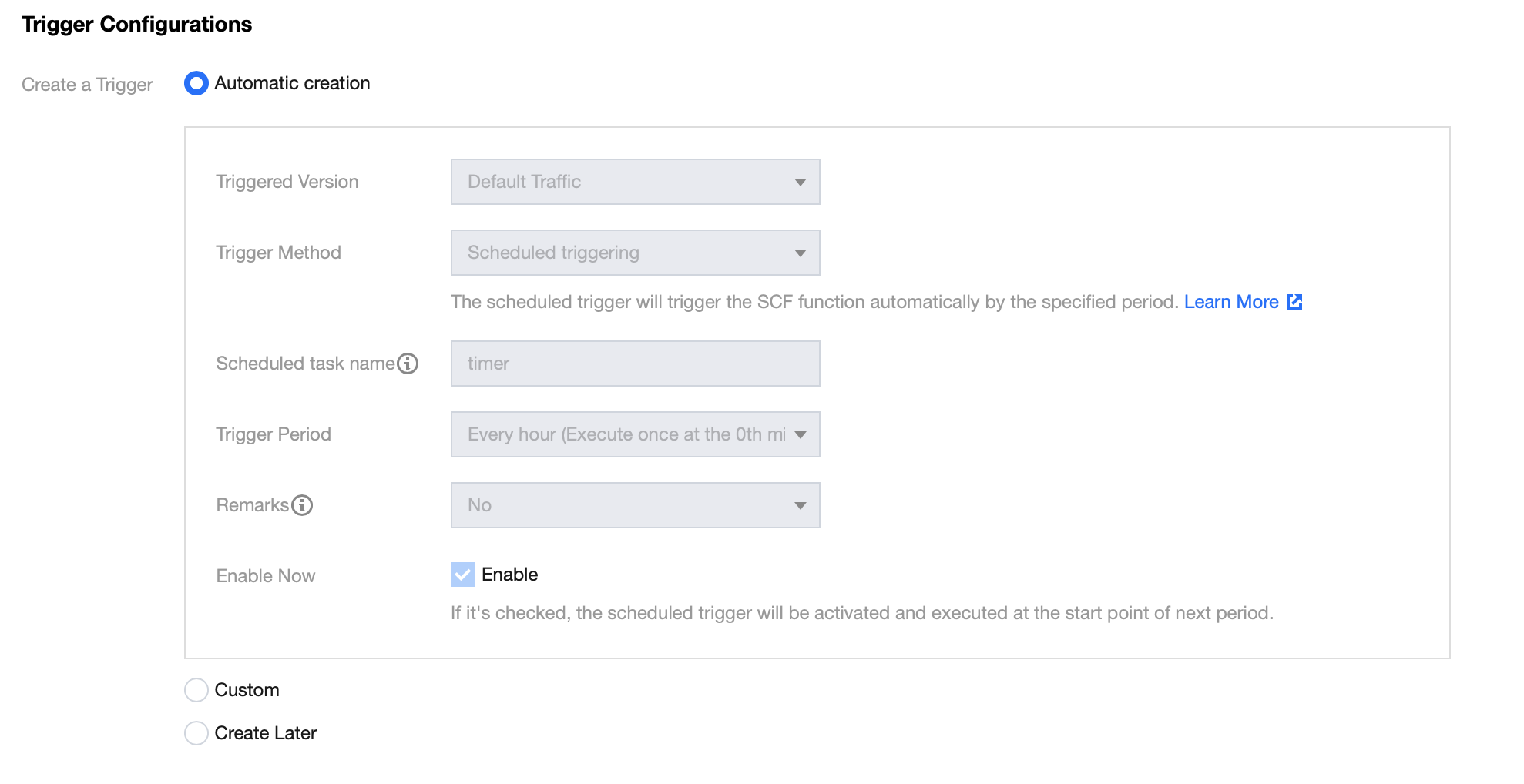
4. In the Trigger Configurations section, select Automatic creation, and a scheduled trigger that will run on the hour will be created by default as shown below:


Note:
If you need to adjust the trigger configuration according to your needs, please select Custom.
To create a scheduled trigger after the test is successful, please select Create Later.
5. Click Complete.

Testing function

1. At the bottom of the function code page, click Test to view the execution log of the function.
2. After the test is passed, you can configure the scheduled trigger in the Trigger Method tab according to the actual situation and check the related Base64 value.

Relevant Operations

Modifying function template

The current template function references Puppeteer to screencapture the webpage content and convert it to a Base64 value for printout in the function log. You can modify the template according to your own scheduled task needs. For example, run the following command to get the page title:
// Sample page title
const title = await page.title();
console.log(title);
Add the following code to set the page click attribute.
// Sample page click attribute
await page.click('a');
For more information on how to use Puppeteer, please see here. With this tool, you can access page content at scheduled times and perform task operations on the page, such as data crawling and sign-in.
ヘルプとサポート

この記事はお役に立ちましたか?

フィードバック