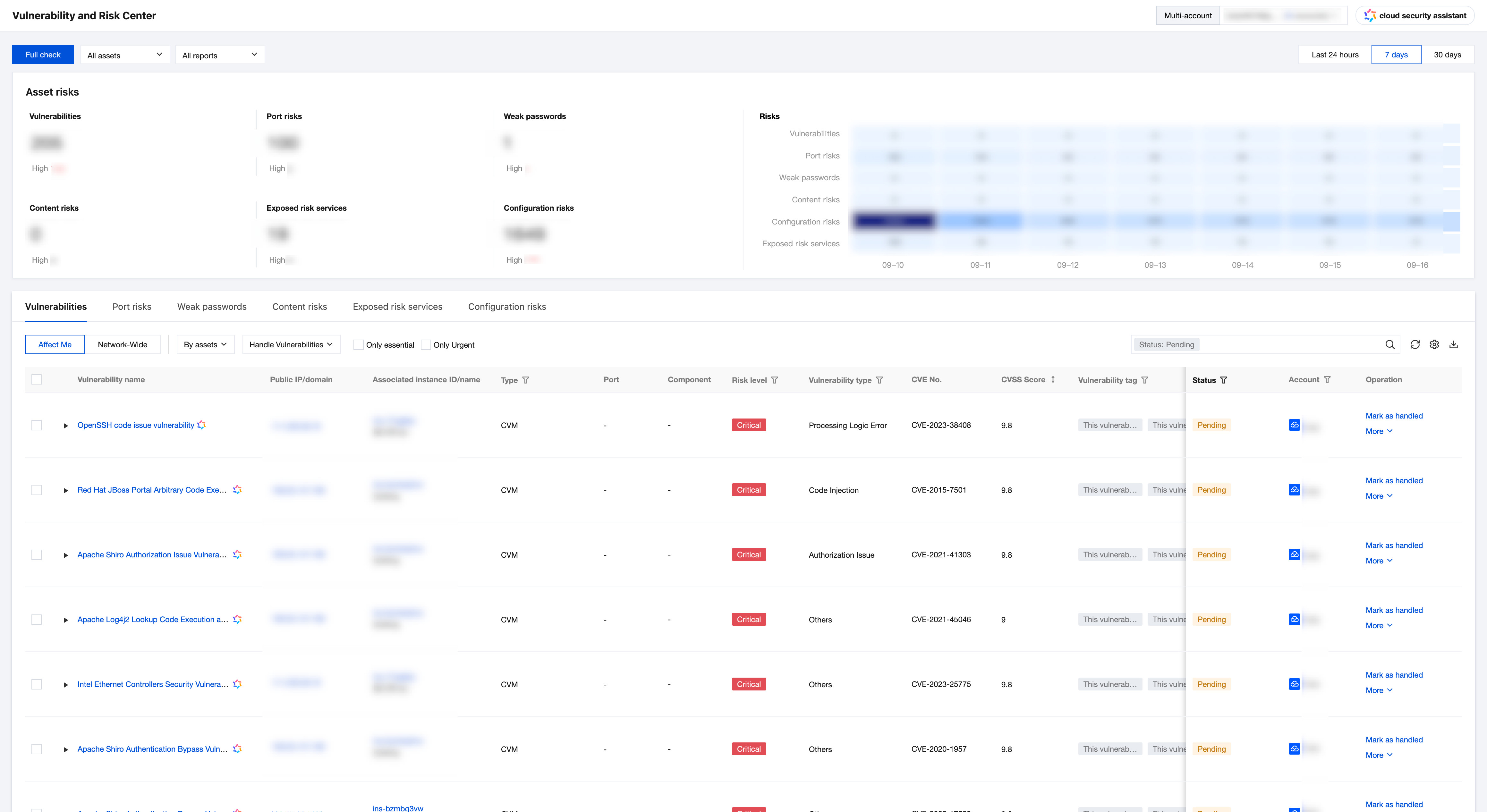
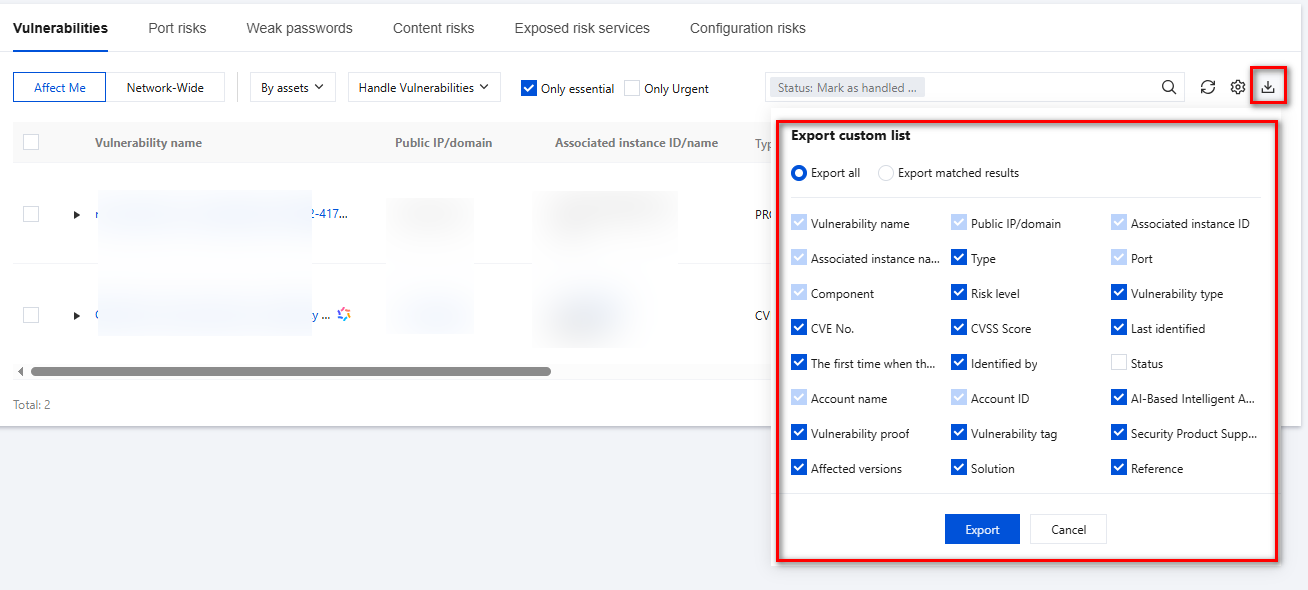
Vulnerability and Risk Center feature demonstrates risk data of existing assets, supporting detection of RiskTypes including vulnerability risk, port risk, weak password risk, risk service exposure, cloud resource configuration risk, host & container baseline risk. It provides statistics on the current risk overview, helping quick location of specific risks for risk handling.
View Risk Overview
1. Log in to the CSC console, click Vulnerability and Risk Center in the left navigation.
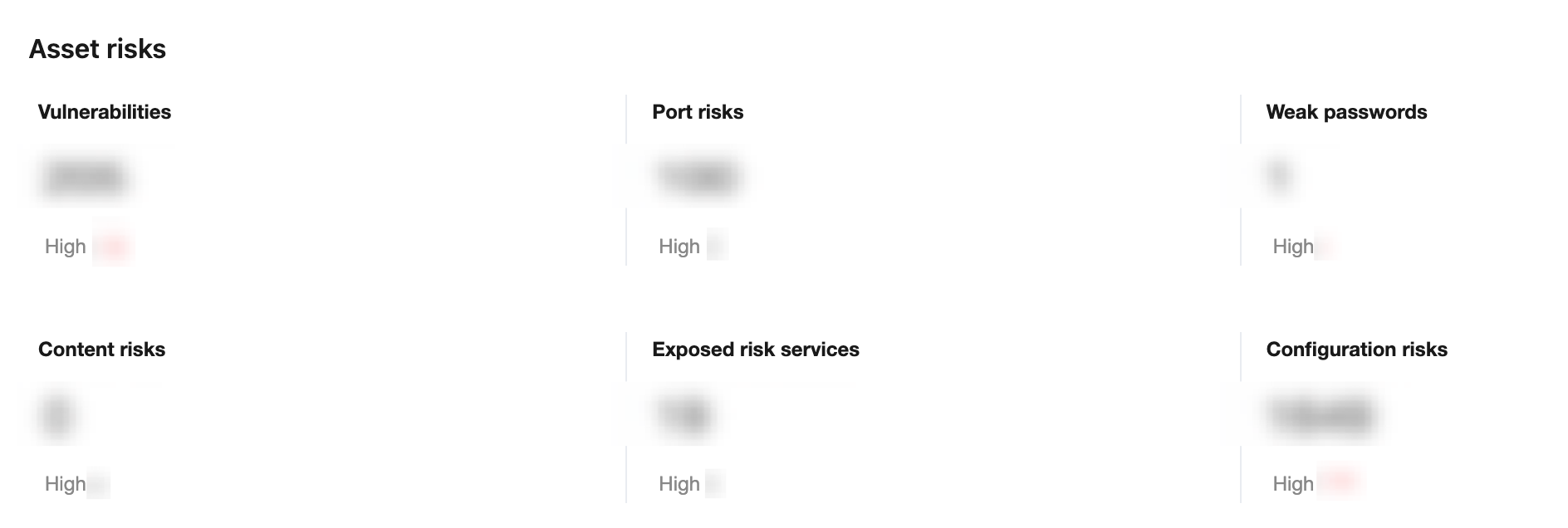
2. On the Vulnerability and Risk Center webpage, view the risk overview, filter based on asset and scan task.
3. Select the risk type, click the number, and the corresponding RiskType description will switch at the bottom of the page. Click the high-risk number, and the corresponding high-risk type details will switch at the bottom of the page.
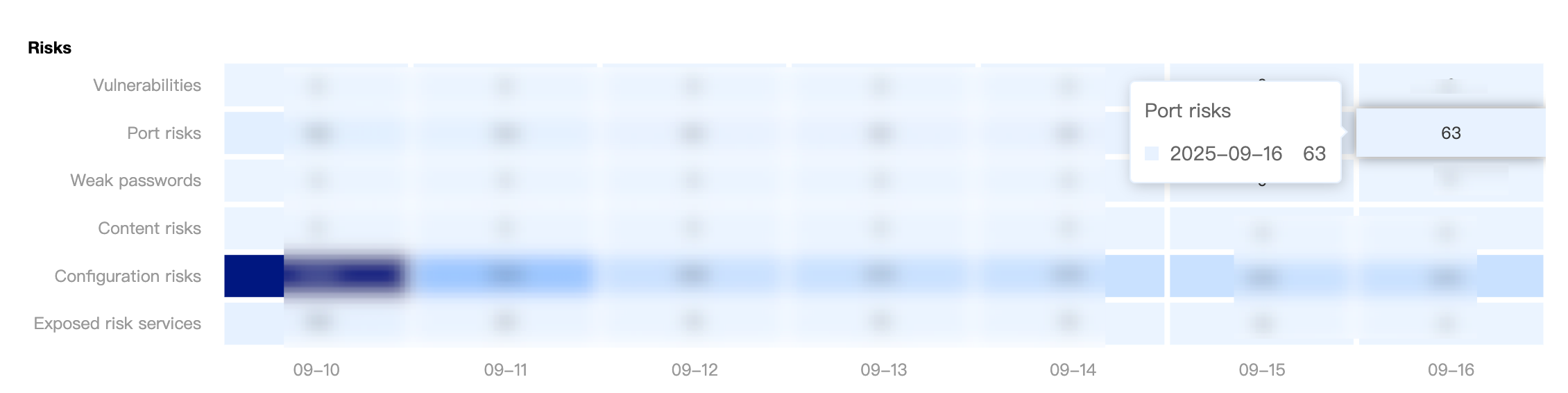
4. In the risk trend, you can view the number of risks in different time periods. Hover over the digits in the figure to display the scan time and risk quantity.
Viewing Different Types of Risk Details
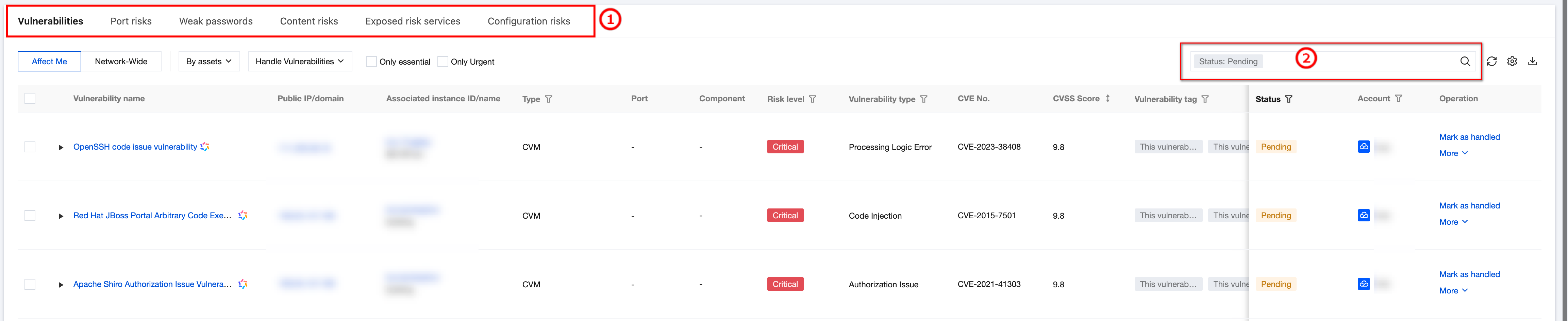
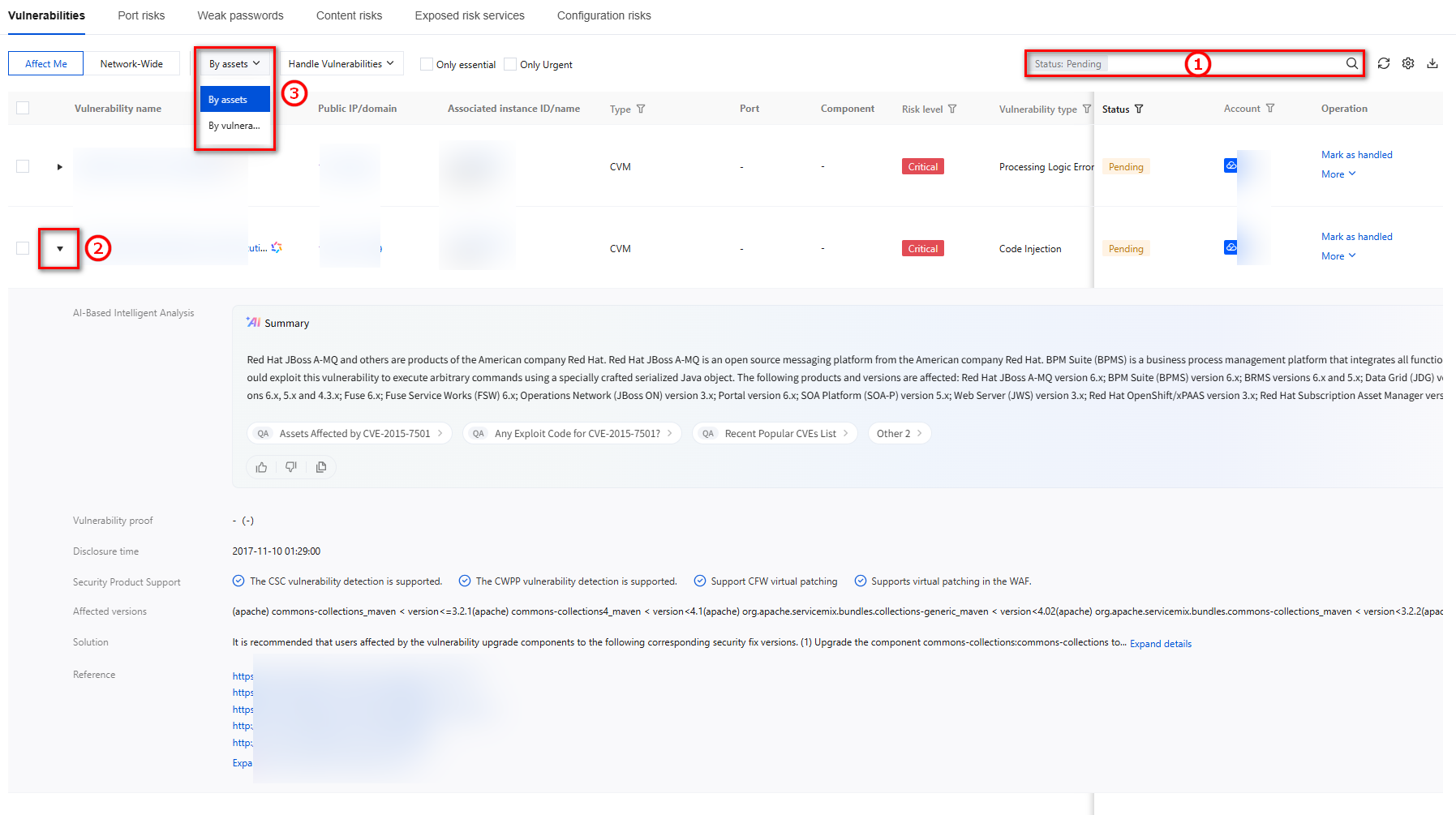
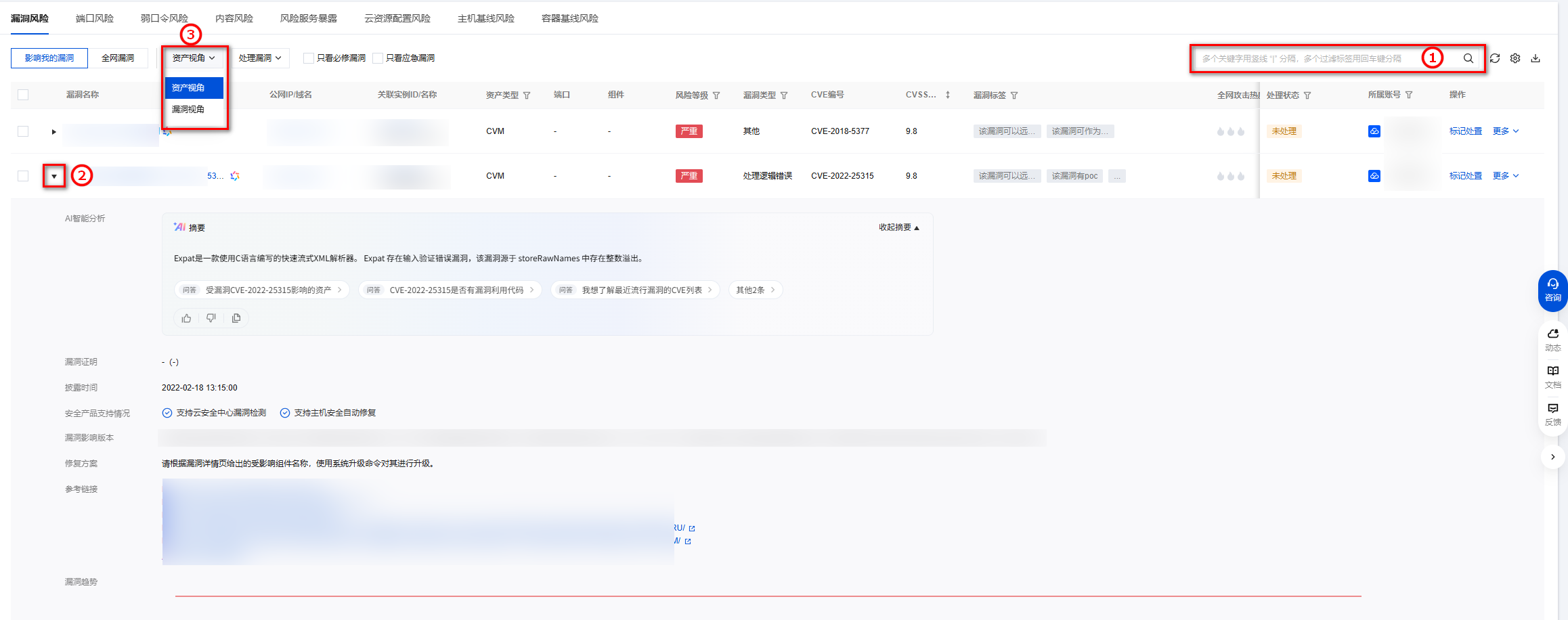
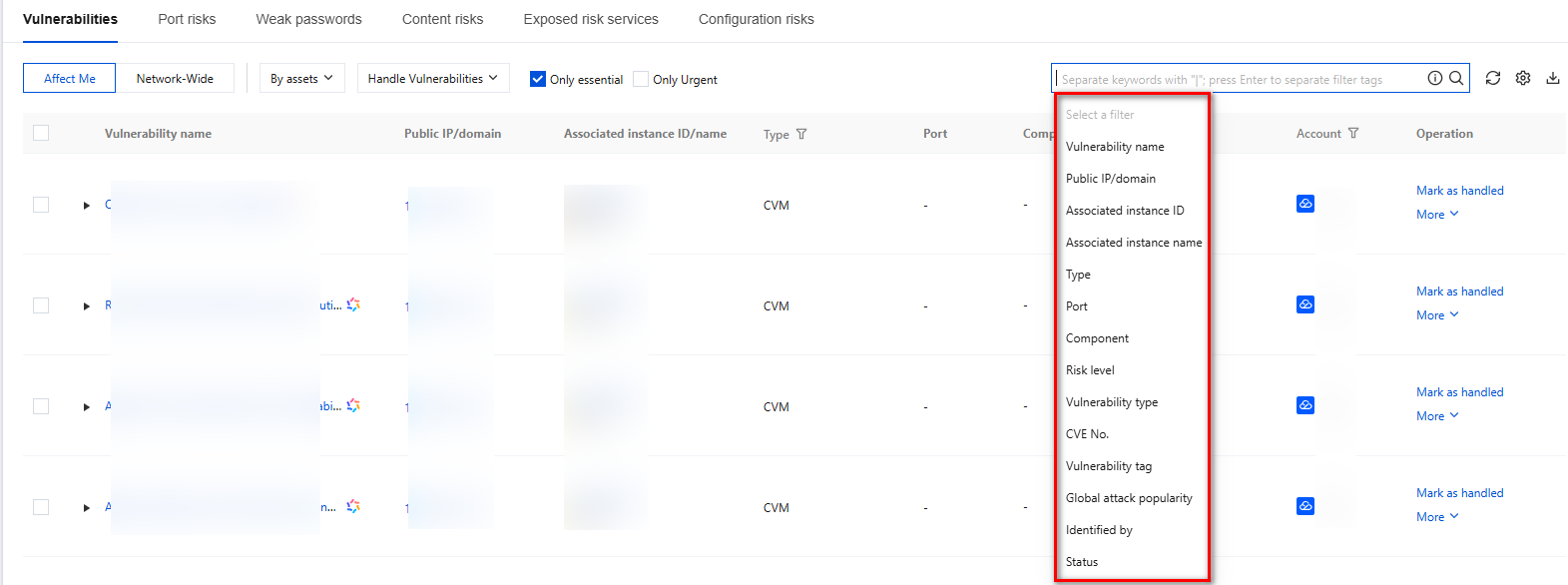
On the Vulnerability and Risk Center webpage, click ①RiskType to view various types of risk details. Unprocessed risks are displayed by default. Click ②Conditional filtering box to reset filter conditions and show all risk content.
Note:
Taking vulnerability risk as an example.
Vulnerabilities Affecting Me
On the Vulnerabilities Affecting Me tab, view vulnerability risks of scanned assets, including vulnerability name, affected assets, risk level, port group, vulnerability type, CVE No., scan time, and processing status.
① Click the search bar to filter and locate risks by keyword.
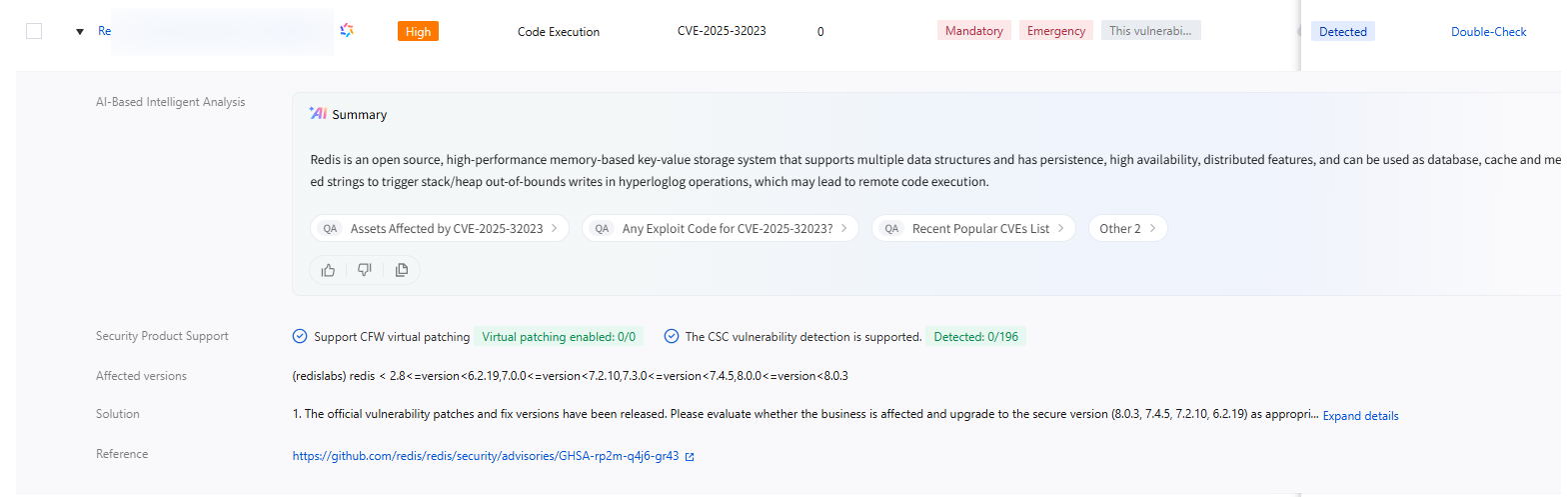
② Click
next to the vulnerability name to view vulnerability details.
③Support switching the viewing angle.
Asset perspective: Display vulnerability risk per asset.
By vulnerabilities: Display the number of affected assets and ports per vulnerability. Click the number in the affected assets column to go to the asset perspective showing asset information impacted by this vulnerability risk.
Network-Wide Vulnerabilities
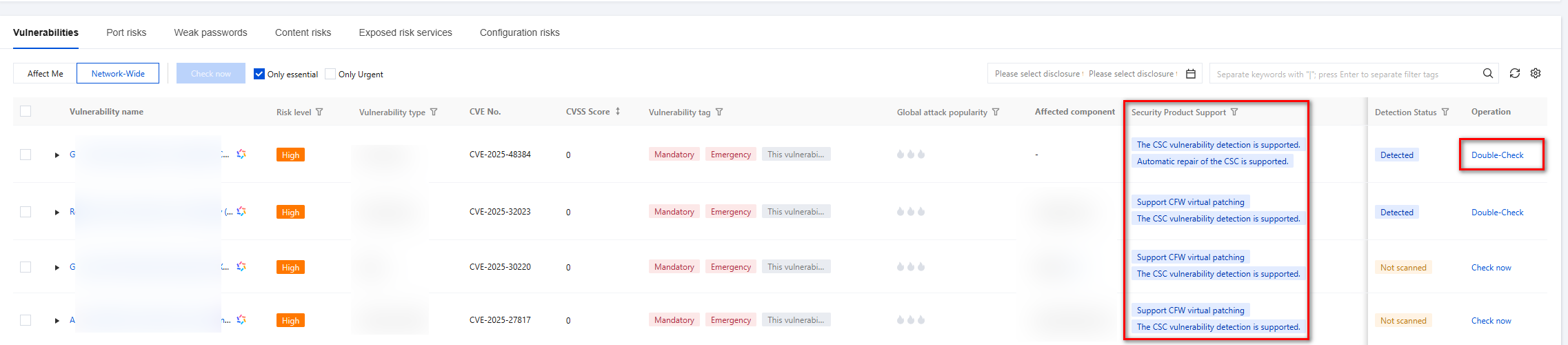
On the Network-Wide Vulnerabilities tab, view support for ALL recorded vulnerability information, including detected and not detected vulnerabilities.
If a security product that supports detection exists, you can launch detection with one click.
If no security product supports detection, you can view vulnerability details and troubleshoot and fix issues autonomously.
We recommend using CWP and CFW to block security risks with defensive measures. Risks after defense handling can be marked as processed, and the processing status changes to processed. If the risk is still detected in the next scan task, the processing status reverts to unprocessed.
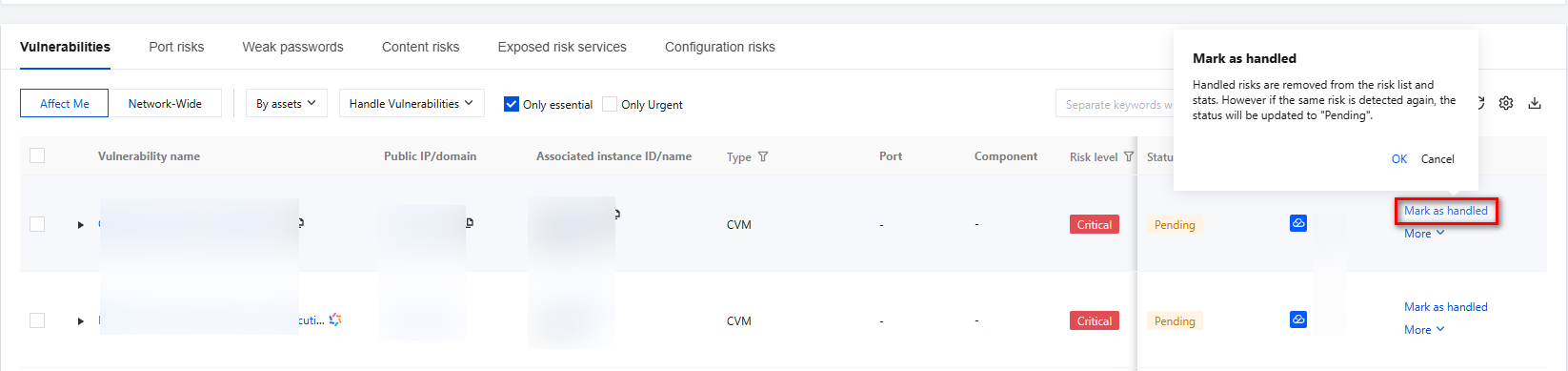
Select the target risk and click Mark as handled in the Action column.
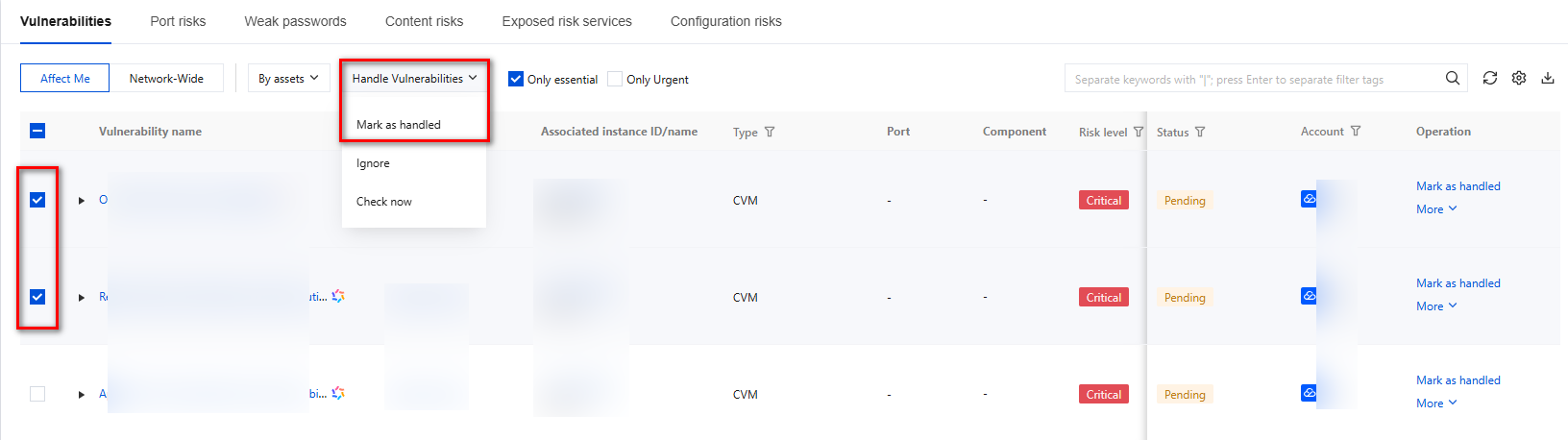
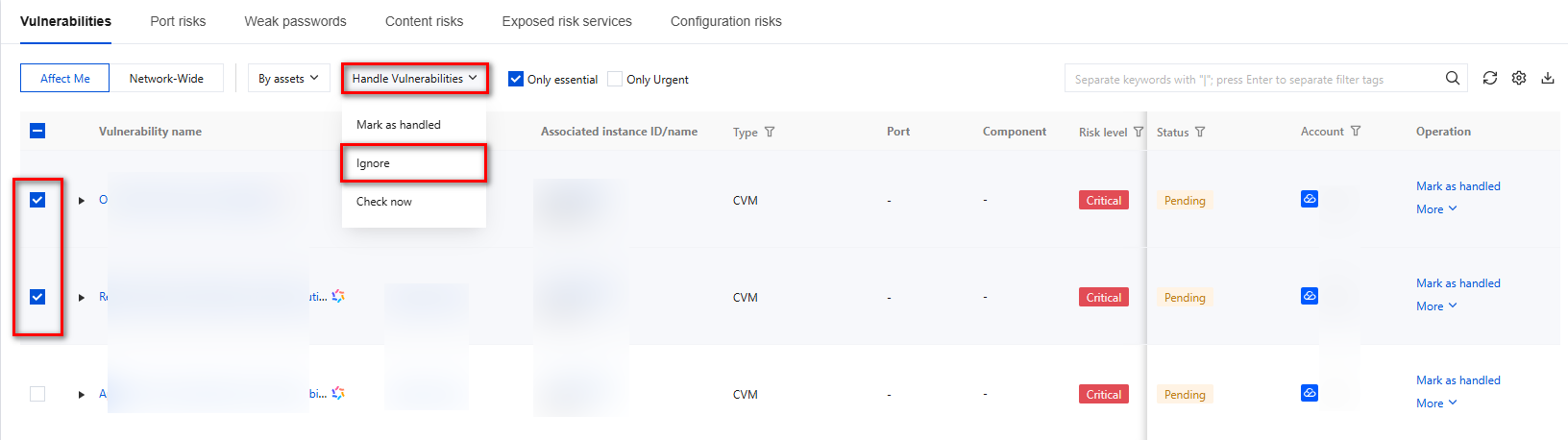
Batch: Select one or more risks, click Handle Vulnerabilities > Mark as handled in the upper left corner.
2. In the confirmation window, click OK to mark the target risk as processed.
Mark As Ignored
When a scan generates a false positive risk or the risk is considered to require no action, you can ignore the risk. In subsequent scan tasks, the risk will be filtered.
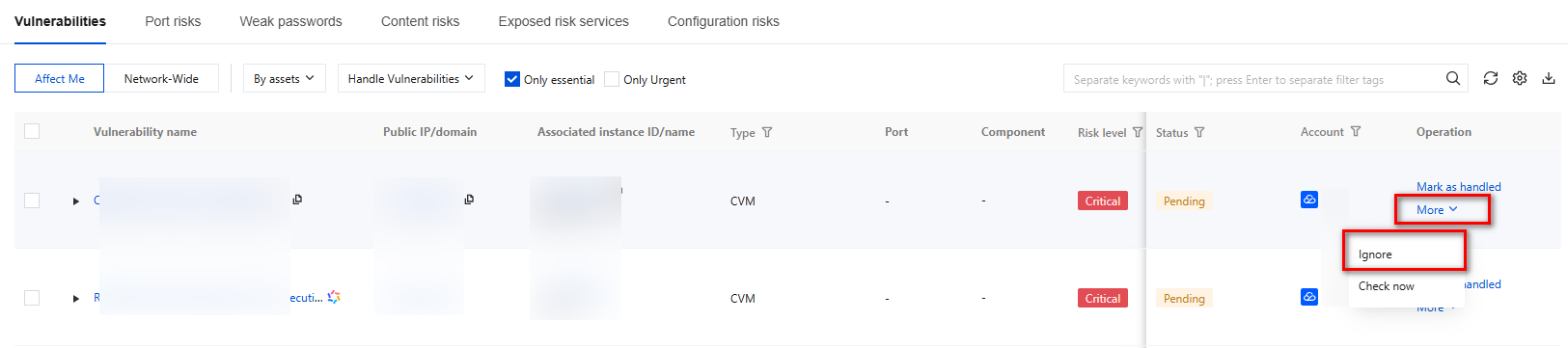
Select the target risk, click More in the Action column, then Ignore.
Batch: Select one or more risks, click Handle Vulnerabilities > Ignore in the upper left corner.
2. In the confirmation window, click OK to change the target risk status to ignored.
Unmark
When an Alarm requires re-analysis, the processing status will restore to unprocessed after unmarking.
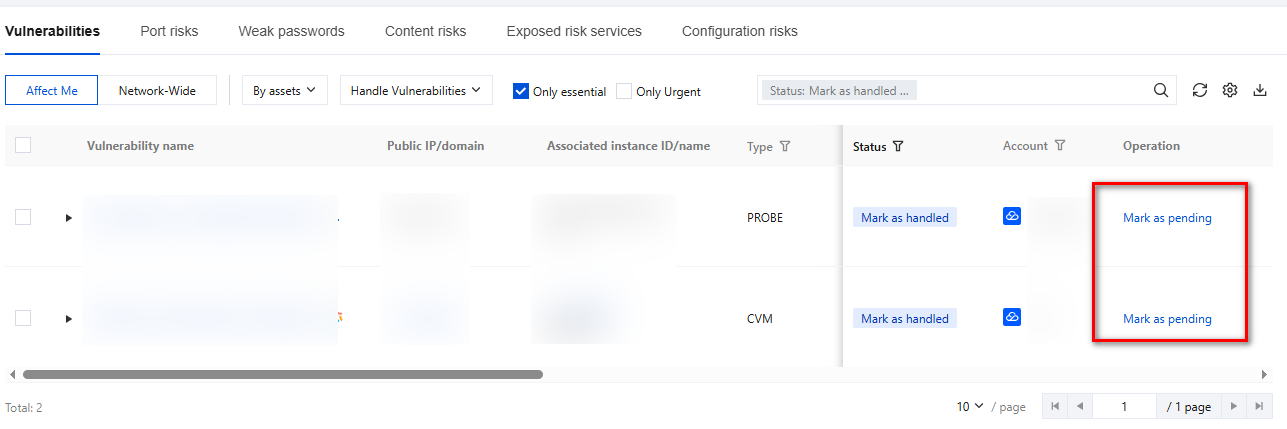
When risks are processed or ignored, on the Vulnerability and Risk Center page, select the target risk, then click Unmark Disposal or Unmark Ignored in the Action column to cancel.