Overview
The organization admin can authorize sub-users to log in to and manage member accounts by creating organization management policies. This document describes how to do so in the console.
Note:
If the member account is newly created, please wait for 15 minutes before logging in, otherwise, you may not be able to enter the Tencent Cloud Console normally.
Directions
1. Adding authorization
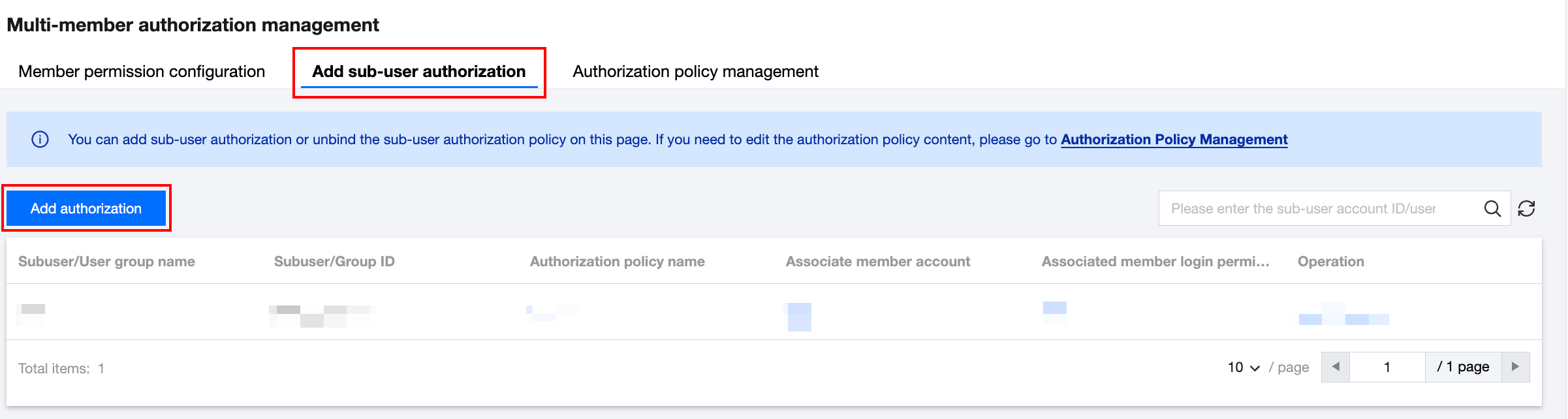
2. Click on the Add sub-user authorization tab, then click Add authorization. The details are as shown below:
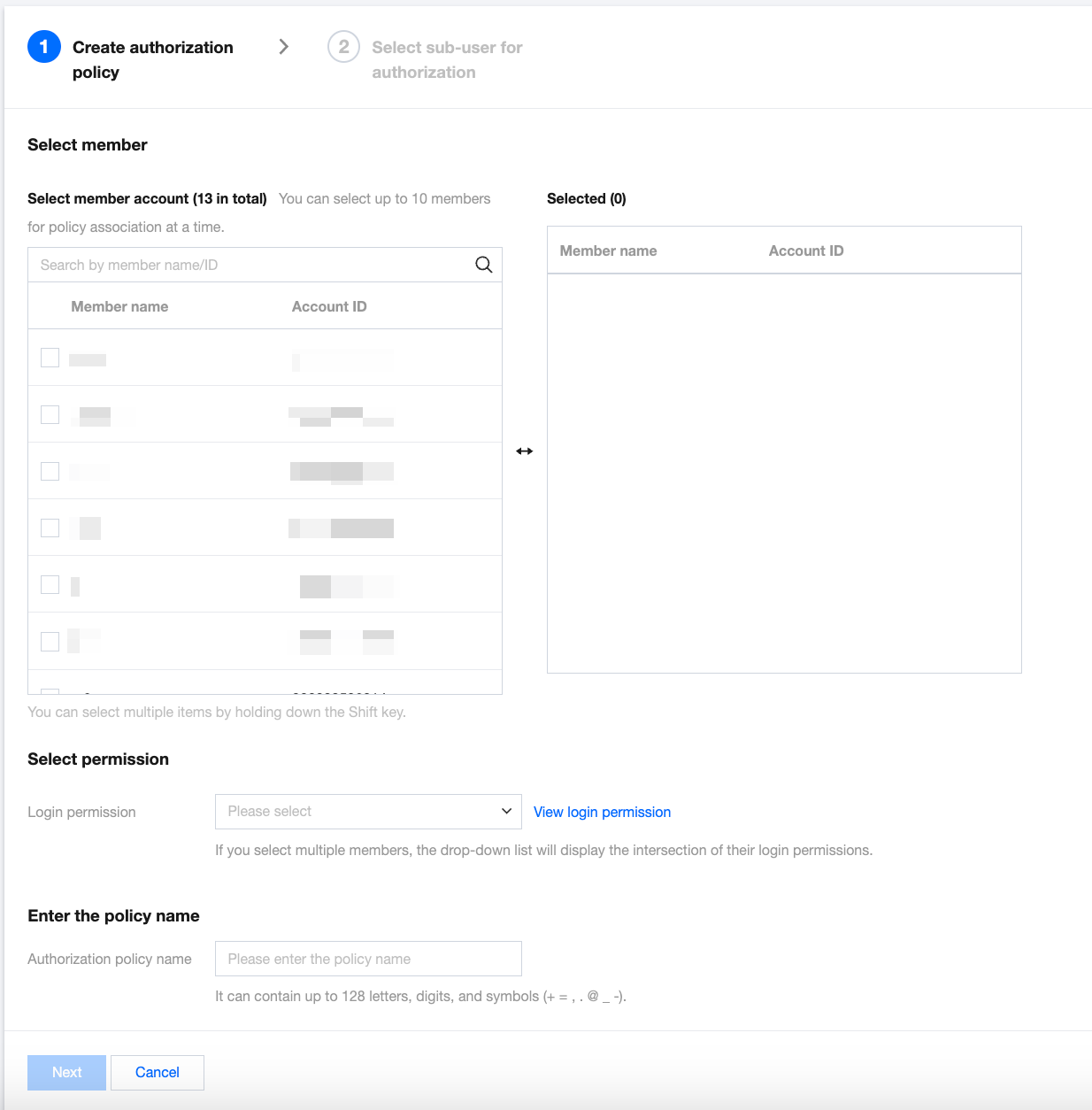
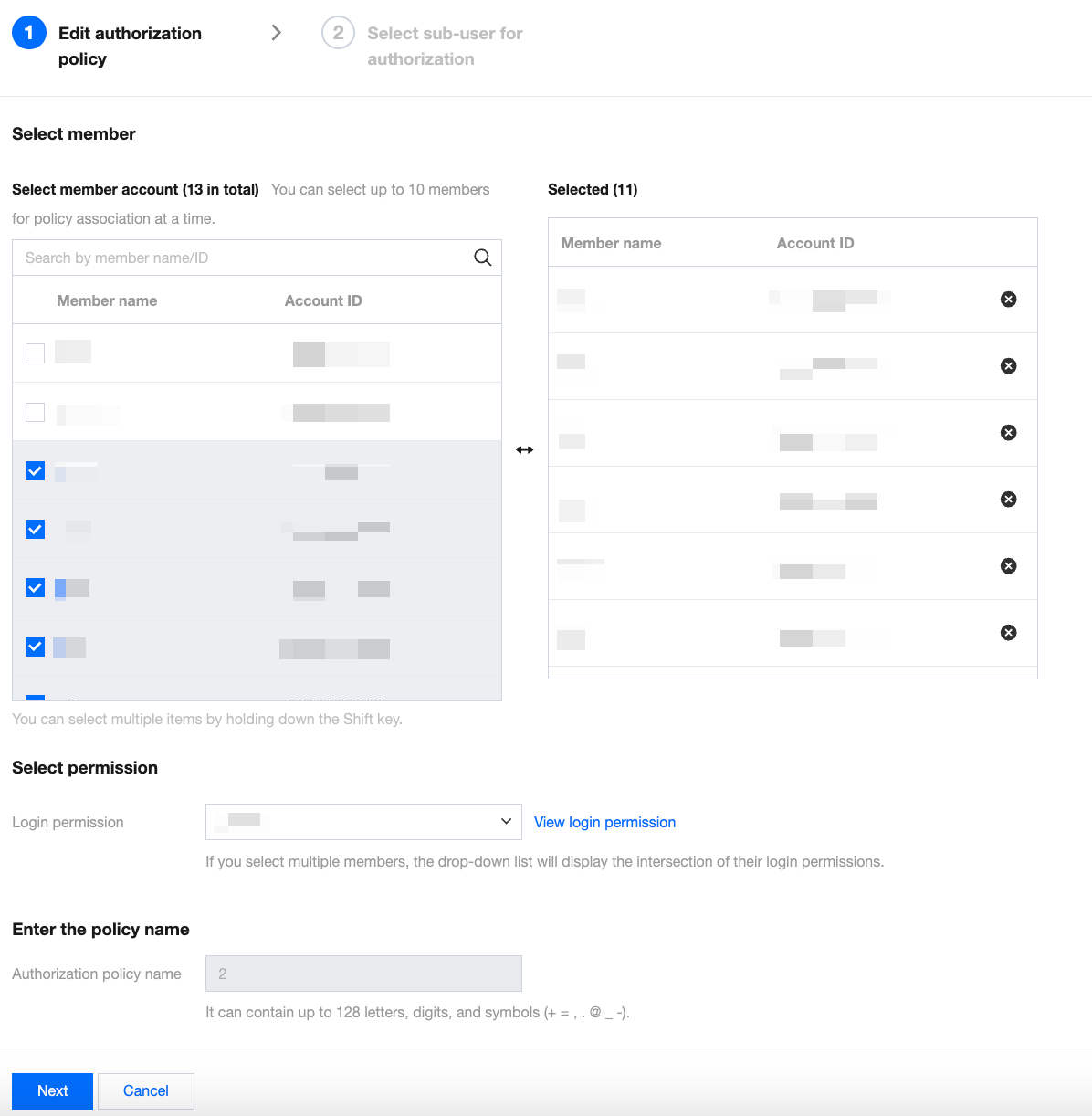
3. In the pop-up window, select members and permissions and enter the authorization policy name. The details are as shown below:
Note:
The policy created in this step is an organization management policy.
Group management policies cannot be modified or deleted within CAM. If you need to modify these policies, proceed to the Authorization Policy Management page. Authorization policy names must be unique.
For member accounts invited before the feature is released, authorization is not supported at this time. Please contact business services to enable the relevant features.
When multiple members are selected, the Login Permissions Dropdown menu displays the intersection of the login permissions of the selected members, and only one login permission can be chosen.
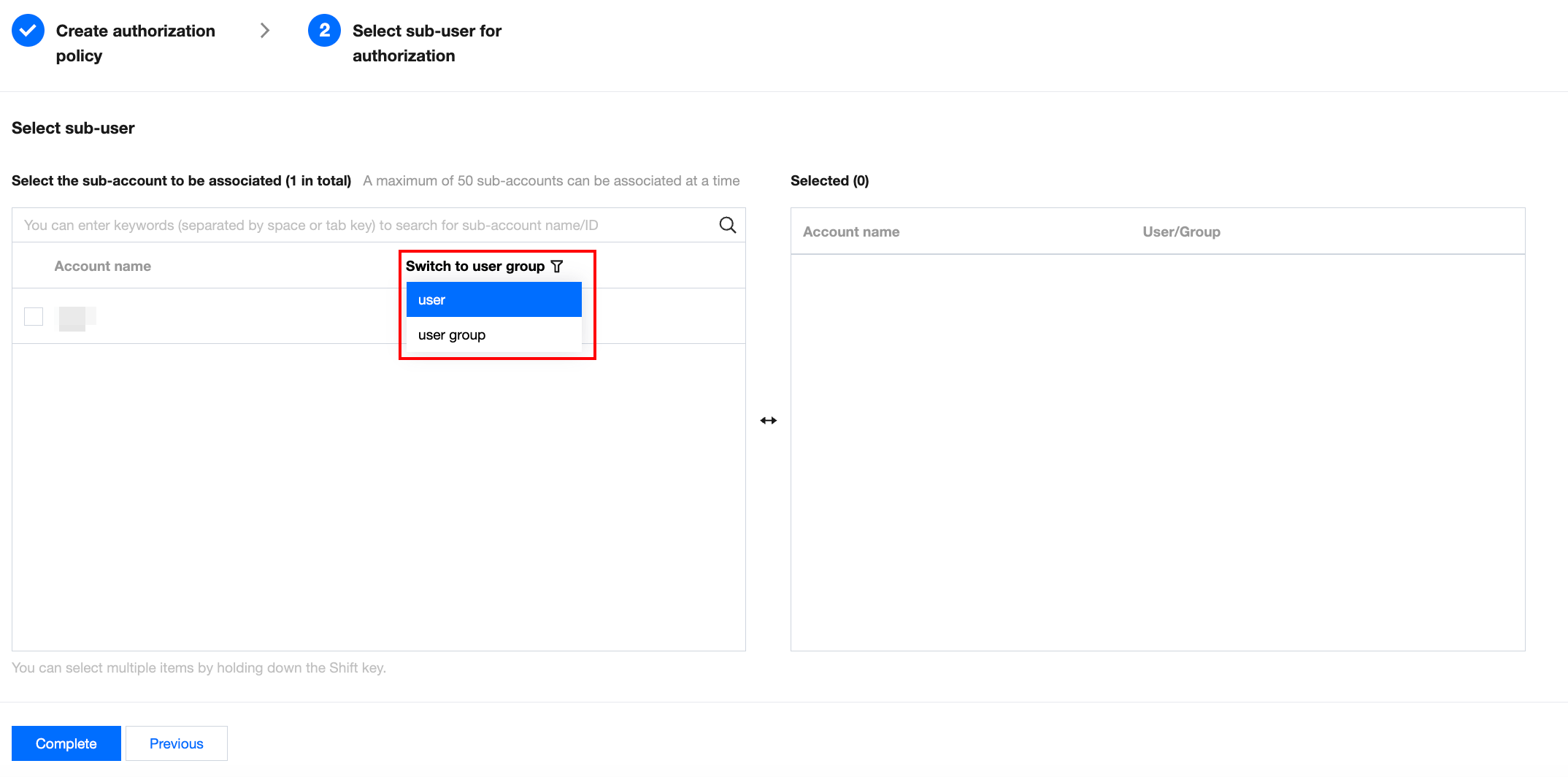
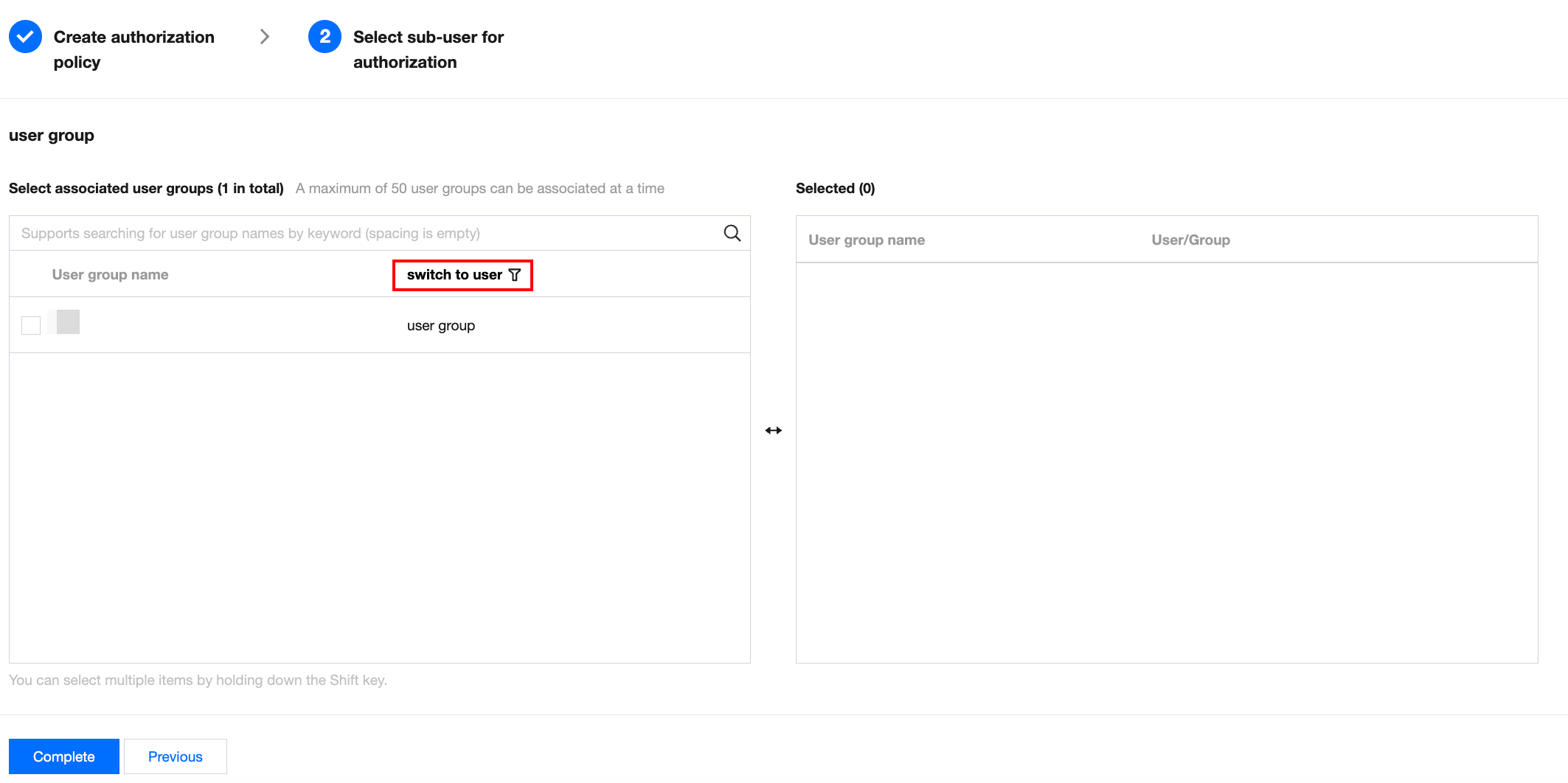
4. Click Next and select the sub-accounts you want to authorize. You can select sub-users or user groups.
By default, sub-users are selected. If you wish to select a user group instead, you can switch to the user group as illustrated below.
Upon selecting a user group, you can also switch to a sub-user, as illustrated below.
5. Click Complete to complete the authorization.
2. Logging in to the console with the sub-account
After completing the authorization, you may log in to the member console using the corresponding sub-account and carry out management operations.
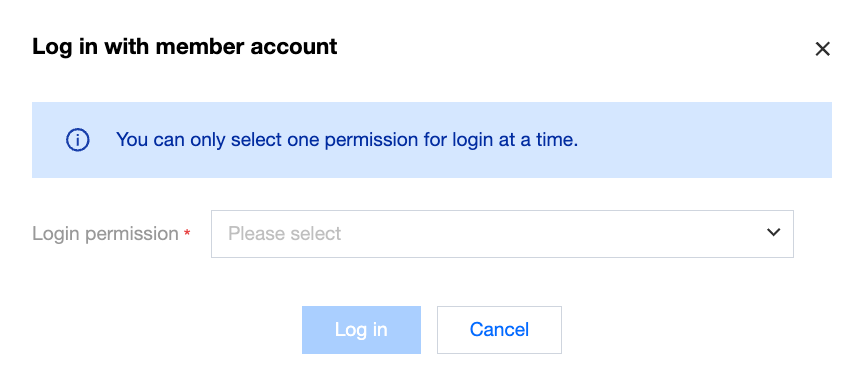
1. Log in to the TCO console with the authorized sub-account and select Member login on the left sidebar. 2. On the member login page, select the member account to which you want to log in and click Log in in the Operation column. In the pop-up window, select a login permission. The details are as shown below:
Note:
You can select one permission at a time.
Authorization to log in to member accounts is exclusively granted to sub-accounts of the admin account.
3. Canceling authorization
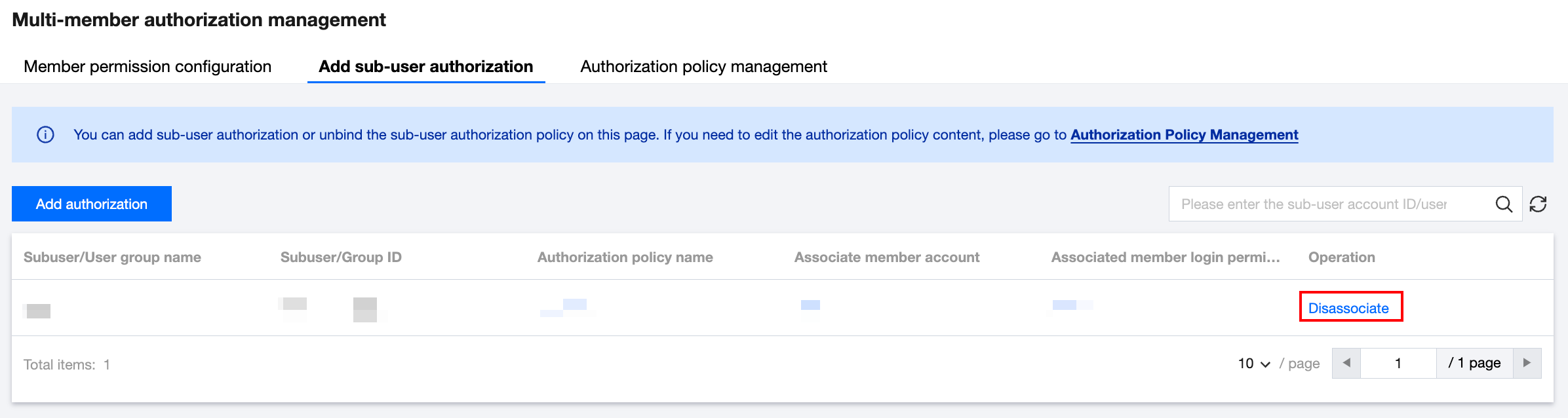
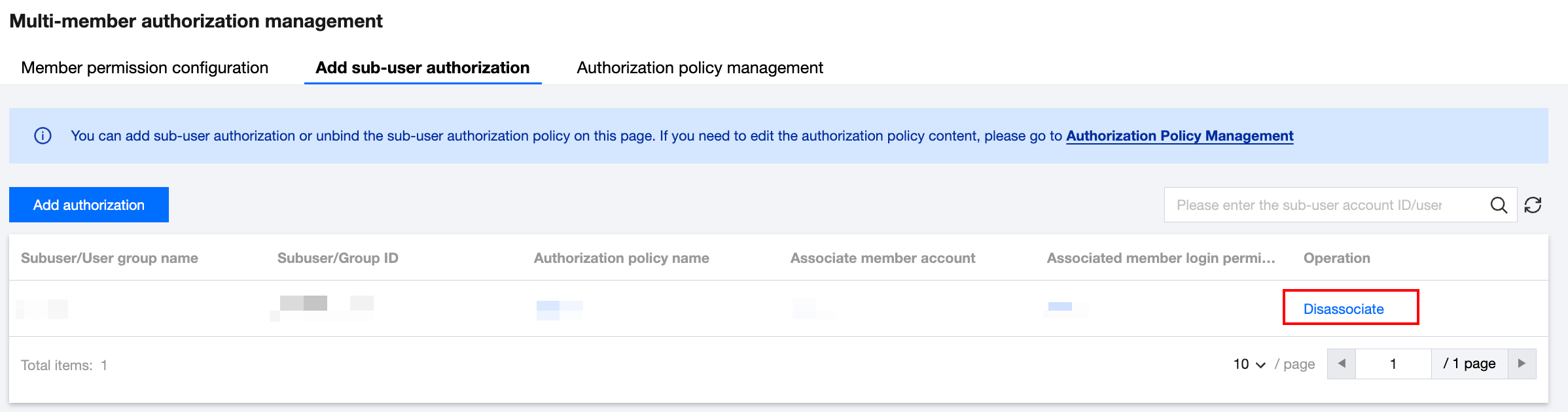
2. On the Add sub-user authorization page, click Disassociate in the Operation column.
3. Click OK to cancel the authorization.
Note:
If you cancel the authorization, this operation will also apply to all other members who have authorized this policy.
4. Modifying or deleting group management policies (authorization policies)
2. On the Authorization policy management tab, click Modify in the operation column to edit the policy content on the corresponding page. Note that the policy name cannot be modified.
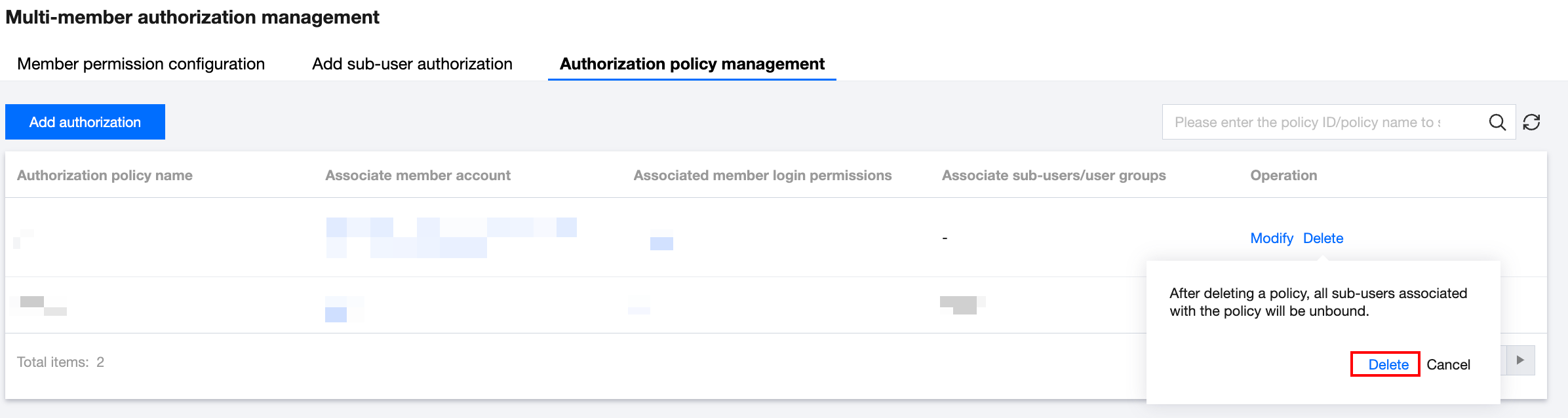
3. On the Authorization policy management tab, click Delete in the operation column. In the pop-up window, click Delete to remove the corresponding authorization policy.
5. Managing sub-users' permission to log in to member accounts
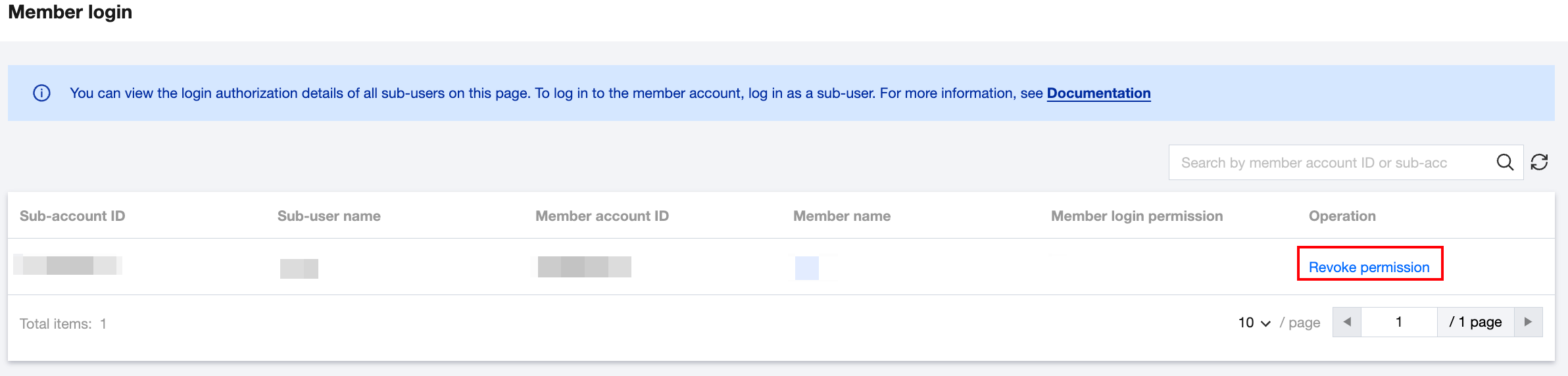
The root account (primary account) of the organization admin can view the list of all member accounts to which the sub-user can log in and can revoke the sub-user's login permission.
1. Log in to the TCO console and select Member login on the left sidebar. 2. On the Member login page, select the target member and click Revoke permission in the Operation column.
3. Alternatively, select Multi-Member Authorization Management from the left navigation bar. On the Add sub-user authorization page, click Disassociate in the operation column. 4. Click OK. The permission is revoked successfully.