tencent cloud

Tencent Cloud Organization

Product Introduction
Overview
Concepts
Purchase Guide
Operation Guide
Console Overview
Organization Settings
Department Management
Member Account Management
Member Finance Management
Member Access Management
Resource Management
Member Audit
Identity Center Management
API Documentation
History
Introduction
API Category
Making API Requests
Organization Settings APIs
Department and Member Management APIs
ListOrganizationIdentity
Unified Member Login APIs
Organization Service Management APIs
Organization Management Policy APIs
Resource Sharing APIs
Identity Center Management APIs
Identity Center User Management APIs
Identity Center User Group Management APIs
Identity Center Management SCIM Synchronization APIs
Identity Center Single Sign-On Management APIs
Identity Center Permission Configuration Management APIs
Identity Center Multi-Account Authorization Management APIs
Identity Center Sub-User Synchronization Management APIs
Data Types
Error Codes
TCO API 2018-12-25
Related Agreement
Statement of Tencent Cloud Customers’ Tencent Cloud Organization
FAQs
Concept
Basic
Operation
Glossary

Creating Member Login Permission

PDF
포커스 모드
폰트 크기
마지막 업데이트 시간: 2024-10-30 10:47:30

Overview

TCO allows the organization admin to create login permissions for members to manage member permissions in a refined manner. Authorized sub-users can only log in to the member account within the permission scope. This document describes how to create a member login permission in the TCO console.

Directions

Creating Login Permission

1. Log in to the TCO console and select Login permission settings on the left sidebar.
2. Click Create login permission.
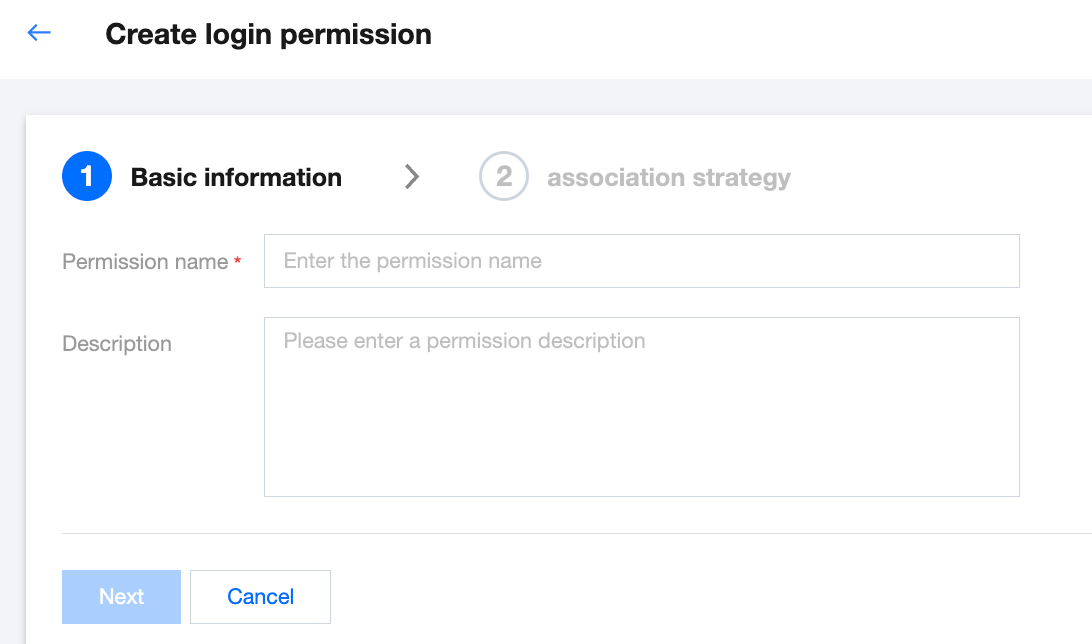
3. In the pop-up window, configure permission name, description, and associated permission policies as needed.
Note:
For more information about policies, see Basic Concepts.
3.1 Enter basic information for login permissions, which includes permission name and description. The permission name is mandatory, while the description is optional. After entering basic information, click Next .


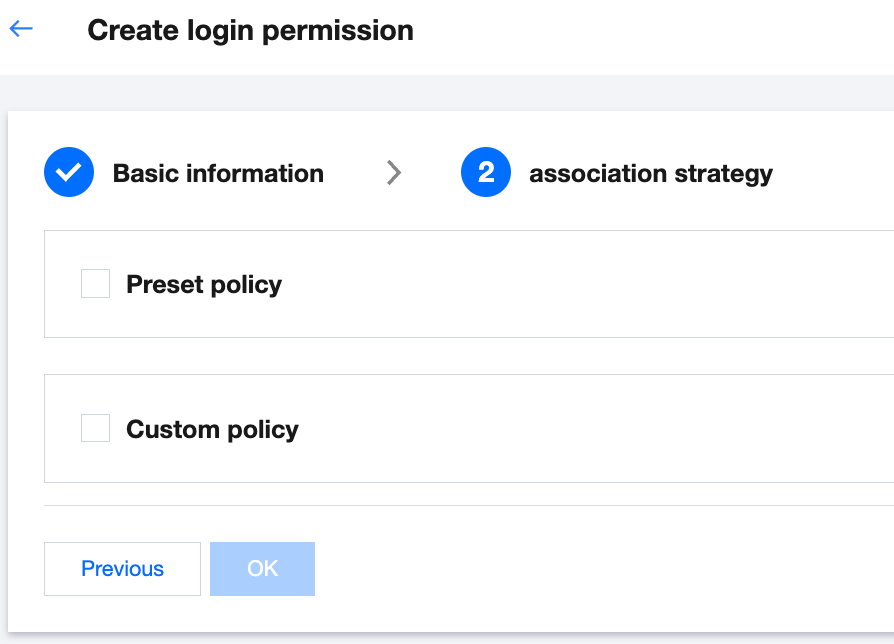
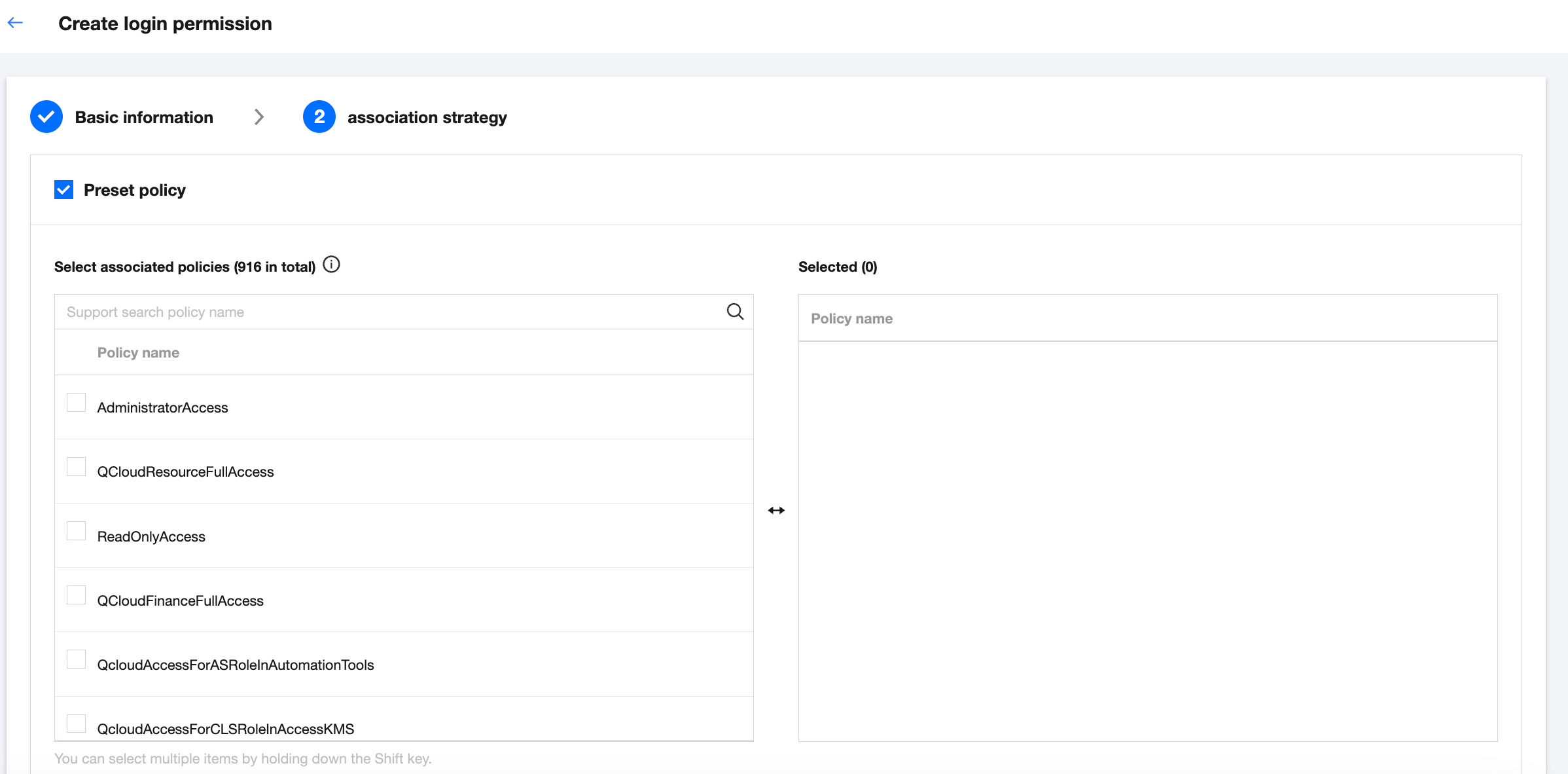
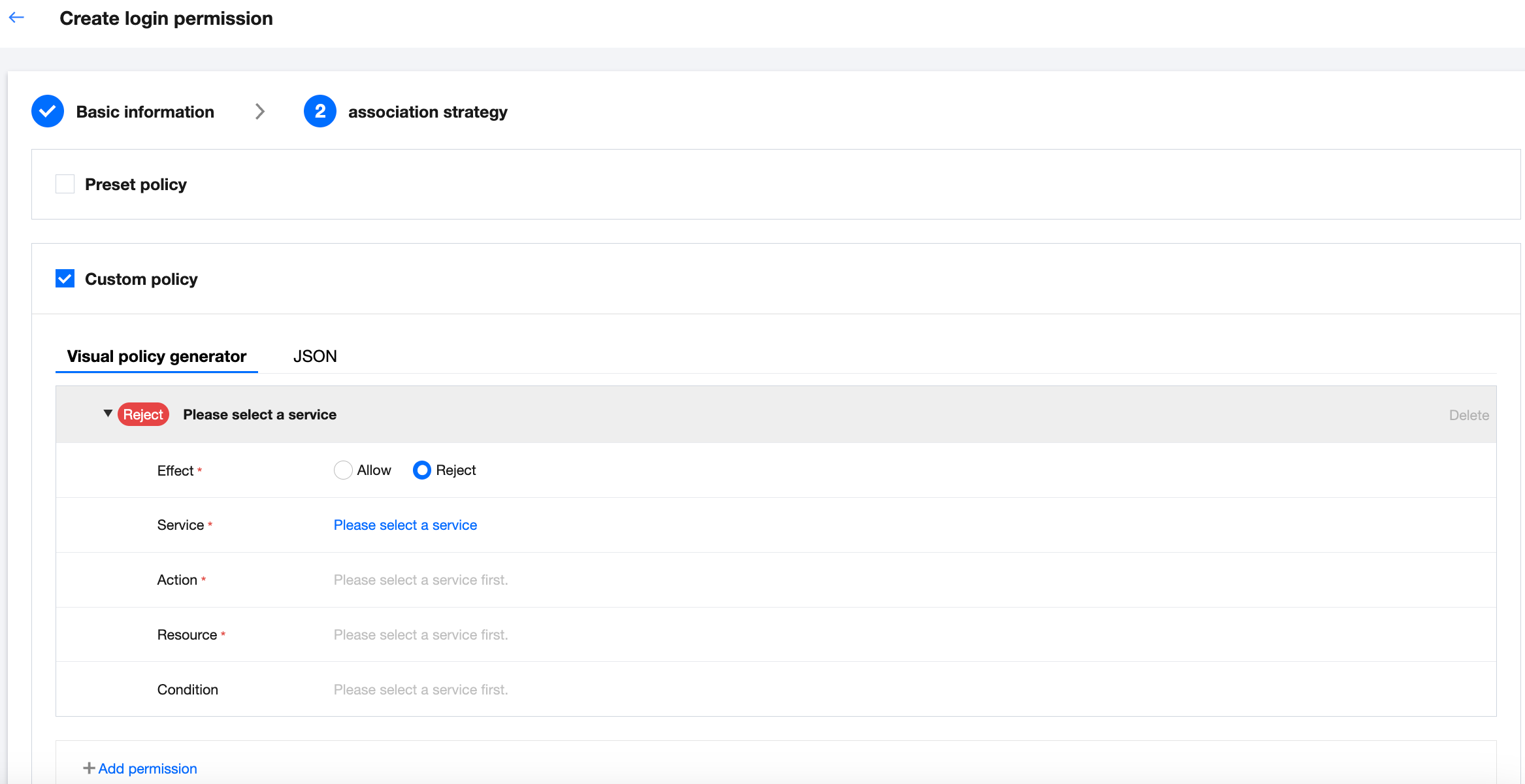
3.2 Select the policy associated with login permissions. Depending on your requirements, you may choose a preset policy or customize your own (both options can be selected simultaneously).


Select a preset policy by ticking the desired option in the preset policy list.


Select a custom policy. One may use the visual policy generator or JSON to tailor policies according to specific requirements.


4. Click OK. The login permissions are created successfully.
Note:
Admin is the default permission, with which a member account can have the admin permission.
The organization admin can create up to 30 custom permissions.
도움말 및 지원

문제 해결에 도움이 되었나요?

피드백