Overview
This document introduces the basic operations of user groups, including creating a user group, viewing user group information, modifying basic user group information, deleting a user group, adding a user to a user group, and removing a user from a user group.
Prerequisites
Directions
Creating a User Group
1. In the left sidebar, select User Management > User Group.
2. On the User Group page, click Create User Group.
3. On the Create User Group panel, enter User Group Name.
The User Group Name must be unique within the space.
4. Enter Remarks information.
5. Click OK.
Viewing User Group Information
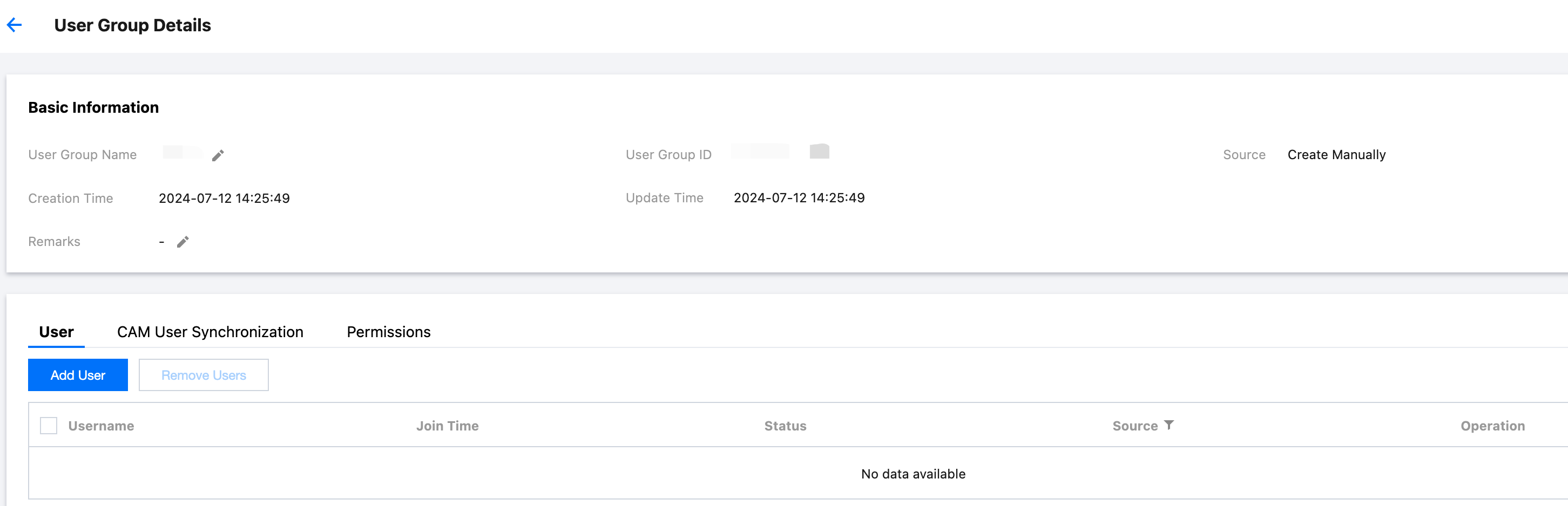
On the User Group list page, click the target user group name to view the following information:
View basic user group information.
Click the Users tab to view users in the user group.
Click the CAM User Synchronization tab to view the configured CAM user synchronization information.
Click the Permissions tab to view the associated accounts and permissions configuration information of the user group.
Modifying User Group Information
1. On the User Group list page, click the target user group name.
2. In the Basic Information area at the top of the User Group Details page, the fields that can be modified are: User Group Name and Remarks.
Deleting a User Group
Note:
Before deleting a user group, make sure the user group is not associated with the following resources, otherwise the deletion will fail. Details are as follows:
Users: You need to remove users from the user group.
Permissions: You need to delete the user group's authorization on the account.
CAM user synchronization: You need to delete the synchronization relationship of the user group on the account.
1. On the User Group page, click Delete in the Operation column of the target user group.
2. In the Delete User Group dialog box, click OK.
Adding a User to a User Group
1. On the User Group page, click the target user group name.
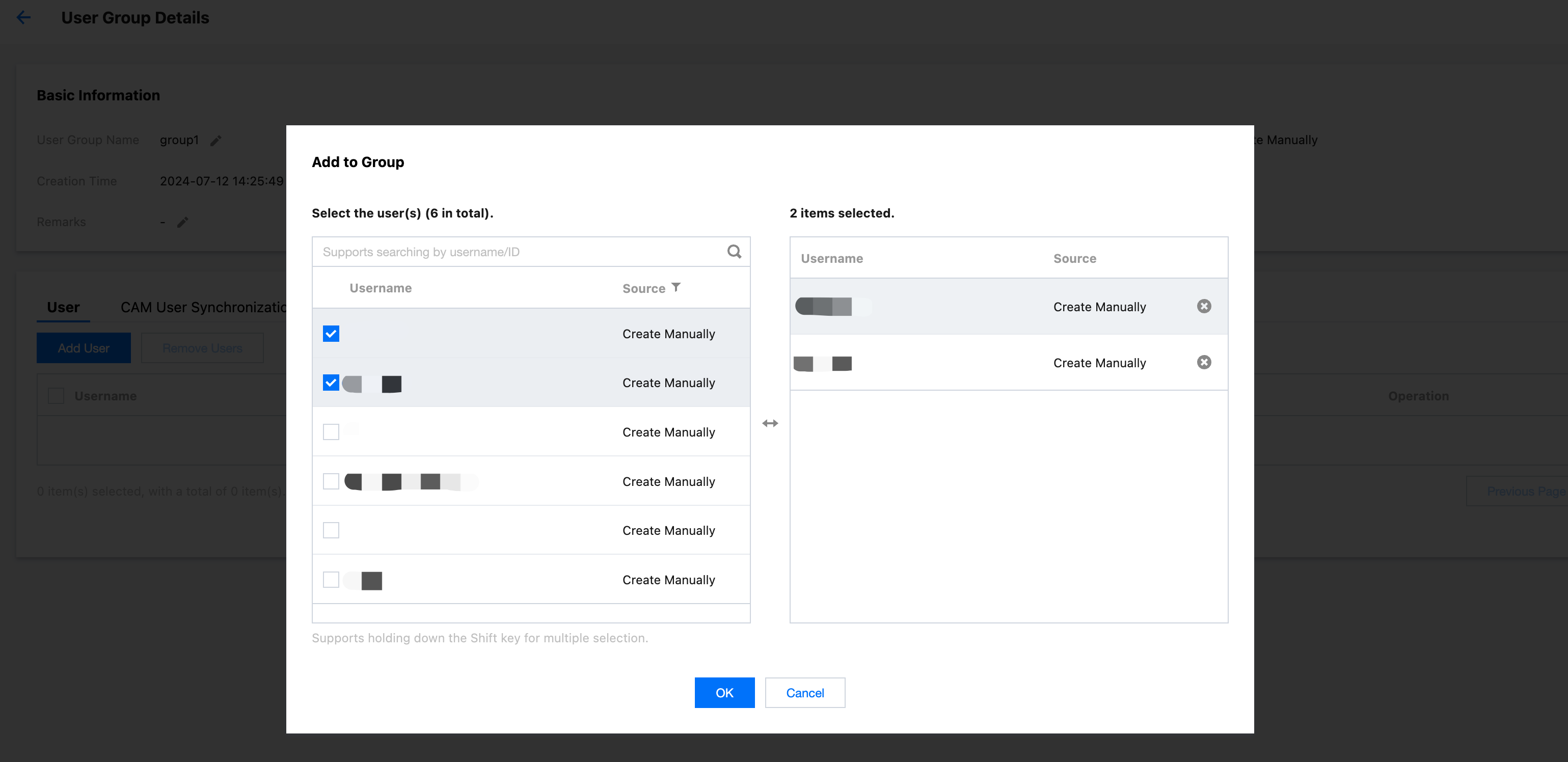
2. Click the Users tab, and then click Add User.
3. On the Add to Group panel, select User.
Note:
A user can join multiple user groups.
4. Click OK.
Removing a User from a User Group
1. On the User Group page, click the target user group name.
2. Click the Users tab.
3. Click Remove from Group in the Action column of the target user.
4. In the Remove User dialog box, click OK.