Overview
The SCIM key is required during SCIM synchronization. This document shows you how to create, disable, enable, and delete a SCIM key.
Use Limits
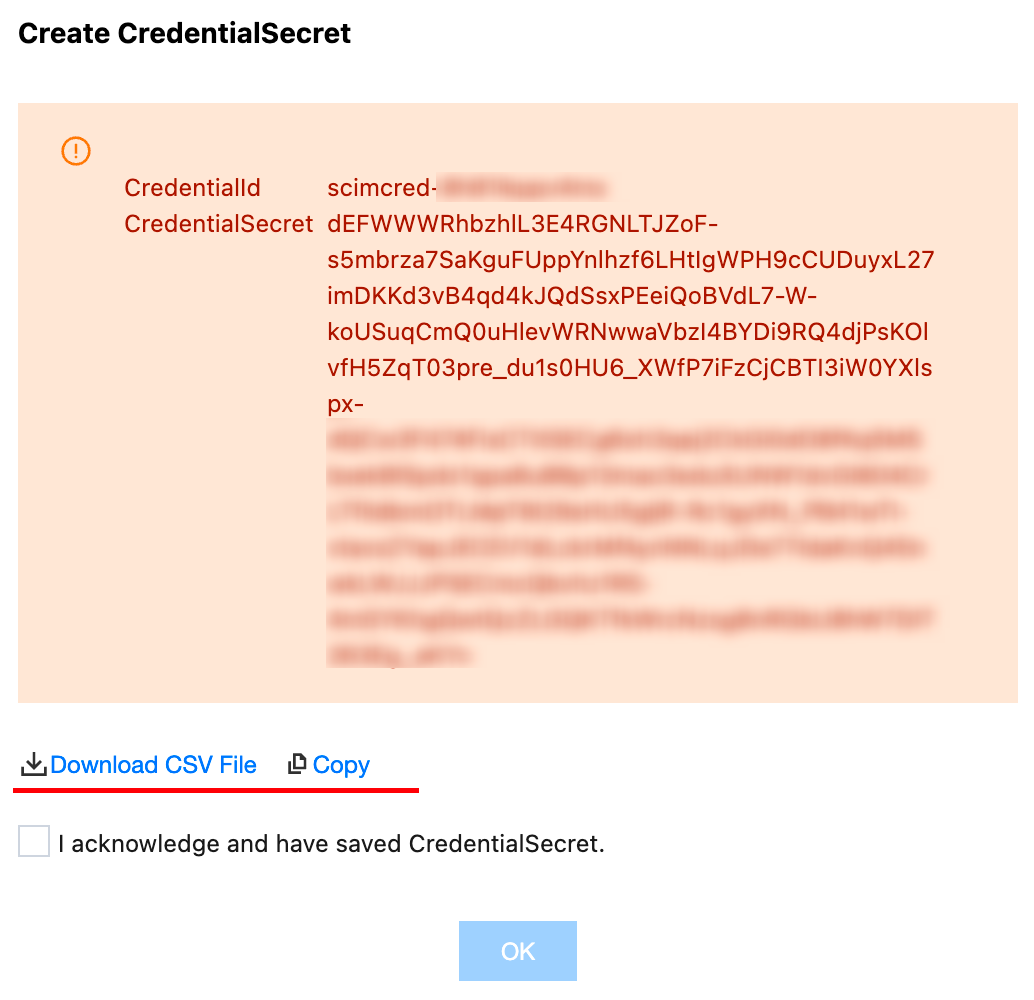
The SCIM key is only displayed at the time of creation and cannot be queried. Save the SCIM key in time.
Up to 2 SCIM keys can be created.
Creating a SCIM Key
Note:
The newly created SCIM key is enabled by default.
2. In the left navigation bar, click User Management > Settings.
3. Click Generate New SCIM Key in the SCIM User Synchronization Configuration area.
Note:
If you have not enabled SCIM User Sync, enable it first.
4. In the Create CredentialSecret dialog box, you can save the SCIM key by Download CSV File or Copy. After saving the key, click OK.
Disabling a SCIM Key
Warning:
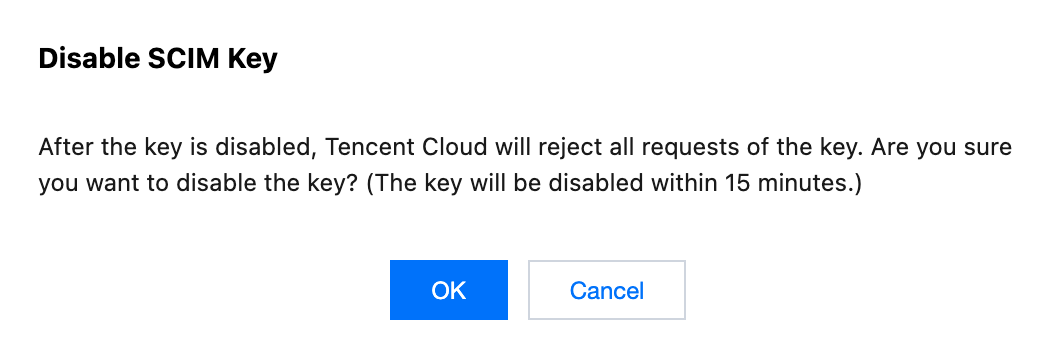
After disablement, sync tasks using this SCIM key will fail.
2. In the left navigation bar, click User Management > Settings.
3. In the SCIM User Synchronization Configuration area, click Disable for the target SCIM key.
4. Click OK in the Disable SCIM Key dialog box.
Enabling a SCIM Key
For a disabled SCIM key, you can enable it again.
2. In the left navigation bar, click User Management > Settings.
3. In the SCIM User Synchronization Configuration area, click Enable for the target SCIM key.
4. Click OK in the Enable SCIM Key dialog box.
Deleting a SCIM Key
For a SCIM key that you no longer use, you can delete it.
Warning:
After deletion, the SCIM key cannot be used anymore.
2. In the left navigation bar, click User Management > Settings.
3. In the SCIM User Synchronization Configuration area, click Delete for the target SCIM key.
4. Click OK in the Delete SCIM Key dialog box.