This document introduces how to create periodic and one-time health reports.
Usage Limits
To ensure the stability of report generation, it is recommended that each user/account create only one health report at a time. Please wait for the current report to complete before creating a new one.
Method 1: In the left sidebar, select Performance Optimization, and select a database type and an instance ID or shard ID at the top of the page. Select the Health Report tab, and at the top of the Health Report page, click Regular Health Report.
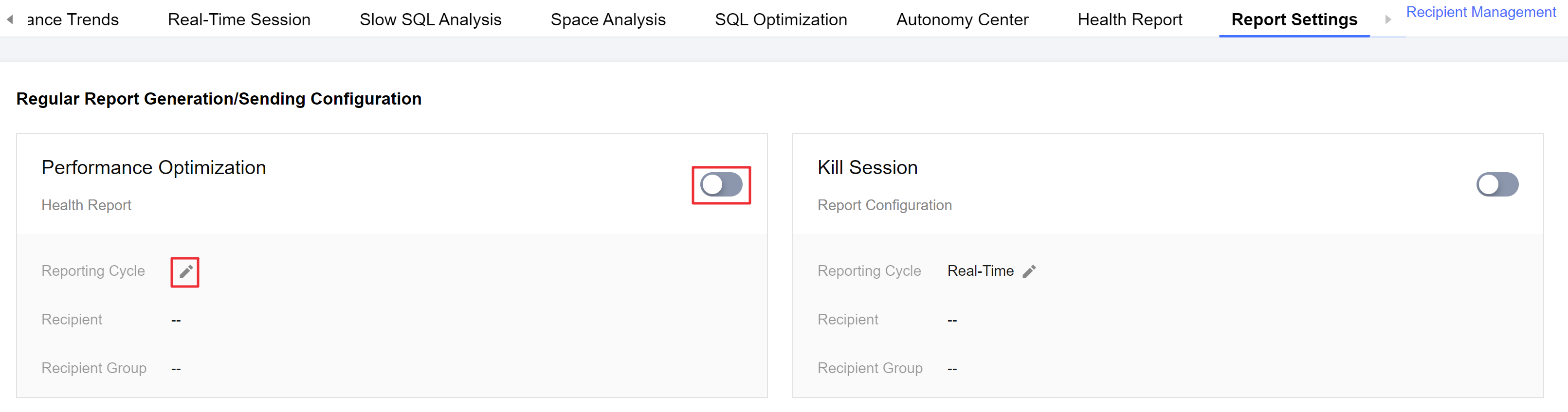
Method 2: In the left sidebar, select Performance Optimization. At the top of the page, select a database type and an instance ID or shard ID, and select the Report Settings tab.
1.3 Enable the Performance Optimization Health Report switch, then click
on the right side of the receive cycle option.
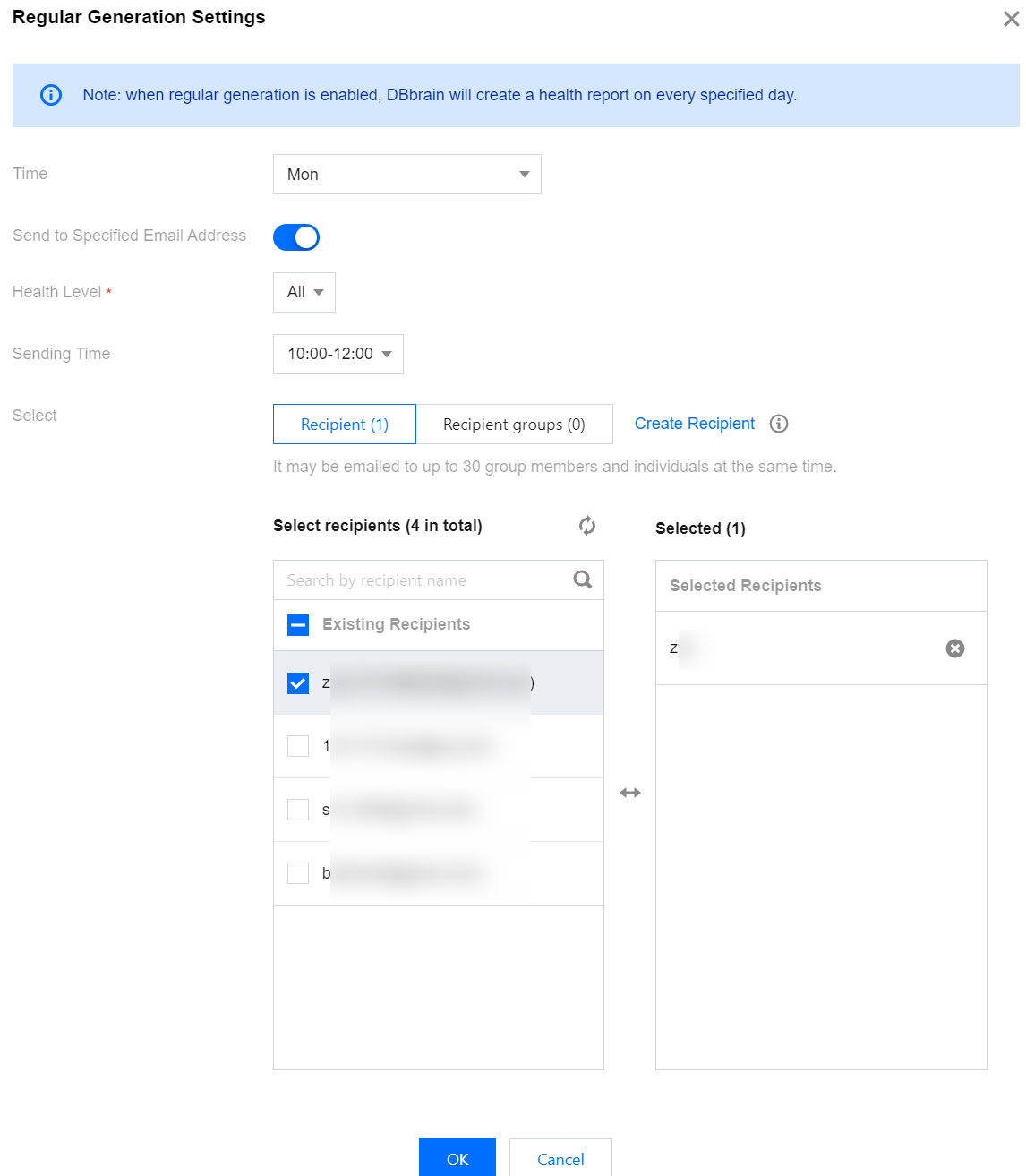
1.4 In the pop-up Periodic Generation Settings dialog box, select a time (such as an entire week, or specific days like Monday through Sunday), and click OK.
To push the health report to a specified contact email, enable the Send to Specified Email switch. For specific operations, see Scheduled Task Health Report SES.
Health reports generated using the above methods can be viewed in the Performance Optimization > Health Report section, under reports of type Scheduled Tasks. For specific operations, see Viewing Health Reports.
2. Select Performance Optimization in the left sidebar.
3. At the top of the page, select the database type, and then select the instance ID or the shard ID.
4. Select the Health Report tab, and then click Create Health Report at the top of the page.
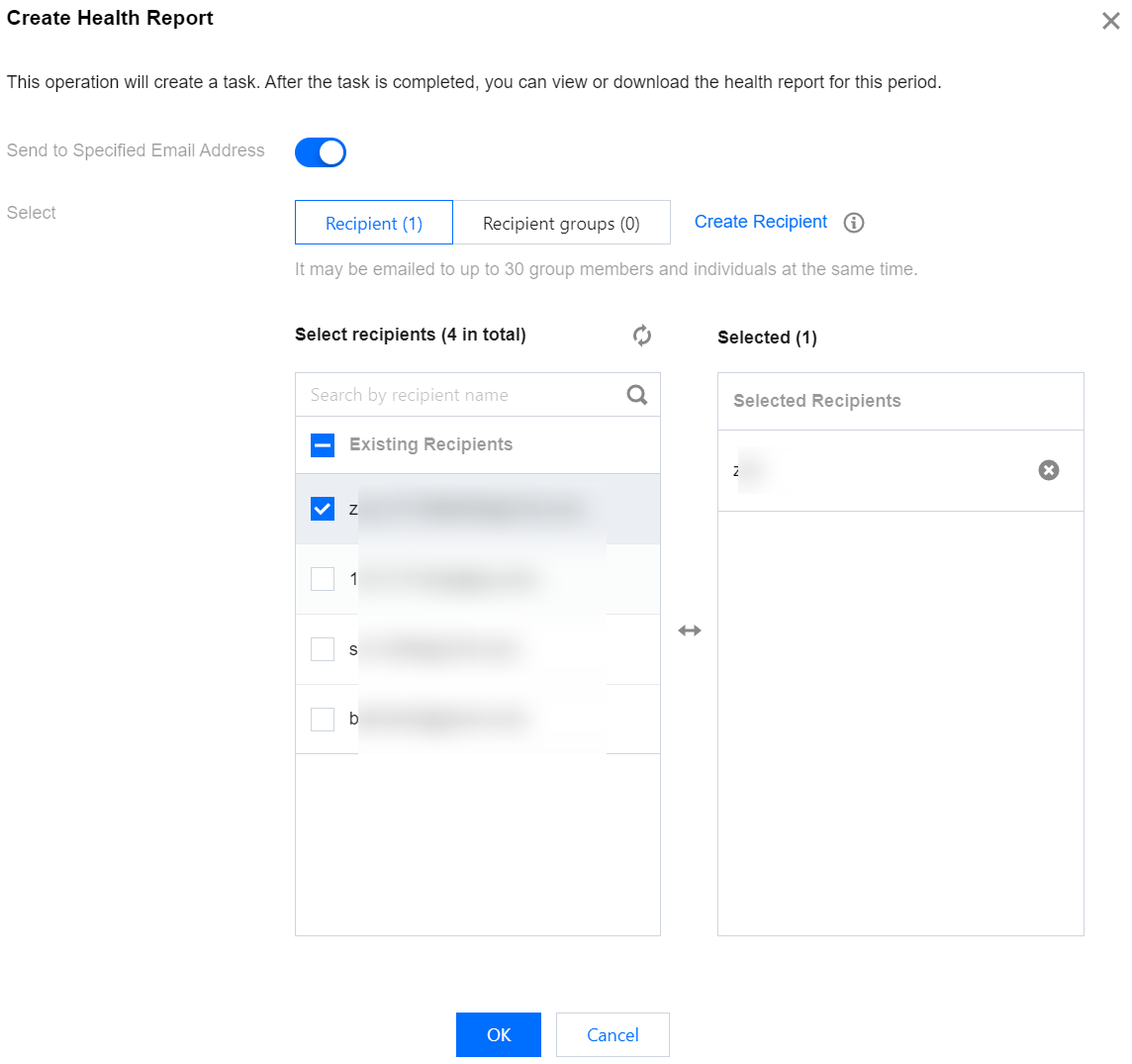
5. In the pop-up Create Health Report dialog box, click OK.
To push the health report to a specified contact email, enable the Send to Specified Email switch. For specific operations, see Scheduled Task Health Report SES.
Health reports generated using the above methods can be viewed in the Performance Optimization > Health Report section, under reports of type Manual Trigger. For specific operations, see Viewing Health Reports.