When regular health reports need to be generated for one or more instances, you can configure the report generation time through the health report settings. This enables the periodic generation of health reports to help users gain in-depth insights into the health of database instances, identify faults, uncover hidden risks, and provide professional optimization suggestions for reference.
Only TencentDB for MySQL (excluding Single-node (Cloud Disk)), TDSQL-C for MySQL, TencentDB for MariaDB, TDSQL for MySQL, Tencent Cloud Distributed Cache, TencentDB for MongoDB, and self-built MySQL support the creation of regular health reports.
2. In the left sidebar, select Instance Management.
3. Select the database type at the top of the page.
4. (Optional) In the search box at the top of the page, select resource attributes (including instance ID, instance name, and status), enter keywords, and click
.
5. In the instance list, select one or more instances, and at the top of the list click Health Report.
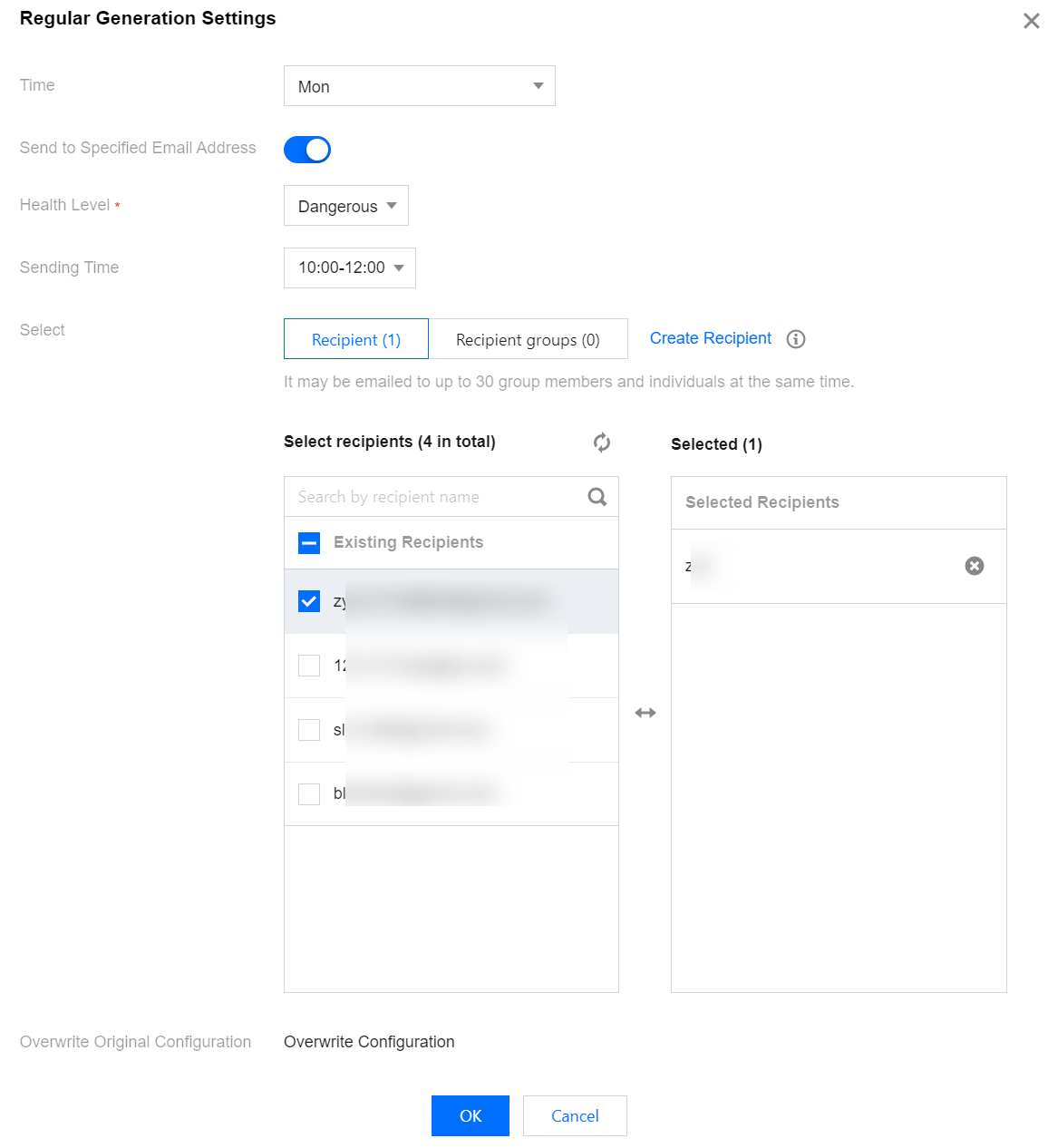
6. In the pop-up Regular Generation Settings dialog box, configure the parameters and click OK. The specific parameter configuration is shown in the following table.
Parameter
Description
Time
Includes the entire week or specific days from Monday to Sunday. You can select one or multiple days.
Send to Specified Email Address
Enable or disable sending to specified email addresses.
Enable: After the feature is enabled, you need to configure the health level, send time, and select the contact person or contact group. After the health report is generated, it will be sent to the selected contact person or contact group via email at the specified send time.
Disable: No other configuration is required. Click OK.
Health Level
Includes All, Healthy, Sub-healthy, Risky, and High-Risk. Only health reports matching the specified health levels will be sent via email.
Sending Time
The time at which the health report will be sent as an email after generation.
Select the Recipient or Recipient groups
Select the contact or contact group for email sending. If you need to create a new contact, please click Create New Contact. For detailed operations, see Contact Management.
View the generated health report on the Performance Optimization > Health Report page. For detailed operations, see Viewing Health Reports.
Related Operations
The DBbrain Health Report page also supports creating health reports for instances. For details and instructions, see Creating Health Reports.