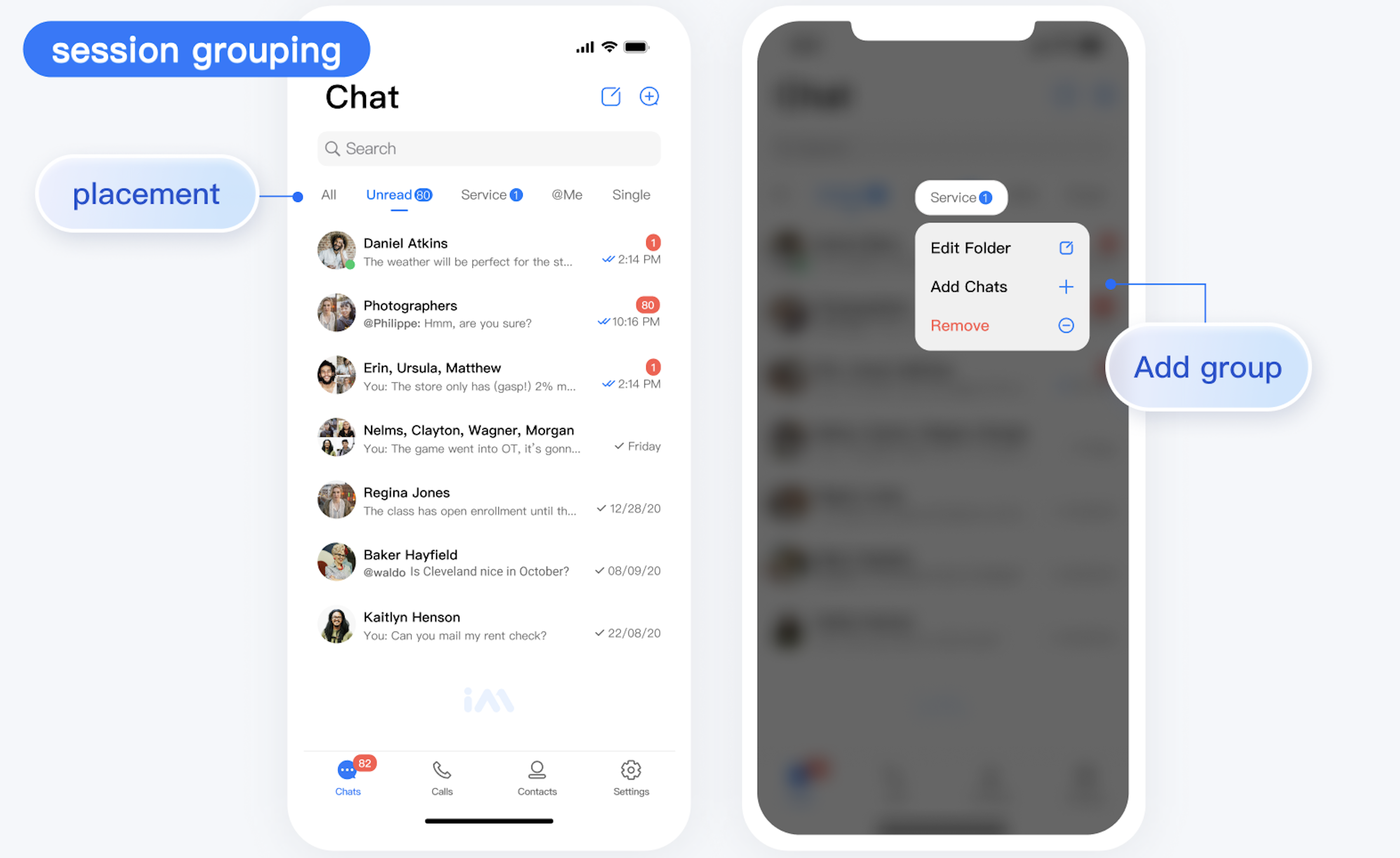
After the TUIConversationGroupPlugin is integrated, a conversation group management View will be displayed above the TUIConversation conversation list, consisting of various group Items. Each group Item shows the group name and the number of unread messages in the group. If you click the
button on the right side of the group management View, a group list interface will pop up, as shown in the figure below:
Managing Conversation Groups
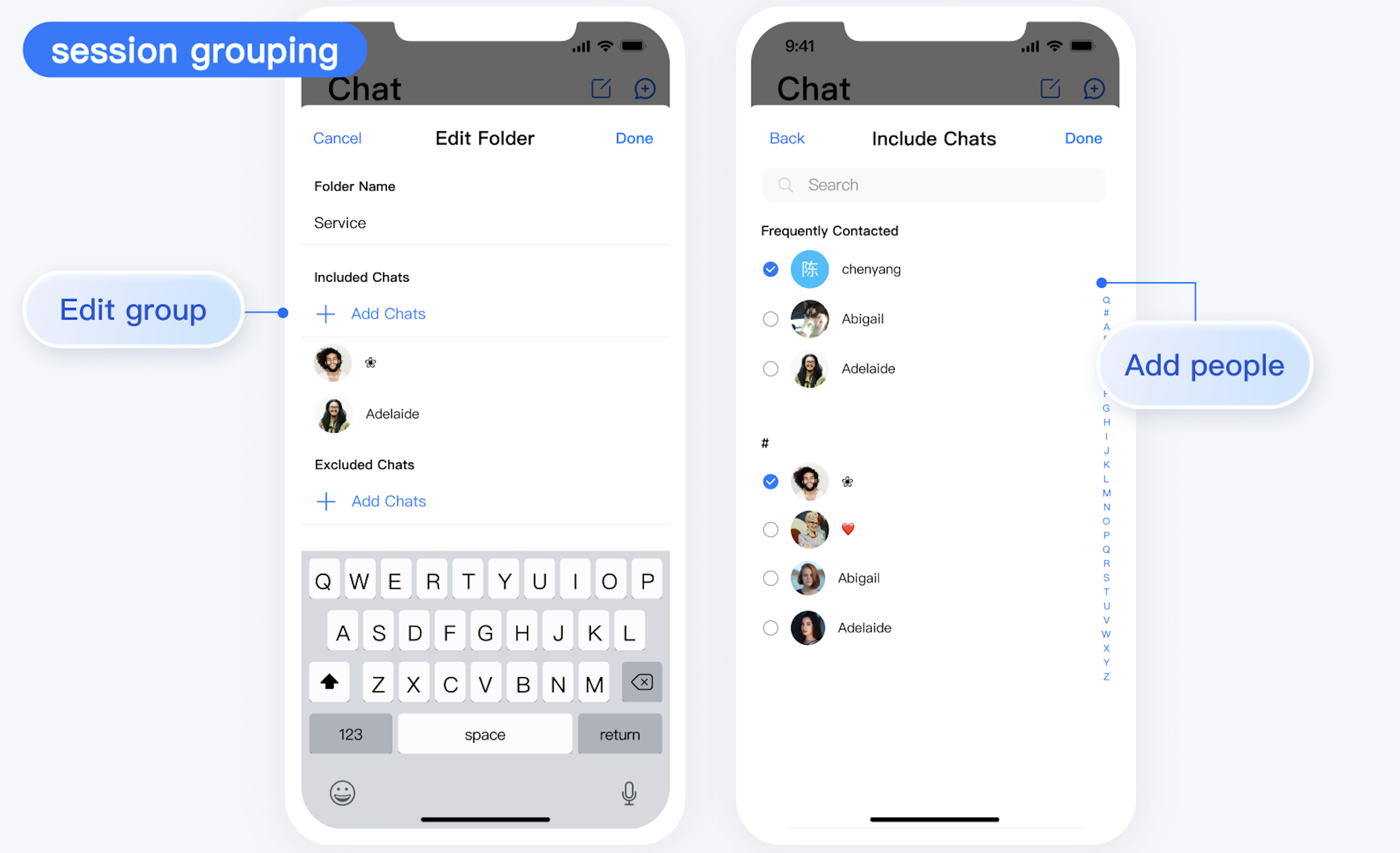
In the conversation group list interface, click the "Manage" button in the upper right corner to jump to the group management interface, where you can create, delete, edit, hide, and reorder groups, as shown in the figure below:
Conversation Group Operations
In the conversation list interface, you can swipe left on a conversation cell to perform group operations, such as adding the conversation to a group, moving it to another group, and creating a group that includes the conversation.
Note:
By default, the conversation group bar will display three permanent groups: "All", "Unread", and "@Me". If a group is not needed, you can hide it in the group management interface.