iOS
Download
포커스 모드
폰트 크기
TAVMagicUIKit iOS Integration Guide
TAVMagicUIKit is a UI SDK for premium editing interface operations. This article introduces how to quickly complete the integration of the TAVMagicUIKit component. By following the integration method described in this document, you can rapidly complete the integration work and ultimately achieve a video editing feature with a complete UI interface.
Prerequisites
Environment Setup
Xcode 9.0+.
An iPhone or iPad device running iOS 9.0 or later.
The project is configured with a valid developer signing certificate.
Applying for a License
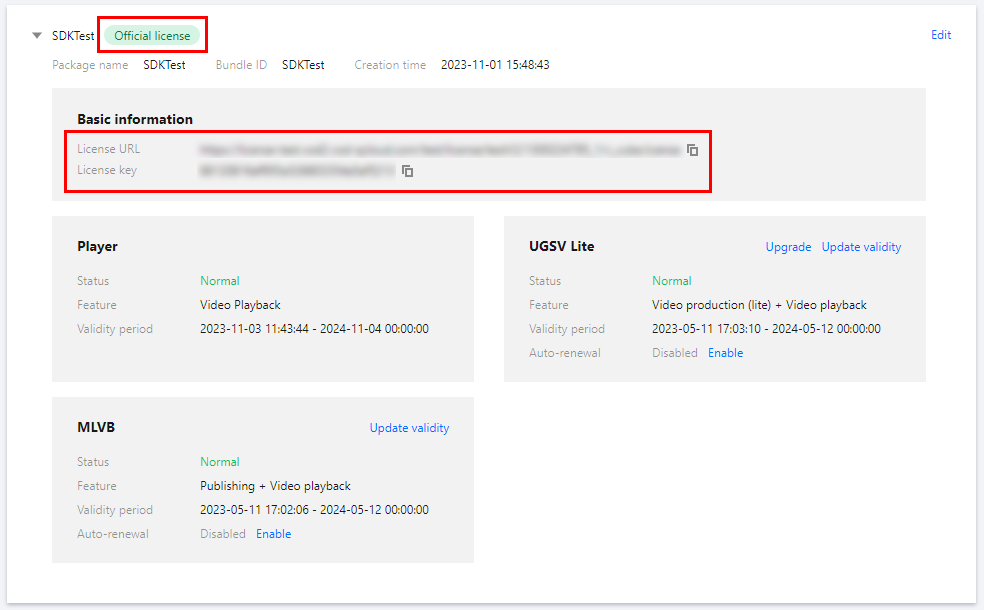
Please refer to the License Application Guide to obtain your License. After successful application, you may copy the License Key and License URL from the License Management page in either the CSS console or the VOD console, as illustrated below:
Initialize UIKit
Below are the steps to integrate UIKit.
1. Add Dependencies to the Project
Manual Integration
1. Download the TAVMagicUIKit SDK. After unzipping, you will get
TAVMagicUIKit.framework (SDK) and TAVMagicUIKit.bundle (icon assets required by the UIKit interface).2. Add
TAVMagicUIKit.framework and TAVMagicUIKit.bundle from the TAVMagicUIKit SDK into your project directory.3. Note that UIKit depends on the TAVMagic SDK, so you also need to integrate the TAVMagic SDK. You can choose CocoaPods integration or manual integration. For detailed steps, refer to the TAVMagic SDK Integration Guide.
Pod Integration
TAVMagicUIKit currently supports integration via CocoaPods. The integration method is as follows:
1. Add the following dependencies to your Podfile:
pod 'TAVMagicUIKit', :podspec => "https://mediacloud-76607.gzc.vod.tencent-cloud.com/TAVMagic/iOS/Release/1.6.2.0/TAVMagicUIKit.podspec"# TAVMagicUIKit depends on TencentEffect_Edit beauty library & TAVMagic core SDKpod 'TencentEffect_Edit', :podspec => 'https://mediacloud-76607.gzc.vod.tencent-cloud.com/TencentEffect/iOS/edit/4.1.0.4/TencentEffect_Edit.podspec'pod 'TAVMagic',:podspec => 'https://mediacloud-76607.gzc.vod.tencent-cloud.com/TAVMagic/iOS/Release/latest/TAVMagic.podspec'
2. Run
pod install in the Podfile directory to install dependencies.2. Copy Effect Resources to the Project
If you want to use the same resources as the Demo (stickers, filters, effects, music, templates), copy the resource package
resource from TAVMagicUIKitSample and drag it into your app project.3. Set Up License Authentication
You can set the URL and KEY in the initialization code of the relevant module according to your business needs. Setting the License will immediately trigger a download. It is recommended to complete the setup during application initialization to avoid performance impacts from temporary downloads during actual use.
//If you only want to trigger a download or update the license without caring about the authentication result, pass null as the 4th parameter.[TELicenseCheck setTELicense:<#licenseUrl#> key:<#licenseKey#> completion:^(NSInteger authresult, NSString * _Nonnull errorMsg) {if (authresult == TELicenseCheckOk) {//Authentication succeeded} else {//Authentication failed}}];
4. Basic Usage Flow of TAVMagicUIKit
TAVMagicUIKIT.framework contains all the UI for the editing interface and exposes the album picker control and editor controller control APIs. It internally depends on TAVMagicSDK.1. Invoke the album picker of
TAVMagicUIKIT.framework to present the album and listen for the callback of selected album assets.2. Receive the selected assets via the album selection callback.
3. Initialize the preview page TAVEditorPreviewController provided by TAVMagicUIKIT.framework, passing in the assets in the initialization method.
4. Navigate to TAVEditorViewController.
Using UIKit
Album Picker
1. Present the album picker:
#import <TAVMagicUIKit/TAVAlbumPickerController.h>#import <TAVMagicUIKit/TAVAlbumAuthorizer.h>#import <TAVMagicUIKit/TAVAlbumPickerFactory.h>// Request album permission[TAVAlbumAuthorizer checkAlbumAuthorize:^(PHAuthorizationStatus status) {// Present the album picker[self showPickerVC];}];// Present the album picker- (void)showPickerVC{TAVAlbumPickerOptions *options = [TAVAlbumPickerFactory defaultAlbumPickerOptions];TAVAlbumPickerController *pickerController = [[TAVAlbumPickerController alloc] initWithOptions:options];pickerController.modalPresentationStyle = UIModalPresentationFullScreen;pickerController.pickerDelegate = self;[self presentViewController:pickerController animated:YES completion:nil];}
2. Listen for the album picker callback:
#pragma mark - TAVAlbumPickerControllerDelegate- (void)albumPickerController:(TAVAlbumPickerController *)pickerController didFinishPickingAlbumAssets:(NSArray<TAVAlbumAsset*> *)albumAssets{// Get the path of albumAssets resources and add them to TAVMagic SDKdispatch_async(dispatch_get_global_queue(DISPATCH_QUEUE_PRIORITY_HIGH, 0), ^{NSMutableArray *resources = [NSMutableArray array];for (TAVAlbumAsset *mediaItem in albumAssets) {TAVAlbumResource *resource;if (mediaItem.mediaType == TAVAlbumAssetTypeVideo) {resource = [self videoResourceWithPHAsset:mediaItem.asset];} else if (mediaItem.mediaType == TAVAlbumAssetTypeImage) {resource = [self imageResourceWithPHAsset:mediaItem.asset];}[resources addObject:resource];}dispatch_async(dispatch_get_main_queue(), ^{[self gotoPreviewControllerWithResource:resources];[pickerController dismissViewControllerAnimated:YES completion:nil];});});}
3. Navigate to the TAVMagicUIKit editing page:
- (void)gotoPreviewControllerWithResource:(NSArray<TAVAlbumResource *> *)resources {TAVEditorPreviewController *previewVC = [[TAVEditorPreviewController alloc] initWithAssetPath:nil resources:resources];self.materialProvider.prepareEditor = nil;[self configPreviewContrller:previewVC];[self.navigationController pushViewController:previewVC animated:YES];}
피드백