Flutter
Download
포커스 모드
폰트 크기
Prerequisites
1. Environment Requirements
Flutter >= 3.3.0
2. Acquiring the SDK
Download the TAVMagicFlutter package, extract the TAVMagicFlutter folder, and you can proceed with the integration process.
3. Applying for a License
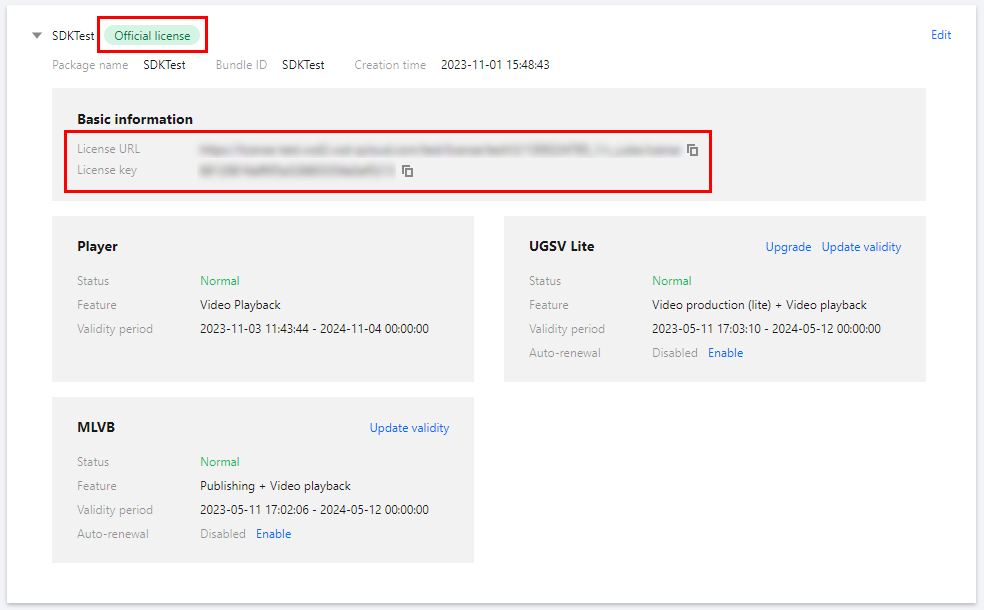
Please refer to the License Application Guide to obtain your License. After successful application, you may copy the License Key and License URL from the License Management page in either the CSS console or the VOD console, as illustrated below:
SDK Integration
Here are the steps to integrate TAVMagicCutFlutter. You may also directly refer to the code in the example project.
1. Adding Dependencies
1. Copy
TAVMagicCutFlutter to the project root directory, or place it in any other accessible directory based on your project structure requirements.2. Add the dependency in the project's `pubspec.yaml` file and specify the SDK directory, using the root directory as an example.
tavmagic_cut_flutter:path: ./TAVMagicCutFlutter/Flutter
2. Copy Special Effects Resource Materials to the Project
To utilize the same material resources (stickers, filters, effects, music, templates) as the demo, you may copy the resource package
Resource from the example and drag it into your app project directory.Android
Copy the resources from
example/android/app/src/main/assets to the src/main/assets directory of your Flutter project's main Android module (typically named app). If the assets directory does not exist, you may create it manually.iOS
Copy the
Resource directory located under example/ios/Resource to the root directory of your Flutter project's iOS main module. Subsequently, launch Xcode and open your Flutter iOS project.Right-click on the main project folder (typically named `Runner`), select
Add Files to XXX, then choose the Resource folder and click Add.Upon adding, a dialog box will appear. If no additional configurations are required for your project, generally select
Reference files in place for the Action option and Create groups for the Groups option.3. Configuring License Authentication
To meet your business requirements, you can configure the URL and KEY within the initialization code of the relevant module. The license download will be triggered immediately upon configuration. We recommend completing these settings during application initialization to prevent potential performance impacts caused by on-demand downloads during actual usage.
FTAVMagicKitBase.instance.setLicense(TAV_MAGIC_LICENSE, TAV_MAGIC_KEY, listener: (errorCode, msg){if (errorCode == 0) {// success} else {// failed}});
Using the SDK
Album Selection
1. Navigate to Edit Selection
_editProcessor = await tavMagicKit().openSelectEdit(selectOptions: FTAVKitSelectorOption());
2. Photo Album Selection Only
tavMagicKit().openMediaSelected((resultList) {// get media}, options: FTAVKitSelectorOption());
3. Album Selection Configuration
FTAVKitSelectorOption()..displayColumnCount = 3 // display Column Count..mediaCategory = FTAVMediaCategory.ALL; // media category
Screen Recording Editing
Screen recording and editing.
_editProcessor = await tavMagicKit().openRecordEdit();
Draft Editing
Navigate to the draft page and proceed with editing.
_editProcessor = await tavMagicKit().openDraftListForEdit();
Edit
1. Open Directly for Editing
_editProcessor = await tavMagicKit().openEdit(editOption: FTAVKitEditOptions());
Parameters
editOption: Edit Configuration.
mediaResultList: The selected media files can be obtained by navigating through the album selection interface.
FTAVKitEditOptions
minEditDurationUs: Minimum edit time.
maxEditDurationUs: Maximum editing duration.
2. Exiting Edit Mode Actively
_editProcessor?.exitEdit();
3. Monitoring Edits
Edit the listener and invoke video generation upon completion.
_editProcessor?.setEditEventListener((code, params) async {if (code == FTAVEditResultEventCode.PUBLISH) {String? editorKey = params[FTAVEditResultParamKey.EDITOR_KEY]?.toString();if (null != editorKey) {curGerTaskId = await tavMagicKit().generateVideoByEditKey(editorKey, listener: FTAVGenerateListener(onGenerateStarted: () {if (_progressController != null) {_progressController!.close();_progressController = null;}_progressController = DemoProgressController();_progressController!.show(context: context, onCancel: () {tavMagicKit().cancelGenerateByTaskId(curGerTaskId!);_progressController?.close();});},onGenerateProgress: (progress) {_progressController?.updateProgress(progress);},onGenerateCompleted: (int code, String msg, String outputPath) {_progressController?.close();if (code == FTAVGenerateResultCode.GENERATE_RESULT_SUCCEED) {////// release editor///tavMagicKit().releaseEditorByEditKey(editorKey);// jump to video pageNavigator.of(context).push(MaterialPageRoute(builder : (context) => VideoPage(outputPath),));} else {ScaffoldMessenger.of(context).showSnackBar(SnackBar(content: Text('video generate error:$code, msg:$msg')));}}));}}});
4. Release the Editing Object
tavMagicKit().releaseEditorByEditKey(editorKey);
Generate Video
1. Video Generation
curGerTaskId = await tavMagicKit().generateVideoByEditKey(editorKey, listener: FTAVGenerateListener(onGenerateStarted: (){},onGenerateProgress: (progress){},onGenerateCompleted: (int code, String msg, String outputPath) {}));
2. Cancel Generation
tavMagicKit().cancelGenerateByTaskId(curGerTaskId);
피드백