TUILiveKit Release Notes
Live SDK Release Notes
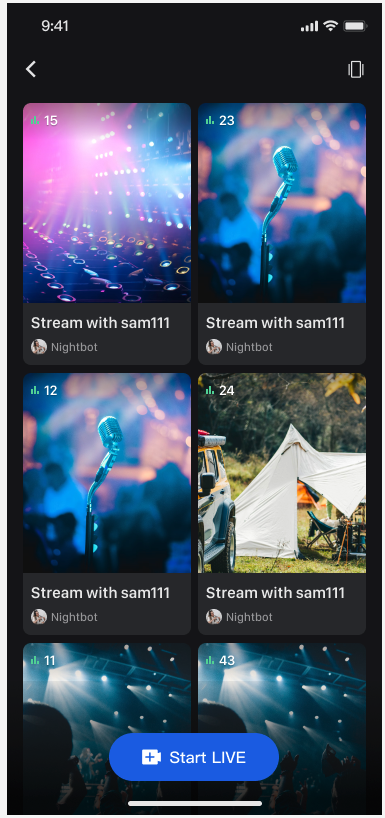
Double-Column Waterfall Flow | Single-Column Waterfall Flow |
 |
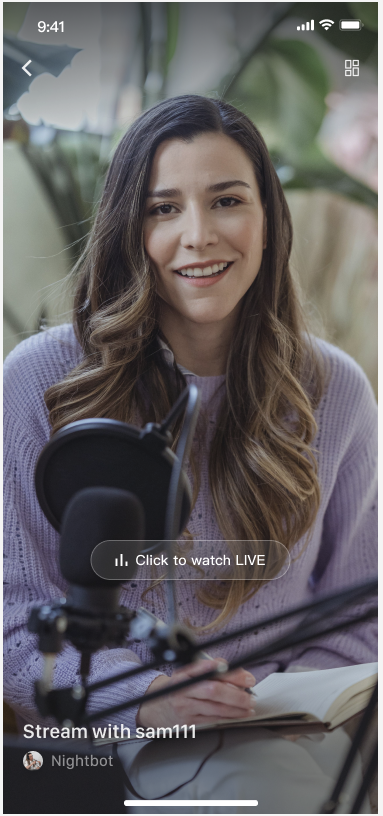 |
// Example: YourLiveListViewController is the view controller representing your live stream list waterfall layoutclass YourLiveListViewController: UIViewController {// 1. Declare liveListView as a member variable// - style: .doubleColumn // Two-column waterfall layout// - style: .singleColumn // Single-column waterfall layout// Example shows a two-column waterfall layout, if needed input .singleColumn justprivate let liveListView=LiveListView(style: .doubleColumn)public override func viewDidLoad() {super.viewDidLoad()// 2. Add liveListView to viewview.addSubview(liveListView)liveListView.snp.makeConstraints { make inmake.edges.equalToSuperview()}// 3. Set the click event delegate for the listliveListView.itemClickDelegate = self}}

// Implement OnItemClickDelegate in your live stream list view controller, for example: YourLiveListViewControllerextension YourLiveListViewController: OnItemClickDelegate {func onItemClick(liveInfo: LiveInfo, frame: CGRect) {// 1. Instantiate your audience view controllerlet audienceVC =YourAudienceViewController(roomId: liveInfo.roomId)audienceVC.modalPresentationStyle = .fullScreen// 2. Navigate to your audience view controllerpresent(audienceVC, animated: false)}}
LiveListView InteractionLiveListView component, combined with iOS page routing system attributes, provides the refreshLiveList and onRouteToNextPage methods. With just one line of code, you can optimize live list display and video stream playback. The optimization method is as follows:// Implement in your live stream list view controller, for example: YourLiveListViewControllerclass YourLiveListViewController: UIViewController {override func viewDidAppear(_ animated: Bool) {super.viewDidAppear(animated)// refreshLiveList: Call this method in viewDidAppear to ensure getting the latest list every time returning to current pageliveListView.refreshLiveList()}override func viewWillDisappear(_ animated: Bool) {super.viewWillDisappear(animated)// onRouteToNextPage: Call this method in viewWillDisappear to stop the video stream playback on current live list page when entering another pageliveListView.onRouteToNextPage()}}
LiveListDataSource interface instead of using the component's default list data.// Example: YourLiveListViewController is the view controller representing your live stream list waterfall layoutclass YourLiveListViewController: UIViewController {private let liveListView: LiveListView=LiveListView(style: .doubleColumn)public override func viewDidLoad() {super.viewDidLoad()view.addSubview(liveListView)liveListView.snp.makeConstraints { make inmake.edges.equalToSuperview()}liveListView.itemClickDelegate = self// 1. Set custom data source agentliveListView.dataSource = self}}// 2. Implement custom data source agent: LiveListDataSourceextension YourLiveListViewController: LiveListDataSource {public func fetchLiveList(cursor: String, onSuccess: @escaping LiveListBlock, onError: @escaping TUIErrorBlock) {// 3. Connect to your own backend business and return data to the UI component in the following formatvar liveInfoList: [LiveInfo] = []var liveInfo = LiveInfo()liveInfo.roomId = "live_123456"liveInfo.name = "live_123456"liveInfoList.append(liveInfo)let cursor = "aabbccdd"onSuccess(cursor, liveInfoList)}}
LiveListViewAdapter interface.// Example:YourLiveListViewControlleris the view controller representing your live stream list waterfall layoutclass YourLiveListViewController: UIViewController {private let liveListView: LiveListView=LiveListView(style: .doubleColumn)public override func viewDidLoad() {super.viewDidLoad()view.addSubview(liveListView)liveListView.snp.makeConstraints { make inmake.edges.equalToSuperview()}liveListView.itemClickDelegate = selfliveListView.dataSource = self// 1. Set adapterliveListView.adapter = self}}// 2. Implement custom widget agentextension YourLiveListViewController: LiveListViewAdapter {public func createLiveInfoView(info: LiveInfo) -> UIView {// Custom viewreturn YourCustomView(liveInfo: info)}public func updateLiveInfoView(view: UIView, info: LiveInfo) {if let infoView = view as? YourCustomView {// Custom view update datainfoView.updateView(liveInfo: info)}}}
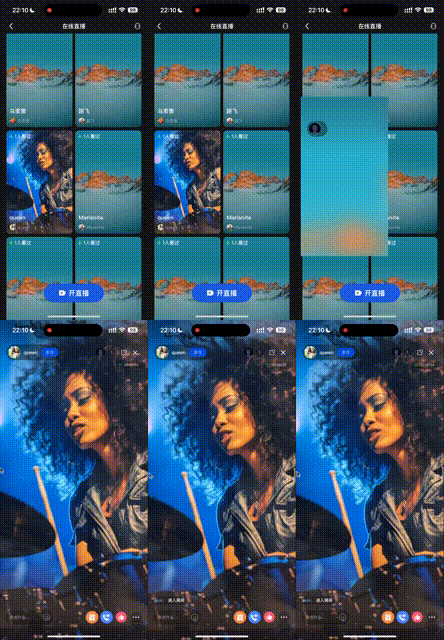
TUILiveKit has open-sourced the live stream transition animation LiveTransitioningDelegate in the GitHub repository. You just need to set audienceVC.transitioningDelegate to achieve the same transition animation as TUILiveKit.// Implement OnItemClickDelegate in your live stream waterfall layout list view controller, for example: YourLiveListViewControllerextension YourLiveListViewController: OnItemClickDelegate {func onItemClick(liveInfo: LiveInfo, frame: CGRect) {let audienceVC =YourAudienceViewController(roomId: liveInfo.roomId)audienceVC.modalPresentationStyle = .fullScreen// Set the transition animation delegateaudienceVC.transitioningDelegate = LiveTransitioningDelegate(originFrame: frame)present(audienceVC, animated: false)}}
Double-Column Waterfall Transition Animation | Single-Column Waterfall Transition Animation |
 |  |
Feature | Description | Integration Guide |
Host Streaming | The complete workflow for a host to start a stream, including pre-stream setup and various in-stream interactions. | |
Audience Viewing | Audience can watch live streaming after entering the anchor's live streaming room, with features like audience mic connection, live room information, online audience, and bullet screen display. |
피드백