Binding and Querying Customers
Download
포커스 모드
폰트 크기
This document describes how to bind and query sub-customers.
Applicable Objects
This document is suitable for resellers, distributors and second-level resellers to read. The copywriting uses "reseller" for description.
Prerequisites
Reseller identity already available.
Inviting a Customer
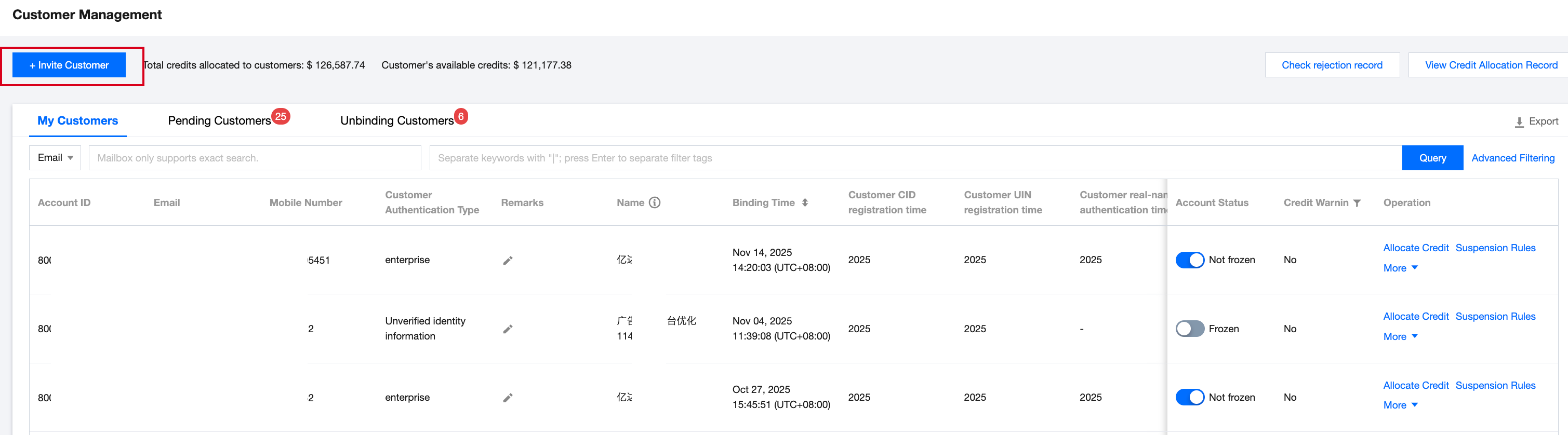
1. Log in to the Partner Center console using a partner account, and navigate to Customer > Customer Management page.
2. Click Invite Customer, send the invitation link to the customer to bind and become a reseller's sub-account.
Note:
Customers with unregistered or registered Tencent Cloud accounts can be invited to bind as sub-customers of a reseller.
If a registered user has outstanding payments before binding, the outstanding payments prior to binding can only be processed through the payment process of the pre-bound identity. For example: If the user was a Tencent Cloud customer before binding, outstanding payments must be processed using the payment method for Tencent Cloud customers.
Reviewing a Customer
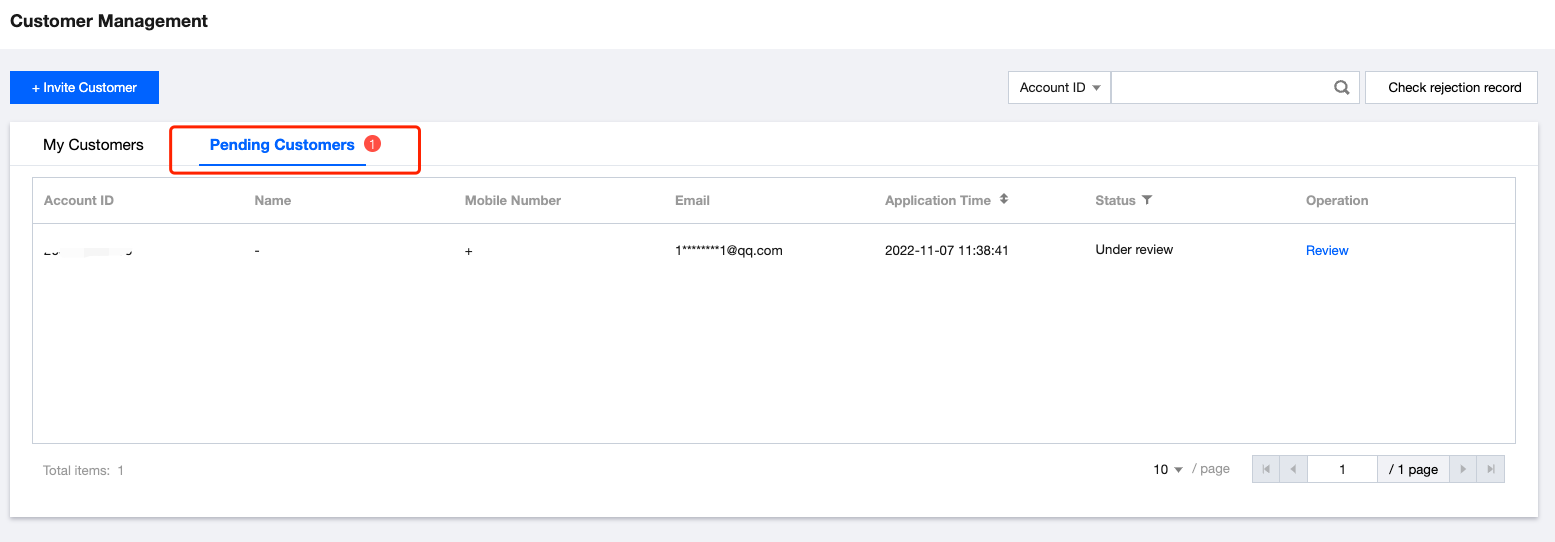
1. After a customer submits a binding request, it requires reseller review. The reseller can go to the Customer Management > Pending Customers webpage, click Review to confirm whether binding is allowed.
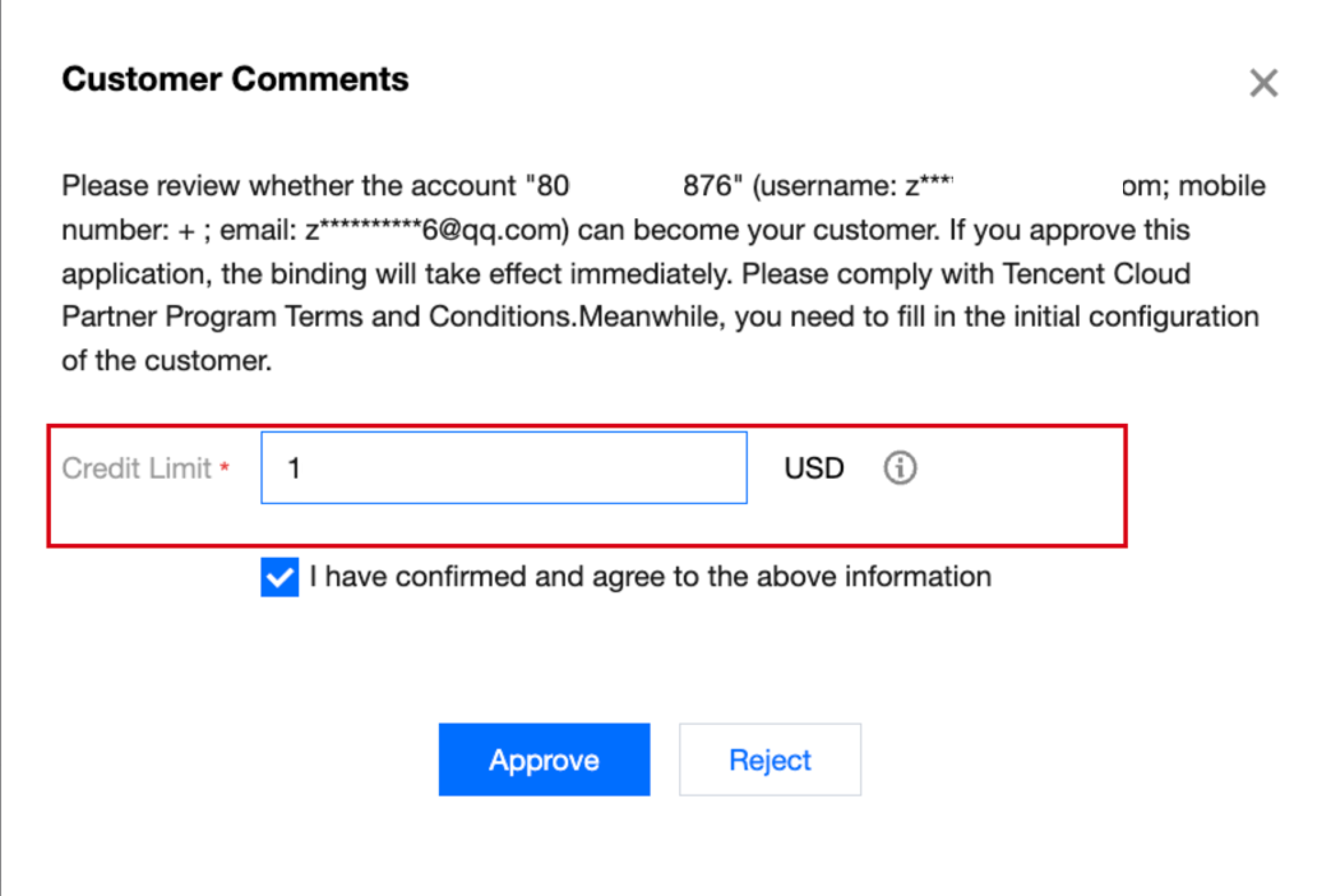
2. Enter the pop-up for reviewing the customer, enter the initial credit you need to allocate to them, and click Approve to grant the customer's binding request. (If you do not agree to the binding this time, click Reject.)
For resellers or distributors without a credit pool, any credit limit can be allocated to the customer.
Note:
Official website direct customers applying to become your sub-customers must be allocated a credit limit greater than 0.
If it is a second-level reseller, the credit limit allocated to the customer must be less than its allocatable credit pool.
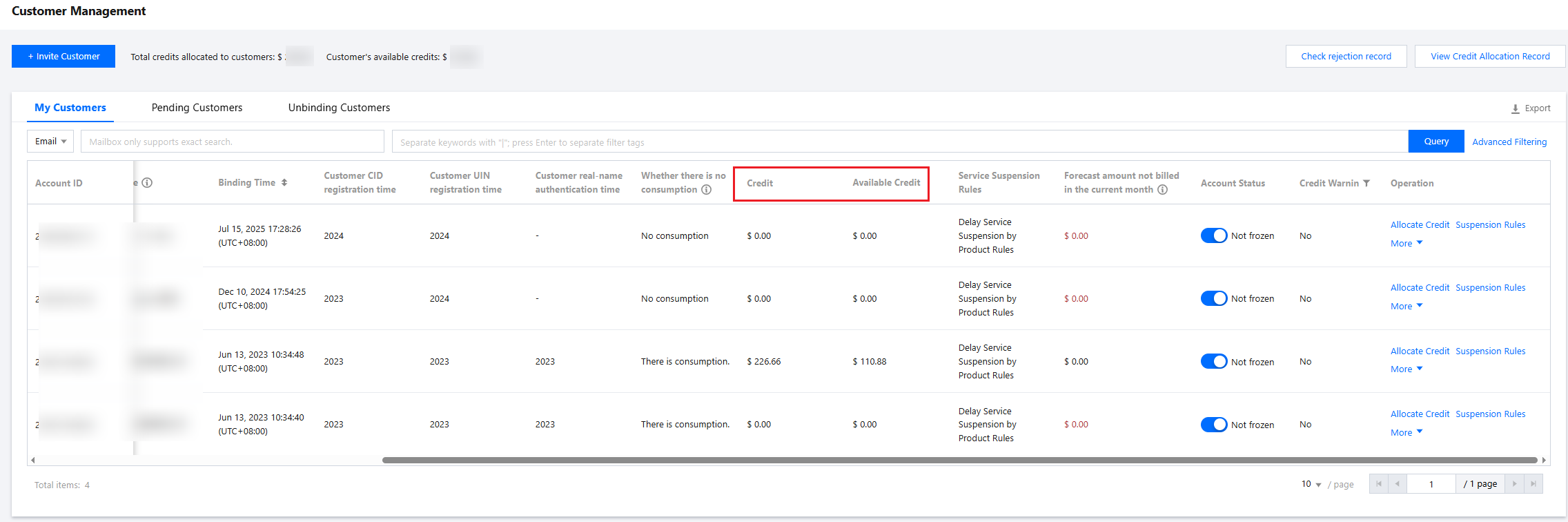
3. After successful binding, on the Customer Management > My Customers webpage, you can view that the sub-account is bound and has initial credit.
Viewing Reject Records
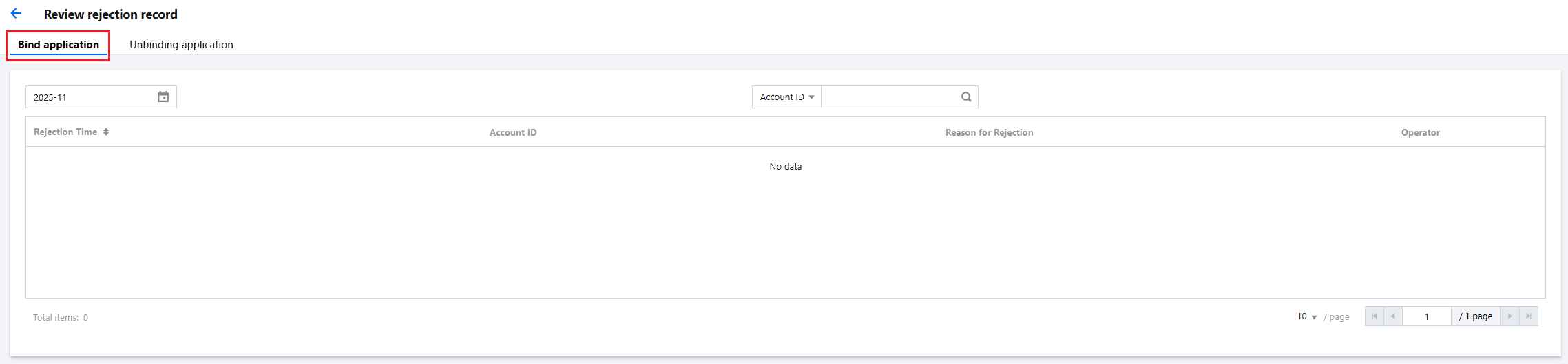
When a customer submission for binding is denied by the reseller, the reseller can click Check rejection record in the upper right corner of the page to view all reject records.
Querying and Exporting Customers
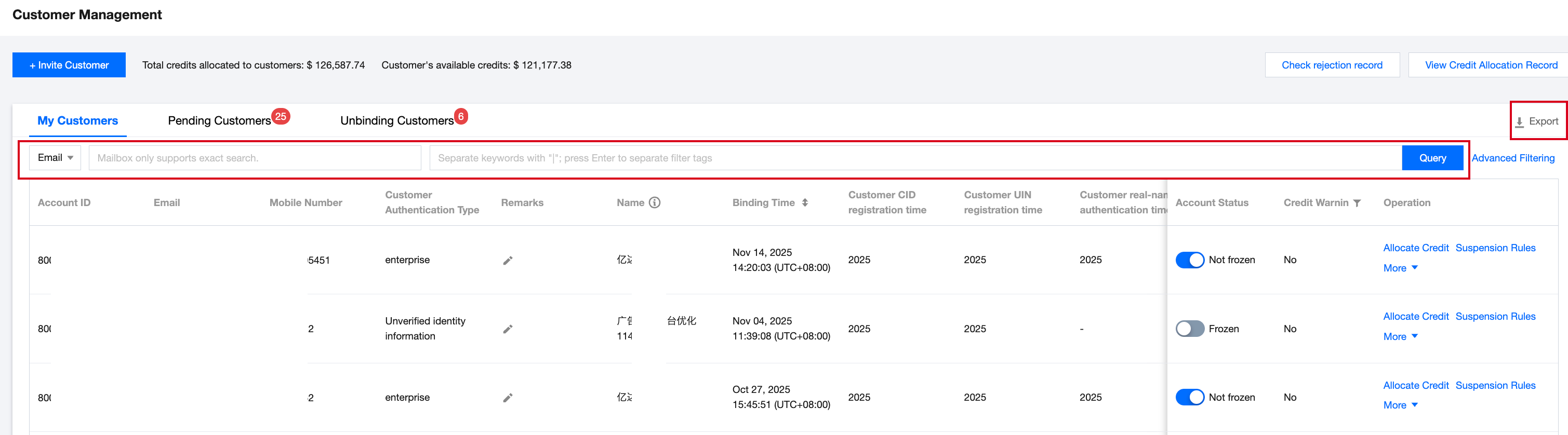
Resellers can query customers by account ID, account name, or mailbox in the Customer Management > My Customers page. Mailbox search requires precise searching, while other fields allow fuzzy search. Click Export in the upper right corner to export all customer information.
Current Month Unbilled Forecast Amount
Support viewing the current month's unbilled forecast amount for sub-accounts in the customer management list view.
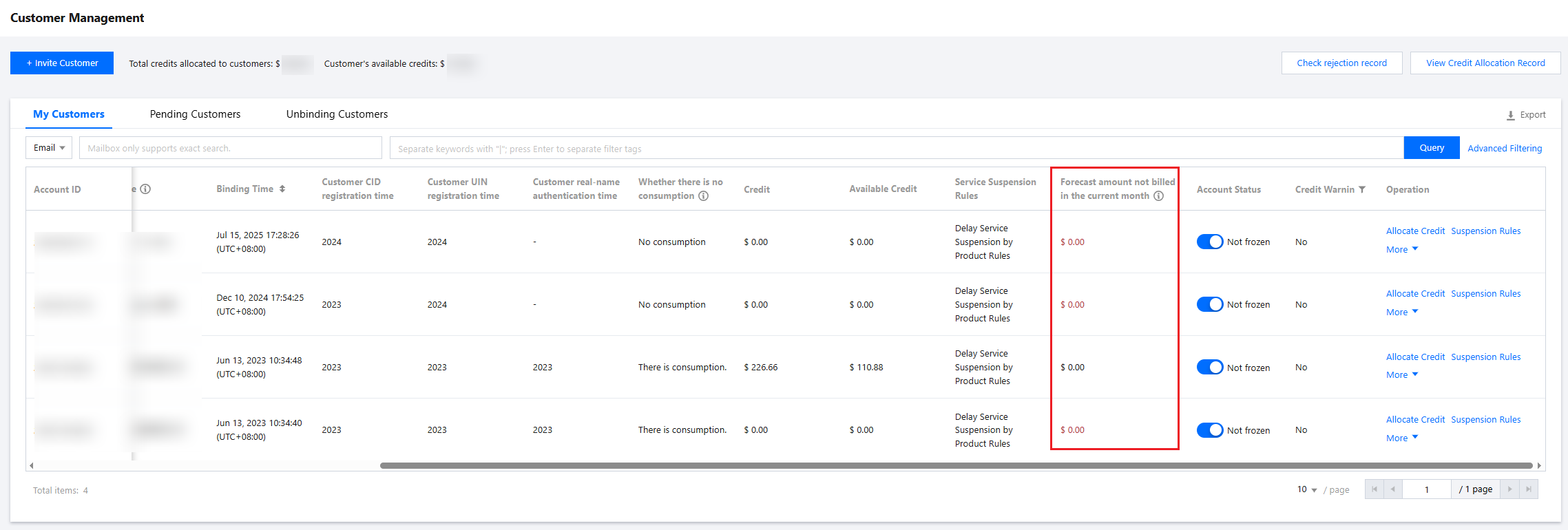
The statistical rules for the current month's unbilled forecast amount are as follows:
The system defaults to displaying the previous day's (D-1) data, summarizing the daily unbilled forecast amount for the current month. If no data exists for D-1, it sequentially displays historical data from D-2, D-3, etc. If no data is available for the entire month, "-" is displayed.
Only the predicted fee for the current month is counted, excluding cross-month data. If "-" is displayed on the 1st of the month, it indicates no predictive data is available for the current month.
피드백