Sub-Account Discount Management
Download
포커스 모드
폰트 크기
Overview
Partners can set discounts for their sub-accounts (including indirect sub-accounts) in the Partner Center console. This setting only affects settlement between resellers and sub-accounts. Sub-accounts will deduct credit limits at the discount price when using resources, and bills will be issued at the discount price. Setting sub-account discounts does not require Tencent approval.
Applicable Objects
This document is applicable to resellers and first-level resellers. Only resellers and first-level resellers can configure sub-account discounts, i.e.:
Resellers can set discounts for their sub-accounts.
First-level resellers can set discounts for their direct sub-clients.
First-level resellers can set discounts for indirect sub-clients belong to them.
Second-level resellers cannot set discounts for sub-accounts.
Prerequisites
Partners enjoy special approval discounts, and sub-client discounts are supported based on reseller special approval discount configuration.
Enable the allowlist. If needed, contact your channel manager.
Creating Discounts
1. Log in to the Tencent Cloud official website with a partner account and enter the Partner Center console.
2. Select Sale > Customer Discount Management in the left sidebar to enter the discount configuration page. This page shows the already configured sub-account discount information.
Note:
Note: If a first-level reseller configures a discount for an indirect sub-account belong to them, select Sale > Indirect Sub-Account Discount Management to enter the discount configuration page.
3. Click Create Customer Discount to open the configuration page and start configuration.
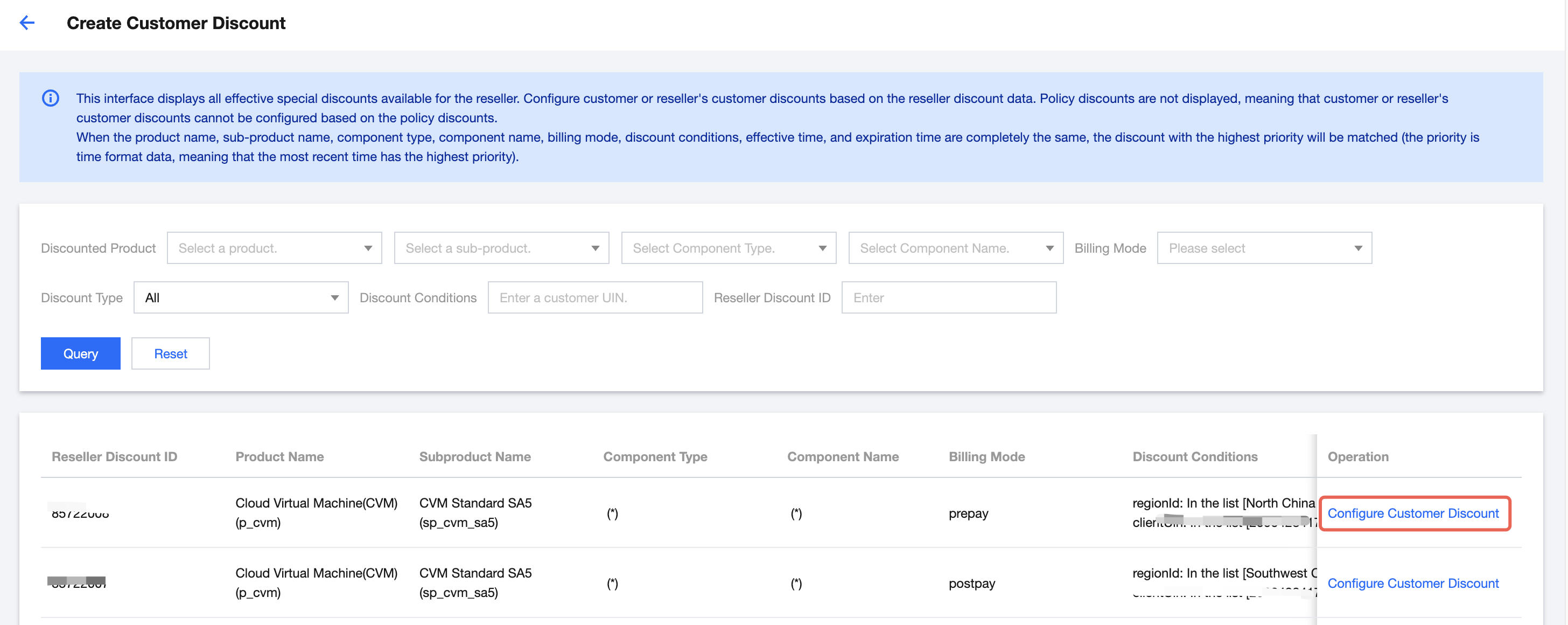
4. The configuration page displays all special approval discounts for resellers. Click Configure Customer Discount in the operation list of the target special approval discount.
Note:
You can query reseller's special approval discounts through product name, subproduct name, component type, component name, or sub-customer UIN.
5. Select the sub-account UIN for this customer discount, then set the discount rate or contract price, discount effective and expiration time, and whether to enable auto-renewal based on the reseller's discount reference value.
Note:
To ensure the products match the reseller's discount when placing an order, other fields cannot be modified.
Note: Auto-renewal means the subscription will be automatically renewed for 1 year upon reaching the expiration time.
Sub-accounts will receive Message Center notifications, SMS, and email notifications 90 days, 60 days, 30 days, and 1 week before the discount expires.
Sub-account discounts do not support retroactivity. For example, if set on August 12, 2025, the earliest effective date is August 13, 2025. Billing and bill data from August 1 to August 12, 2025, are not supported.
Batch queries not supported for sub-account discount configuration.
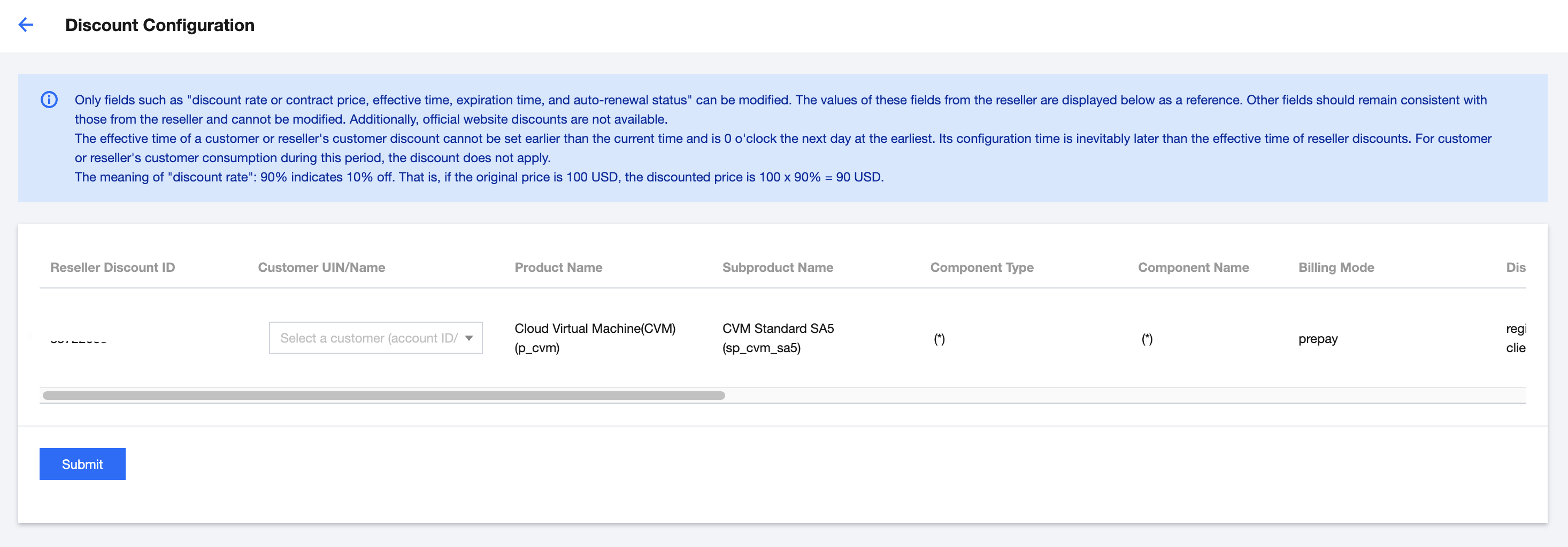
6. After completing, click Submit to take effect immediately.
Modifying Discounts
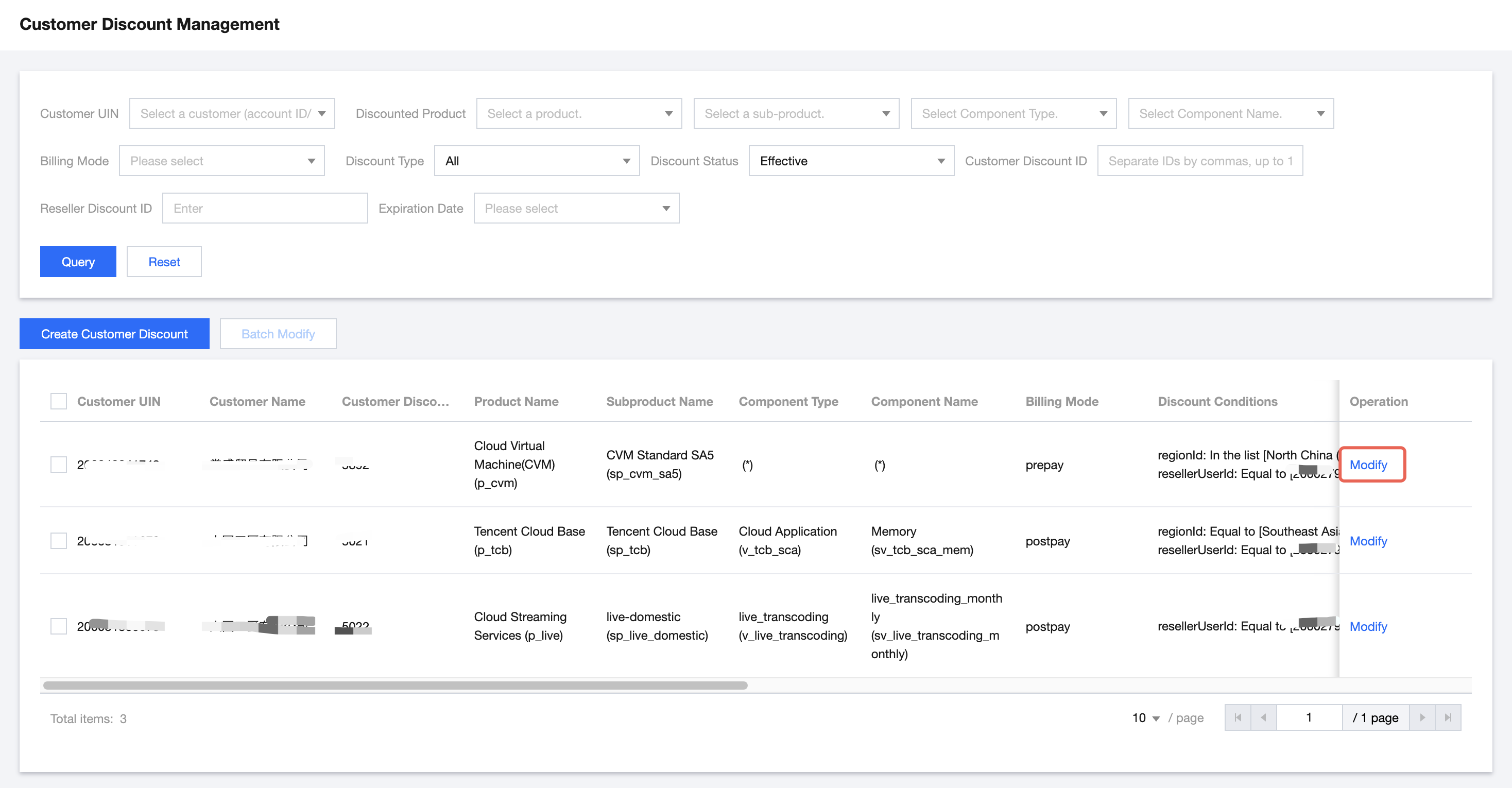
1. On the Customer Discount Management page, click Modify in the sub-account discount operation list.
Note:
Note: If a first-level reseller configures a discount for an indirect sub-account belong to them, select Sale > Indirect Sub-Account Discount Management to enter the discount configuration page.
To batch modify, check the checkbox on the left side of the discount list and click Batch Modify.
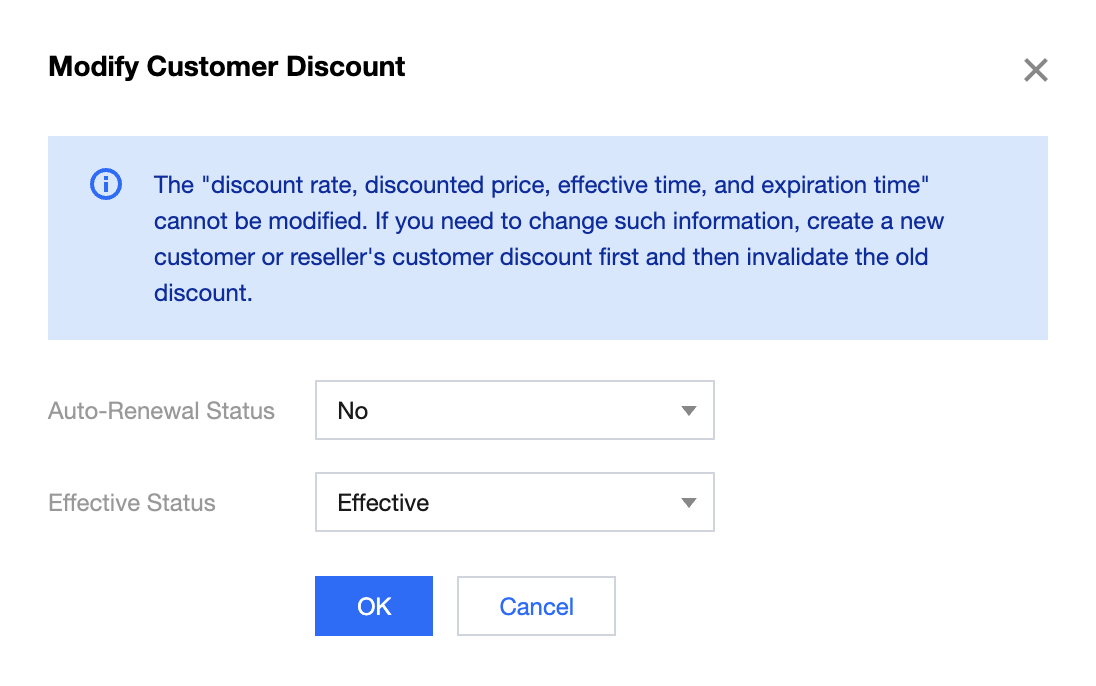
2. In the popup window, you can modify the auto-renewal status and effective status of the sub-account discount.
Note:
Note: After the discount is submitted for activation, the discount rate, discount price, and expiration time cannot be modified. If modification is needed, create a new sub-account discount first, then change the existing sub-account discount's effective status to "invalid".
피드백