Connecting to a Linux Instance via a Built-In Local SSH Terminal
다운로드
포커스 모드
폰트 크기
Overview
This article introduces how to remotely log in to a Lighthouse instance running Linux system from a local computer with Linux, macOS, or Windows operating system using system-provided SSH terminal software.
Supported Operating Systems
Linux, macOS, and Windows (Windows 10 and Windows Server 2019).
Authentication Method
Password or Key
Prerequisites
You have obtained the username (custom username or default username root) and password (or key) to log in to the instance.
Note:
If you forget the username and password or key when logging in to a Linux instance locally using remote login software, you can reset the password for the username (such as root or ubuntu) or bind the key again. For detailed directions, see Resetting Password and Managing Keys.
Make sure the network connection between the local computer and the instance is working, and the port 22 is open in the firewall policies of the instance (Port 22 is open by default upon the creation of the instance).
Directions
1. Run the following command to connect to your Linux instance.
Note:
Linux distribution without GUI: Run the following command on the system interface directly.
Linux distribution with GUI or macOS: Open the command line interface that comes with the system (e.g., Terminal on macOS) before running the following command.
Windows 10 or Windows Server 2019: Open the command prompt (CMD) before running the following command.
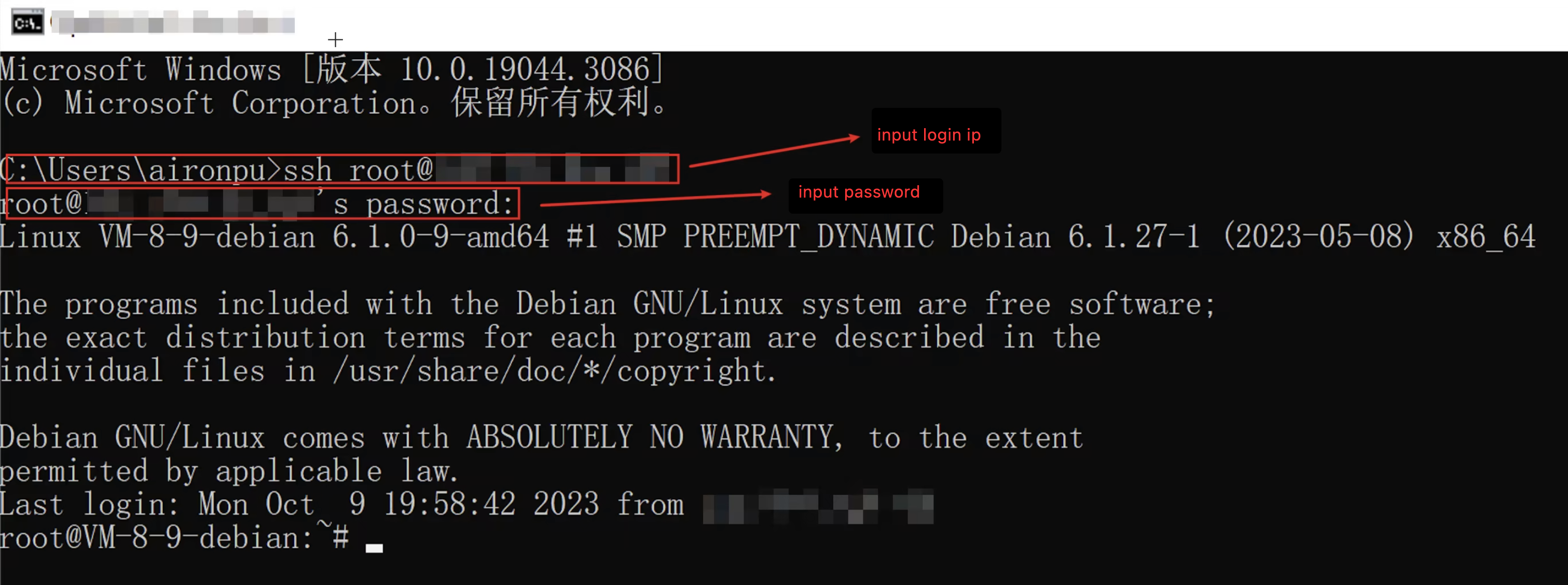
ssh <username>@<IP address or domain name>
username is the obtained username in Prerequisites, such as root and ubuntu.IP address or domain name is the public IP address or custom domain of your Linux instance. You can view the instance's public IP address in the Lighthouse console.2. Enter the password you have obtained, and press Enter to log in.

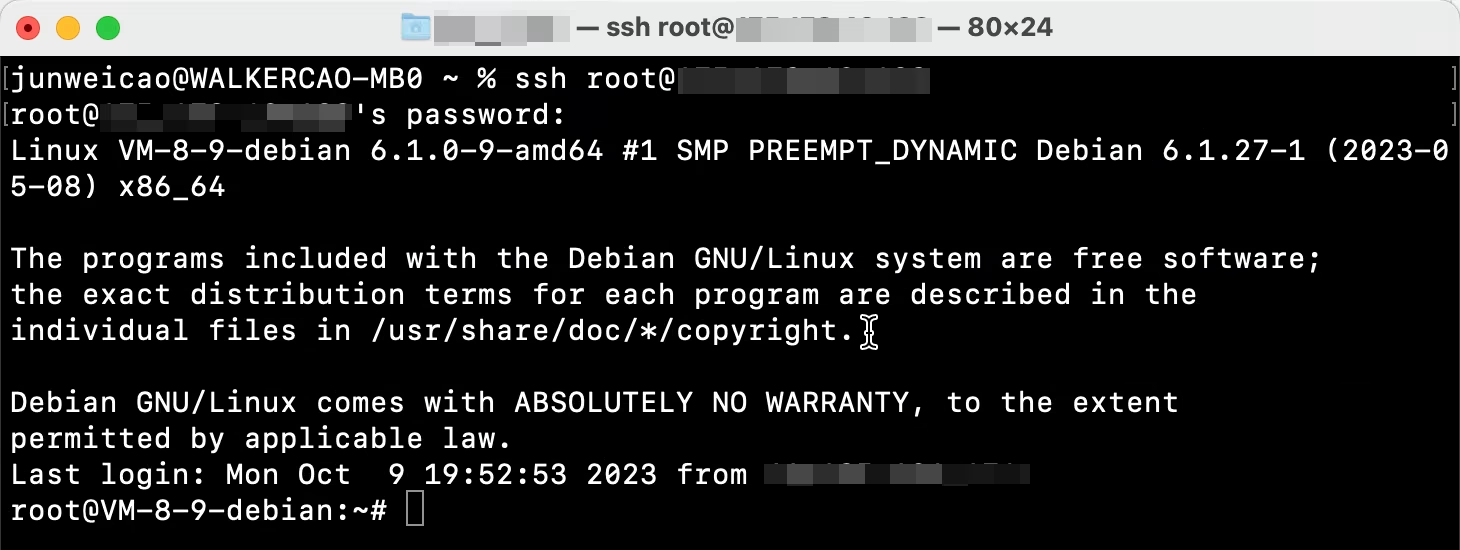
3. Login successful. The effect is as shown below.

Note:
Different types of Linux systems may vary in style upon login. The above is for reference only.
1. Execute the following command to set the private key file readable only to you.
macOS: Open the terminal that comes with the system before executing the following command.
Linux: Directly execute the following command.
chmod 400 <absolute path of the downloaded private key associated with the instance>
Windows 10 or Windows Server 2019: Open the command prompt (CMD) first and run the following commands in sequence.
icacls <path of the downloaded private key file associated with the instance> /grant <Windows system user account>:F
icacls <path of the downloaded private key file associated with the instance> /inheritancelevel:r
2. Execute the following command for remote login.
ssh -i <path of the downloaded private key file associated with the instance> <username>@<IP address or domain name>
username is the obtained username in Prerequisites, such as root and ubuntu.IP address or domain name is the public IP address or custom domain of your Linux instance. You can view the instance's public IP address in the Lighthouse console.For example, execute the
ssh -i /Users/macuser/Downloads/test_private_key root@<Linux instance public ip> command in the macOS system terminal to remotely log in to the Linux instance.
피드백