Allowing Multiple Users to Remotely Log In to a Windows Instance
다운로드
포커스 모드
폰트 크기
마지막 업데이트 시간: 2022-09-26 11:28:03
Overview
This document describes how to configure a multi-user remote login to a Windows instance, taking a Lighthouse instance using the Windows Server 2016 system image as an example.
Note:
The trial period of the multi-user remote login feature provided by Microsoft is 120 days. If you haven't purchased multi-user login licenses (RDS CALs), after the trial ends, you can log in to the Lighthouse instance only through the mstsc /admin command but not Remote Desktop. Windows Server allows two users to log in at the same time by default, which meets most needs. Evaluate your needs based on your actual business scenarios, and if you strongly need to configure multi-user remote login, proceed as instructed in this document.
Directions
Adding Remote Desktop Services
1. Log in to the Windows instance via WebRDP.
2. On the desktop, click
and select
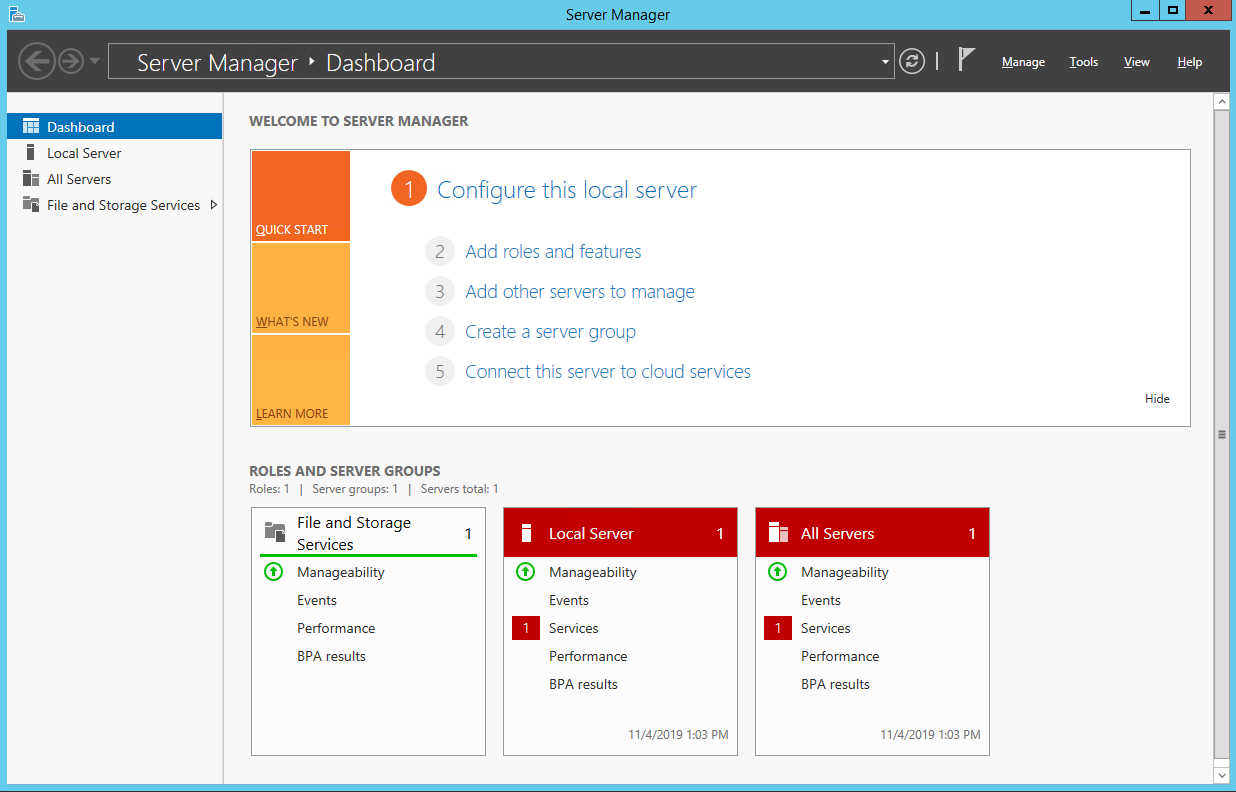
in the pop-up window to open Server Manager as shown below:
3. Click Add Roles and Features, and the Add Roles and Features Wizard window pops up.
4. In the Add Roles and Features Wizard window, keep the default parameters for the first three steps (click Next three times in a row).
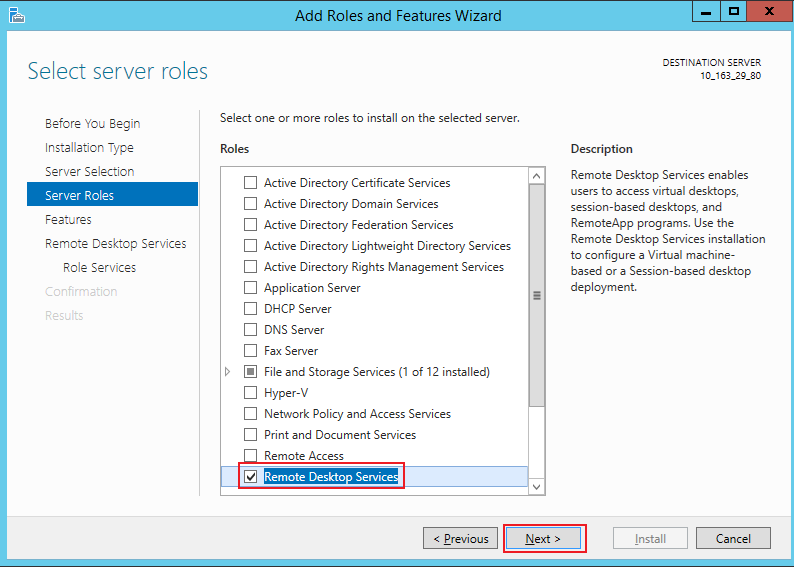
5. On the Select server roles page, select Remote Desktop Services and click Next.
6. Keep the default parameters and click Next twice in a row.
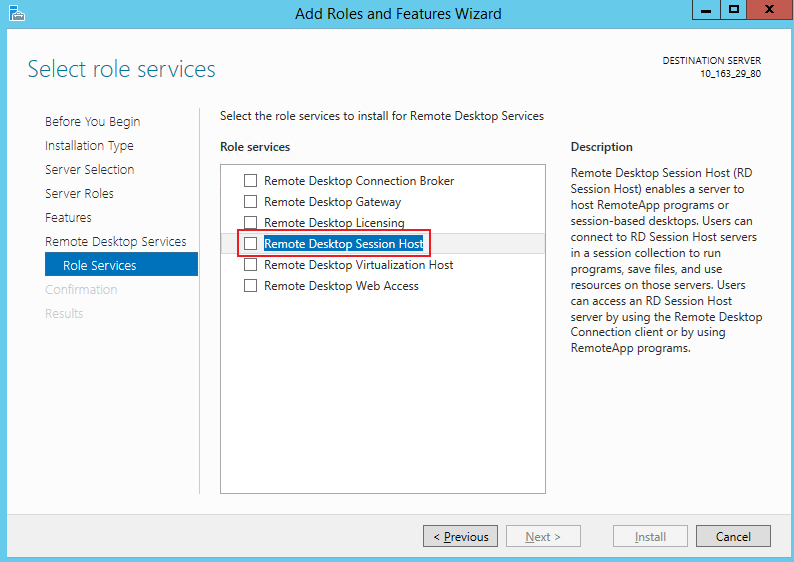
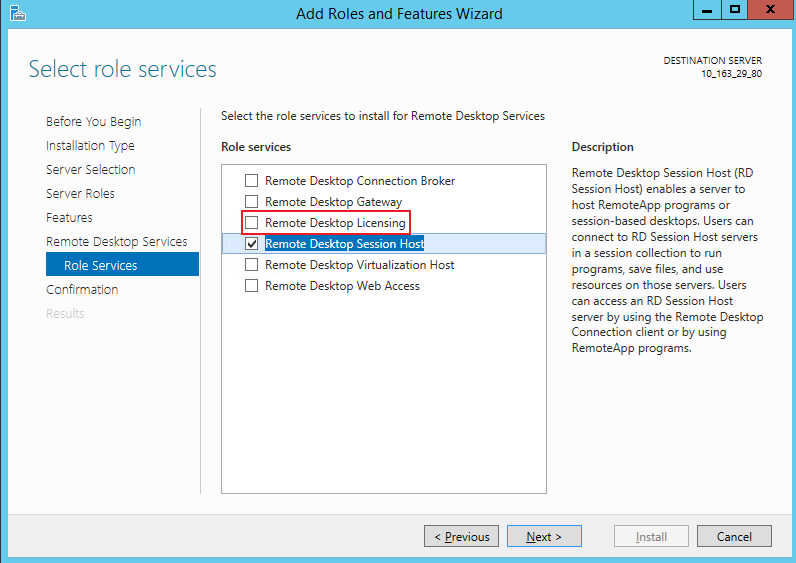
7. On the Select role services page, select Remote Desktop Session Host.
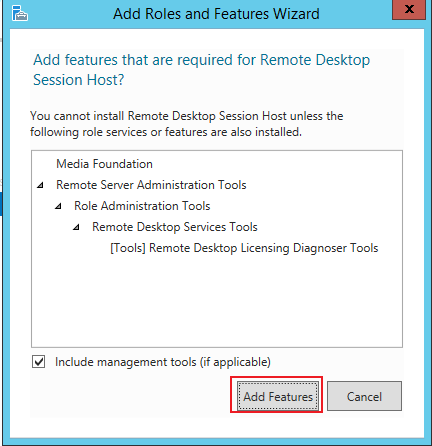
8. In the Add features that are required for Remote Desktop Session Host? pop-up window, click Add Features.
9. On the Select role services page, select Remote Desktop Licensing.
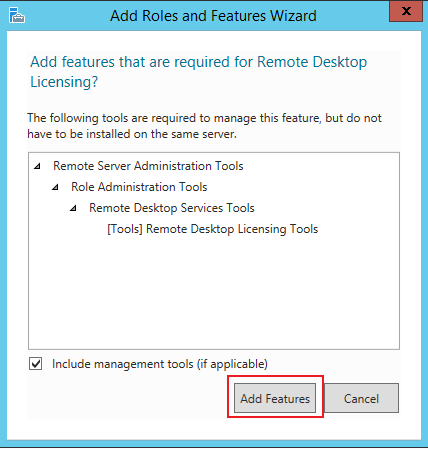
10. In the Add features that are required for Remote Desktop Licensing? pop-up window, click Add Features as shown below:
11. Click Next.
12. Select Restart the destination server automatically if required and click Yes in the pop-up window.
13. Click Install and wait for the installation of Remote Desktop Services to complete.
Applying for multi-user login license
1. On the desktop, click
and select
in the pop-up window to open Server Manager.
2. In the Server Manager window, select Tools > Remote Desktop Services > Remote Desktop Licensing Manager in the top-right corner.
3. In the Remote Desktop Licensing Manager pop-up window, right-click the row of the target server and select Activate Server.
4. In the Activate Server Wizard pop-up window, click Next.
5. Select Web Browser for Connection method and click Next. You can also select other connection methods based on your actual conditions.
6.
In License Server Activation, record the product ID
7. At the Remote Desktop Licensing website, select Activate a license server and click Next.
8. Enter the product ID obtained in step 6, enter the company information based on your actual conditions, and click Next.
9. After confirming that everything is correct, click Next.
10.
Record the license server ID and click Yes.
11. Enter the license server ID obtained in the previous step, select the licensing information as needed, enter the company information, and click Next .
12. Select the product type and enter the product quantity and licensing information.
13. After confirming that everything is correct, click Next.
14.
Get and record the key pack ID.
15. Click Finish.
Activating Remote Desktop license server
1. On the desktop, click
and select
in the pop-up window to open Server Manager.
2. In the Server Manager window, select Tools > Remote Desktop Services > Remote Desktop Licensing Manager in the top-right corner.
3. In the Remote Desktop Licensing Manager pop-up window, right-click the row of the target server and select Activate Server.
4. In the Activate Server Wizard pop-up window, click Next.
5. Select Web Browser for Connection method and click Next. You can also select other connection methods based on your actual conditions.
6. In License Server Activation, enter the license server ID obtained in step 10 and click Next.
7. When the Activate Server Wizard prompts You have completed the Activate Server Wizard, click Next to install the license.
Installing RDS client access license
1. In the Install Licenses Wizard window, confirm the license server information and click Next.
2. In Obtain Client License Key Pack, enter the license server ID obtained in step 14 and click Next.
3. When the Install Licenses Wizard prompts You have completed the Install Licenses Wizard, you have installed the license successfully.
Configuring Remote Desktop Session Host license server
1. On the desktop, click
and select
in the pop-up window to open Server Manager.
2. In the Server Manager window, select Tools > Remote Desktop Services > Remote Desktop Licensing Diagnoser and view the current server status.
3. On the desktop, right-click
and select Run in the pop-up window.
4. In the Run window, enter gpedit.msc and press Enter to open Local Group Policy Editor.
5. On the left sidebar, select Computer Configuration > Administrative Templates > Windows Components > Remote Desktop Services > Remote Desktop Session Host > Licensing and double-click Use the specified Remote Desktop license servers.
6. In the Use the specified Remote Desktop license servers pop-up window, click Enabled and enter the "License servers to use". You can enter the public network IP or host name of the Lighthouse instance. Then, click OK.
7. Double-Click Set the Remote Desktop licensing mode.
8. In the Set the Remote Desktop licensing mode pop-up window, select Enabled, set the licensing mode for the Remote Desktop Session Host server to By user, and click OK.
9. Restart the Lighthouse instance.
Configuring an unlimited number of connections for users to use Remote Desktop Services
1. On the desktop, right-click
and select Run in the pop-up window.
2. In the Run window, enter gpedit.msc and press Enter to open Local Group Policy Editor.
3. On the left sidebar, select Computer Configuration > Administrative Templates > Window Components > Remote Desktop Services > Remote Desktop Session Host > Connections, and double-click Restrict Remote Desktop Services users to a single Remote Desktop Services session.
4. In the Restrict Remote Desktop Services users to a single Remote Desktop Services session pop-up window, click Disabled to allow users to establish unlimited simultaneous remote connections by using Remote Desktop Services. Then, click OK.
5. Double-click Limit number of connections.
6. In the Limit number of connections pop-up window, click Enabled and enter the RD Maximum Connections allowed. Then, click OK.
At this point, you have completed the configuration of multi-user remote login.