After manual workflow and task submission to scheduling, you can go to the Ops Center > Offline Maintenance > Manual Workflow Ops page to perform manual triggers and maintenance operations.
Manual Workflow Ops
View Manual Workflow List
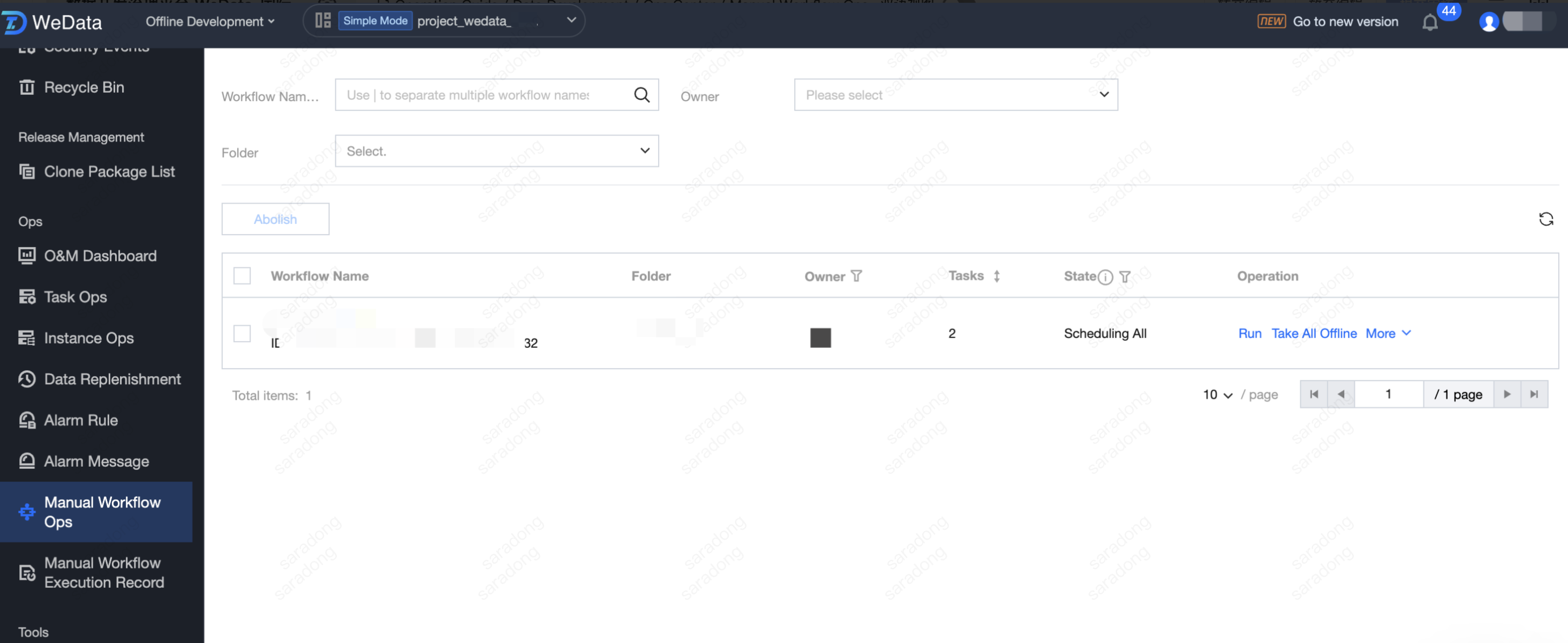
Go to Ops Center > Offline Maintenance > Manual Workflow Ops to view all manual workflows under the project.
Workflow filter: Supports filtering manual workflows by workflow name/ID, Owner, and folder.
Batch operation: Supports batch decommissioning of workflows. Select the workflows you wish to decommission in the list, click the decommission button, and after confirming the decommissioning, tasks that are "Scheduling" in the selected workflows will be decommissioned.
Manual workflow list: You can view information such as workflow name, ID, folder, and owner in the list. Click the Workflow Name to enter the workflow details page for more information.
View Manual Workflow Details
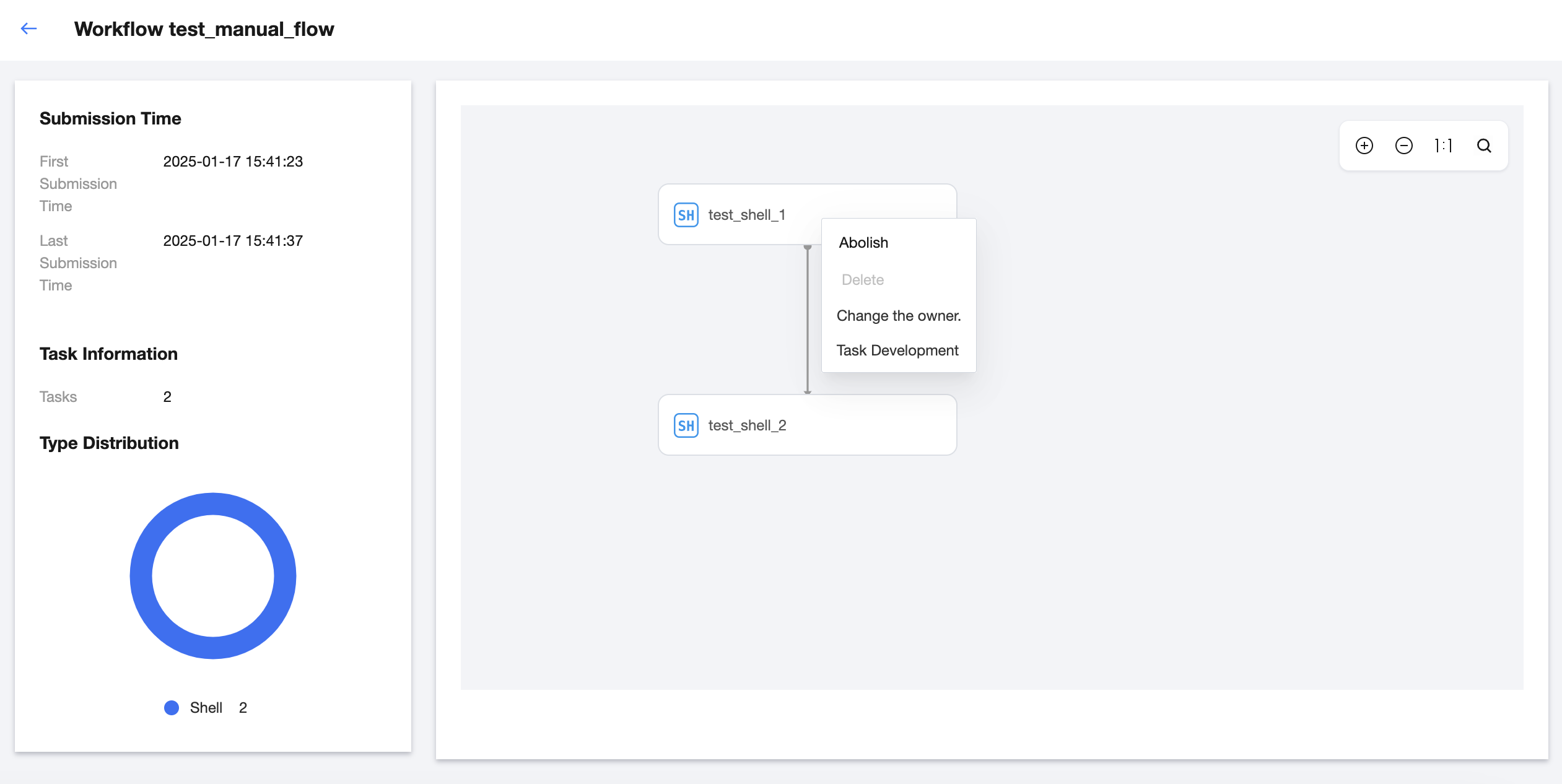
In the manual workflow Ops list, click the workflow name to enter the workflow details page.
On the workflow details page, you can view the first submission time, recent submission time, task information, task distribution, and workflow task DAG diagram.
Task Operations Under Manual Workflow
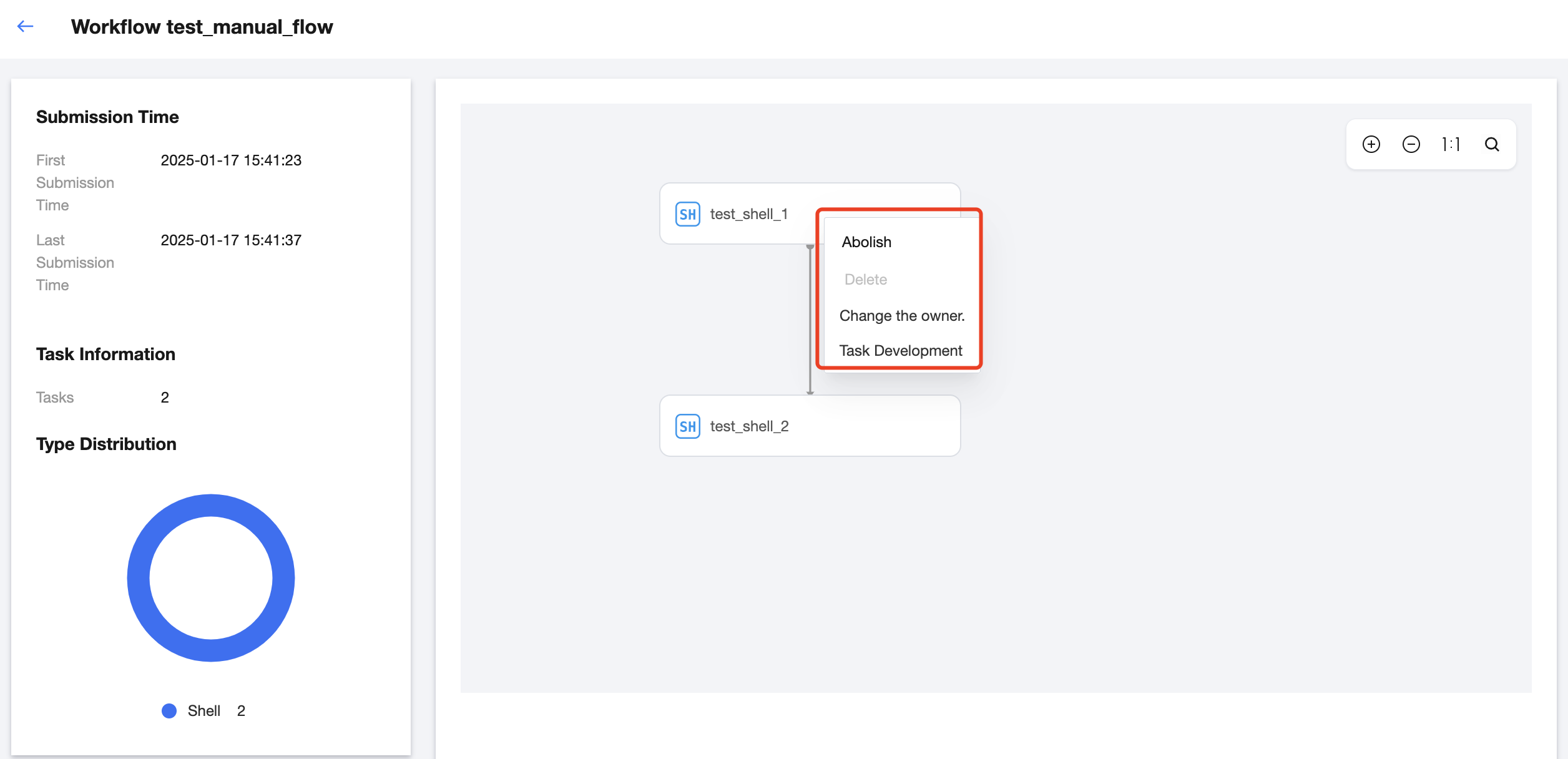
In the DAG diagram on the manual workflow details page, you can perform operations on tasks in the workflow, including decommission, delete, change owner, task development, etc.
Manual Workflow Operations
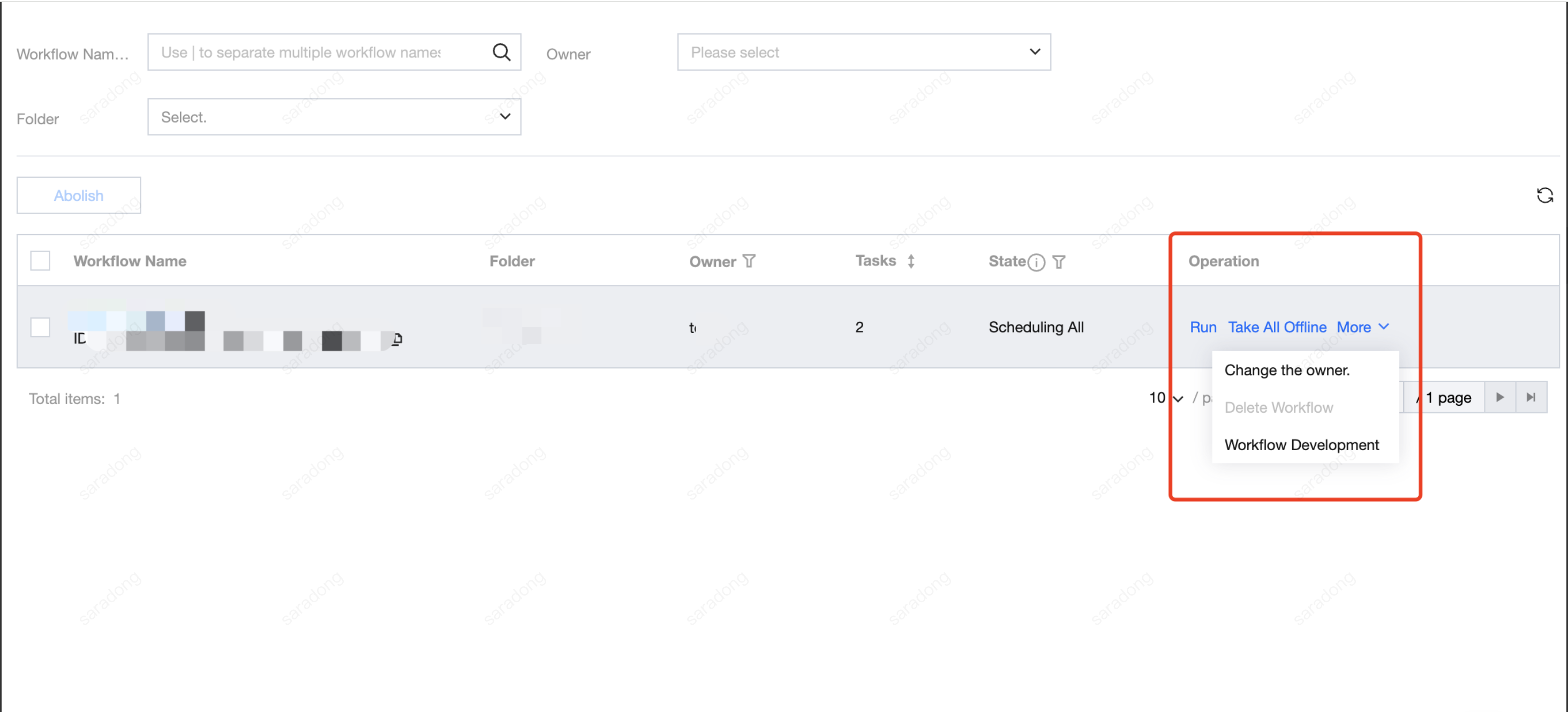
The manual workflow operation entry is in the manual workflow maintenance list, including run, all abolishment, change owner, delete workflow, and workflow development.
The following are all manual workflow operations:
Operation Name
Description(Optional)
Running
Running means manually triggering the workflow. Only workflows with the status " Scheduling All" or "Scheduling Some" support the running operation. Workflows with the status "All offline" do not support the running operation.
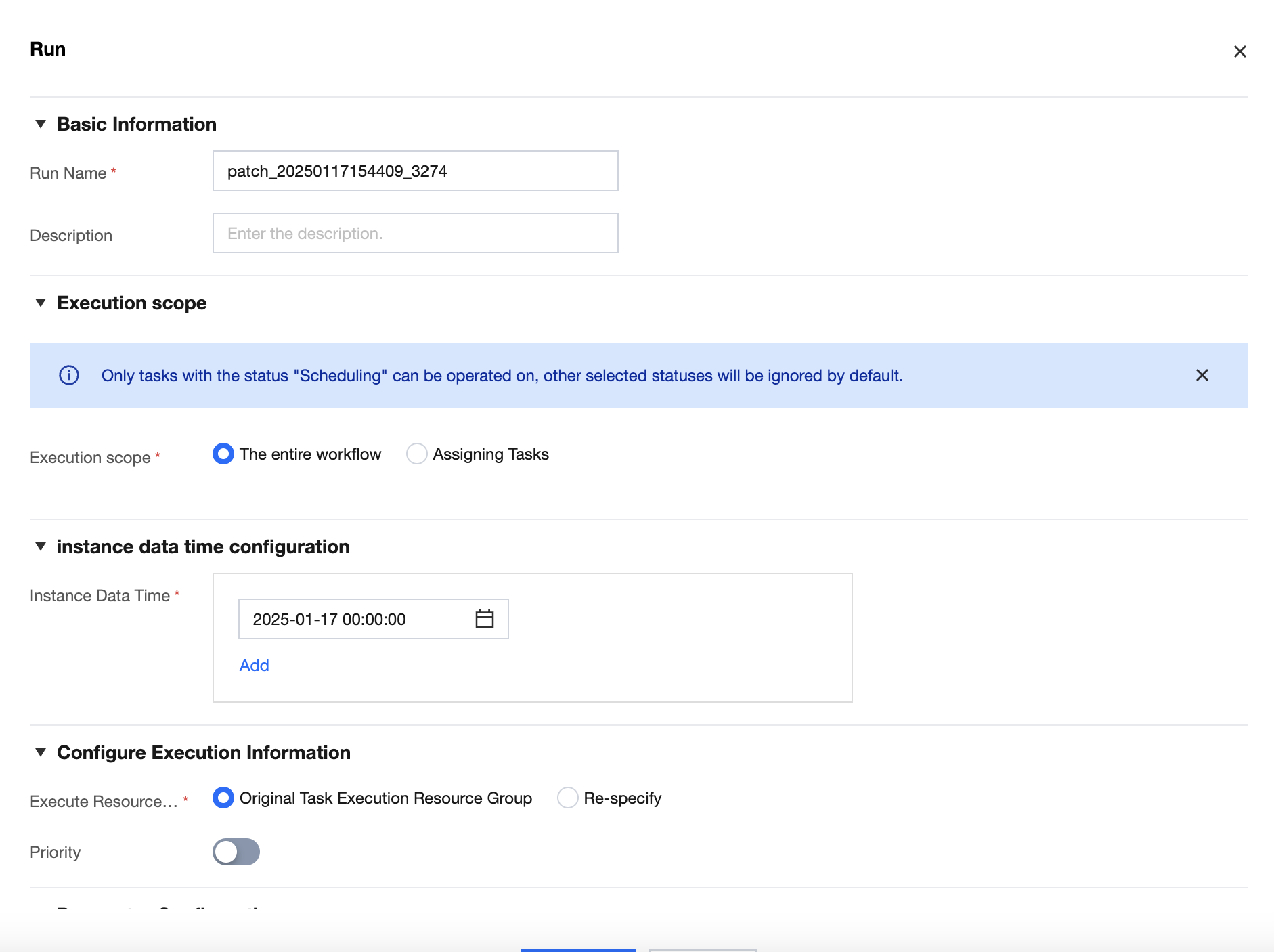
Click Run to open the pop-up and configure the run information. After configuration and successful submission, it indicates that the manual triggering is successful.
Run Name and Description.
Execution scope: You can specify that all tasks under the entire workflow run, or select some tasks under the workflow to run.
Instance Data Time: The expected instance data time. Currently, it can be selected to the second level, and multiple instance data times can be configured for one run.
Execute Resource Group: In case of resource constraints in the original resource group, you can switch to another resource group for execution. This configuration is only effective for this run.
Priority: When data has a strict order requirement, you can choose to execute in instance data time order or reverse instance data time order.
For example, a run submitted two instance data times: January 15, 2025, and January 16, 2025.
If you choose to execute in instance data time order, the instance of January 15, 2025, will be executed first, followed by the instance of January 16, 2025.
If you choose to execute in reverse instance data time order, the instance of January 16, 2025, will be executed first, followed by the instance of January 15, 2025.
Custom Parameter: During each execution, different parameter values can be specified based on business requirements, allowing users to configure freely according to business scenarios.
Take All Offline
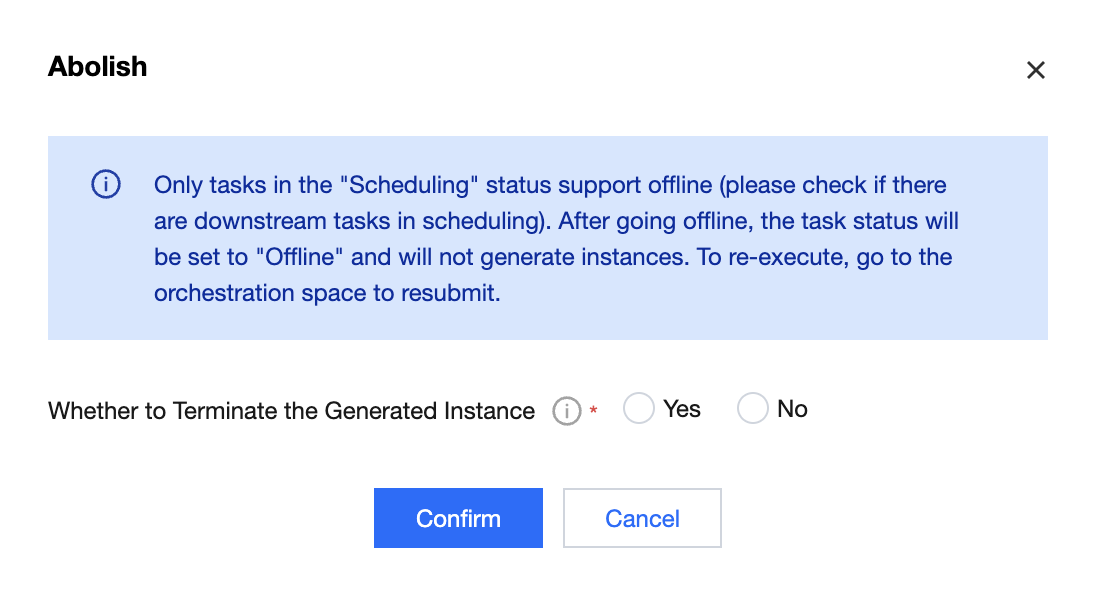
Taking all offline will decommission tasks under scheduling in the workflow. Decommissioned tasks will not be able to run. Only workflows with the status "Scheduling All" and "Scheduling Some" support the take all offline operation.
In the offline operation, you can choose whether to terminate the generated instances. If you choose yes, non-final state instances will also be terminated during the offline process.
Change the owner
Modify the owner of the workflow
Delete Workflow
Deletes the workflow and all its tasks and instances. Only workflows with the status "All Offline" support the delete workflow operation.
Workflow Development
Click Workflow Development to navigate to the corresponding workflow orchestration page in the orchestration space.
Manual Workflow Run Logs
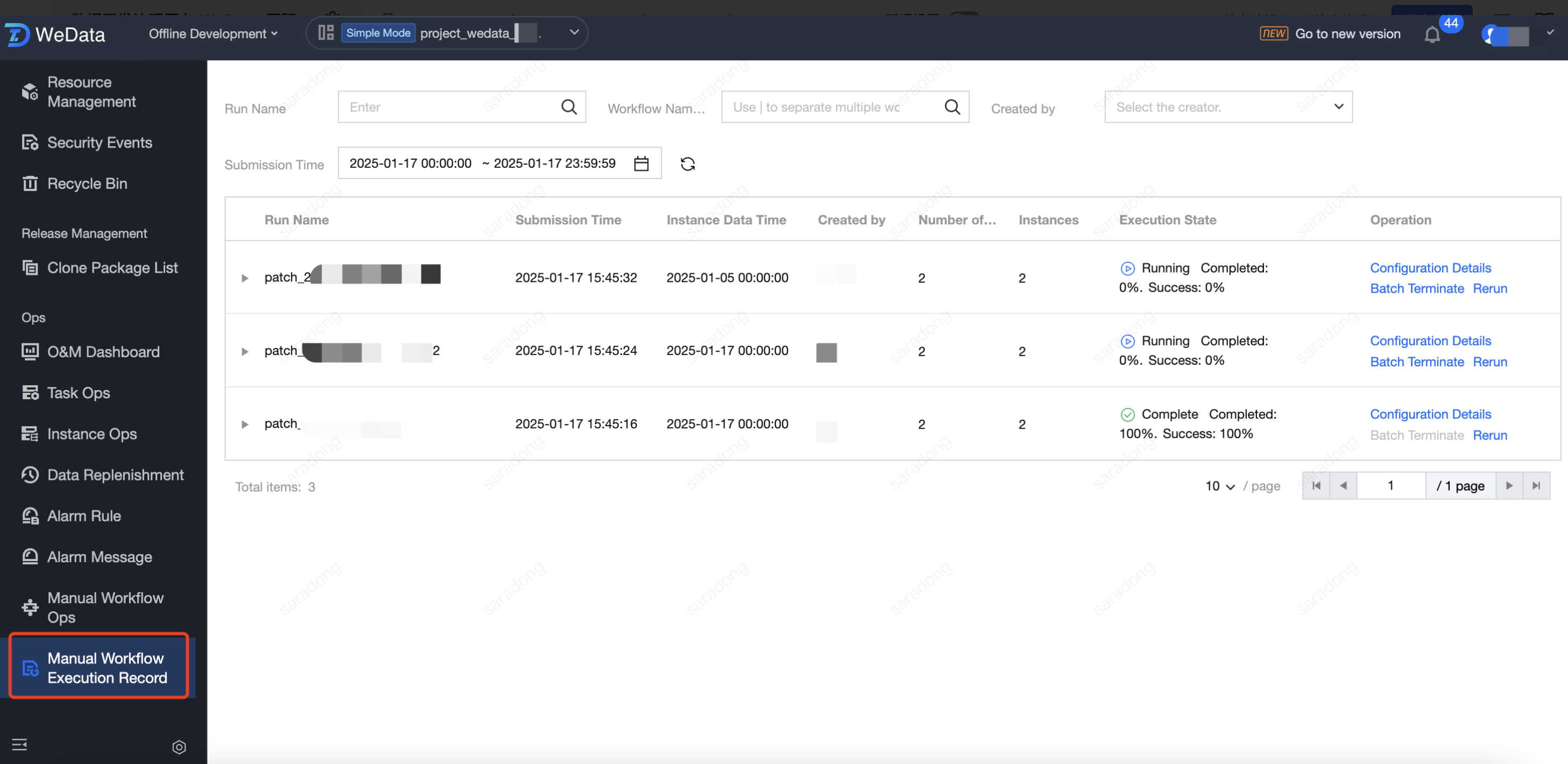
After manual workflow submission and run, you can view the progress and situation of the manual workflow in the Manual Workflow Run Logs tab.
Manual workflow run record list
The following is the feature description for viewing the workflow run record list:
Function
Feature Description
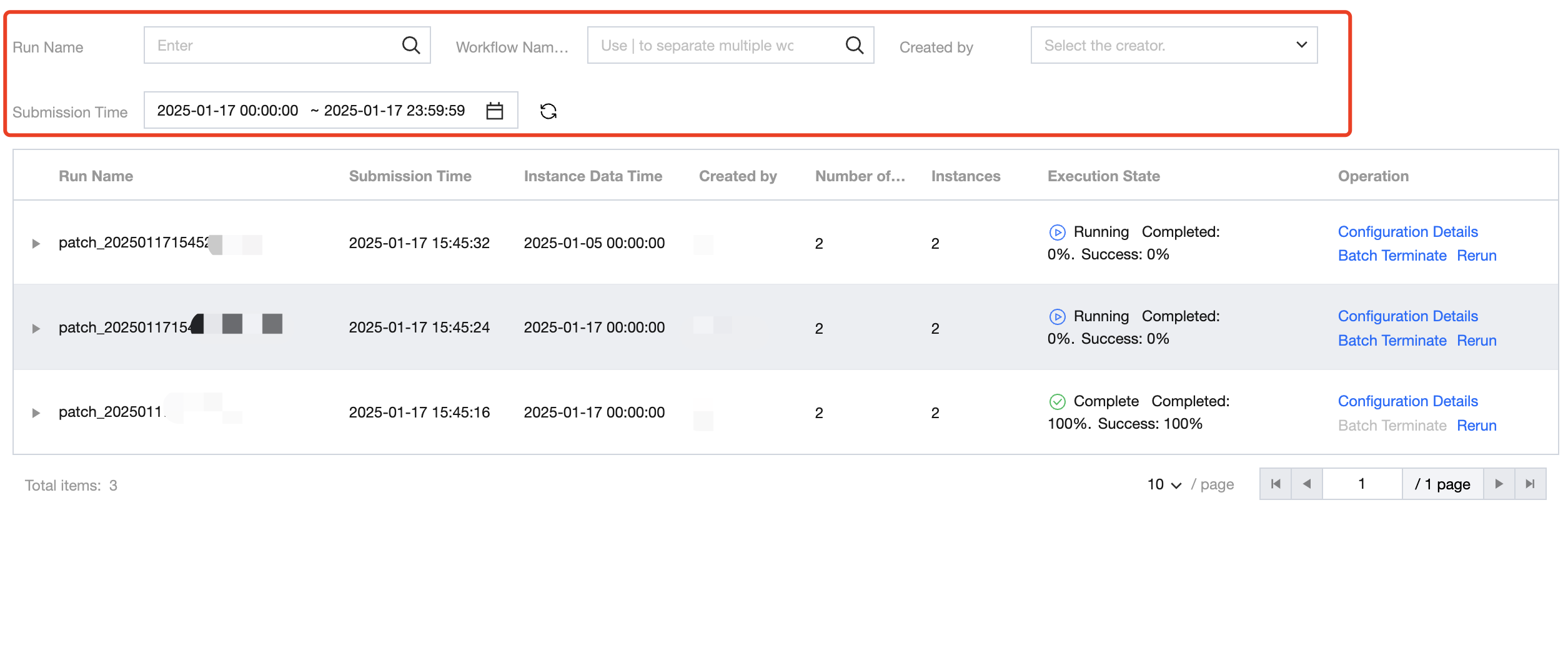
List Filter Options
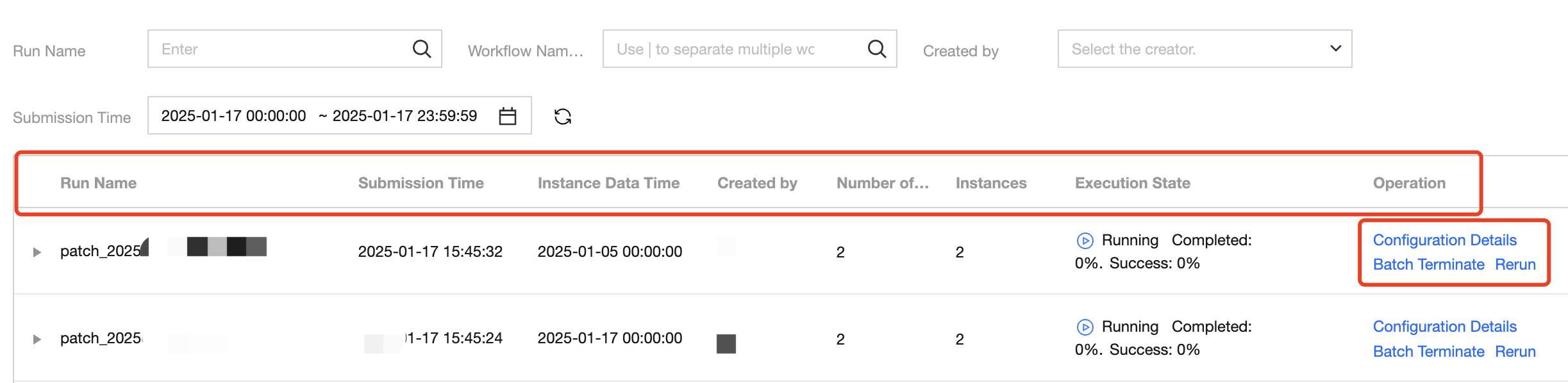
Support filtering by Run Name, Workflow Name/ID, Created by, and Submission Time.
First-level List
The primary list is at the run level, displaying run-related information and operations.
Information includes: run name, submission time, instance data time, creator, number of tasks, number of instances, execution status.
Operations include: configuration details, terminate in batches, rerun.
Secondary List
The secondary list is at the task level under the run, displaying task-related information.
Information includes: task name, owner, task type, number of instances, status.
Third-level List
The third-level list is at the instance level, displaying instance-related information and operations.
Information includes: instance data time, execution status, start time, end time, execution duration.
View logs: Redirect to the instance Details Page to view run log information.
View lineage: Redirect to the instance details page to view instance lineage.
Termination: Task instances in the states of waiting for events, waiting for upstream, waiting to run, or running can be terminated using the termination feature.
Task Development: Click to navigate to the orchestration space and open the corresponding task.
Viewing instance details
Instance details page gathers all running history, operation status, instance lineage, operation records, and basic instance operations. It helps users monitor and maintain instances.
Tab Page
Description(Optional)
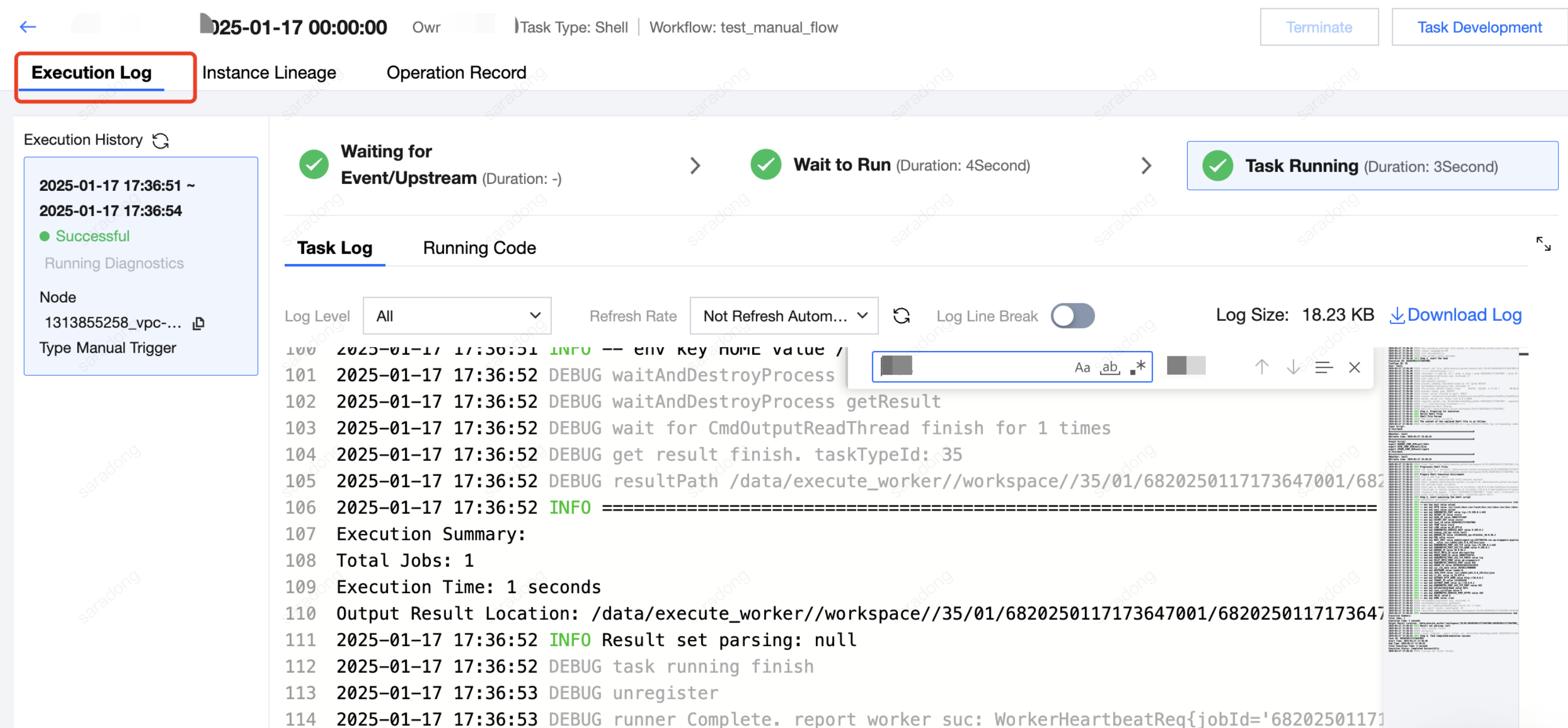
Execution Log
View the full process of each execution after the instance is generated, including waiting events/upstream, pending execution, start time of running, end time, time consumption, specific situation, execution logs, and execution code.
Execution List: The rightmost side is the record list of each instance execution. Each manual triggering, rerun, or retry will be recorded as an execution.
Execution Information: Each execution's basic condition can be viewed in three stages: waiting events/upstream, pending execution, and task running
Waiting Events/Upstream: Display the direct upstream instances/events list and their statuses, facilitating quick identification of blocking instances/events.
Pending Execution: Waiting to be dispatched to the execution engine.
Task Running: Already dispatched to the execution engine and began execution; execution logs and execution code can be viewed.
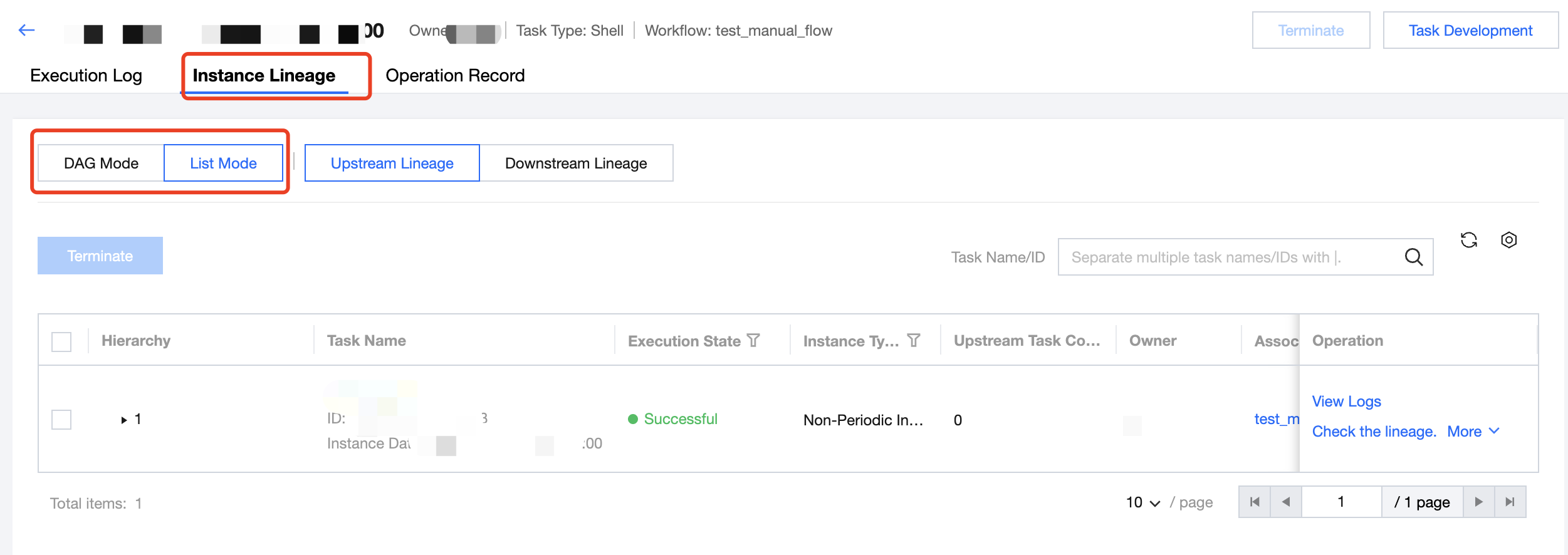
Instance Lineage
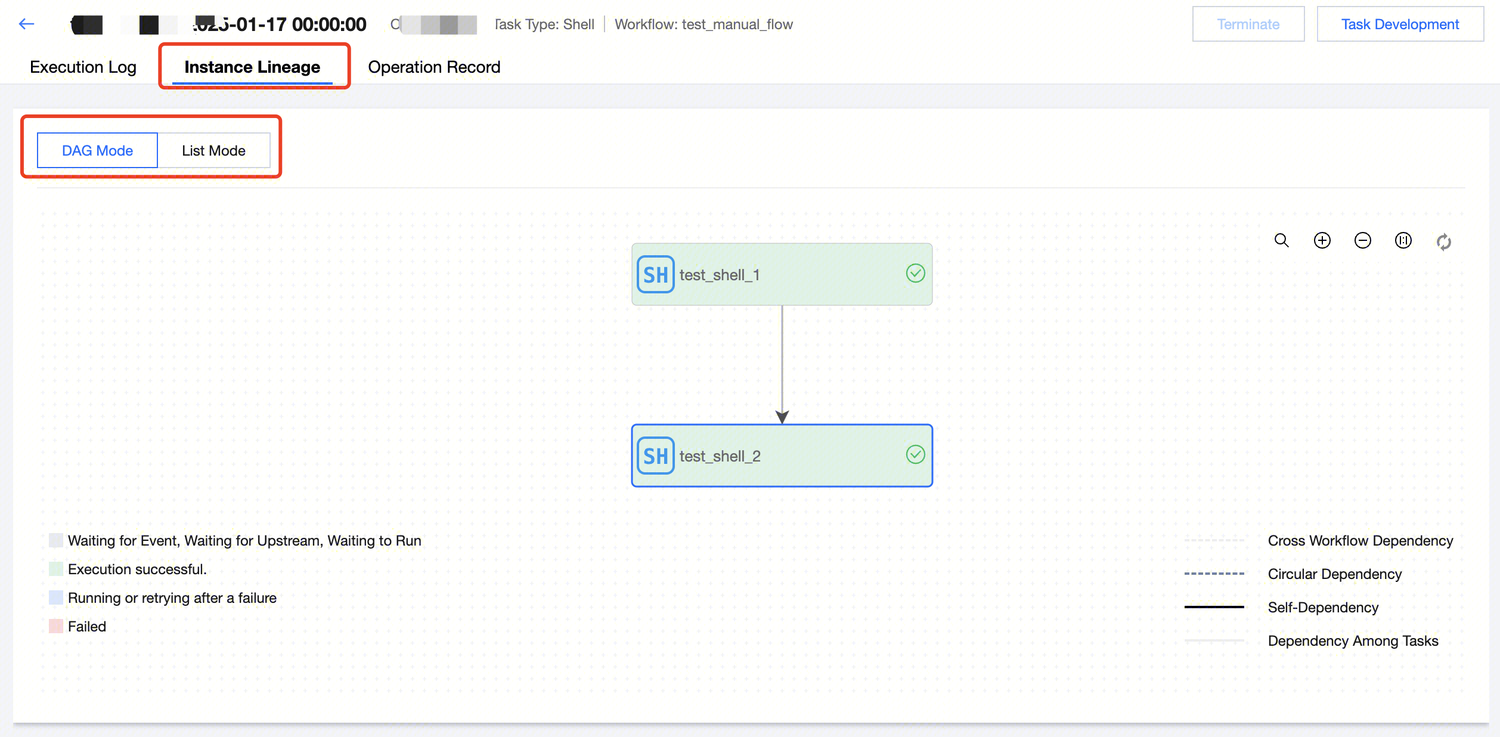
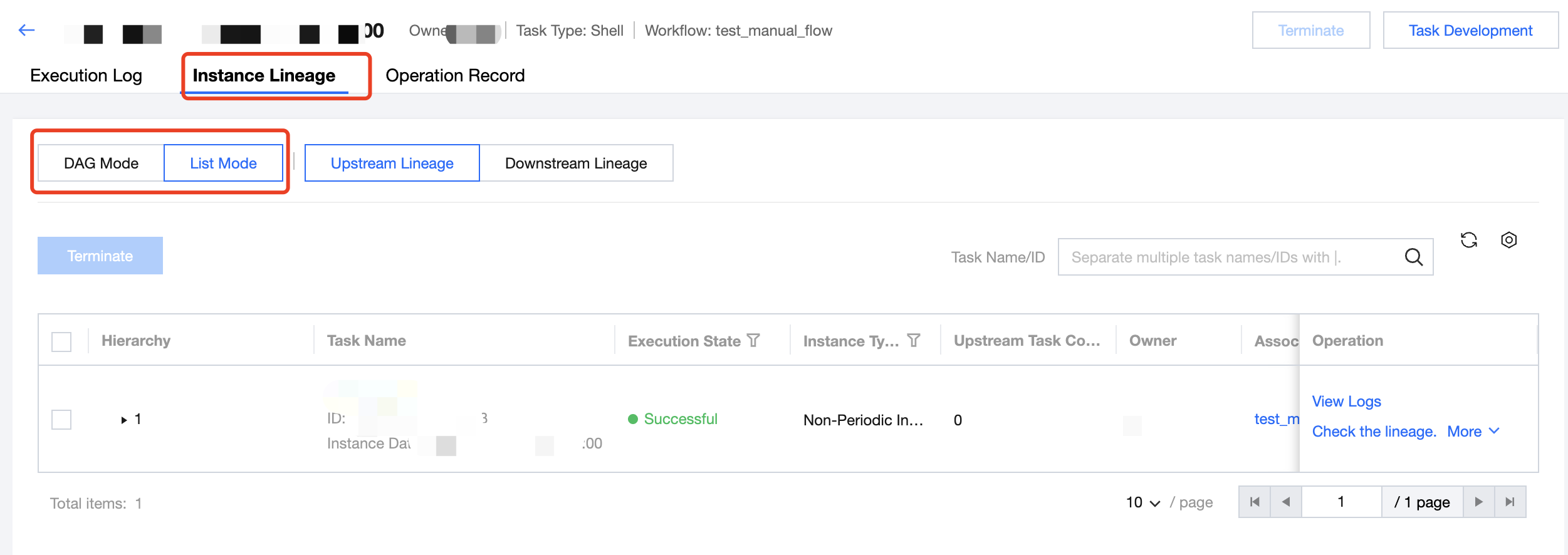
View the upstream and downstream relationships between the current compute task instance and other compute task instances within its workflow, and it also displays the running state and detailed information of each compute node, with different colors indicating the instance's running state.
DAG Mode: View instance lineage through graph mode, which can be expanded layer by layer. Basic instance operations are supported.
List Mode: View instance lineage through list mode, with options to view upstream or downstream.
Operation Record
View operation records of the instance, including termination, rerun, and other operations, as well as operator and operation time.