Traffic throttling policy
Overview
Traffic throttling primarily protects backend services by establishing traffic throttling rules. This prevents service and data crashes caused by excessive instantaneous traffic, which would lead to service unavailability. When resources become a bottleneck, requests must be throttled to activate the flow control protection mechanism. The TSF cloud-native gateway supports traffic throttling at both the service and route levels. This document describes how to configure traffic throttling rules.
Prerequisite
The tse-rate-limiting (traffic control) plugin is upgraded to the latest version before a traffic throttling policy is configured. If refined configuration is required for the traffic throttling threshold, ensure that the tse-global-configuration (global configuration) plugin is upgraded to the latest version.
1. Log in to the TSF console, click Cloud Native Gateway > Instance Management in the left sidebar, and go to the instance details page.
2. Choose the Plugin Management > System Plugins tab, and check whether the plugins are upgraded to the latest versions. If not, click Install Latest Version in the Operation column.
Service-Level Traffic Throttling
Service-level traffic throttling takes effect on all routes under the service. To configure traffic throttling for a specific route, go to the Service & Route page.
Step 1: Configuring a Traffic Throttling Policy
1. Log in to the TSF console, click Cloud Native Gateway > Instance Management in the left sidebar, and go to the instance details page.
2. Click Service & Route, select the Service tab, click a service name, and go to the service details page.
3. Select the Traffic Throttling Policy tab at the top of the page, and click Configure Traffic Throttling Rule.
Parameter | Required | Description |
Whether to Enable | Yes | A traffic throttling rule takes effect after it is enabled. |
Traffic Throttling Configuration | Yes | Basic traffic throttling: Traffic is controlled based on the request quantity threshold. When the request quantity on this service exceeds the threshold within a set period, traffic throttling is triggered. Six time dimensions: second, minute, hour, day, month, and year are supported. Parameter-based traffic throttling: Traffic is controlled based on user request parameters and specified conditions. Filter conditions (optional): Only requests that meet certain filter conditions (IP address or path) are counted for traffic throttling. Traffic throttling conditions: Traffic throttling is triggered when the traffic throttling parameters reach the specified thresholds. Traffic can be controlled based on the Header, Cookie, Path, IP, and Query parameters. You can set a fixed traffic throttling threshold and use global configurations for refined configuration of different throttling parameter values. |
Count Policy | Yes | When the default Redis database is selected for storage, the counter is stored in the built-in Redis service node of the Cloud Native API Gateway instance to implement distributed traffic throttling, and the Redis service node can store a maximum of 3 million traffic throttling keys. When an external Redis database is selected, you can configure the Redis access address (server address, connection password, and timeout) to implement distributed traffic throttling at a larger scale. |
Traffic Throttling Processing Policy | Yes | Return directly: 429 is returned directly when traffic throttling is triggered. Custom return: When traffic throttling is triggered, HTTP response behavior is customized. The status code, response header, and response content are required. Request forwarding: After traffic throttling is triggered, you are redirected to the specified page and need to enter the request forwarding address. |
Request Queuing | No | Maximum request queuing period, ranging from 0 to 15 seconds. The value 0 indicates that a request is handled without latency. For values greater than 0, the gateway tries to handle a request every 1 second. If the request is not processed after the maximum queuing period reaches, the request will be throttled. |
Hide Traffic Throttling Response Headers | No | It is enabled by default. After traffic throttling response headers are hidden, the client will not receive response headers related to traffic throttling. |
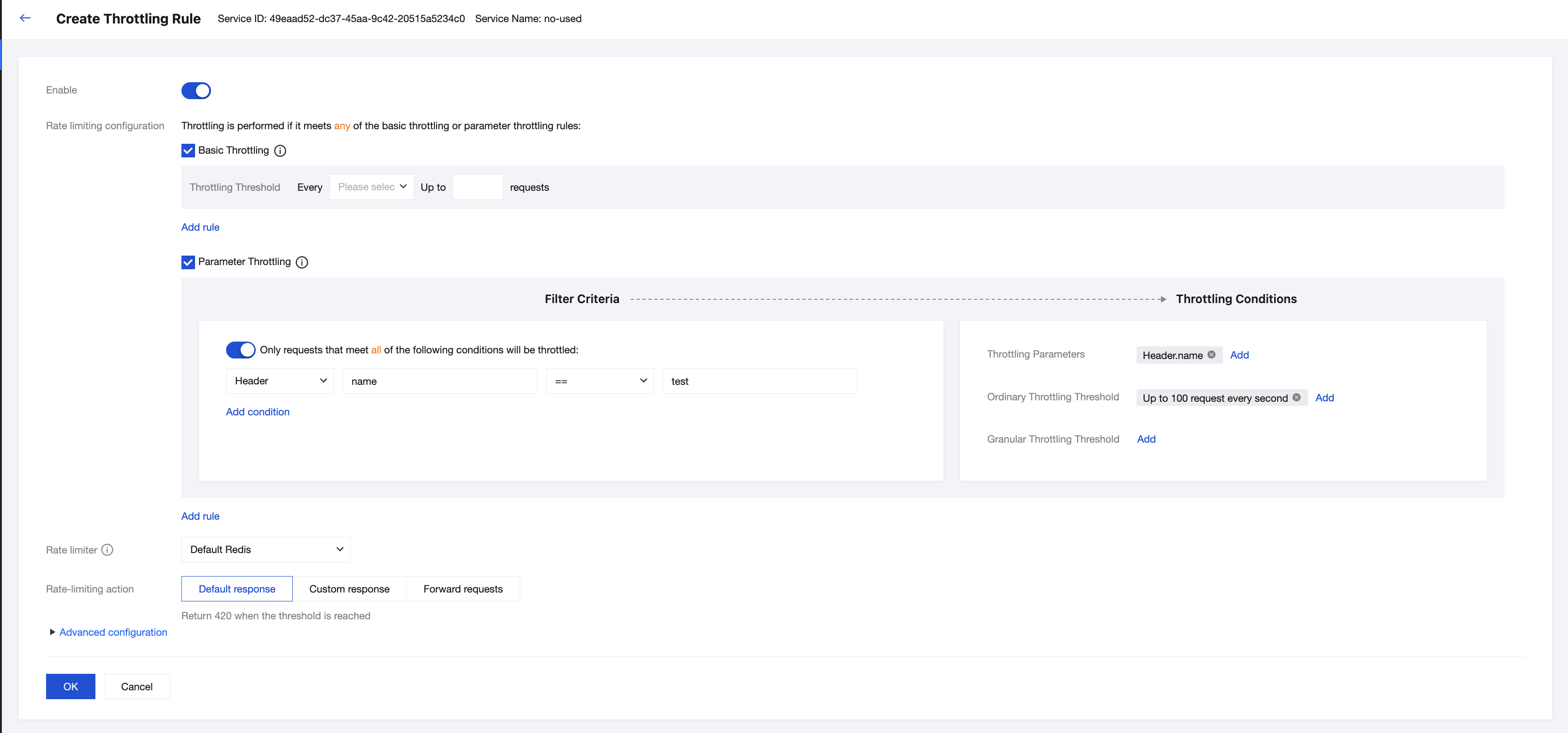
Remarks:
1. The refined traffic throttling threshold applies to scenarios where different traffic throttling parameters require different thresholds. For example, traffic throttling can be performed based on the Query request parameter `appid`. When `appid` = 1, the traffic is throttled to 100 requests per minute. When `appid` = 2, the traffic is throttled to 200 requests per minute.
2. The refined traffic throttling threshold can be configured only after an ordinary traffic throttling threshold is configured. The ordinary traffic throttling threshold is used as the default traffic throttling threshold when the specified request parameter is not matched.
3. The refined traffic throttling threshold is defined using a global configuration and described in JSON format. Configure it in the format of traffic throttling key:traffic throttling threshold, and use underscores (_) to connect all traffic throttling parameter values in sequence as the traffic throttling key. For example, when traffic throttling is performed based on the query parameter appid and appid is set to 1, the traffic throttling threshold is 100. When appid is set to 2, the traffic throttling threshold is 200. The global configuration is as follows:
{"1": 100,"2": 200}
4. Click Confirm to complete the rule creation.
Step 2: Verifying Whether the Policy Takes Effect
Send a request to trigger the traffic throttling rule and check whether traffic throttling takes effect.
Route-Level Traffic Throttling
Route-level traffic throttling takes effect for a route only. To configure service-level traffic throttling, go to the Service-Level Traffic Throttling Policy page.
Step 1: Configuring a Traffic Throttling Policy
1. Log in to the TSF console, click Cloud Native Gateway > Instance Management in the left sidebar, and go to the instance details page.
2. Click Service & Route, select the Service tab, click a service name, and go to the service details page.
3. Select the Route tab and go to the Service & Route page.
4. Click Configure Traffic Throttling Rule in the Route-Level Traffic Throttling module.
Parameter | Required | Description |
Whether to Enable | Yes | A traffic throttling rule takes effect after it is enabled. |
Traffic Throttling Configuration | Yes | Basic traffic throttling: Traffic is controlled based on the request quantity threshold. When the request quantity on this service exceeds the threshold within a set period, traffic throttling is triggered. Six time dimensions: second, minute, hour, day, month, and year are supported. Parameter-based traffic throttling: Traffic is controlled based on user request parameters and specified conditions. Filter conditions (optional): Only requests that meet certain filter conditions (IP address or path) are counted for traffic throttling. Traffic throttling conditions: Traffic throttling is triggered when the traffic throttling parameters reach the specified thresholds. Traffic can be controlled based on the Header, Cookie, Path, IP, and Query parameters. You can set a fixed traffic throttling threshold and use global configurations for refined configuration of different throttling parameter values. |
Count Policy | Yes | When the default Redis database is selected for storage, the counter is stored in the built-in Redis service node of the Cloud Native API Gateway instance to implement distributed traffic throttling, and the Redis service node can store a maximum of 3 million traffic throttling keys. When an external Redis database is selected, you can configure the Redis access address (server address, connection password, and timeout) to implement distributed traffic throttling at a larger scale. |
Traffic Throttling Processing Policy | Yes | Return directly: 429 is returned directly when traffic throttling is triggered. Custom return: When traffic throttling is triggered, HTTP response behavior is customized. The status code, response header, and response content are required. Request forwarding: After traffic throttling is triggered, you are redirected to the specified page and need to enter the request forwarding address. |
Request Queuing | No | Maximum request queuing period, ranging from 0 to 15 seconds. The value 0 indicates that a request is handled without latency. For values greater than 0, the gateway tries to handle a request every 1 second. If the request is not processed after the maximum queuing period reaches, the request will be throttled. |
Hide Traffic Throttling Response Headers | No | It is enabled by default. After traffic throttling response headers are hidden, the client will not receive response headers related to traffic throttling. |
5. Click Confirm to complete the rule creation.
Step 2: Verifying Whether the Policy Takes Effect
Send a request to trigger the traffic throttling rule and check whether traffic throttling takes effect.
피드백