Tags are markers provided by Tencent Cloud for identifying cloud resources, and they are key-value pairs (Key-Value). Tags help you categorize and manage TSF resources conveniently from various dimensions, such as business, purpose, and owner.
Use Limits
You need to pay attention to the following use limits of tags:
Quantity Limit
One tag consists of one tag key and one tag value (tagKey:tagValue).
A resource can be bound with up to 50 tags.
For a given resource, the same tag key can only be associated with one tag value.
Naming Limits
Tag Key
Tag keys that begin with qcs: or project: are reserved by the system and cannot be created.
In UTF-8, a tag key should contain at least one and at most 127 Unicode characters.
Supported characters include UTF-8 encoded characters, spaces, digits, and special characters: +-=._:/@()[]()[].
Case sensitivity is enabled.
Tag Value
In UTF-8, a tag key must contain at least one and at most 255 Unicode characters.
Supported characters include UTF-8 encoded characters, spaces, digits, and special characters: +-=._:/@()[]()[].
Case sensitivity is enabled.
Operation Steps and Cases
Case Description
Case: A company has five registry clusters on Tencent Cloud. The information regarding the department, business scope, and responsible person for each of these five clusters is as follows:
Instance ID
Department
Business Scope
Owner
ins-f47740fa
E-commerce
Marketing campaigns
Tom
ins-f47740fb
E-commerce
Marketing campaigns
Harry
ins-f47740fc
Gaming
Game A
Tom
ins-f47740fd
Gaming
Game B
Harry
ins-f47740fe
Entertainment
Frontend production
Harry
Taking the instance ins-f47740fa as an example, we can add the following three sets of Tags to it:
Tag Key
Tag Value
dept
ecommerce
business
mkt
owner
zhangsan
Similarly, you can assign corresponding Tags to other cluster resources based on their respective usage departments, business scopes, and responsible personnel.
Operation Steps
Step 1: Binding a Resource to a Tag
Using the scenario above as an example, after you have designed the Tag keys and values, you can log in to the TSF console to configure the Tags.
1. Use root account to log in to the TSF console, select existing engine instances, and click to go to the details page.
2. Click to go to the basic information page of an engine instance, then click the edit icon for the Tag.
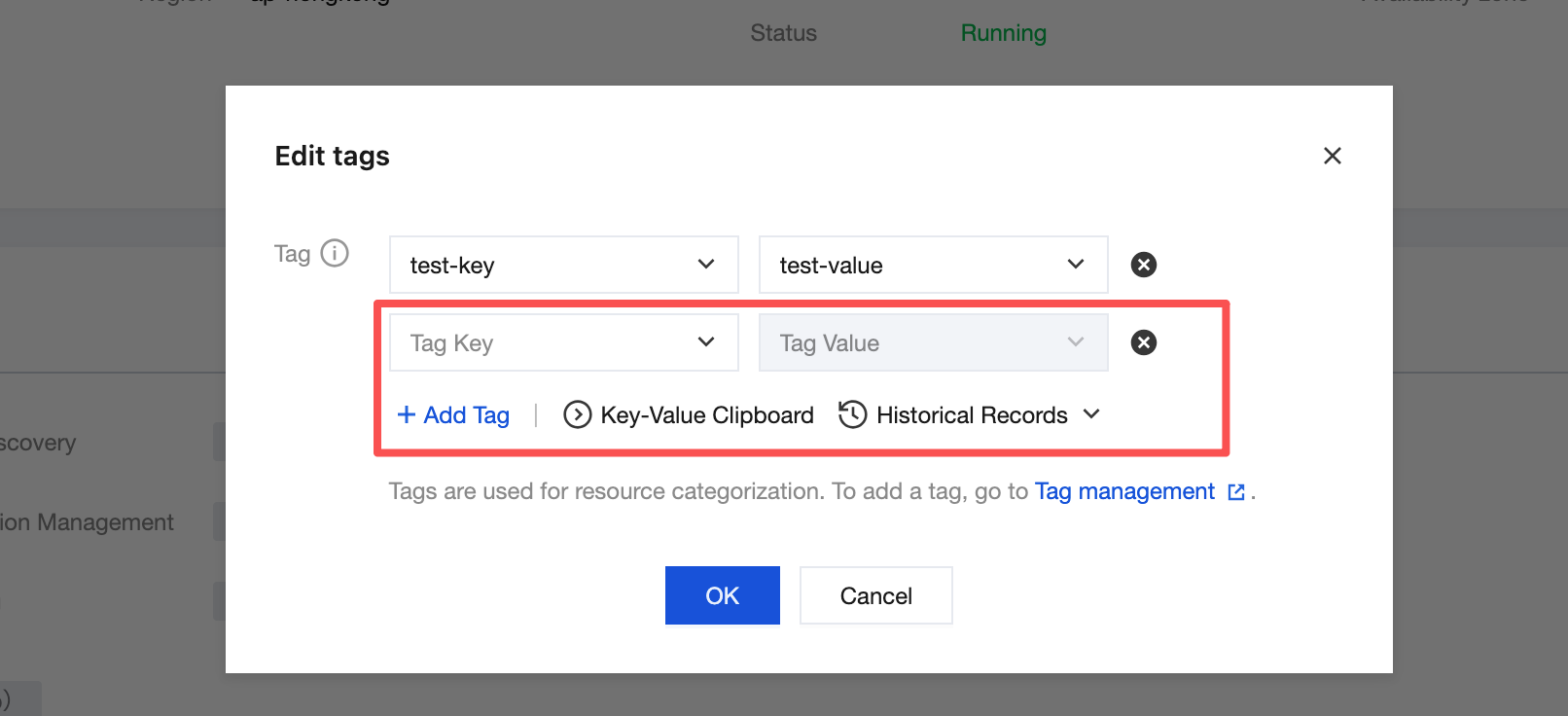
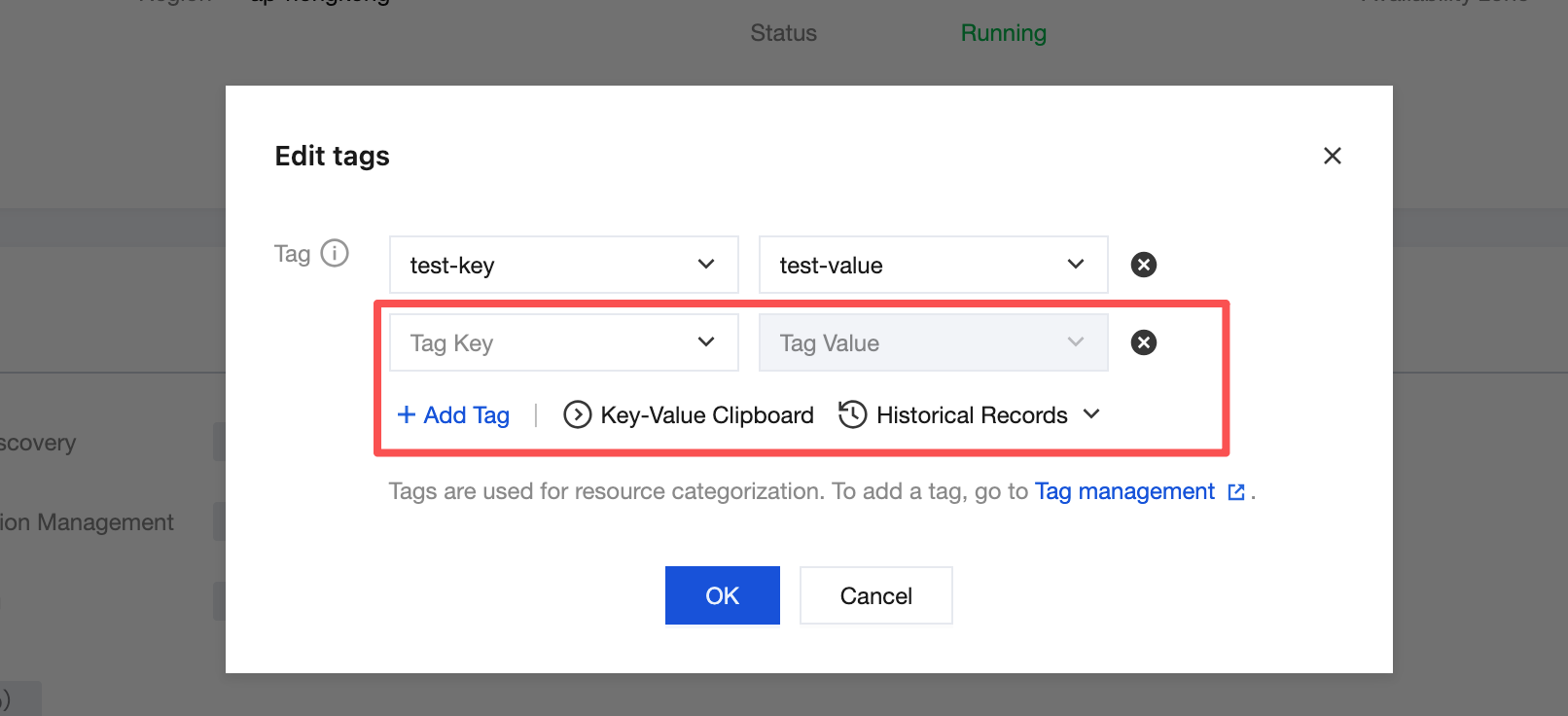
3. Click Add, select the Tag key and Tag value to be bound, and complete binding Tags to the TSF instance.
4. For example: add three sets of Tags to the cluster of ins-f47740fa.
Step 2: Querying by Tag
To filter out the clusters bound to specific tags, perform the following steps:
1. Log in to TSF console and go to the engine management list.
2. Select tag in the search box at the top-right corner of the page.
3. In the window that pops up after Tag:, select the Tag you want to search for, and click OK to search.
For example, selecting Tag: owner filters out clusters bound to the Tag key owner.
Step 3: Editing a Tag
1. Log in to TSF console, select existing engine instances, and click to go to the details page.
2. Click to go to the basic information page of an engine instance, then click the edit icon for the Tag.
3. You can add, delete, modify, and perform other operations on the Tags bound to the instance.
Appendix
For more information on how to use Tags, see Tag Management.