Configuration Import and Export
Scenarios
This document describes how to quickly create configurations using the import and export capabilities via the TSF console.
Prerequisite
The Polaris engine instance has been created, and the instance version is not lower than 2.1.0.0-RC3.
The namespace has been created.
The configuration group and configuration file have been created. (During configuration export)
Operation Steps
Configuration Export
Polaris Configuration Center supports batch export of configuration files at the namespace level.
1. Log in to the TSF console, select Polaris (North Star) in the left menu bar, and go to the engine instance list page.
2. On the instance list page, select the target engine, click Configuration Management, and go to the configuration groups page.
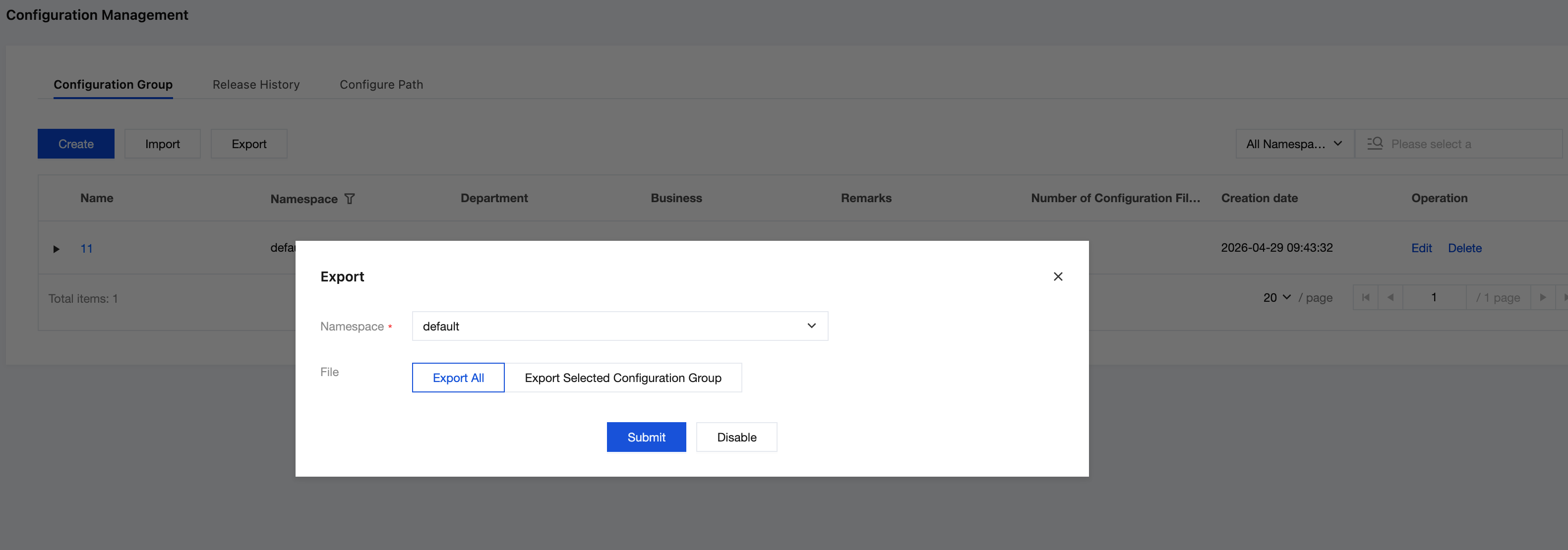
3. Click the Export button to go to the export configuration page, select the namespace and configuration file, and then submit.
Namespace: The namespace where the exported configuration files are located.
Files: The scope of exported configuration files, which can be either all files or files in a particular configuration group.
4. After the export is complete, unzip the file to obtain the corresponding configuration files.
Configuration Import
Polaris Configuration Center supports batch import of configuration files at the namespace level in specified file formats.
1. Log in to the TSF console, select Polaris (North Star) in the left menu bar, and go to the engine instance list page.
2. On the instance list page, select the target engine, click Configuration Management, and go to the configuration groups page.
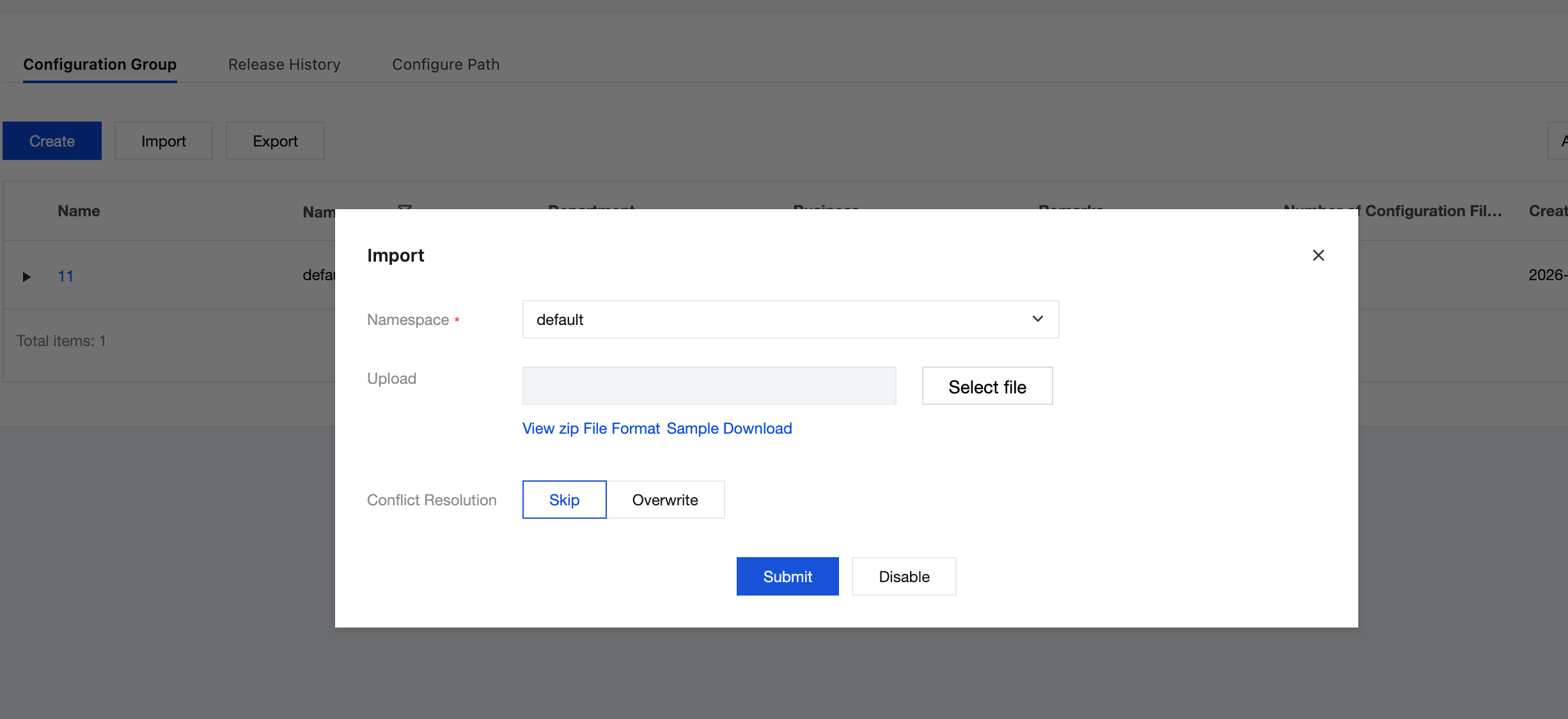
3. Click the Import button to go to the Import Configuration page, select the import file via the template, and then submit.
Namespace: The target namespace for importing configuration files.
Files: Imported configuration files.
Conflict Handling: For duplicate files, you can skip/overwrite them.
Note:
The zip file must be uploaded in the specified format and directory structure; otherwise, import failure may occur.
4. After submission, you can view the import results.
피드백