tencent cloud

Cloud Load Balancer

릴리스 정보 및 공지 사항
릴리스 노트
제품 공지
제품 소개
제품 개요
제품 장점
시나리오
기술 원리
Product Comparison
사용 제한
Service Regions and Service Providers
구매 가이드
과금 개요
비용 계산 항목
구매 방식
연체 안내
제품 속성 선택
시작하기
도메인 이름 기반 CLB 시작하기
CLB 시작하기
CentOS에서 Nginx 배포하기
CentOS에서 Java Web 배포하기
운영 가이드
CLB 인스턴스
CLB 리스너
리얼 서버
상태 확인
인증서 관리
로그 관리
모니터링 및 알람
액세스 관리
사례 튜토리얼
CLB에 인증서 배치(양방향 인증)
HTTPS 포워딩 구성
리얼 클라이언트 IP 가져오기
로드 밸런싱 구성 모니터링 및 알람에 대한 모범 사례
다중 가용존에서 HA 구현
로드 밸런싱 알고리즘 선택 및 가중치 구성 예시
CLB 수신 도메인 이름에 대한 WAF 보호 구성하기
OPS 가이드
과도한 TIME_WAIT 상태의 클라이언트에 대한 솔루션
CLB HTTPS 서비스 성능 테스트
스트레스 테스트 FAQ
CLB 인증서 작업 권한
문제 해결
UDP 상태 확인 예외 발생
API 참조
History
Introduction
API Category
Instance APIs
Listener APIs
Backend Service APIs
Target Group APIs
Redirection APIs
Other APIs
Classic CLB APIs
Load Balancing APIs
Making API Requests
Data Types
Error Codes
CLB API 2017
FAQ
과금 관련
CLB 구성
헬스체크 이상 점검
HTTPS
WS/WSS 프로토콜 지원
HTTP/2 프로토콜 지원
연락처
용어집
문서Cloud Load Balancer

Configuring Classic CLB

포커스 모드
폰트 크기
마지막 업데이트 시간: 2024-01-04 14:34:05
After creating a classic CLB instance, you need to configure a listener for it. The listener listens to requests on the instance and distributes traffic to real servers based on the load balancing policy.

Prerequisites

You need to create a CLB instance first and select "Classic CLB" for Instance type.
Note:
Currently, there are two types of Tencent Cloud accounts: bill-by-EIP/CLB and bill-by-CVM. All Tencent Cloud accounts registered after June 17, 2020 00:00:00 are bill-by-EIP/CLB accounts. For Tencent Cloud accounts registered before June 17, 2020, check your account types in the console. Bill-by-EIP/CLB accounts no longer support classic CLB. You can now only purchase a CLB instance.

Configuring the Listener

Step 1. Open the Listener Management page

1. Log in to the CLB Console.
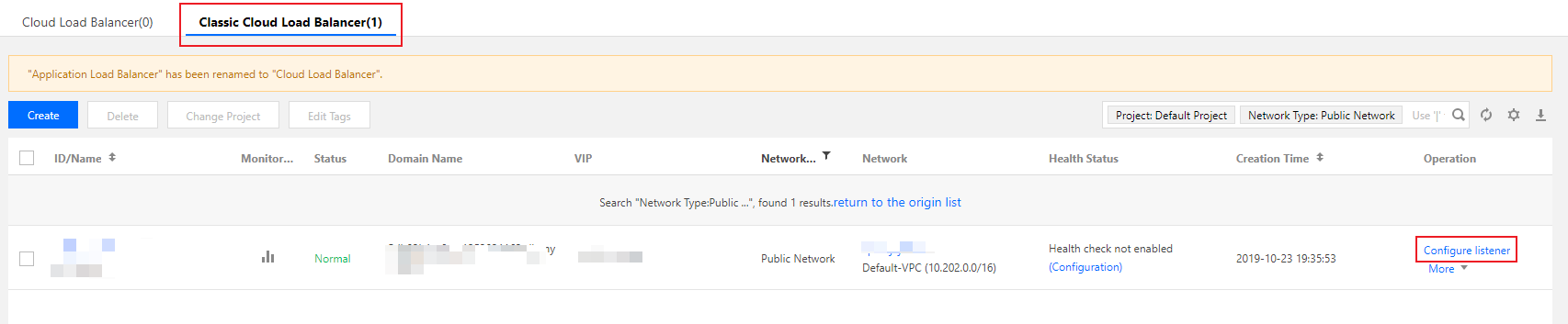
2. Select CLB Instance List on the left sidebar.
3. On the Instance Management page, click the ID/Name of the instance to be configured to enter the instance details page.
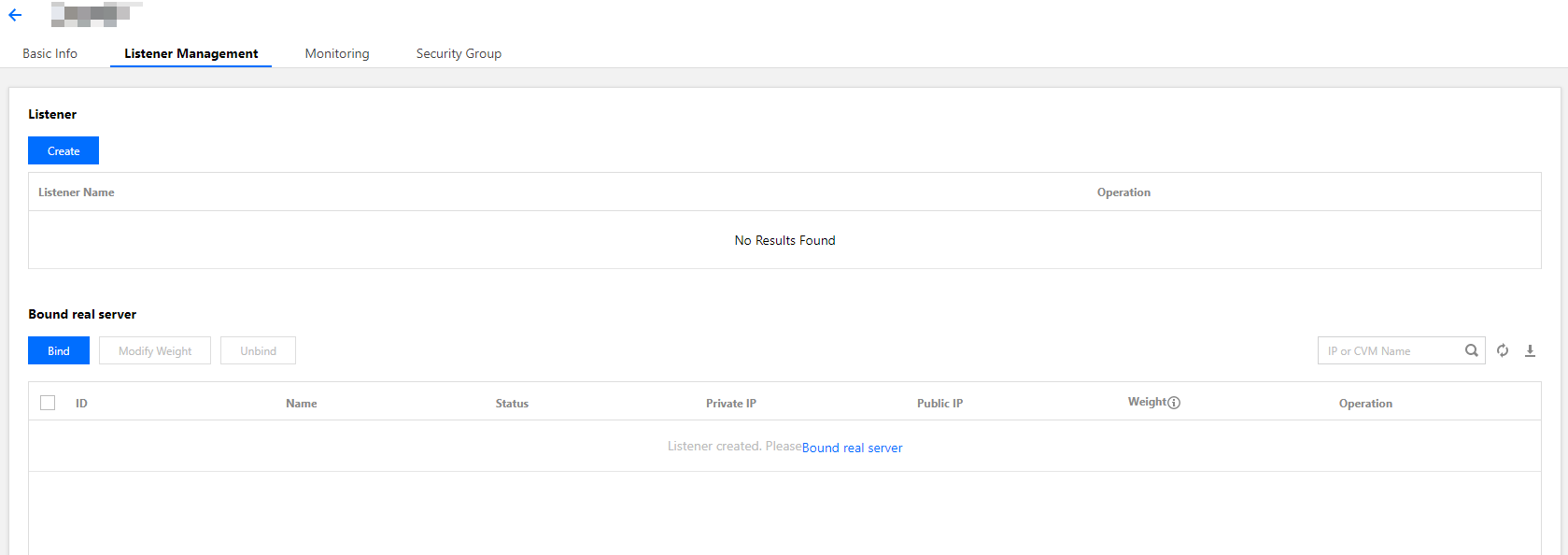
4. Select the Listener Management tab, or click Configure listener under the Operation column on the Instance Management page.


5. The Listener Management page is as shown below.


Step 2. Configure a listener

Click Create under Listener Management and configure a TCP listener in the pop-up window.

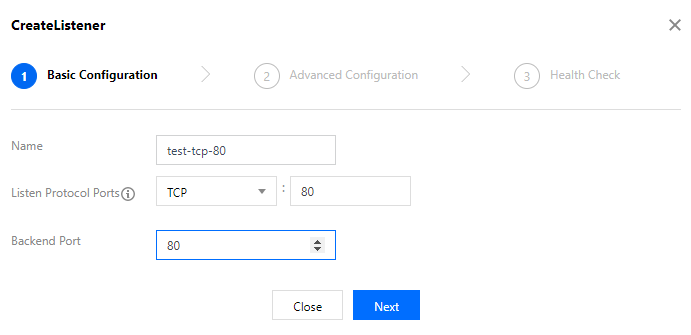
1. Basic configuration

Configuration Item
Description
Example
Name
Listener name.
test-tcp-80
Listener Protocol Ports
Listener protocol and listening port
Listener protocol: CLB supports protocols such as TCP, UDP, HTTP, and HTTPS. This example uses TCP.
Listening port: used to receive and forward requests to real servers. The port range is 1-65535.
The listening port must be unique in the same CLB instance.
TCP:80
Backend Port
The port through which the CVM instance provides services, receives and processes traffic from a CLB instance.
80
To create a TCP listener, complete the basic configuration as shown below:


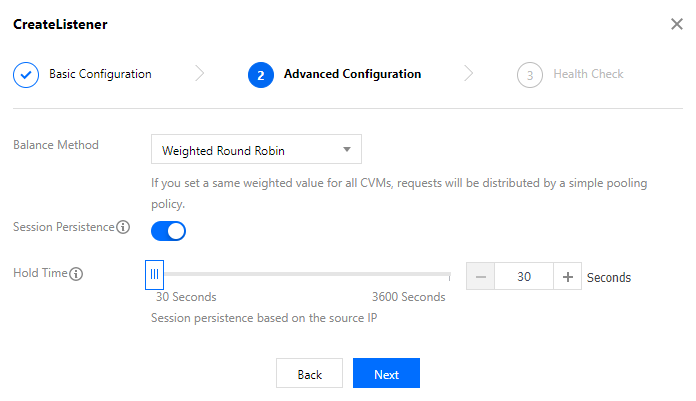
2. Advanced configuration

Configuration Item
Description
Example
Balance Method
For TCP listeners, CLB supports two scheduling algorithms: weighted round robin (WRR) and weighted least-connection (WLC).
WRR: requests are forwarded to different real servers sequentially according to their weights. Scheduling is based on the number of new connections, where servers with higher weights have more polls (i.e., a higher probability) and servers with the same weight process the same number of connections.
WLC: loads on servers are estimated according to their number of active connections. Scheduling is based on server loads and weights. If their weights are the same, real servers with fewer active connections will have more polls (i.e., a higher probability).
WRR
Session Persistence
Whether to enable or disable session persistence.
After session persistence is enabled, CLB listener will distribute access requests from the same client to the same real server.
TCP session persistence is implemented based on client IP address. The access requests from the same IP address are forwarded to the same real server.
Session persistence can be enabled for WRR scheduling but not WLC scheduling.
Enabled
Hold Time
Session persistence time.
If there is no new request in the connection within the session persistence time, session persistence will be automatically disconnected.
Value range: 30-3600 seconds.
30s
Complete the configuration as shown below:


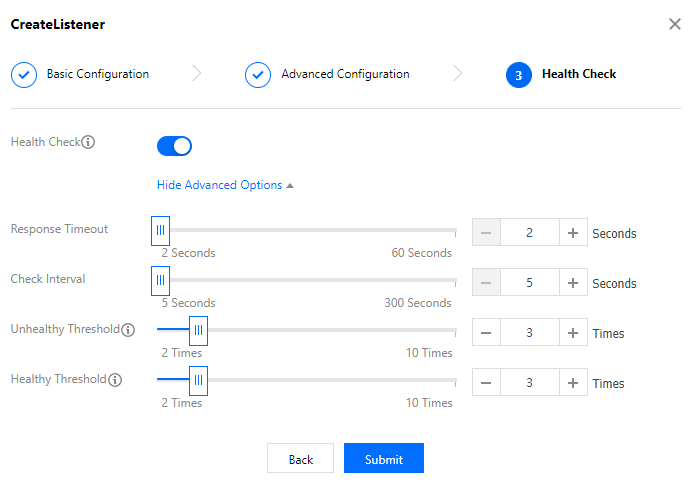
3. Health check

Configuration Item
Description
Example
Health Check
Whether to enable or disable health check. In TCP listeners, CLB instances send SYN packets to specified server ports to perform health checks.
Enabled
Check Protocol
To be added.
To be added
Check Port
To be added.
To be added
Response Timeout
Maximum response timeout period for health check.
If a real server fails to respond within the timeout period, it is considered as unhealthy.
Value range: 2-60 seconds. Default value: 2s.
2s
Check Interval
Interval between two health checks.
Value range: 5-300 seconds. Default value: 5s.
5s
Unhealthy Threshold
If the health check returns failure for n consecutive times (n is user-defined), the real server is unhealthy and the unhealthy status is displayed in the console.
Value range: 2-10 times. Default value: 3 times
3 times
Healthy Threshold
If the health check returns success for n consecutive times (n is user-defined), the real server is healthy and the healthy status is displayed in the console.
Value range: 2-10 times. Default value: 3 times.
3 times
Complete the health check configuration as shown below:


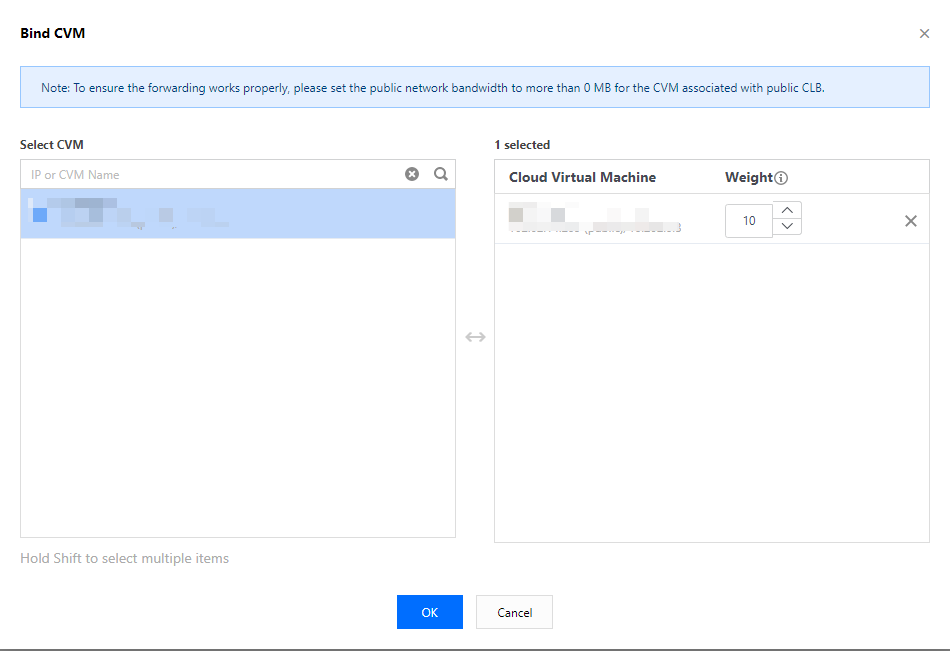
Step 3. Bind a real server

Click Bind on the Listener Management page and select the real server to be bound in the pop-up window, as shown below:

The configuration is as shown below:


Note:
If you configure multiple listeners to a classic CLB instance and bind multiple real servers, each listener will forward requests to all real servers based on its configuration.

Step 4. Security group (optional)

You can configure a CLB security group to isolate public network traffic. For more information, see Configuring a CLB Security Group.

Step 5. Modify or delete a listener (optional)

If you need to modify or delete an existing listener, select the listener on the Listener Management page and click Modify or Delete.


도움말 및 지원

문제 해결에 도움이 되었나요?

피드백