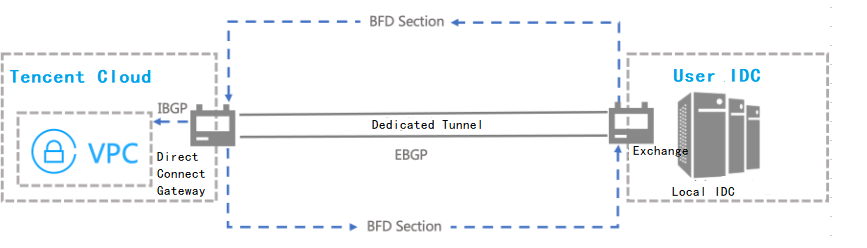
You can modify configurations and bandwidths of and execute health checks for connected dedicated tunnels in the Direct Connect console. This document describes how to conduct the health check of a 2.0 tunnel in the console.
Note:
For a shared connection, only the connection owner can modify the bandwidth of a dedicated tunnel.
You can use BFD and NQA to conduct the health check for a dedicated tunnel of Tencent Cloud Direct Connect:
BFD: BFD establishes a session between network devices to detect the bidirectional forwarding path between these devices. It reports messages periodically after the session is established. The path is considered to be faulty when no messages reported during the detection. The application using the path will receives the detection result. Currently, BFD can be used in a linkage with BGP route and static route.
NQA: NQA pings the dedicated tunnel to detect whether it is connected or not. It helps you know the robustness of the tunnel in real time and locate the fault quickly.
Configuring Health Check After a Tunnel Is Created
1. Log in to the Direct Connect console and click Exclusive virtual interface in the left sidebar.
2. On the Exclusive virtual interface page, click the name of the tunnel for which you want to configure health check.
3. On the Advanced configuration tab of the tunnel details page, click Edit on the right of Routing mode.
4. Enable Health check.
5. Configure the health check parameters.
Health Check Configuration Parameters
Description
Valid Range
Health Check Interval
The interval between two health checks.
BFD: 1000 ms - 3000 ms, default value-1000 ms.
NQA: 1000 ms - 5000 ms, default value-2000 ms.
Number of Failed Health Checks
Switch the route after the configured consecutive failed health checks.
BFD:3 - 8, default value-3.
NQA:3 - 8, default value-5.
Note:
You shall apply different methods to conduct health checks for dedicated tunnels using different routing modes. Currently, for the health check of dedicated tunnels using the BGP routing mode, only BFD is applicable. For the health check of dedicated tunnels using the static routing mode, both BFD and NQA are applicable.
You can switch BFD and NQA to conduct the health check of a dedicated tunnel using static routing mode. The health check will be executed with the method after switching.
BFD mode supports enabling multi-hop BFD, where the hop count represents the maximum number of devices that the link passes through from the local end to the remote end during transmission. It is recommended to configure the hop count based on the actual conditions of the physical link. The default value is 1 hop, and the valid range for multi-hop values is [2, 255].
6. Click Save.
Configuring Health Check When You Create a Tunnel
1. Log in to the Direct Connect console and click Exclusive virtual interface in the left sidebar.
2. Click Create on the Dedicated tunnels page. Then, specify the parameters on the Basic configuration tab, and specify other parameters and enable health check on the Advanced configuration tab as prompted.
This section describes how to configure the health check feature. For more information about other parameters, see Exclusive Virtual Interface or Shared Dedicated Tunnel.
Health Check Configuration Parameters
Description
Valid Range
Health Check Interval
The interval between two health checks.
BFD: 1000 ms - 3000 ms, default value-1000 ms.
NQA: 1000 ms - 5000 ms, default value-2000 ms.
Number of Failed Health Checks
Switch the route after the configured consecutive failed health checks.
BFD:3 - 8, default value-3.
NQA:3 - 8, default value-5.
Note:
You shall apply different methods to conduct health checks for dedicated tunnels using different routing modes. Currently, for the health check of dedicated tunnels using the BGP routing mode, only BFD is applicable. For the health check of dedicated tunnels using the static routing mode, both BFD and NQA are applicable.
You can switch BFD and NQA to conduct the health check of a dedicated tunnel using static routing mode. The health check will be executed with the method after switching.
BFD mode supports enabling multi-hop BFD, where the hop count represents the maximum number of devices that the link passes through from the local end to the remote end during transmission. It is recommended to configure the hop count based on the actual conditions of the physical link. The default value is 1 hop, and the valid range for multi-hop values is [2, 255].
3. Click Next. Specify other parameters to create the tunnel.