TencentDB for SQL Server automatically backs up data based on the default backup settings. You can modify the automatic or manual backup settings in the console. You can also view the backup files and relevant information in the backup list.
This document describes how to view backup files in the console.
2. Select the region at the top, find the target instance, and click the target instance ID or Manage in the Operation column to enter the instance management page.
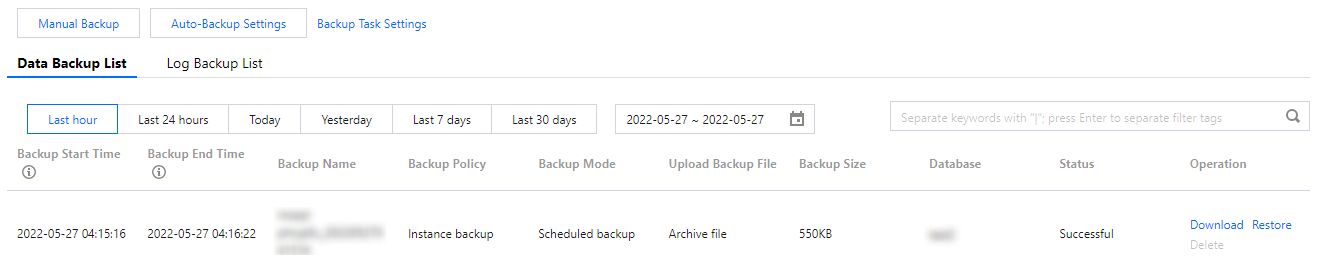
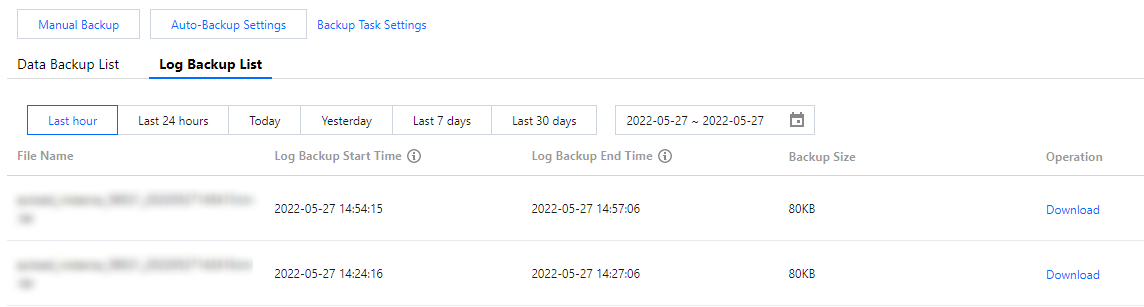
3. On the instance management page, select the Backup Management tab, view backup tasks in the data or log backup list.
The data backup list displays the backup start/end times, name, policy, mode, file format, and size, database, region, status, and operations (download, restore, delete).
The log backup list displays the file name, log data start/end times, backup size, region, and operation (download).
You can filter backup files by time (last hour, last 24 hours, today, last 7 days, last 30 days, or custom time period).
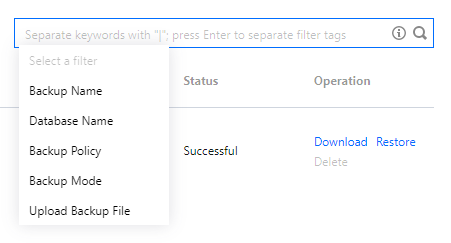
You can search for backup files in the search box on the right by database name, backup name, policy, mode, or file format.
FAQs
1. Can I download or restore backup files that exceed the retention period?
Expired backup sets will be deleted automatically and cannot be downloaded or restored.
We recommend that you configure a backup retention period based on business needs or download the backup files locally in the TencentDB for SQL Server console.
You can also manually back up the instance data in the console.
Note:
Manual backups will also take up the backup space. We recommend that you plan the usage of the backup space appropriately to reduce costs.
2. Can I delete backups manually?
Automatic backups cannot be deleted manually. You can set the retention period for automatic backups, and they will be deleted automatically upon expiration. If Cross-Region Backup is enabled, you can also set the retention period for cross-region backup files, which will be deleted automatically upon expiration.
Manual backups can be manually deleted from the backup list in the TencentDB for SQL Server console. If they are not manually deleted, they will be retained for the same period as automatic backups.
3. Can I disable data and log backups?
No. However, you can lower the backup frequency and delete manual backup files that are no longer used in the TencentDB for SQL Server console to reduce the backup space usage.
4. How can I reduce the backup capacity costs?
Delete manual backups that are no longer used. You can log in to the TencentDB for SQL Server console, click an instance ID/name to access the instance management page, and delete manual backups on the Backup Management tab.
Reduce the frequency of automatic data backup for non-core businesses. You can adjust the backup cycle and backup file retention period in the console, which should be at least twice a week.
Note:
The rollback feature relies on the backup cycle and retention days of data backups and log backups. Rollback will be affected if you reduce the automatic backup frequency and retention period. You can select the parameters as needed. For more information, see Rolling back Databases.
Reduce the retention period of data and log backups for non-core businesses (a 7-day retention period can meet the requirements of most scenarios).
Business Scenario
Recommended Backup Retention Period
Core businesses
7-1,830 days
Non-core, non-data businesses
7 days
Archival businesses
7 days. We recommend you manually back up data based on your actual business needs and delete the backups promptly after use
Testing businesses
7 days. We recommend you manually back up data based on your actual business needs and delete the backups promptly after use
5. Can I download the backup files of an isolated instance?
Yes.
A pay-as-you-go instance will be isolated and moved into the recycle bin 24 hours after expiration. At this time, rollback and manual backup will be prohibited, but automatic backup can still be downloaded by clicking More in the Operation column of the instance. Excessive backup space of the instance will continue to be billed until the instance is eliminated.