Downloading Backup
Download
포커스 모드
폰트 크기
The TencentDB for SQL Server console provides the list of backup files that can be downloaded over the private or public network. You can use the downloaded backups to restore data from one database to another (such as a self-built one).
This document describes how to download a local or cross-region backup in the console.
Directions
Downloading the backup file of a running instance
1. Log in to the TencentDB for SQL Server console.
2. Select the region at the top, find the target instance, and click the target Instance ID or Manage in the Operation column to enter the instance management page.
3. On the instance management page, select Backup Management and view the target backup file in the data or log backup list.
To download an archive backup file, click Download in the Operation column in the backup list. The downloaded backup is a local backup if its region is the same as that of the instance. If not, the downloaded backup is a cross-region backup.

To download an unarchived backup file, select View Details > Download in the Operation column in the backup list to download the backup file of each database.
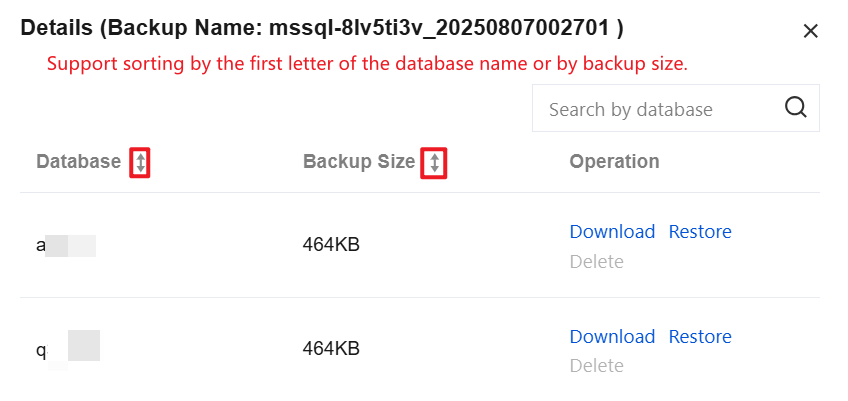
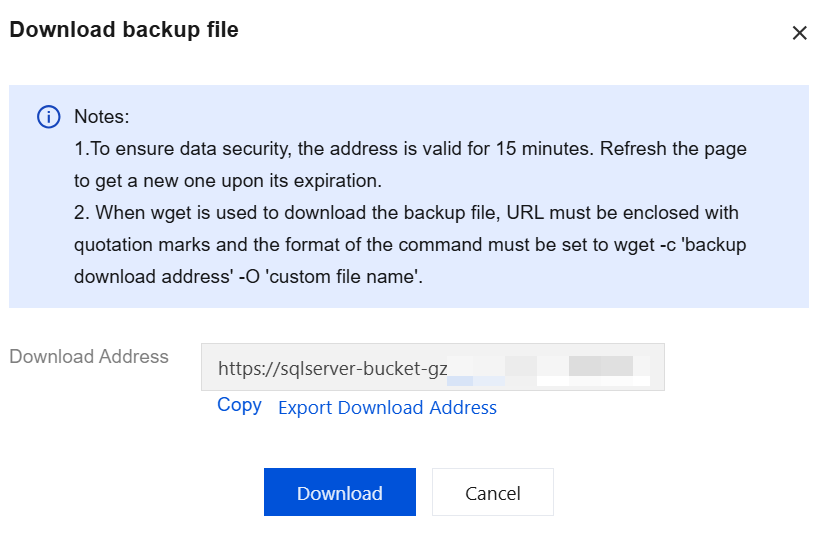
4. In the pop-up window, get the file download address for fast download over the private network by running the
wget command, or directly click Download.Note:
We recommend that you copy the private download link, log in to a Linux CVM instance in the same VPC as the TencentDB instance, and run the
wget command for download over the private network at a higher speed. For more information, see Customizing Linux CVM Configurations.The download address is valid for 15 minutes, after which you will need to enter the download page again to get a new one.
When a backup file is downloaded by using wget via the private network, the command format is wget -c 'backup file download URL' -O 'custom filename', with the addition of single quotes in English for the URL required.
When a backup file is downloaded by using wget via the public network, the command format is wget -c "backup file download URL" -O 'custom filename', with the addition of double quotes in English for the URL required.
Downloading the backup file of an isolated instance
You can also download the backup file of an isolated instance.
1. Log in to the TencentDB for SQL Server console.
2. Select the region at the top, find the target instance, and click More > Download Backup in the Operation column to enter the backup download page.
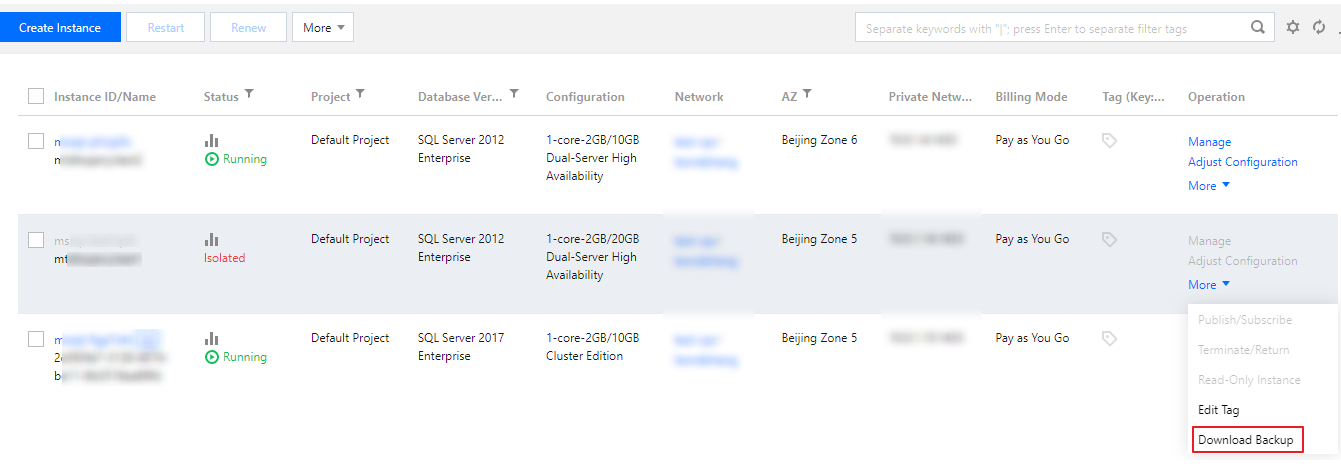
To download an archived backup file, click Download in the Operation column in the backup list, and download the file on the displayed download page.
To download unarchived backup files, select View Details > Download in the Operation column to download the backup file of each database.

피드백