tencent cloud

TencentDB for SQL Server

Release Notes and Announcements
Release Notes
Product Announcements
User Guide
Product Introduction
Overview
Product Architecture
Strengths
Use Cases
Regions and AZs
Major Version Lifecycle Explanation
Features and Differences
Instance Types
Instance Specifications
Storage Types
Common Concepts
Network Environment
License Statement
Purchase Guide
Billing Overview
Product Pricing
Purchase Methods
Renewal Instructions
Payment Overdue
Refund
From Pay-as-You-Go to Monthly Subscription
Instance Adjustment Fees Description
Local Backup Space Billing
Cross-Region Backup Billing
Viewing Bill Details
Getting Started
Creating TencentDB for SQL Server Instance
Connecting to TencentDB for SQL Server Instance
Managing TencentDB for SQL Server Instance
Operation Guide
Constraints and Limits
Usage Specifications and Suggestions
Maintaining Instance
Adjusting Instance Configuration
Read-Only Instance
Network and Security
Account Management
Database Management
Data Security
Parameter Configuration
Monitoring and Alarms
Backup and Restoration 
Log Management
Publish-Subscribe
SSIS
Data Migration (New)
Data Migration (Legacy)
Data Synchronization (DTS) 
Practical Tutorial
TencentDB for SQL Server Methods for Regular Maintenance
TencentDB for SQL Server Optimization of Slow SQL
How to Better Use Tempdb
Cross-Account Backup Restoration
Creating VPC for TencentDB for SQL Server
Connecting Kingdee K/3 WISE to TencentDB for SQL Server
Account Permissions and Permission Control
Enabling and Disabling the CDC Feature
Shrinking a Database
API Documentation
History
Introduction
API Category
Making API Requests
Sales and fee related APIs
Instance Management related APIs
Operation and maintenance management related APIs
Network management related APIs
Account management related APIs
Database management related APIs
Security group management related APIs
Data security encryption related APIs
Parameter configuration related APIs
Extended Event related APIs
Log management related APIs
Read only instance management related APIs
Publish and subscribe related APIs
Backup related APIs
Rollback related APIs
Data migration (cold standby migration) related APIs
SQL Server Integration Services (SSIS) related APIs
Data migration (DTS old version) related APIs
Data Types
Error Codes
FAQs
Overview
Model Selection
Pricing and Selection
Connection and Network
Account and Permission
Backup and Rollback
Data Migration
Publish/Subscribe
Read-Only Instance
Version and Architecture Upgrade
Disk Space and Specification Adjustment
Monitoring and Alarms
Log-Related
Parameter Modification
Features
Performance, Space, and Memory-Related FAQs
Service Agreement
Service Level Agreement
Terms of Service
Performance Evaluation
Performance Test Report
Glossary
Contact Us

Adding Flat File

PDF
포커스 모드
폰트 크기
마지막 업데이트 시간: 2024-01-18 17:23:30
Generally, data is stored in many different data storage systems, and you need to extract data from these data sources, transform it, and load it into one or multiple objects. The SSIS feature of TencentDB for SQL Server supports flat files. If your SSIS project involves a flat file, you need to deploy it to a business intelligence server first before deploying the project.
Note:
If your SSIS project doesn't involve flat files, you can skip this step.
This document describes how to use the SSIS management feature to add and deploy a flat file for easier data use and management.

Directions

2. In the instance list, find the target business intelligence server and click its ID or Manage in the Operation column to enter the instance management page.

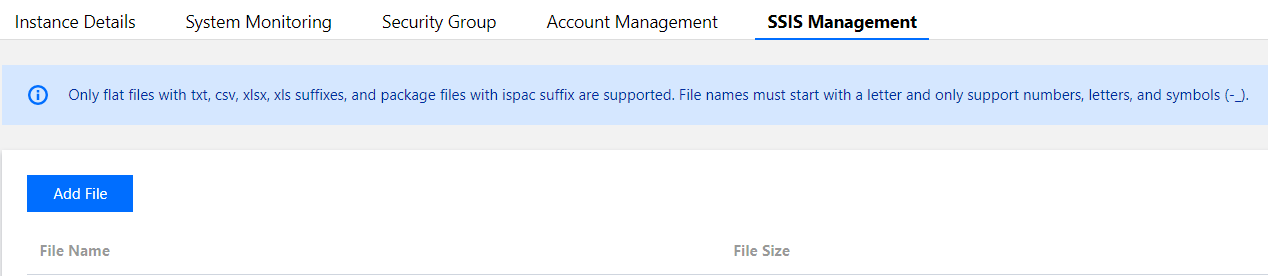
3. On the instance management page, select SSIS Management > Add File.

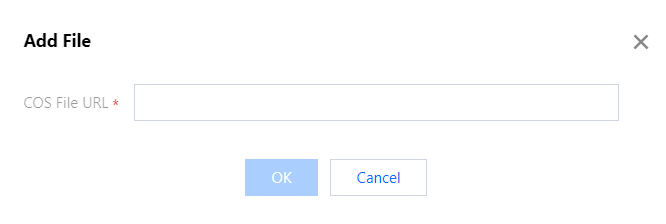
4. In the Add File window, paste the COS File URL and click OK.

Note:
You can get the COS File URL for file upload and deploy the flat file to the business intelligence server only after uploading the flat file to COS.
You can use COS as instructed in Downloading Objects. The COS File URL can be obtained during file download. Note that the access permission of the COS object must be set to public read/private write; otherwise, the flat file will fail to be deployed.
Only flat files in .txt, .csv, .xlsx, or .xls format are supported. The filename must start with a letter and can contain only digits, letters, underscores, and hyphens.
5. After adding the flat file successfully, you can query the file information in the list, including the file name, file size, file path, and status. You can also perform operations (Delete and Copy MD5) on the file.
File Name: Name of the flat file.
File Size: Size of the flat file. A flat file uses the disk space of the business intelligence server.
File Path: Path of the flat file , which is fixed at D:\\SSIS\\flat file name and is required during SSIS project deployment.
Status: Deployment status of the flat file, including Deployment successful, Deploying, and Deployment failed. If the status is Deployment successful, the flat file has been deployed to the business intelligence server successfully, and then you can deploy SSIS projects containing the file. If the status is Deployment failed, check whether the access permission of the COS object is set to public read/private write.
Operation (Delete): You can delete the flat file uploaded to the business intelligence server.
Operation (Copy MD5): You can verify whether the flat file uploaded to the business intelligence server has the same content as the local flat file. To do so, click Copy MD5 to get the file's MD5 value and compare it with that of the local file.

도움말 및 지원

문제 해결에 도움이 되었나요?

피드백