This document describes how to create a Windows authentication account for a business intelligence server, reset the account password, and delete the account in the console.
2. In the instance list, find the target business intelligence server and click its ID or Manage in the Operation column to enter the instance management page.
3. On the instance management page, select Account Management and click Create Account.
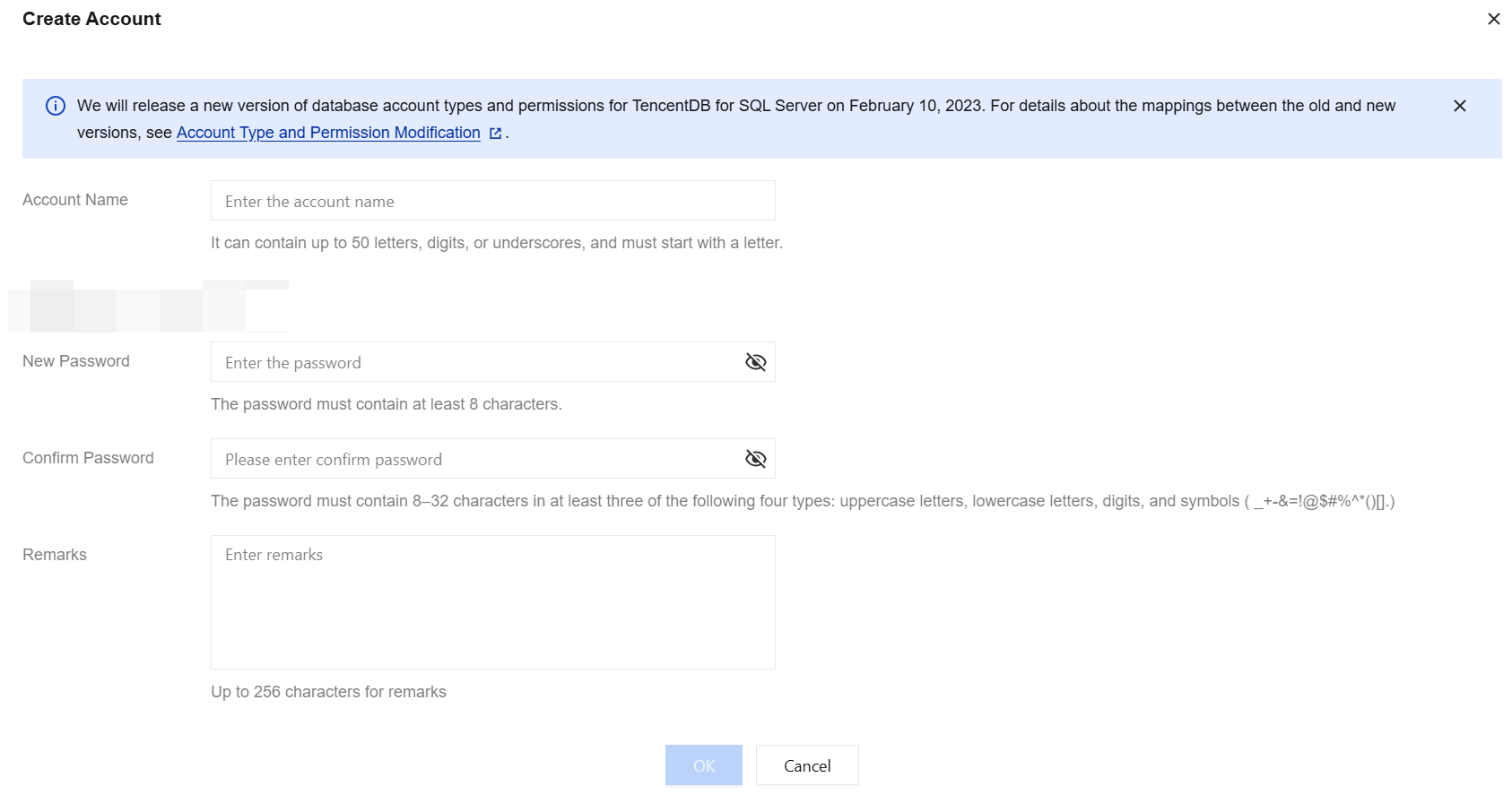
4. On the Create Account page, set configuration items and click OK.
Account Name: It can contain 1–50 letters, digits, or underscores and must start with a letter.
New Password: It must contain 8–32 characters in at least three of the following four types: uppercase letters, lowercase letters, digits, and special symbols _+-&=!@$#%^*()[]. It cannot contain two or more consecutive characters of the account name.
Confirm Password: Enter the password again.
Remarks: You can enter up to 256 characters.
Note:
Business intelligence servers accounts created in the console all have Windows authentication permissions. Business intelligence servers can use only this type of accounts, and account permissions cannot be modified.
5. After successful creation, you can view the information of the new account on the Account Management tab, including account name, status, account creation time, account update time, password update time, and remarks. You can also perform operations on it, including Reset Password and Delete Account.
Note:
A domain prefix will be automatically added to business intelligence server accounts created in the console, and you don't need to care about the prefix. For example, if you create an account act1 in the console, the account name displayed in the list will be xx_x_xx_xxxx/act1.
Resetting a password
If you forgot the password of a created business intelligence server account, or you need to reset the password, you can reset the password of one or multiple accounts on the Account Management tab.
Reset the password of a single account:
Find the target account in the account list, click Reset Password in the Operation column, enter and confirm the new password, and click OK.
Reset the password of multiple accounts:
Select target accounts in the account list, select Batch Management > Batch Reset Passwords above the list, enter and confirm the new password, and click OK.
Note:
Batch password resetting resets the password of all selected accounts to the same password. To set different passwords for different accounts, you need to reset the password of each account.
Deleting an account
You can delete one or multiple accounts on the Account Management tab.
Delete one account
Find the target account in the account list, click Delete Account in the Operation column, and click Delete in the pop-up window.
Batch delete accounts
Select target accounts in the account list, select Batch Management > Batch Delete above the list, and click OK in the pop-up window.
Note:
To prevent deletion failures, the system will first close all connections to the account before you delete it.