tencent cloud

Tencent Cloud Distributed Cache (Redis OSS-Compatible)

Release Notes and Announcements
Release Notes
Announcements
User Tutorial
Product Introduction
Overview
Product Strengths
Use Cases
Storage Engine
Product Series
Product Versions
Specifications and Performance
Read/Write Separation
Multi-AZ Deployment
Regions and AZs
Terms
Service Regions and Service Providers
Purchase Guide
Billing Overview
Pricing Center
Instance Purchasing
Renewal (Yearly/Monthly Subscription)
Refund (Yearly/Monthly Subscription)
Overdue Payments
Switching from Pay-as-You-Go to Yearly/Monthly Subscription
Getting Started
Quickly Creating an Instance
Connecting to Redis Instance
Operation Guide
Operation Overview
Connecting to a Database Instance
Managing Instances
Upgrade Instance
Management Node (Redis/ValKey Edition)
Multi-AZ Deployment Management
Backup and Restoration
Managing Accounts
Parameter Configuration
Slow Query
Access Management
Network and Security
Monitoring and Alarms
Event Management (Redis/ValKey Edition)
Data Migration
Global Replication for Redis Edition
Database Audit
Performance Optimization
Sentinel Mode
Development Guidelines
Naming Rules
Basic Usage Guidelines
Design Principles of Key and Value
Command Usage Guidelines
Design Principles of Client Programs
Connection Pool Configuration
Command Reference
Command Reference Overview
Redis Edition and Valkey Edition Command Compatibility
Version Command Usage Differences
Differences Between the Proxy Architecture and Direct Connection Mode
More Command Operations (Redis/Valkey Edition)
Memcached Edition Command Compatibility
Practical Tutorial
Building TencentDB for Redis® Client Monitoring Based on Spring Boot
Redis Client Connection Configuration Policy and Practice
Global SCAN Guide for Cluster Architecture
Eliminating Instances Securely
Hot Key and Big Key
AZ Migration Scheme
Troubleshooting
Connection Exception
Exception Analysis and Solution of Redisson Client Timeout Reconnection
Performance Troubleshooting and Fine-Tuning
API Documentation
History
Introduction
API Category
Making API Requests
Instance APIs
Parameter Management APIs
Other APIs
Backup and Restoration APIs
Region APIs
Monitoring and Management APIs
Log APIs
Data Types
Error Codes
FAQs
General
Connection and Login
Purchase
Service Agreement
Service Level Agreement
Terms of Service
Glossary
Contact Us

Real-Time Session

PDF
포커스 모드
폰트 크기
마지막 업데이트 시간: 2026-03-19 16:53:58
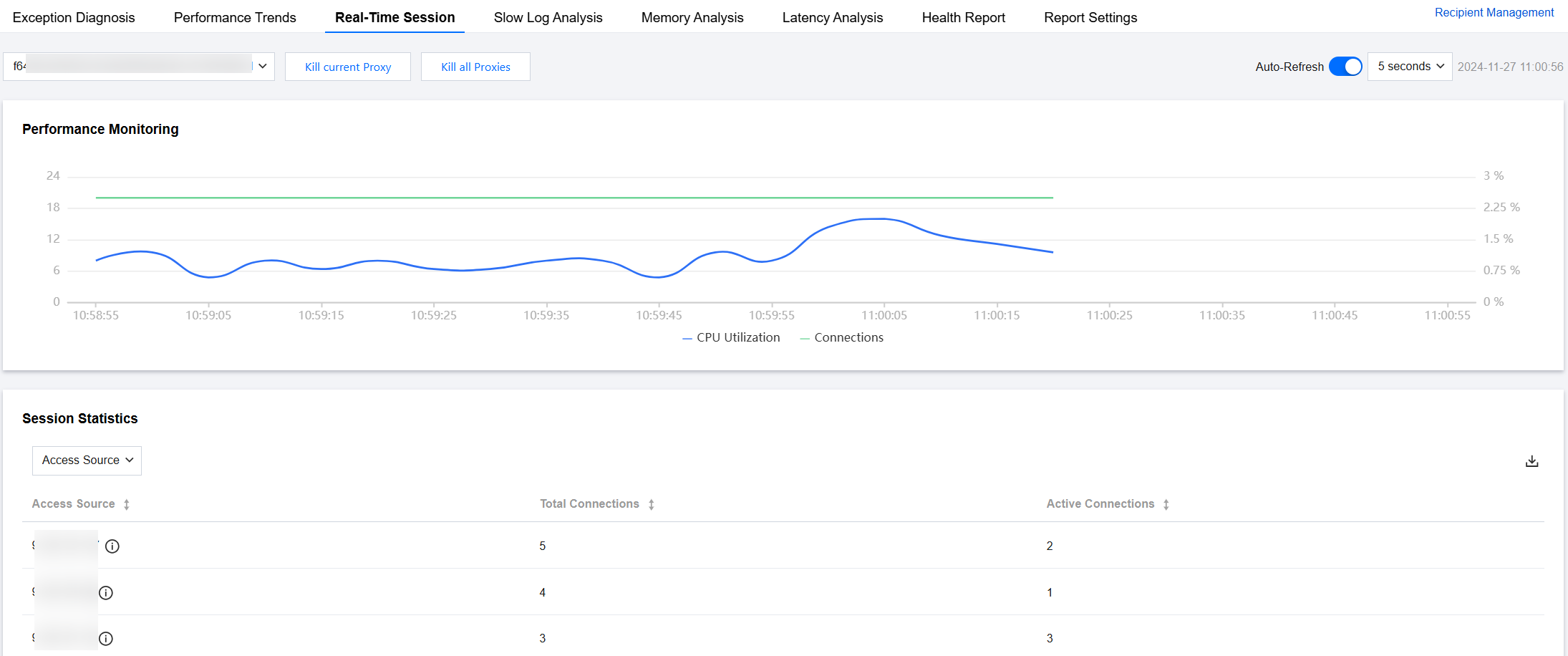
The real-time session feature focuses on two key metrics: the CPU utilization of the database instance's Proxy node and the number of client connections. It dynamically displays the trends of these metrics while continuously tracking data such as database sessions, access sources, and active connections. Additionally, it supports killing sessions for the current Proxy or all Proxy nodes.
Through real-time sessions, Ops and management personnel can quickly identify the CPU utilization of the current session and efficiently locate logic issues about database session connections that are difficult to detect manually.


Viewing Real-Time Session Statistics

1. Log in to the DBbrain Console.
2. In the left sidebar, choose Performance Optimization.
3. At the top of the page, select Database Type as Distributed Cache, specify instance ID, and select Real-Time Session tab.
4. From the dropdown list in the upper left corner of the Performance Monitoring trend chart, you can select the CPU Utilization trend chart or Connections trend chart to select the Proxy ID to analyze.
Select the page refresh rate. Options include 5 seconds, 15 seconds, and 30 seconds, with a default value of 5 seconds. You can also stop refreshing.


5. View detailed real-time session data.
In the Performance Monitoring area, you can view the number of connections and CPU utilization trends of the selected Proxy node.

In the Session Statistics area, you can view the statistics of the current access sources, total connections, and active connections of the selected proxy node.


Killing Sessions

When you need to clear the client connections of the current Proxy or all Proxies of the selected Distributed Cache instance, restart, or clear unfinished tasks, use the Kill Session feature to forcibly close all client connections.
This operation is typically used in emergencies, such as long-term blocking or deadlocks, or when a system restart is required to recover data.
Note:
Killing sessions will interrupt ongoing operations and may cause data loss. Use with caution. Before using, back up data and assess risks.

Killing Current Proxy

At the top of the page, click Kill current Proxy. In the pop-up dialog box, click OK.


Killing All Proxies

At the top of the page, click Kill all Proxies. In the pop-up dialog box, clickOK.

도움말 및 지원

문제 해결에 도움이 되었나요?

피드백




