Tencent Cloud Distributed Cache provides a log shipping feature that captures slow log data from Tencent Cloud Distributed Cache instances and ships it to Cloud Log Service (CLS) for analysis. This feature provides enhanced performance statistics and search capabilities, helping users more effectively identify and optimize performance bottlenecks. This document will guide you on how to enable or disable the log shipping feature through the console.
Note:
Memcached Edition currently does not support shipping slow logs to CLS.
Slow Log Fields
Cache Slow Log
Field Name
Field Type
Field Description
Field Example
logType
String
Log type
In the cache slow log, it is fixed as cache_slowlog.
instanceId
String
Instance ID
crs-xxxx
role
String
Shard role where the slow log was generated
master
createTime
Long
Timestamp of command execution (millisecond)
1710316968000
node
String
Node ID
357baf233f4ce49515912xxxxxxx
cmd
String
Command
get/set/eval
details
String
Specific command
EVAL "for i=1,1000000 do redis.call('SET', 'k1' , 'v1') end" 0
Proxy Slow Log
Field Name
Field Type
Field Description
Field Example
logType
String
Log type
Proxy_slowlog
instanceId
String
Instance ID
crs-xxxx
take
Long
Execution time in milliseconds
12
cmd
String
Command
get/set/eval
details
String
Specific command
EVAL "for i=1,1000000 do redis.call('SET', 'k1' , 'v1') end" 0
ip
String
Client IP
10.0.0.3
createTime
Long
Command start execution time in milliseconds
1710316968000
Enabling Log Shipping
Note:
Enabling log shipping will automatically ship slow logs to CLS. CLS is billed separately. For related billing information, see CLS Billing Overview.
2. At the top of the Instance List page on the right, select the region.
3. In the instance list, click the instance ID to enter the Instance Details page.
4. On the Instance Details page, switch to the Slow Log page.
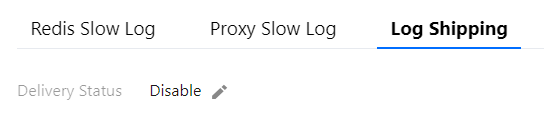
5. On the Slow Log page, select the Log Shipping tab.
6. If the log Delivery Status is Disable, click the
next to Disable.
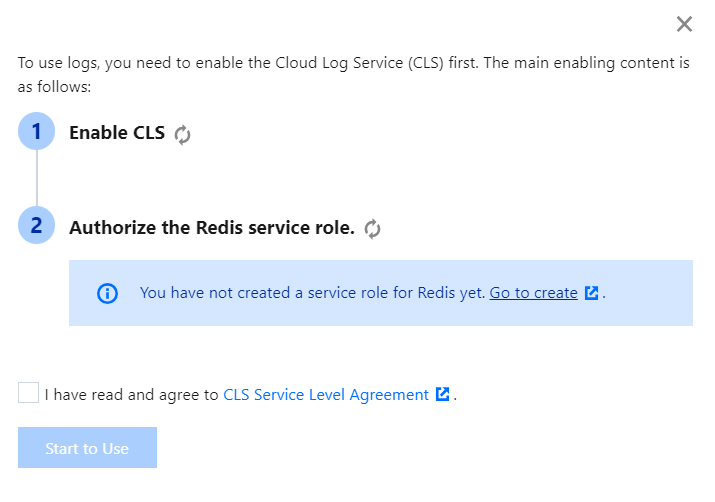
7. (Optional) For first-time use, please follow the guide to activate CLS CLS, authorize the Redis service role, check the agreement with the CLS service level, and start configuration.
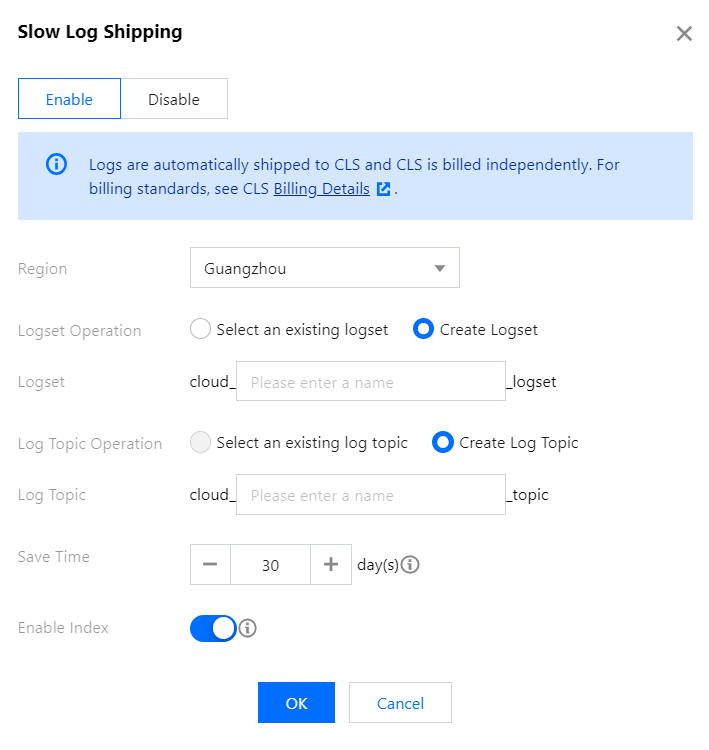
8. In the Slow Log Shipping pop-up window, click Enable, configure the logset information for slow log shipping, and then click OK.
Parameter
Description
Example
Region
Select the region for log shipping. Cross-region shipping is supported.
Guangzhou
Logset Operation
A logset is a logical container for log data, used to categorize logs. A log set can contain multiple log topics.
Select an existing logset: This option allows you to choose from logsets that have already been created. Before enabling slow log shipping, you should have already created a log set in the Cloud Log Service (CLS) console. In this case, you can simply select the existing logset. For detailed directions, see Creating a Logset.
Create Logset: Create a logset specifically for shipping Tencent Cloud Distributed Cache Tencent Cloud Distributed Cache slow logs.
Create a logset.
Logset
Logset operation is set to Select an existing logset: Filter and search for the target logset in the dropdown list, and then select the appropriate logset.
Logset operation is set to Create Logset: Edit the logset name in the input box depending on the naming requirements to create a logset. The naming format should be cloud_custom_name_logset, where the custom part supports only English letters, numbers, and underscores, and the length should not exceed 20 characters.
cloud_redis_slow_logset
Log Topic Operation
Each log topic belongs to a specific logset and is used to distinguish different sources or types of log data within a logset. The log topic is the basic unit for log data retrieval and analysis. You can either select an existing log topic or create a one.
Select an existing log topic: This option is available only when the Logset operation is set to Select an existing logset. For detailed directions on log topic operations, see log topic.
Create Log Topic: Create a log topic under the selected logset.
Log Topic
Log Topic Operation is set to Select an existing log topic: Select and search for a log topic under the selected logset in the dropdown list.
Log Topic Operation is set to Create Log Topic: Create a log topic under the selected logset. The naming format should be cloud_custom_topic, where the custom part supports only English letters, numbers, and underscores, and the length should not exceed 20 characters.
cloud_proxy_slow_log_topic
Save Time
Select the retention time for slow log shipping data. The default is 30 days. You can choose between 1 day and 3600 days. Logs will be automatically cleared after expiration.
If an existing log topic is selected, the retention time will be identical to that of the corresponding log topic by default.
Hover over the
to see the prompt. Click Manage Log Topic to modify the selected log topic as described in Log Topic.
30
Create Index
Index configuration is necessary for performing search and analysis using the CLS. Logs can only be searched and analyzed if indexing is enabled. By default, indexing is enabled. For detailed information on search and analysis functionality, see Index Configuration.
If an existing log topic is selected, the index status will be identical to that of the corresponding log topic by default.
Yes
9. Once slow log shipping is enabled, you will see the shipping status set to Enabled under the log shipping section.
10. Click the log topic name to jump to the CLS console for further analysis and management, as shown in the image below.
After log shipping is disabled, slow logs will no longer be uploaded. However, historical logs will continue to be stored in the log topic until they expire, and log storage fees will still apply during this period.