Cost Allocation Backtracking
Download
포커스 모드
폰트 크기
Background Note
To meet customer needs for recalculating historical bills with the latest cost allocation rules, we are launching the cost allocation backtracking feature. This feature allows users to flexibly adjust and recalculate historical monthly statements based on current cost allocation rules, enabling dynamic split and reassembly of bill data. It helps users better grasp and analyze cost allocation cases, enhancing the accuracy and flexibility of financial management to assist businesses in achieving more precise cost analysis and account management.
Cost Allocation Review Feature Description
Cost Allocation Units Rollback
1. Log in to the Billing Center console.
2. In the left sidebar, select Cost Allocation Management > Cost Allocation Units > Cost Allocation Rollback.
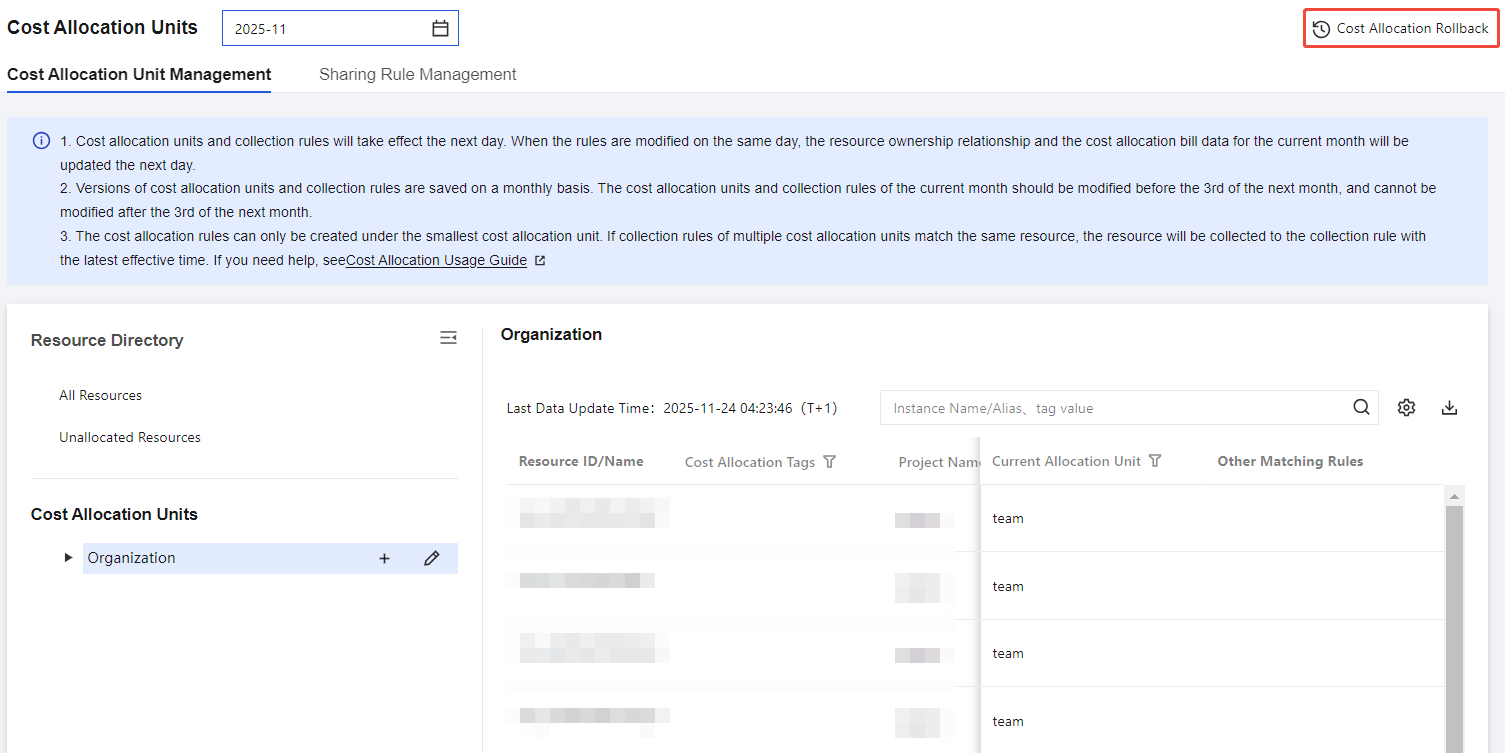
3. Select the historical rollback month (supports monthly or multiple months) as needed, then click submit;
4. In the pop-up Confirm Submission Rollback operation window, click Confirm, and the system starts the review.
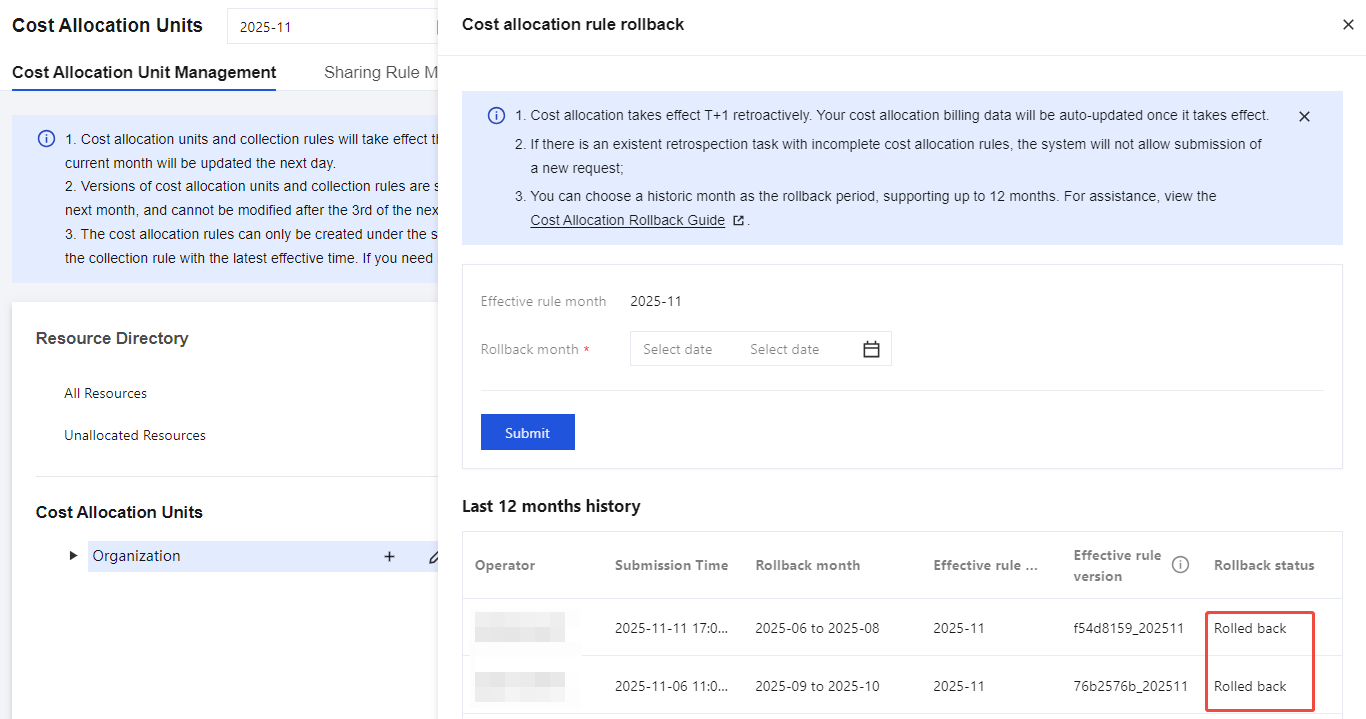
5. After submitting the review, you can check the review status in the review history at the bottom of the page. Once completed, go to cost allocation bill to view the updated bill.
Note:
Supports up to 12 months of review.
Cost allocation review takes effect on T+1. Your cost allocation billing data will be auto-updated once it takes effect.
Rollback Record Description
Operator: The UIN that submitted the review, currently logged-in account, for example 100002345;
Submission time: The time when the review was submitted, for example 2025-11-16 14:09:54;
Rollback month: Select the review month (time period), for example 2024-08 to 2024-12;
Effective rule month: The review is performed based on the current month's rule by default displaying the current month (but showing the previous month before the 3rd, reviews before the 3rd refer to the previous month's rule);
Effective rule version: The system-generated rule version number is used as a unique identifier for each version;
Rollback status:
Reviewing: Submitted but retrospection task ongoing; downstream data not refreshed.
Reviewed: Submitted and retrospection task completed; downstream data effective as per the latest retrospection version.
Cost Allocation Tag Traceback
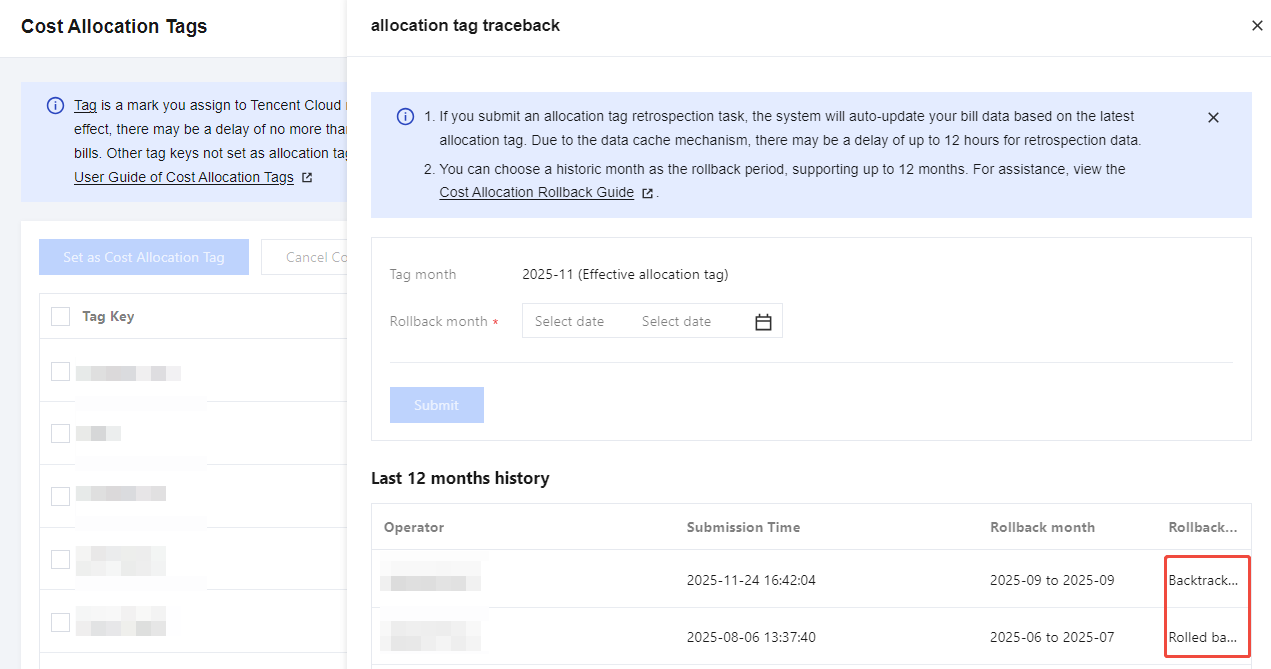
The cost allocation tag backtracking feature refreshes historic monthly bills based on the current billing tag key and the binding relationship between resources and tags, supporting up to 12 months of backtracking.
Specific operation steps:
1. Log in to the Billing Center console.
2. In the left sidebar, select Cost Allocation Management > Cost Allocation Tags > Allocation Tag Traceback.
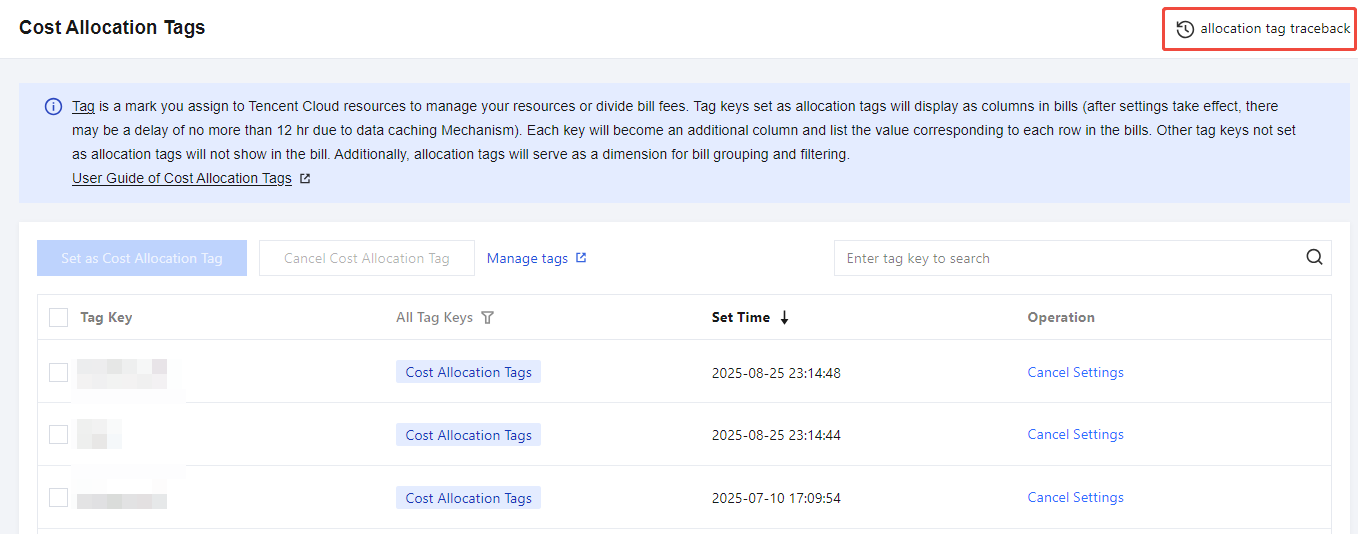
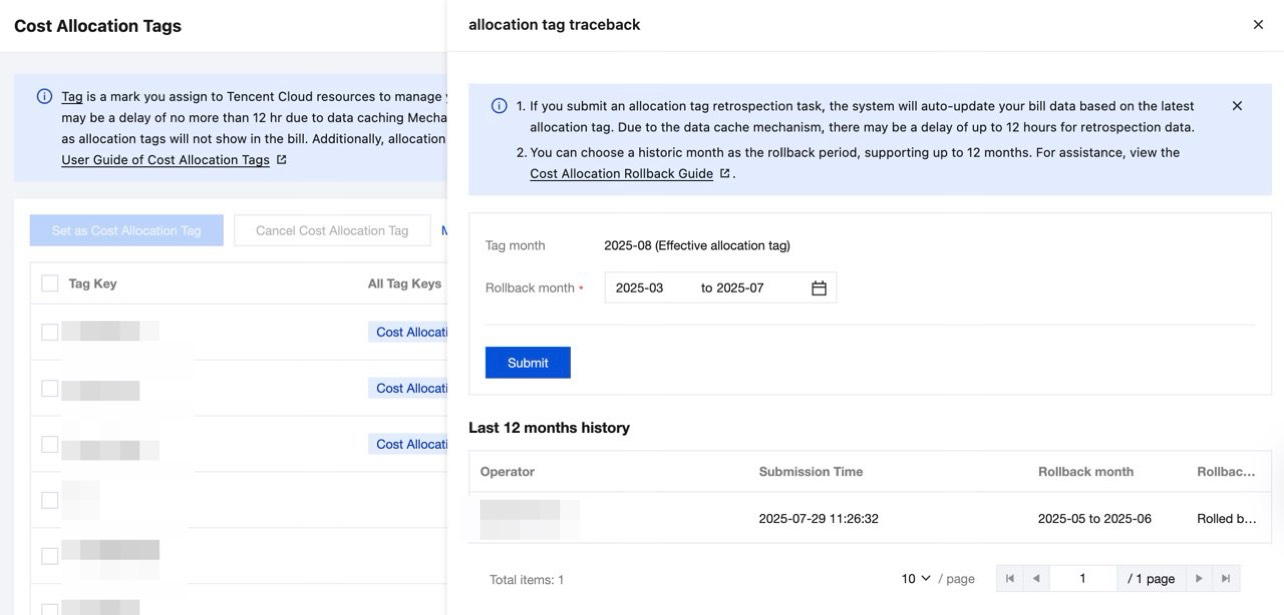
3. Select the Rollback Month as needed (supports monthly or multiple months), then click Submit. In the confirmation submission window, click confirm, and the system starts the rollback.
Note:
The maximum rollback period is 12 months.
Resource termination or tag unbinding retains tags from previous months during rollback.
After tag rollback, supports only cost allocation bills and standard invoices.
Rollback Record Description
Operator: UIN for submission backtracking, currently logged in account, for example 100002345.
Submission Time: the time when submission is backtracked, for example 2025-11-16 14:09:54.
Rollback Month: Select the backtracking month (time period), for example 2024-08 - 2024-12;
Rollback Status:
Backtracking: submitted but retrospection task not completed, downstream data not refreshed.
Rolled back: submitted and retrospection task completed, downstream data effective by the latest retrospection version.
피드백