This document uses the Node.js client as an example to describe how to use the SASL_PLAINTEXT method to access TDMQ for CKafka (CKafka) in the public network and send and receive messages.
1.1 On the Instance List page, click the target instance ID to go to the instance details page.
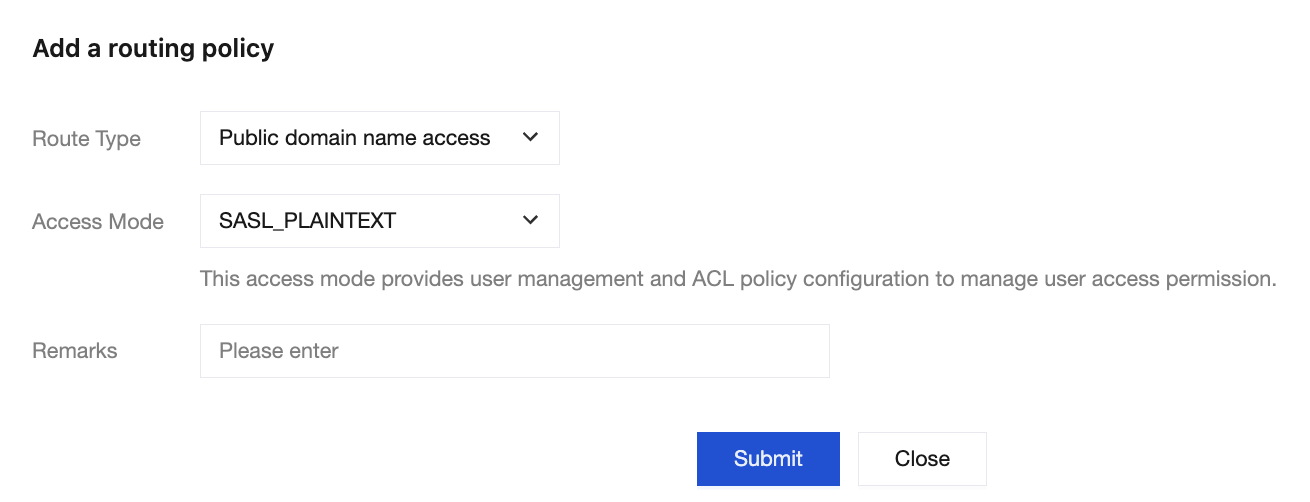
1.2 Choose Basic Info > Access Method, and click Add a routing policy. In the pop-up window, choose Routing Type: Public Network Domain Name Access > Access Method: SASL_PLAINTEXT.
2. Create a role.
Select ACL Policy Management to go to the User Management page. On the displayed page, create a role and set the password.
3. Create a topic.
On the Topic List page in the console, create a topic (see Creating a Topic).
Username, in the format of instance ID + # + username. The instance ID can be obtained from the basic information on the instance details page in the CKafka console. Choose ACL Policy Management > User Management to create a user and set the username.
sasl_plain_password
User password. On the instance details page in the CKafka console, choose ACL Policy Management > User Management to create a user and set the password.
bootstrap_servers
SASL access point. On the Basic Info page of the instance in the CKafka console, select the Access Mode module and obtain the access point from the Network column.
topic_name
Topic name. On the instance details page in the CKafka console, choose Topic List to create a topic name or obtain the desired topic name.
group_id
Consumer group ID. Define the group ID according to business requirements.
Step 4: Sending Messages
1. Write the message production program producer.js.
const Kafka =require('node-rdkafka');
const config =require('./setting');
console.log("features:"+ Kafka.features);
console.log(Kafka.librdkafkaVersion);
var producer =newKafka.Producer({
'api.version.request':'true',
'bootstrap.servers': config['bootstrap_servers'],
'dr_cb':true,
'dr_msg_cb':true,
'security.protocol':'SASL_PLAINTEXT',
'sasl.mechanisms':'PLAIN',
'sasl.username': config['sasl_plain_username'],
'sasl.password': config['sasl_plain_password']
});
var connected =false
producer.setPollInterval(100);
producer.connect();
producer.on('ready',function(){
connected =true
console.log("connect ok")
});
functionproduce(){
try{
producer.produce(
config['topic_name'],
newBuffer('Hello CKafka SASL'),
null,
Date.now()
);
}catch(err){
console.error('Error occurred when sending message(s)');
// Any errors we encounter, including connection errors
producer.on('event.error',function(err){
console.error('event.error:'+ err);
})
setInterval(produce,1000,"Interval");
2. Run the following command to send messages.
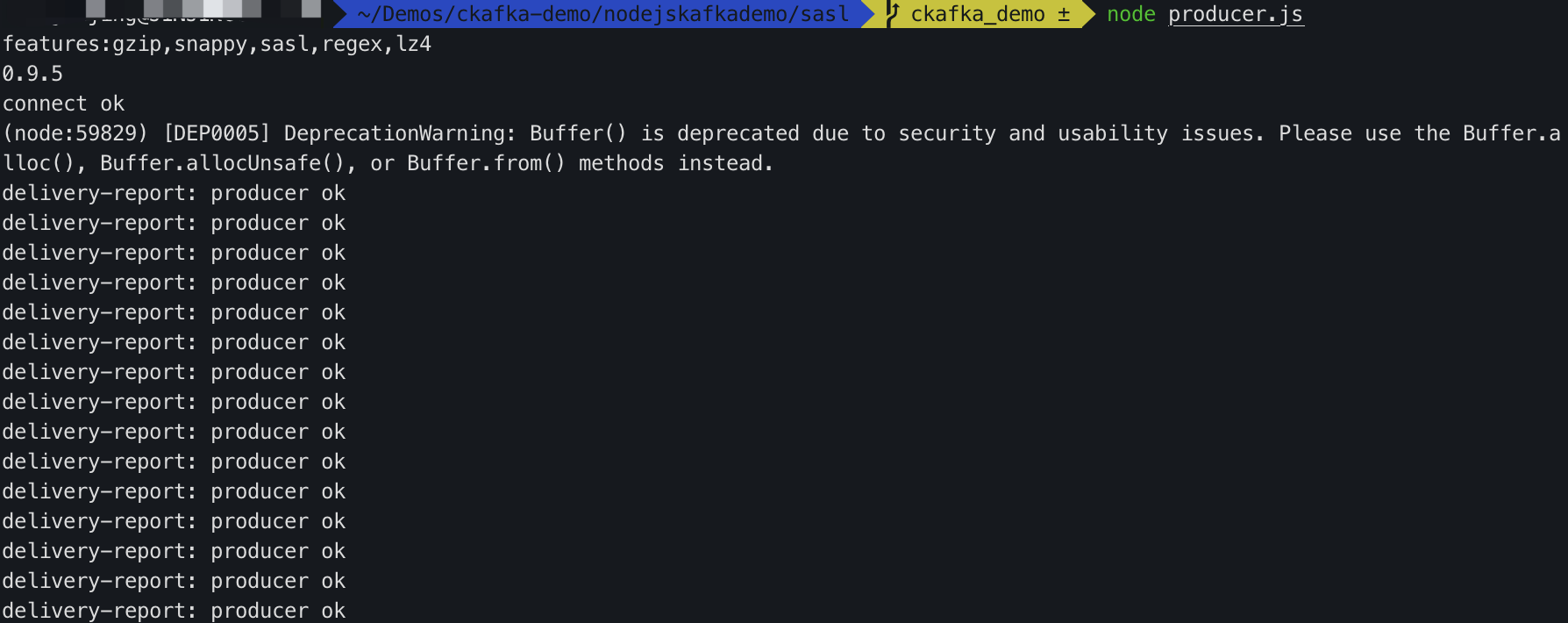
node producer.js
3. View the running results.
4. On the Topic List page in the CKafka console, select the target topic, and choose More > Message Query to view the message just sent.
Step 5: Subscribing to Messages
1. Create the message consumption program consumer.js.
consumer.on('event.log', function(event){
console.log("event.log", event);
});
consumer.on('error', function(error){
console.log("error:" + error);
});
consumer.on('event', function(event){
console.log("event:" + event);
});const Kafka = require('node-rdkafka');
const config = require('./setting');
console.log(Kafka.features);
console.log(Kafka.librdkafkaVersion);
console.log(config)
var consumer = new Kafka.KafkaConsumer({
'api.version.request':'true',
'bootstrap.servers': config['bootstrap_servers'],
'security.protocol':'SASL_PLAINTEXT',
'sasl.mechanisms':'PLAIN',
'message.max.bytes':32000,
'fetch.message.max.bytes':32000,
'max.partition.fetch.bytes':32000,
'sasl.username': config['sasl_plain_username'],
'sasl.password': config['sasl_plain_password'],
'group.id': config['group_id']
});
consumer.connect();
consumer.on('ready', function(){
console.log("connect ok");
consumer.subscribe([config['topic_name']]);
consumer.consume();
})
consumer.on('data', function(data){
console.log(data);
});
2. Run the following command to consume messages.
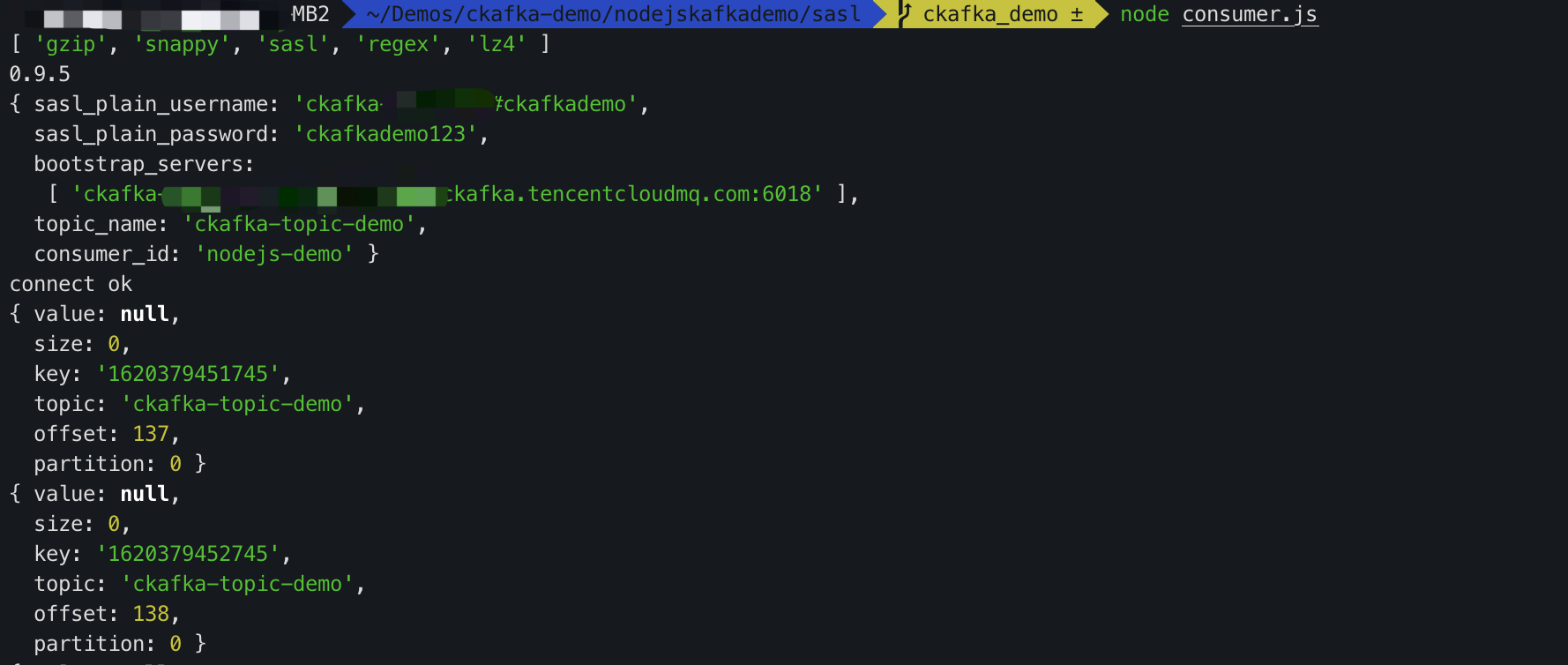
node consumer.js
3. View the running results.
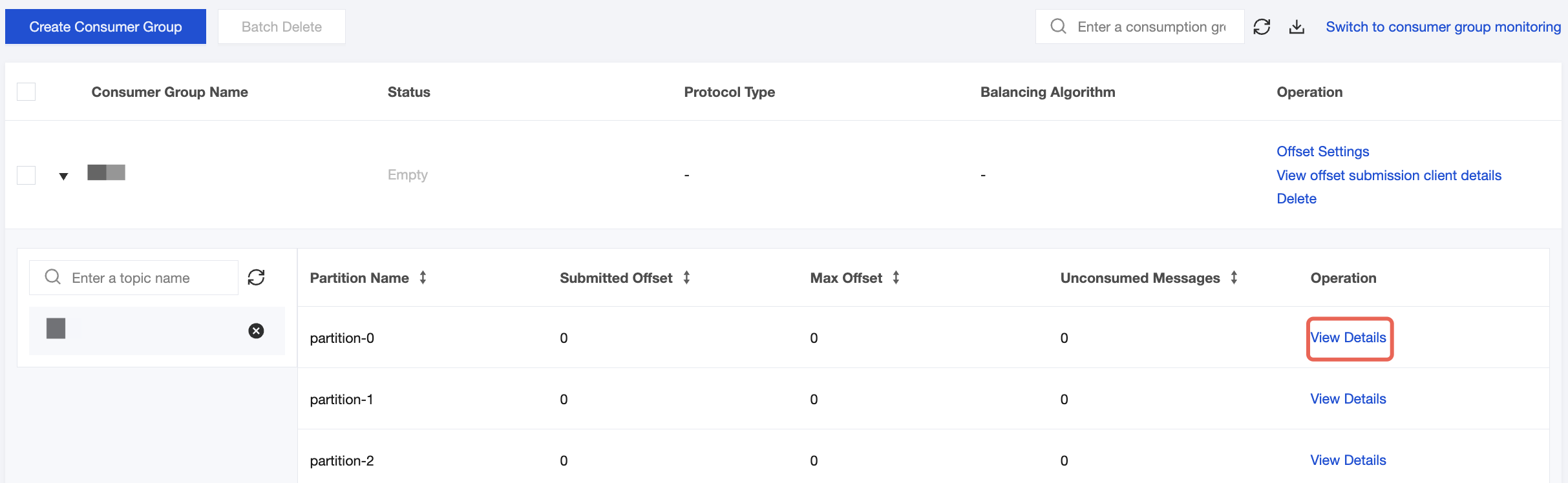
4. On the Consumer Group page in the CKafka console, select the target consumer group name, enter the topic name in the Topic Name area, and click View Details to view consumption details.