Cloud Firewall (CFW) Log Analysis allows you to view details of all traffic logs of the login account stored in CFW for the past 6 months, query logs with search statements, and use reporting and statistical analysis services.
With the log shipping feature, you can automatically ship CFW logs to specified TDMQ for CKafka (CKafka) instances. This document describes how to use the log shipping feature in Log Analysis.
Background
The log shipping feature allows you to ship different types of CFW logs to specified CKafka topics.
The log shipping feature supports two network access methods: public domain name access and supporting environment access.
In the public domain name access method, logs are shipped via the public network.
In the supporting environment access method, logs are shipped via the private network of Tencent Cloud, which delivers higher performance.
Prerequisites
You can only use one CKafka account for log shipping.
Configuration Steps
1. Log in to the CFW console. In the left sidebar, click Log Analysis. 2. In the upper-left corner of the log analysis page, click Log Shipping to go to the Ship to Kafka page by default.
3. On the Ship to Kafka page, perform initial configuration.
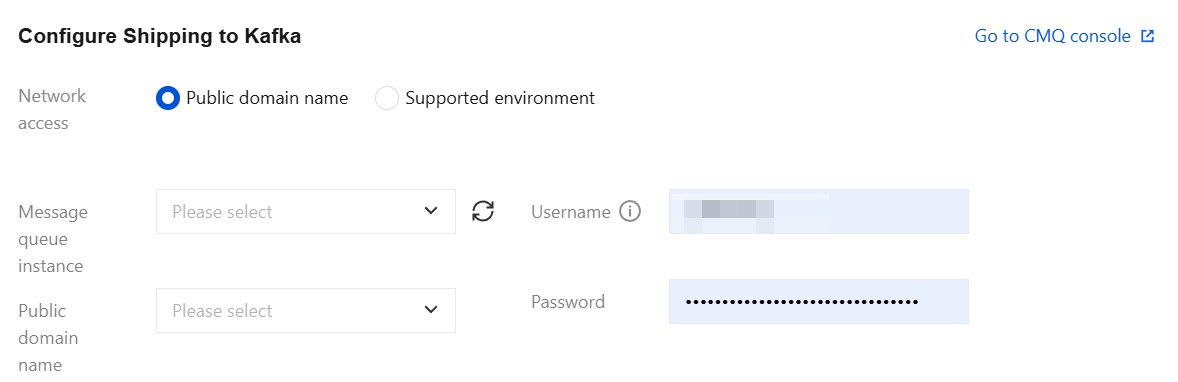
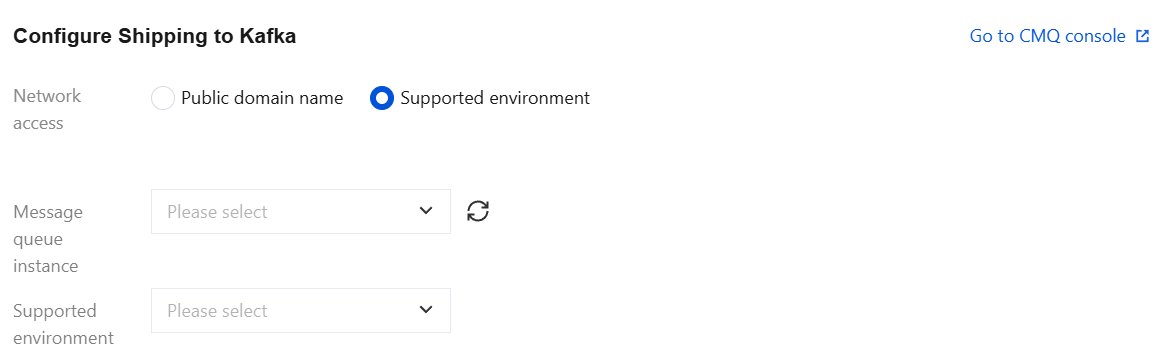
3.1 Select a network access method: public domain name access or supporting environment access.
Method 1: Select public domain name access, select a message queue instance and public domain name, and enter the username and password for the selected message queue instance.
Method 2: Select supporting environment access, on the condition that you have purchased a Tencent Cloud product that can be used in conjunction with CKafka. Select a message queue instance, IP address, and port.
3.2 After selecting a network access method, you can bind to a CKafka topic on the log shipping page.
Note:
The log shipping feature supports shipping multiple types of CFW logs. Different types of logs must be shipped to different CKafka topics. Each CKafka topic can only be bound to one type of CFW log.
3.3 After completing the configuration, click OK. You will receive a prompt indicating that log shipping has been successfully configured.
4. After completing the initial configuration, you can view the log shipping details.
Basic information: The basic information of the CKafka instance is displayed.
Note:
You need to pay attention to the Health Status field. When it indicates Unhealthy, you need to click View Monitoring to check whether the CKafka service is abnormal or whether the quota is insufficient.
Log shipping switch: It is used to control specified log types and start or stop log shipping tasks.
Method 1: In the Shipping Switch column on the right side of each log type, you can individually control log shipping tasks using the switch button.
Method 2: Perform batch operations. Currently, you can start all or stop all.
Rebind a CKafka topic: In the Operation column on the right side of the log type, click Edit for separate configuration. You can reselect a CKafka topic in the specified CKafka instance that is not bound by other firewall log types.
Note:
Each CKafka topic can only be bound to one type of CFW log.
View Monitoring: In the Operation column on the right side of the log type, click View Monitoring to go to the monitoring page of the CKafka console. You can view network traffic, peak bandwidth, number of messages, disk usage, and other metrics.
Reconfigure: Above the log type list, click Reconfigure to reselect a message queue instance to be shipped, network access method, and username/password.
Note:
Reconfiguration will interrupt the current shipping process.