Feature Introduction
The Web Application Firewall (WAF) log shipping feature is designed to ship log data to TDMQ for CKafka (CKafka) (message queues), helping to unlock the value of log data and meet users' log Ops needs. It supports shipping all access log field data currently collected by the WAF engine. Users only need to perform simple configurations in the WAF console to enable the near-real-time shipping service for access log data. Note:
If you encounter an exception when using the log shipping service, contact us for assistance. Log shipping supports paid shipping for access logs and free shipping for attack logs (supported by instances of Enterprise Edition and later editions), which need to be enabled separately. After completing the configuration for shipping to CKafka, you also need to enable attack log/access log shipping according to the relevant operations for enabling log shipping.
Using the log shipping feature and using the log service feature do not conflict. Whether the log service is enabled or not, you can enable and use the log shipping feature (it is recommended to enable it based on business needs).
Prerequisites
You have purchased a Tencent Cloud CKafka instance and configured its bandwidth specifications based on actual log usage. Shipping Logs to CKafka
1. Log in to the WAF console. In the left sidebar, choose Access Logs > Log Shipping. 2. Authorize WAF to ship data to the CKafka instance.
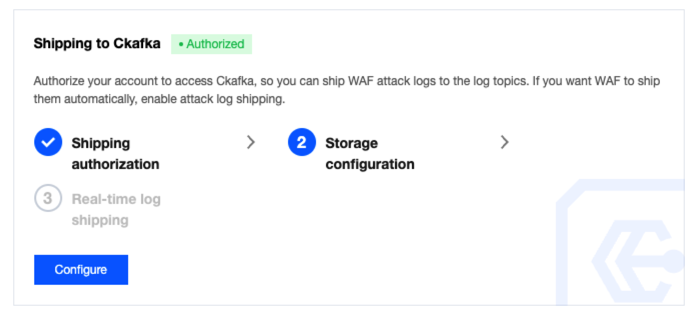
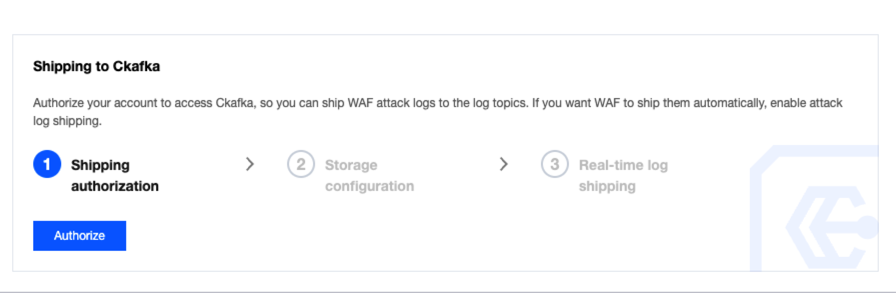
2.1 In the Ship to CKafka module on the log shipping page, click Configure to trigger the pop-up window for authorization.
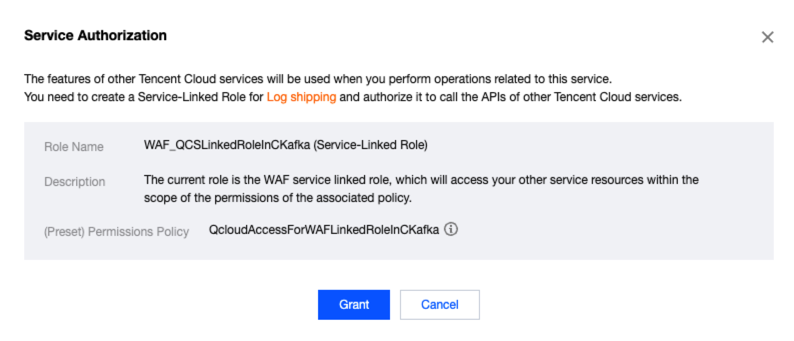
2.2 Click Go to Authorization to go to the Cloud Access Management (CAM) authorization page.
2.3 On the CAM authorization page, click Grant Authorization to grant WAF the CKafka data shipping permissions. If you encounter any issues during authorization, see the CAM documentation. 2.4 After clicking Grant Authorization, you can go back to the log shipping page and click Configure Now to trigger the pop-up window for CKafka shipping configuration.
2.5 Log field settings: You can choose whether to enable BOT Information, Request Body, and Custom Headers.
Note:
Log field settings can be configured for all domain names or a single domain name. When policies are configured for all domain names and a single domain name at the same time, the policy configured for the single domain name takes precedence.
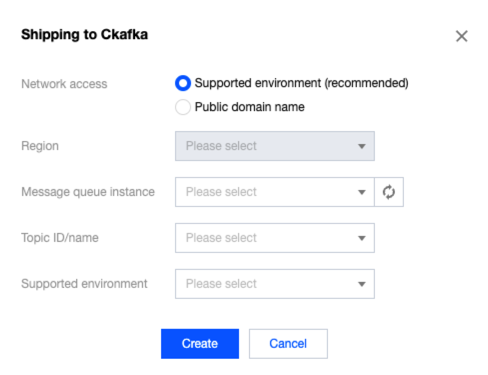
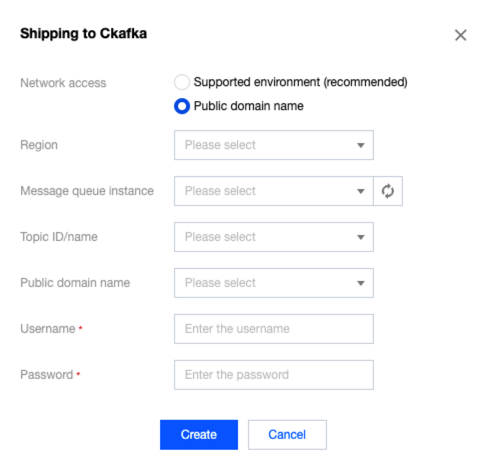
3. In the pop-up window for CKafka shipping configuration, configure relevant parameters and click OK to complete the configuration.
Supporting Environment Access: You can select this access method on the condition that you have purchased a Tencent Cloud product that can be used in conjunction with CKafka. Select a message queue instance, IP address, and port.
Note:
The SASL PLAINTEXT routing type can also be shipped. When selecting this type, you need to enter a username and password for authentication.
|
Region | |
| Message Queue Instance | Running CKafka instances in the current region. |
| Topic ID/Name | Corresponding topic ID information. |
| Supporting Environment Access | Routing of the supporting network. |
Public Domain Name Access: Select Public Domain Name Access, select a message queue instance and public domain name, and enter a username and password for the selected message queue instance.
|
Region | |
Message Queue Instance | Running CKafka instances in the current region. |
Topic ID/Name | Corresponding topic ID information. |
Public Domain Name Access | Public network domain name. |
Username | SASL username. |
Password | SASL password. |
4. After completing log shipping to CKafka, you can enable the log shipping feature for the required domain names. For details, see Enabling Log Shipping.
Enabling Log Shipping
After completing log shipping to CKafka, you need to enable the log shipping feature for the required domain names/instances.
Note:
Attack logs are shipped at the instance level. Only instances of Enterprise Edition and later editions support enabling attack log shipping.
Access logs are shipped at the domain name level. Instances of all editions support enabling access log shipping.
Enabling Attack Log Shipping
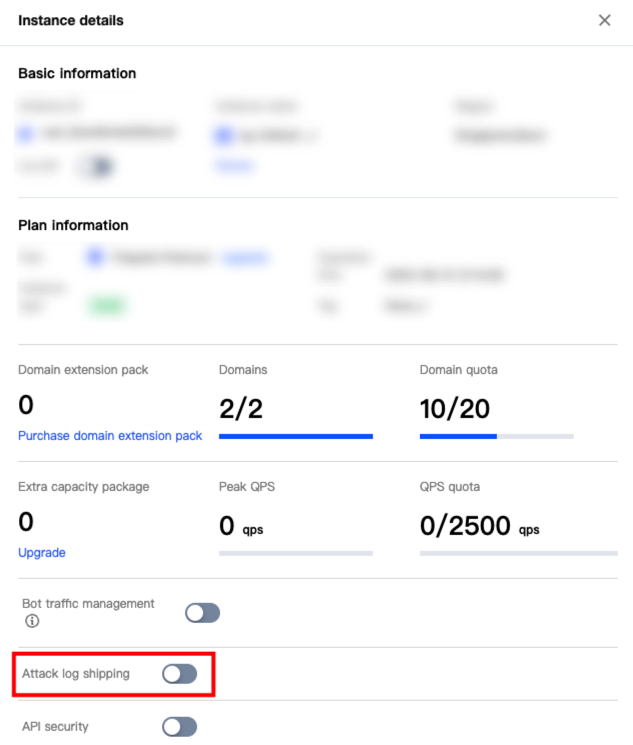
1. Log in to the WAF console. In the left sidebar, select Instance Management. 2. On the instance management page, click Instance Name to open the sidebar.
3. In Instance Details, click to enable attack log shipping for the current instance. Enabling Access Log Shipping
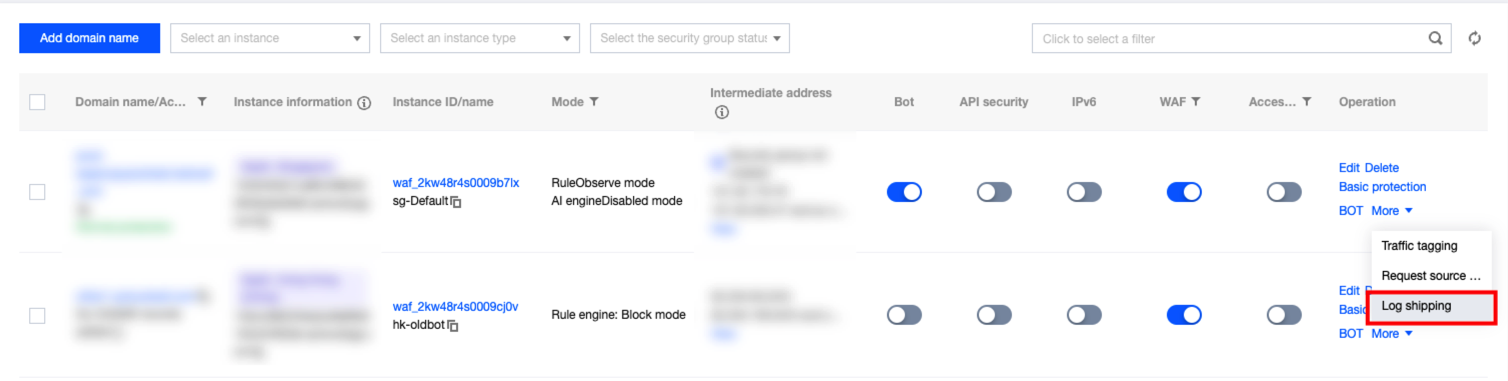
1. Log in to the WAF console. In the left sidebar, choose Access Management > Domain names. 2. On the domain name access page, select the required domain name, and choose More > Log Shipping.
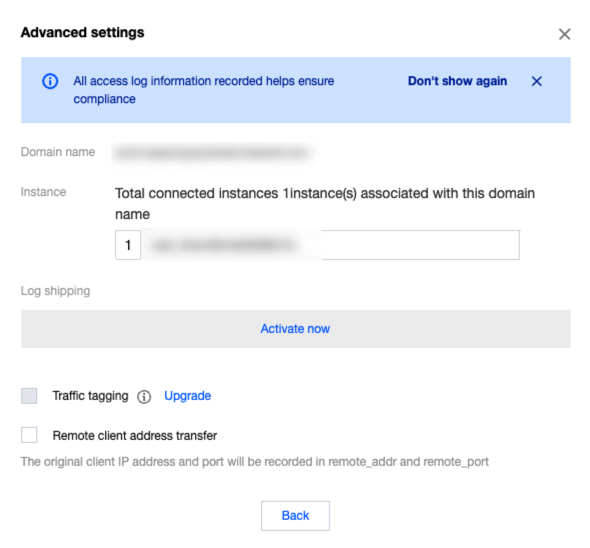
3. In the Advanced Settings window, select the shipping targets and click Save to enable access log shipping for the current domain name.