Creating Sub-User
Download
포커스 모드
폰트 크기
Overview
If you are a sub-account with admin permissions (AdministratorAccess) or full access to CAM (QcloudCamFullAccess) and have purchased CVM, VPC, COS, and other Tencent Cloud resources, you can create one or more sub-accounts for your team members and allow them to access your resources.
This document describes how to use the admin account to create a sub-user in the CAM console and bind the sub-user to a permission policy.
Note:
Both sub-users and collaborators are sub-accounts. For related definitions and permission descriptions, see User Types.
Creation Method | Applicable Scenario | Description |
Quick creation | Creating admin users | They have the AdministratorAccess permission by default, which can be modified |
Custom creation | Creating general sub-users and message recipients | They can be bound to permission policies as needed |
Prerequisites
Directions
Creating in the console
Note:
You can click the following tabs to view the directions to create and authorize different types of sub-accounts.
A root account with an unverified identity can create up to ten sub-accounts every 24 hours.
1. Log in to the Tencent Cloud console, enter User List, and click Create User to enter the user creation page.
2. On the user creation page, click Quick Creation to enter the quick user creation page.
3. On the quick user creation page, enter the username in User Information and adjust other options as needed.
Note:
You can click Create User to create up to ten users at a time.
4. For Password resetting required, select whether the sub-user needs to reset the password upon next login as needed.
5. Click Create User. You will be redirected to the page prompting that the user is successfully created.
6. On the page prompting that the user is successfully created, you can get the sub-user information in the following two methods:
Click Send, enter the email address, and the system will send the complete sub-user information to the specified email address.
Click Copy and paste the information to a local file for storage.
1. Log in to the CAM console and select Users > User List on the left sidebar.
2. On the User List page, click Create User to enter the Create User page.
3. On the Create User page, click Custom Creation to enter the User Type page.
4. On the User Type page, select Access Resources and Receive Messages or Receive Messages Only and click Next to enter the user information.
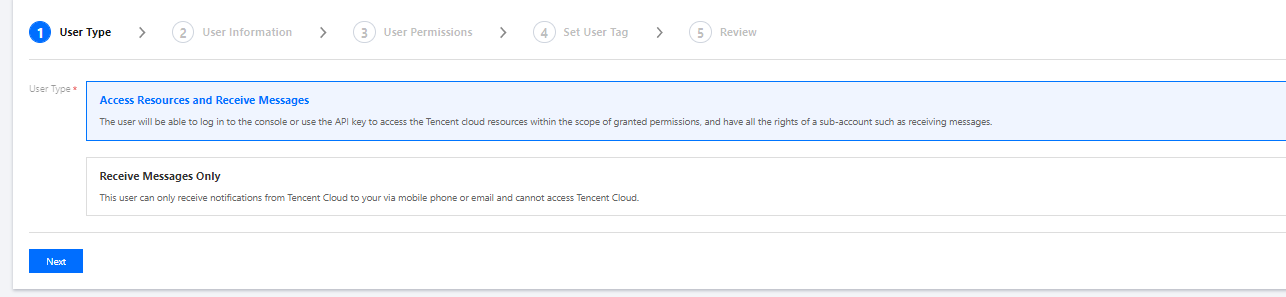
5. Enter and confirm the information as prompted and click Complete.
If you select Access Resources and Receive Messages, you will be redirected to the page prompting that the user is successfully created.
If you select Receive Messages Only, you will be redirected to the User List page.
Creating through APIs
You can create a sub-user and configure permissions for them by calling the
AddUser API with an access key. For more information, see AddUser.Relevant Documents
For more information on how to manage and authorize sub-users through user group, see Managing User Groups and Associating/Unassociating Policy with/from User Group.
For more information on how to associate/dissociate a sub-user to/from policies, see Setting Sub-user Permissions.
For more information on how to log in as a sub-user, see Logging in as a Sub-User.
For more information on how to reset a sub-user password, see Resetting Login Passwords for Sub-users.
For more information on how to subscribe to messages for a sub-user, see Sub-user Message Subscriptions.
피드백