tencent cloud

Cloud Access Management

Product Introduction
CAM Overview
Features
Scenarios
Basic Concepts
Use Limits
User Types
Purchase Guide
Getting Started
Creating Admin User
Creating and Authorizing Sub-account
Logging In to Console with Sub-account
User Guide
Overview
Users
Access Key
User Groups
Role
Identity Provider
Policies
Permissions Boundary
Troubleshooting
Downloading Security Analysis Report
CAM-Enabled Role
Overview
Compute
Container
Microservice
Essential Storage Service
Data Process and Analysis
Data Migration
Relational Database
Enterprise Distributed DBMS
NoSQL Database
Database SaaS Tool
Database SaaS Service
Networking
CDN and Acceleration
Network Security
Data Security
Application Security
Domains & Websites
Big Data
Middleware
Interactive Video Services
Real-Time Interaction
Media On-Demand
Media Process Services
Media Process
Cloud Real-time Rendering
Game Services
Cloud Resource Management
Management and Audit Tools
Developer Tools
Monitor and Operation
More
CAM-Enabled API
Overview
Compute
Edge Computing
Container
Distributed cloud
Microservice
Serverless
Essential Storage Service
Data Process and Analysis
Data Migration
Relational Database
Enterprise Distributed DBMS
NoSQL Database
Database SaaS Tool
Networking
CDN and Acceleration
Network Security
Endpoint Security
Data Security
Business Security
Application Security
Domains & Websites
Office Collaboration
Big Data
Voice Technology
Image Creation
Tencent Big Model
AI Platform Service
Natural Language Processing
Optical Character Recognition
Middleware
Communication
Interactive Video Services
Real-Time Interaction
Stream Services
Media On-Demand
Media Process Services
Media Process
Cloud Real-time Rendering
Game Services
Education Sevices
Medical Services
Cloud Resource Management
Management and Audit Tools
Developer Tools
Monitor and Operation
More
Use Cases
Security Practical Tutorial
Multi-Identity Personnel Permission Management
Authorizing Certain Operations by Tag
Supporting Isolated Resource Access for Employees
Enterprise Multi-Account Permissions Management
Reviewing Employee Operation Records on Tencent Cloud
Implementing Attribute-Based Access Control for Employee Resource Permissions Management
During tag-based authentication, only tag key matching is supported
Business Use Cases
TencentDB for MySQL
CLB
CMQ
COS
CVM
VPC
VOD
Others
API Documentation
History
Introduction
API Category
Making API Requests
User APIs
Policy APIs
Role APIs
Identity Provider APIs
Data Types
Error Codes
FAQs
Role
Key
Others
CAM Users and Permissions
Glossary

OneLogin Single Sign-On

PDF
포커스 모드
폰트 크기
마지막 업데이트 시간: 2025-12-09 17:15:27

Overview

OneLogin is a cloud identity access management solution provider. You can log in to all the internal system platforms of your organization through OneLogin's identity verification system with one click. Tencent Cloud supports identity federation with Security Assertion Markup Language 2.0 (SAML 2.0). SAML 2.0 is an open standard used by many IdPs such as OneLogin. Federated single sign-on (SSO) can be implemented by using an IdP, and admins can authorize users with their federated identity authenticated to log in to the Tencent Cloud console or call TencentCloud APIs, eliminating the need to create a CAM sub-user for each employee in the organization.
This document describes how to configure OneLogin SSO to Tencent Cloud.

Directions

Creating a OneLogin enterprise application

Note:
This step creates a OneLogin enterprise application. If you are already using one, skip this step and go straight to CAM configuration.
This document uses the application name test as an example.
1. Log in to the OneLogin website and click Applications to enter the application managem
ent p
age.
2. On the application management page, click Add App in the top-right corner.
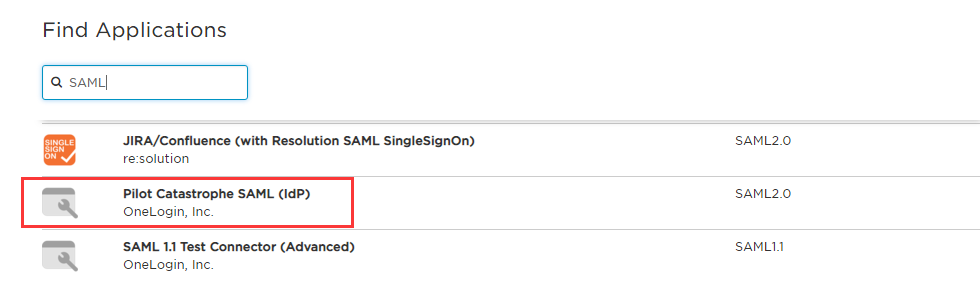
3. In the search box, enter SAML and press Enter. In the results list, click Pilot Catastrophe SAML (IdP) as shown below:


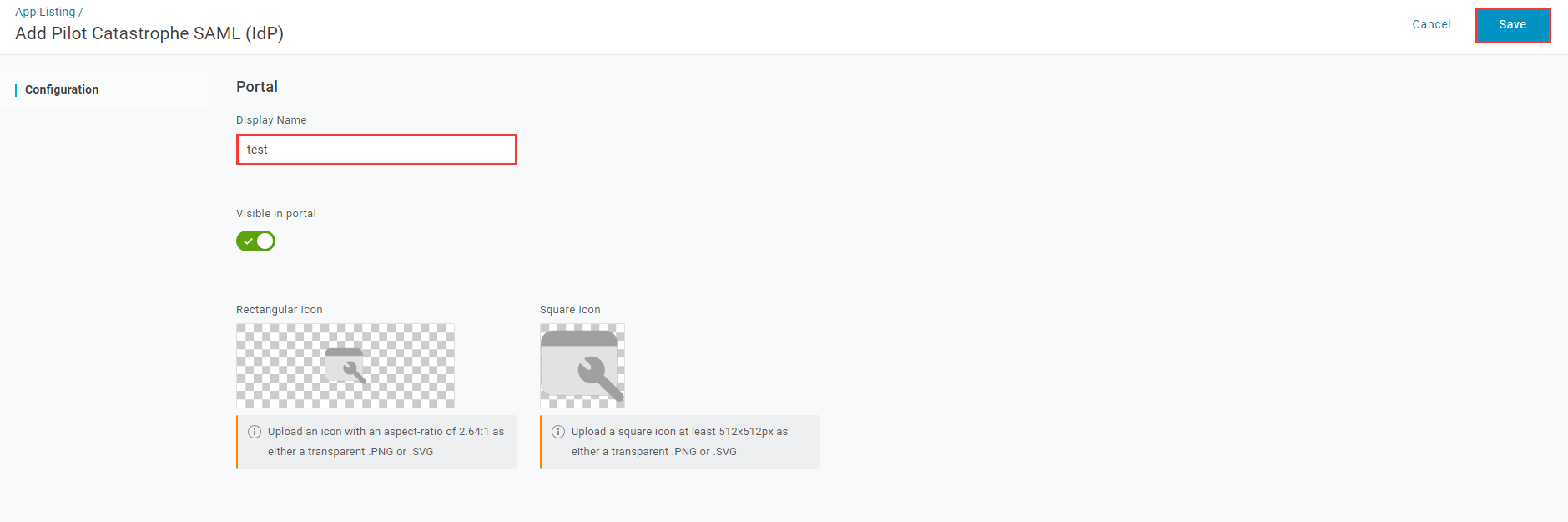
4. In Display Name field, enter the application name. Click Save in the top-right corner to complete the application creation as shown below:


Configuring CAM

Note:
This step configures the trust relationship between OneLogin and Tencent Cloud.
In this example, the SAML IdP and role name are both test.
1. On the OneLogin application management page, select the created application test.
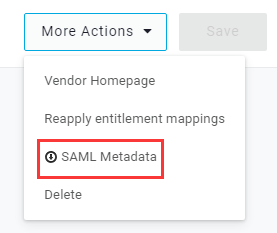
2. Click More Actions in the top-right corner and select SAML Metadata to download the IdP cloud data file as shown below:


3. Create the Tencent Cloud CAM IdP and role. For detailed directions, see Creating an IdP and Creating Role.

Configuring OneLogin SSO

Note:
This step maps OneLogin application attributes to Tencent Cloud attributes to create the trust between the OneLogin application and Tencent Cloud.
1. On the OneLogin application management page, click the created test application to enter the application editing page.
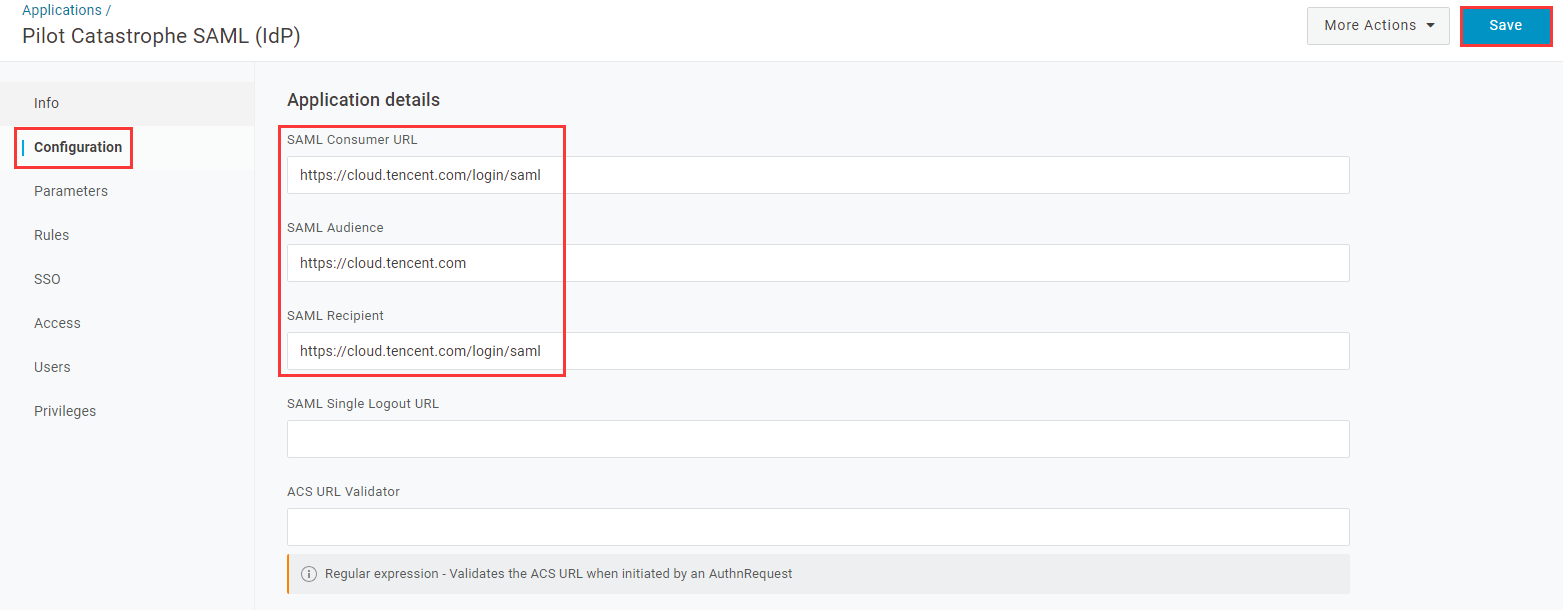
2. Select the Configuration tab, enter the following content, and click Save as shown below:


You can configure it based on the site of your Tencent Cloud account:
Site
SAML Consumer URL
SAML Audience
SAML Recipient
Tencent Cloud International
https://www.tencentcloud.com/login/saml
https://www.tencentcloud.com
https://www.tencentcloud.com/login/saml
3. Click Parameters, select Add Parameter, and add the following two items:
Field name
Flags
Value
Source Attribute
https://cloud.tencent.com/SAML/Attributes/Role
Include in SAML assertion
Macro
qcs::cam::uin/{AccountID}:roleName/{RoleName1};qcs::cam::uin/{AccountID}:roleName/{RoleName2},qcs::cam::uin/{AccountID}:saml-provider/{ProviderName}
https://cloud.tencent.com/SAML/Attributes/RoleSessionName
Include in SAML assertion
Macro
Test
Note
Replace {AccountID}, {RoleName}, and {ProviderName} of the Role source attribute with the following content:
{AccountID}: Replace this with your Tencent Cloud account ID. You can view this in Account Information in the console.
{RoleName}: Replace this with the role name you created on Tencent Cloud. You can view this in Role in the console.
{ProviderName}: Replace this with the SAML IdP name that you created on Tencent Cloud. You can view this in IdPs in the console.
4. Click Save in the top-right corner to save the configuration.

Configuring a OneLogin user

1. Log in to the OneLogin website and click Users to enter the user management page.
2. Click New User in the top-right corner to enter the user creation page.
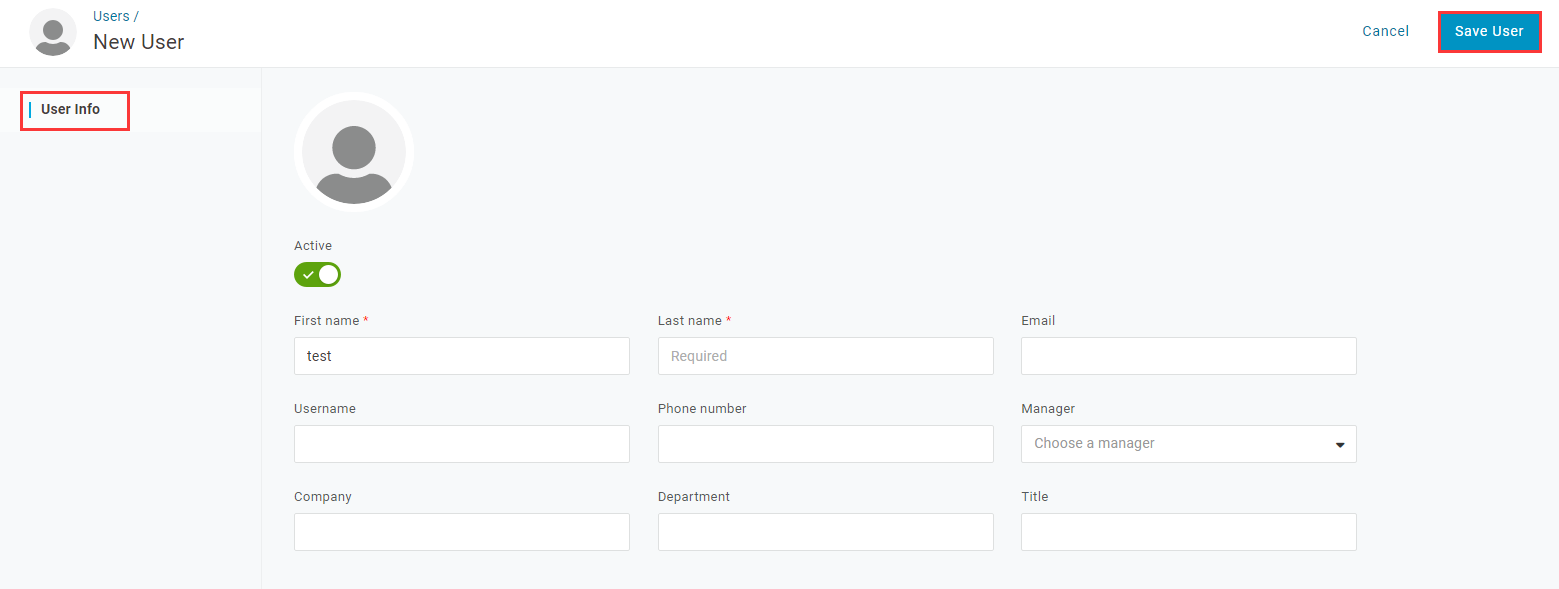
3. Enter Fir
st N
ame, Last Name, Email, and Username and click Save User as shown below:


Note:
Check your email for the password of this account, or click More Actions and select Change Password to change the password.
4. Click Applications on the user editing page. Select

on the right as shown below:


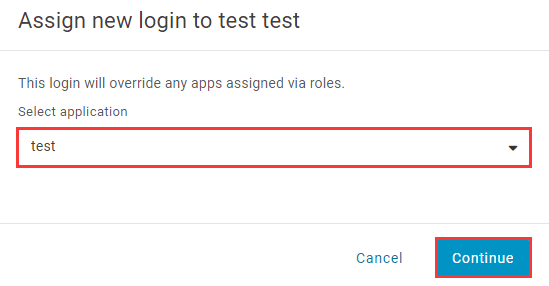
5. In the pop-up window, select the SAML test application that you created. Click Continue as shown below:


6. On the editing page, click Save as shown below:


7. Use the account created in step 3 to log in to OneLogin, and access the SAML test application created in the preceding sections. You will be redirected to the Tencent Cloud console.
도움말 및 지원

문제 해결에 도움이 되었나요?

피드백