Best Practices of Bot Traffic Management Connection
Download
포커스 모드
폰트 크기
마지막 업데이트 시간: 2023-12-29 14:55:32
This document describes how to quickly connect to the bot traffic management feature and defend against malicious traffic during routine operations.
Prerequisites
To connect to bot traffic management, you need to purchase an extra pack of WAF.
Note:
Currently, WAF Enterprise and Ultimate users are offered a free trial of the bot traffic management feature to observe how bots affect websites.
Parsing CAPTCHA
When you use applications, mini programs, and clients as well as cross-domain scheduling, the CAPTCHA issued by the WAF instance cannot be parsed and recognized. Therefore, the bot traffic management feature cannot parse and pop up the CAPTCHA for verification. After multiple CAPTCHAs are triggered, the access requests of normal users will be blocked, affecting the business.
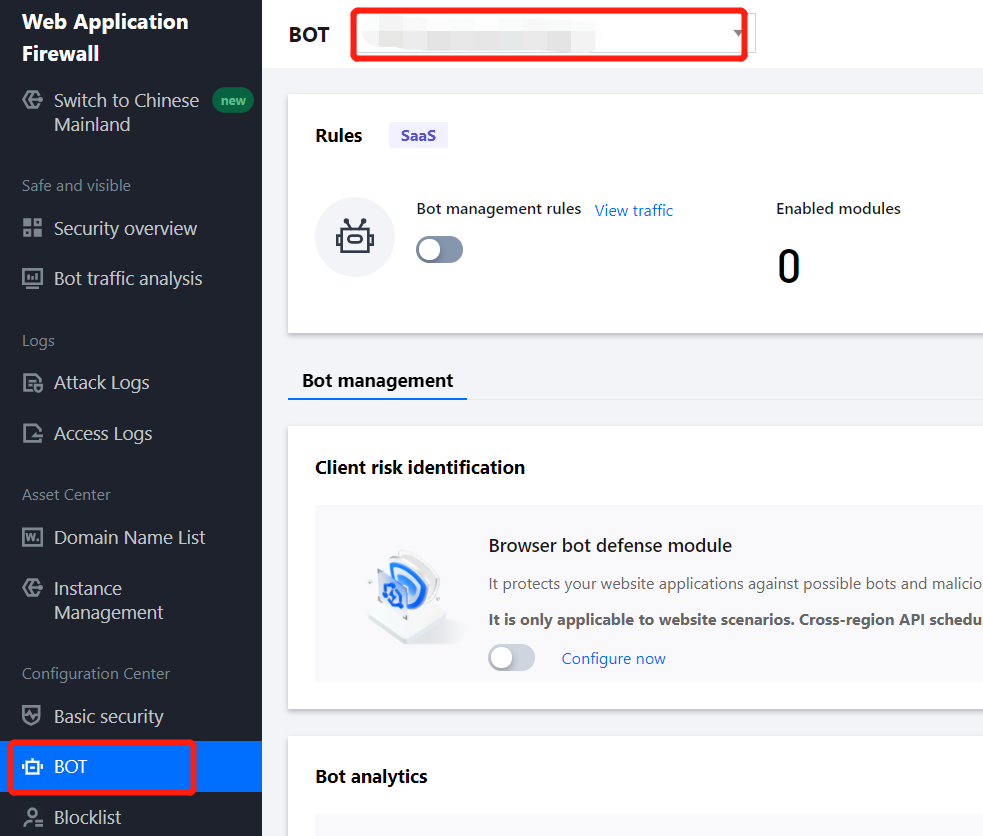
1. Log in to the WAF console and select Configuration center > Bot and application security on the left sidebar.
2. On the Bot and application security page, select the target domain name in the top-left corner and click Bot management.
Enabling bot traffic analysis
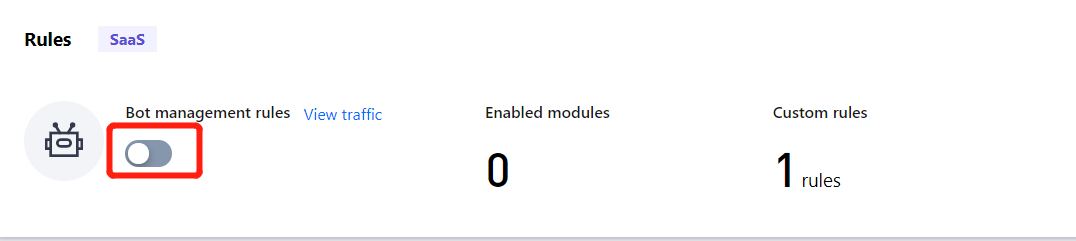
On the Bot management page, click
in the Rules section.
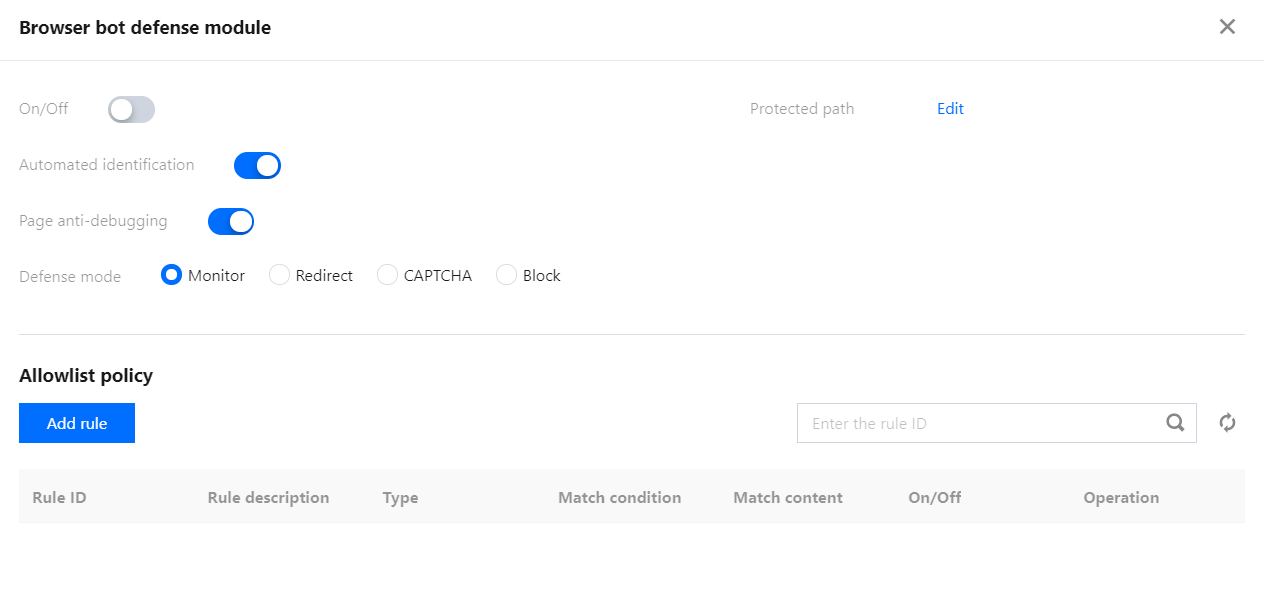
Setting browser bot defense module
1. In Browser bot defense module on the Bot management page, click
.
Note:
Make sure that your client is a WeChat Official Account, HTML5 page, application, mini program, or PC client.
When you only have a browser, WeChat Official Account, or HTML5 page as the client and need cross-domain scheduling, enable the browser bot defense module to achieve the best protection.
After the browser bot defense module is enabled, when its protection path is accesses, the system will check whether the client is capable of parsing JavaScript. A JavaScript code snippet will be issued to verify whether the client is a real browser. For mini programs, applications, and API calls, the query issued by WAF will not be actively parsed, so the client cannot perform parsing normally.
2. In the browser bot defense module, click Configure now to configure protection for key pages.
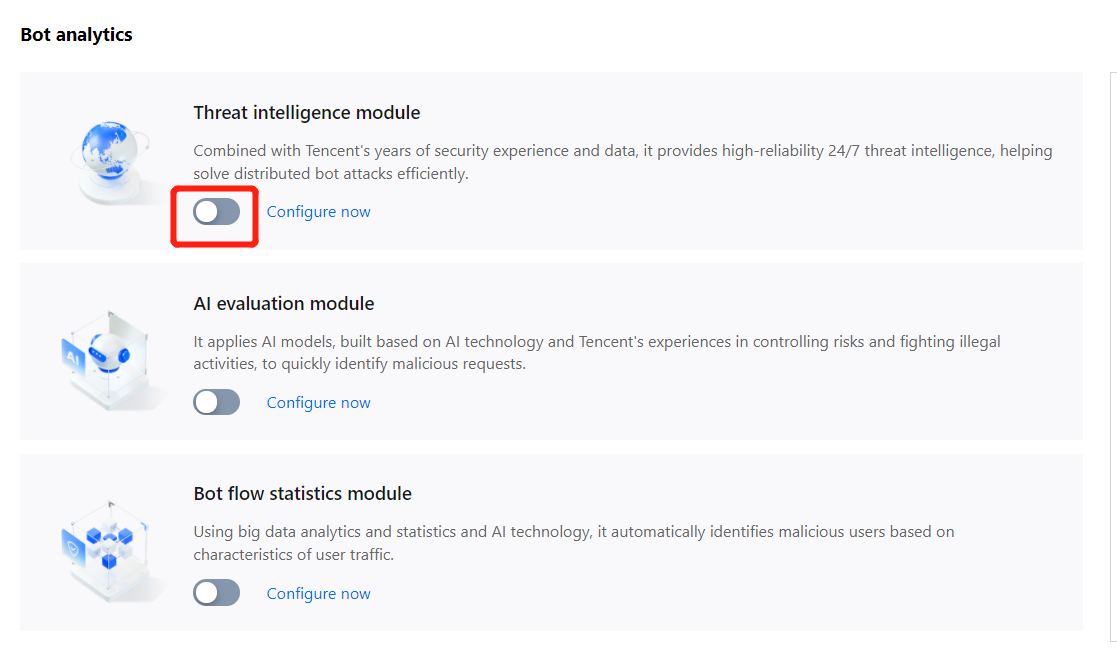
1. In Threat intelligence module on the Bot management page, click
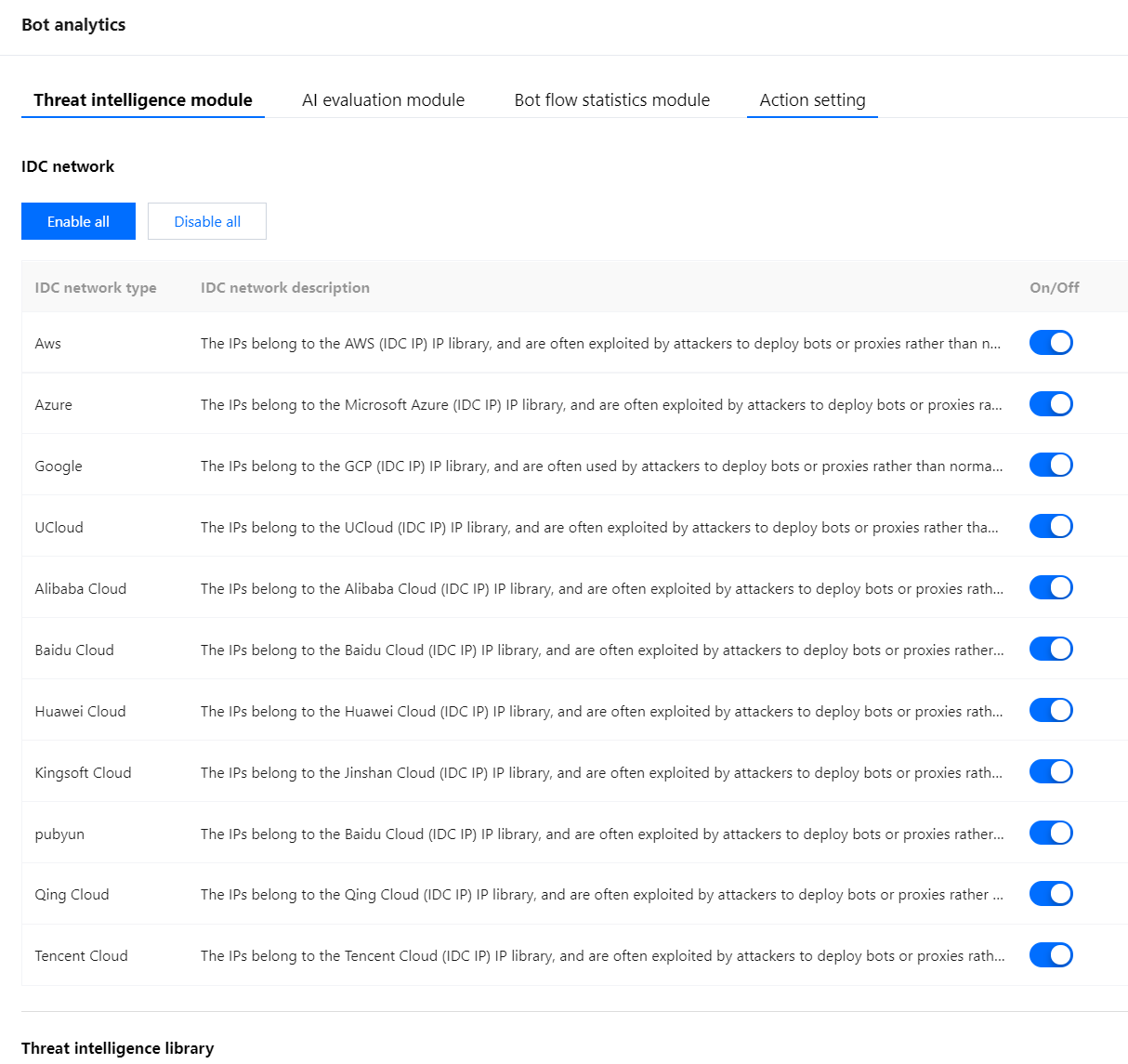
. When the module is enabled for the first time, all recognition items will be enabled. After you enable corresponding items, you can recognize the access sources at different malicious levels from the threat intelligence module and IDC.
2. In the threat intelligence module, click Configure now to set the IDC network and threat intelligence library.
Note:
The current business callback API is in the IDC domain:
If you are not sure about a source IP, contact us to add the IDC to the allowlist, that is, to disable the IDC option in the threat intelligence module for the business.
If you are sure about the current business callback IP, add the source IP to the allowlist in Custom rules. For more information, see Precise Allowlist Management.
Enabling AI evaluation module
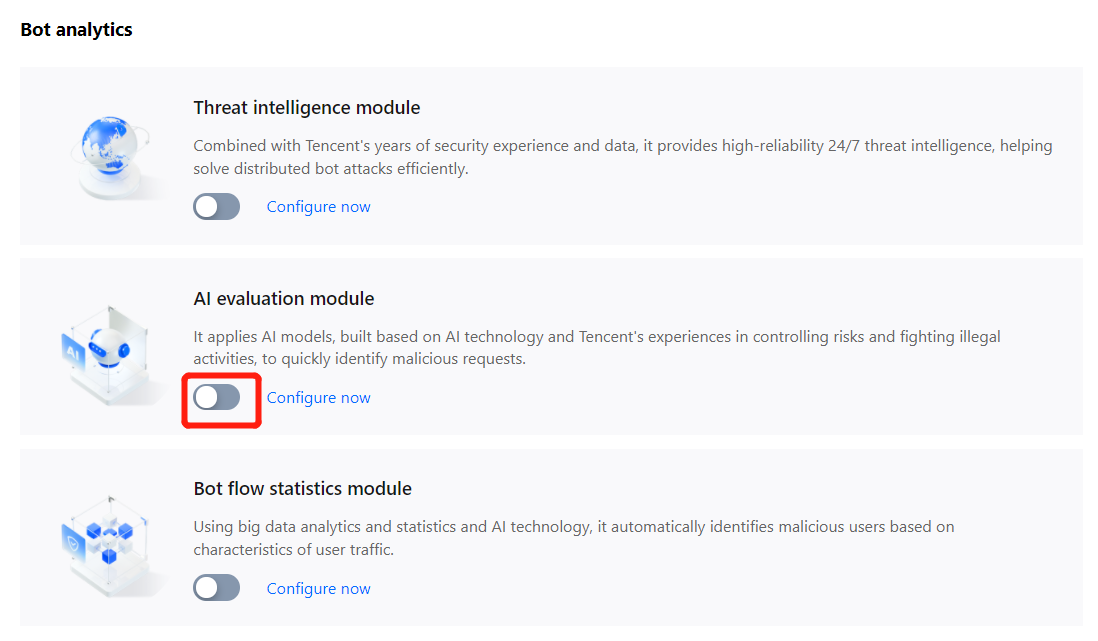
In AI evaluation module on the Bot management page, click
.
Enabling bot flow statistics module
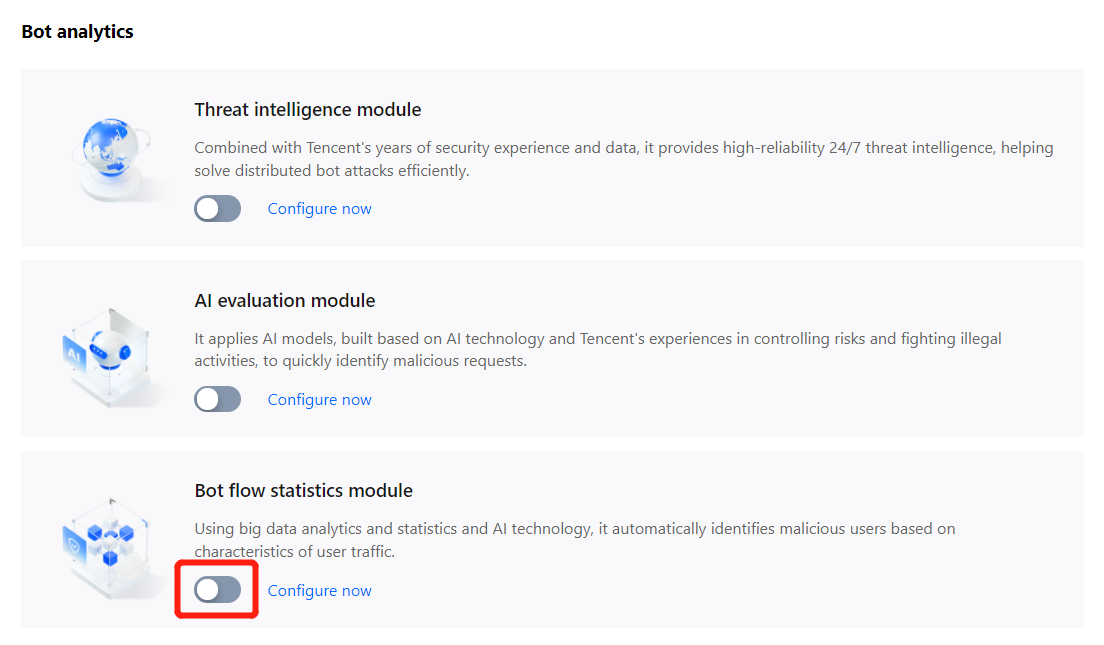
In Bot flow statistics module on the Bot management page, click
.
Setting action score
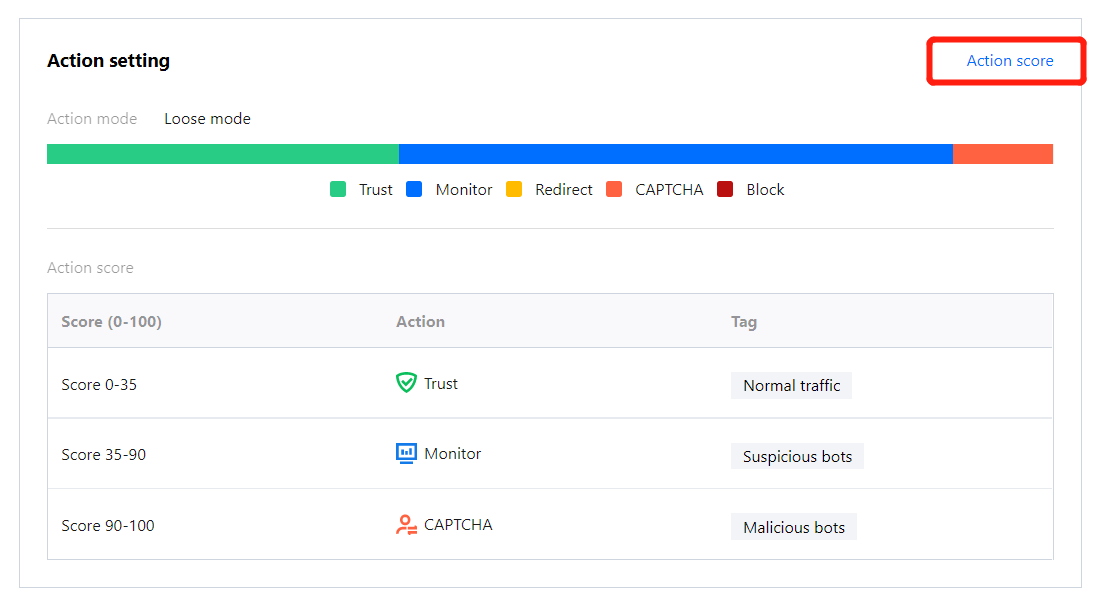
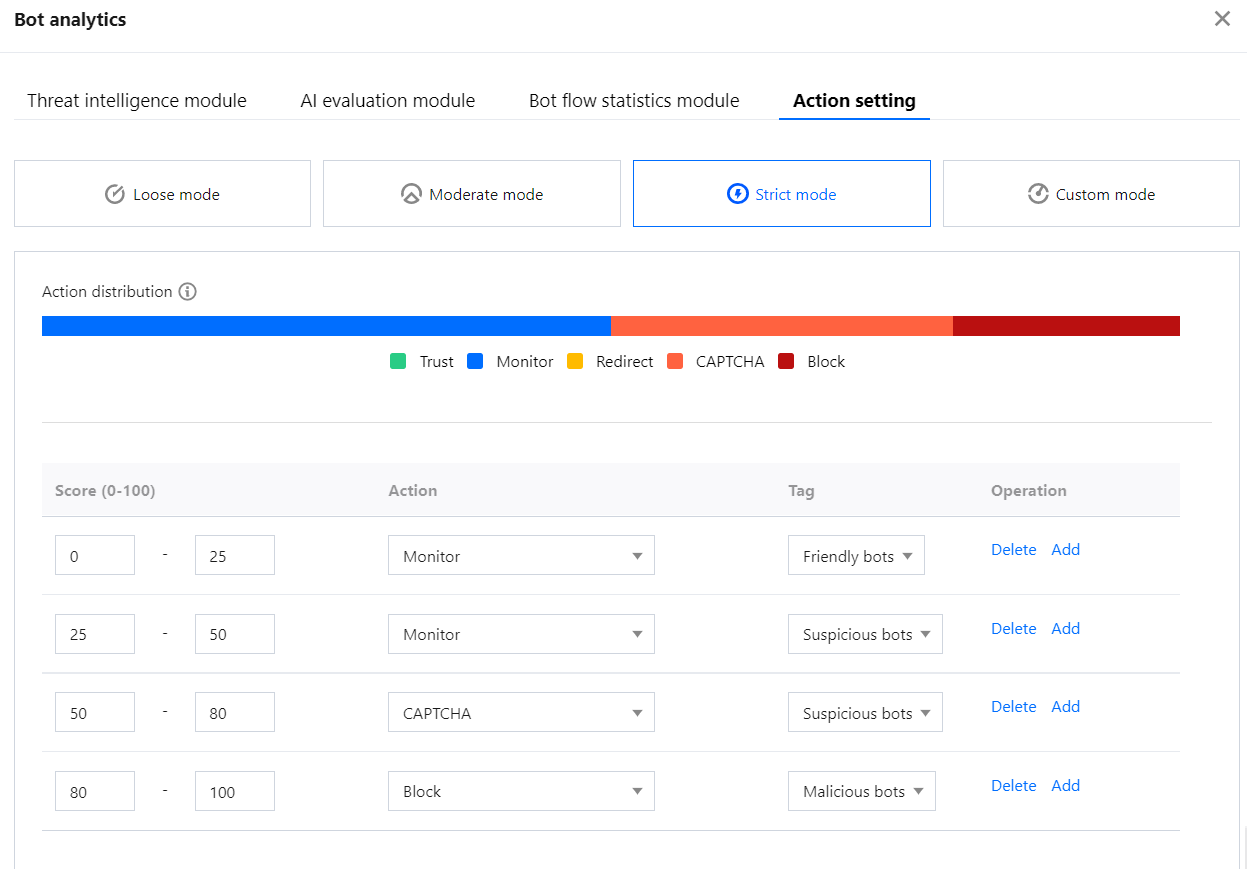
1. In the Action setting section on the Bot management page, click Action score.
2. On the Action setting tab, you can configure the score and action to precisely block risky access requests.
Use instructions
Mode: By default, there are loose, moderate, strict, and custom modes. The first three modes are preset, representing different recommended categories and handling policies for bots at different malicious levels in bot traffic management. Once modified, they become the custom mode.
Score range: A score ranges from 0 to 100. Ten score entries can be added to each range, which is left-closed and right-open and cannot be overlapped. You can set a range to null, and then no action will be processed in it.
Action: You can set an action to Trust, Monitor, Redirect (to a certain website URL), CAPTCHA (verification code), or Block.
Tag: You can set the tag to Friendly bots, Malicious bots, Normal traffic, or Suspicious bots.
Friendly bots: The bot is friendly and legal for the website by default.
Suspicious bots: The system finds the access source traffic suspicious but cannot determine if it is malicious to the website.
Normal traffic: The access traffic is regarded as from a real user.
Malicious bots: The bot has malicious traffic and is unfriendly to the website.
3. After completing the configuration, click Publish in the bottom-left corner of the page.