제품 업데이트
Tencent Cloud 오디오/비디오 단말 SDK 재생 업그레이드 및 권한 부여 인증 추가
TRTC 월간 구독 패키지 출시 관련 안내
flutter pub add tencent_rtc_sdk
Info.plist:<key>NSCameraUsageDescription</key><string>Video calls require camera permission.</string><key>NSMicrophoneUsageDescription</key><string>Voice calls require microphone permission.</string>
io.flutter.embedded_views_preview and set its value to YES.deployment postprocessing and set it to Yes.
strip style and set the value for Release to Non-Global Symbols.
/android/app/src/main/AndroidManifest.xml.<uses-permission android:name="android.permission.INTERNET" /><uses-permission android:name="android.permission.ACCESS_NETWORK_STATE" /><uses-permission android:name="android.permission.ACCESS_WIFI_STATE" /><uses-permission android:name="android.permission.RECORD_AUDIO" /><uses-permission android:name="android.permission.MODIFY_AUDIO_SETTINGS" /><uses-permission android:name="android.permission.BLUETOOTH" /><uses-permission android:name="android.permission.CAMERA" /><uses-feature android:name="android.hardware.camera.autofocus" />
android/app/build.gradle file:android {.....packagingOptions {pickFirst 'lib/**/libliteavsdk.so'}buildTypes {release {......minifyEnabled trueproguardFiles getDefaultProguardFile('proguard-android.txt'), 'proguard-rules.pro'}}}
-keep class com.tencent.** { *; }
.xcworkspace project file, click on the left Project Navigator in the Xcode Navbar, select Runner, and ensure the correct TARGETS is selected in the editing area.General tab.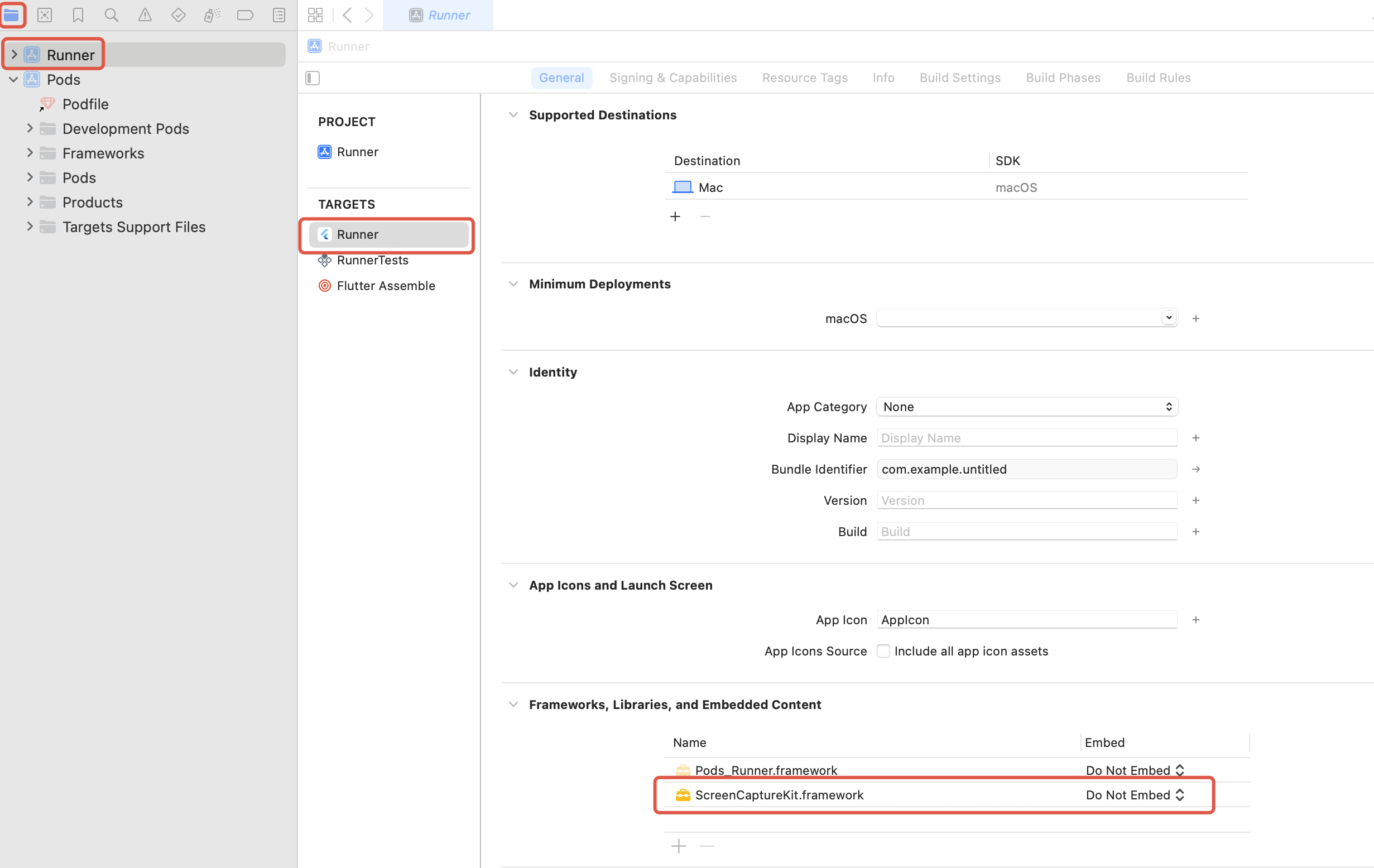
import 'package:tencent_rtc_sdk/trtc_cloud.dart';import 'package:tencent_rtc_sdk/trtc_cloud_def.dart';import 'package:tencent_rtc_sdk/trtc_cloud_listener.dart';
late TRTCCloud trtcCloud;
// Create a TRTC instancetrtcCloud = (await TRTCCloud.sharedInstance())!;// Create a TRTCCloudListener instanceTRTCCloudListener listener = TRTCCloudListener(// Implement the corresponding callbacks as neededonError: (errCode, errMsg) {// TODO});// Register the listener and bind it to the trtcCloud instancetrtcCloud.registerListener(listener);
if (!(await Permission.camera.request().isGranted) ||!(await Permission.microphone.request().isGranted)) {print('You need to obtain audio and video permission to enter');return;}
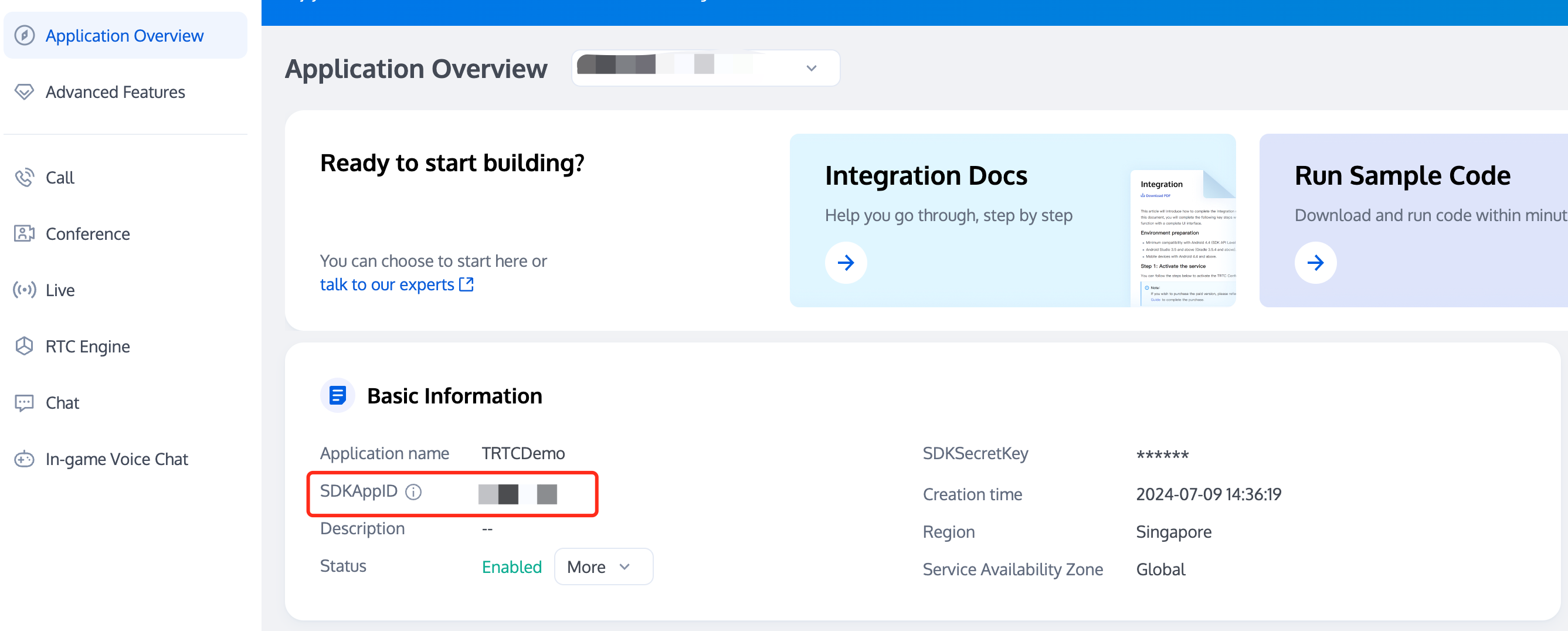
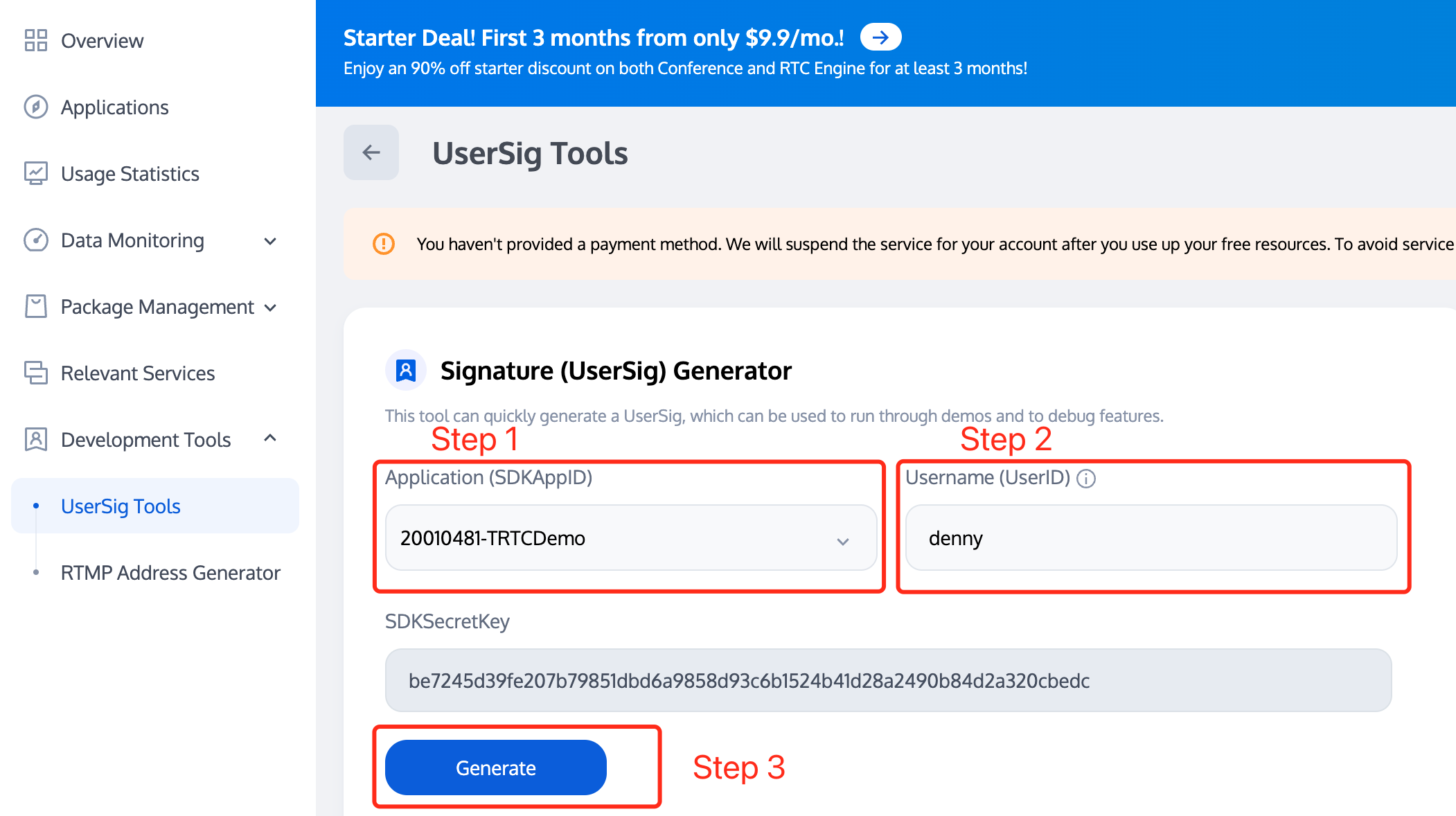
enterRoom interface function to enter the room.trtcCloud.enterRoom(TRTCParams(sdkAppId: sdkAppId, // Replace with your SDKAppIDuserId: "userId", // Replace with your useriduserSig: '', // Replace with your userSigrole: TRTCRoleType.anchor,roomId: 123123, // Replace with your roomId),TRTCAppScene.live);
trtcCloud.enterRoom(TRTCParams(sdkAppId: sdkAppId, // Replace with your SDKAppIDuserId: "userId", // Replace with your useriduserSig: '', // Replace with your userSigrole: TRTCRoleType.audience,roomId: 123123, // Replace with your roomId),TRTCAppScene.live);
import 'package:tencent_rtc_sdk/trtc_cloud_video_view.dart';
TRTCCloudVideoView(key: valueKey,onViewCreated: (viewId) {localViewId = viewId;// TODO},),
viewId is the unique identifier of the video rendering control TRTCCloudVideoView. You can store this identifier in any way you like. Here, localViewId is used to store it for rendering local video streams later.startLocalPreview to enable camera preview, you can set the local preview rendering parameters by calling the interface setLocalRenderParams.// Set local preview rendering parameterstrtcCloud.setLocalRenderParams(TRTCRenderParams(fillMode: TRTCVideoFillMode.fill,mirrorType: TRTCVideoMirrorType.auto,rotation: TRTCVideoRotation.rotation0,),);// Local preview of front camera contenttrtcCloud.startLocalPreview(true, localViewId);// Local preview of rear camera contenttrtcCloud.startLocalPreview(false, localViewId);
stopLocalPreview to turn off the camera preview and stop pushing local video information.trtcCloud.stopLocalPreview();
TXDeviceManager interface to complete the use of equipment extension features such as "Toggle front/back camera","Set Focus Mode","Flashlight".import 'package:tencent_rtc_sdk/tx_device_manager.dart';
// Get the Device Manager InstanceTXDeviceManager manager = trtcCloud.getDeviceManager();// Determine whether the camera is front-facingif (manager.isFrontCamera()) {// Switch to the rear-facing cameramanager.switchCamera(false);} else {// Switch to front cameramanager.switchCamera(true);}
// Get the Device Manager InstanceTXDeviceManager manager = trtcCloud.getDeviceManager();// Check if the device supports automatic face position detectionif (manager.isAutoFocusEnabled()) {// Enable the auto-focus featuremanager.enableCameraAutoFocus(true);} else {// Turn off the auto-focus featuremanager.enableCameraAutoFocus(false);}
// Get the Device Manager InstanceTXDeviceManager manager = trtcCloud.getDeviceManager();// Turn on the flash when switching to the rear-facing cameramanager.enableCameraTorch(true);// Turn the flash offmanager.enableCameraTorch(false);
startLocalAudio to enable microphone capture. This interface requires you to determine the capture mode through the quality parameter. It is recommended to select one of the following modes that suits your project.// Enable mic capture and set the current scene to: Speech mode// Strong noise suppression capability, adapts well to strong and weak network conditionstrtcCloud.startLocalAudio(TRTCAudioQuality.speech);
// Enable mic capture and set the current scene to: Music mode// For high fidelity and minimum audio quality loss, it is recommended to use with a professional sound cardtrtcCloud.startLocalAudio(TRTCAudioQuality.music);
stopLocalAudio to turn off the mic capture and stop pushing local audio information.trtcCloud.stopLocalAudio();
onUserVideoAvailable(userId, true) notification, it means that the video frame from this stream has arrived and is ready for playback.denny, and the video stream of the user denny is expected to be rendered to the TRTCCloudVideoView control with the unique identifier remoteViewId.startRemoteView interface.// Play the primary video stream of the remote user dennytrtcCloud.startRemoteView("denny", TRTCVideoStreamType.big,remoteViewId);
stopRemoteView interface, or stop all remote users' videos by calling the stopAllRemoteView interface.// Stop playing the primary video stream of the remote user dennytrtcCloud.stopRemoteView("denny", TRTCVideoStreamType.big);// Stop playing the videos of all remote userstrtcCloud.stopAllRemoteView();
muteRemoteAudio/muteAllRemoteAudio to choose to play or stop remote audio.// Mute the remote user denny onlytrtcCloud.muteRemoteAudio("denny", true);// Mute all remote userstrtcCloud.muteAllRemoteAudio(true);
// Unmute the remote user dennytrtcCloud.muteRemoteAudio("denny", false);// Unmute all remote userstrtcCloud.muteAllRemoteAudio(false);
exitRoom to exit the current room:trtcCloud.exitRoom();
onExitRoom callback event after the room exit is completed.TRTCCloudListener listener = TRTCCloudListener(onExitRoom: (reason) {// TODO});trtcCloud.registerListener(listener);
피드백