제품 업데이트
Tencent Cloud 오디오/비디오 단말 SDK 재생 업그레이드 및 권한 부여 인증 추가
TRTC 월간 구독 패키지 출시 관련 안내
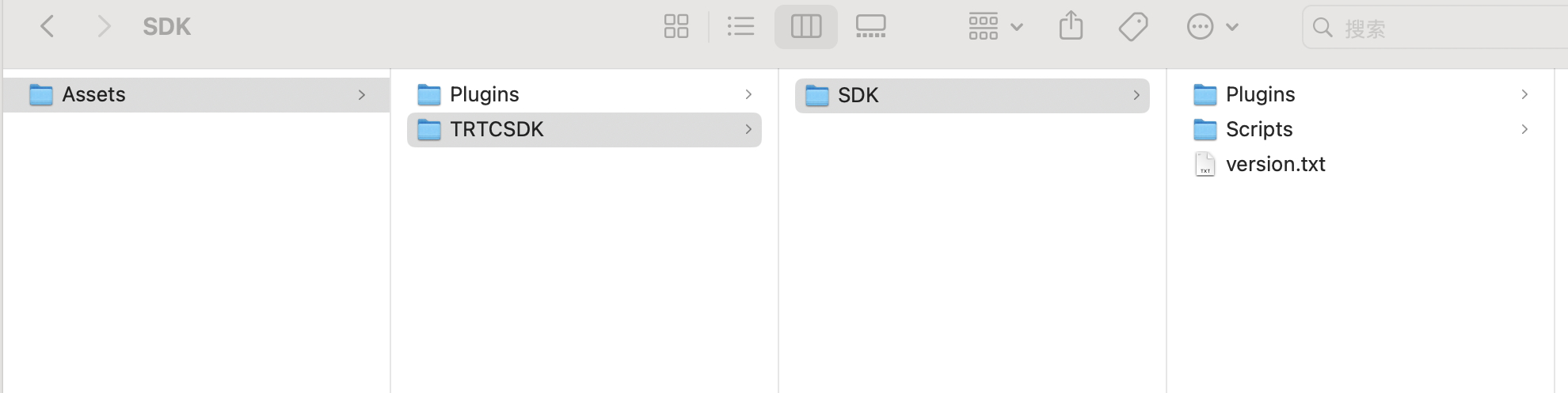
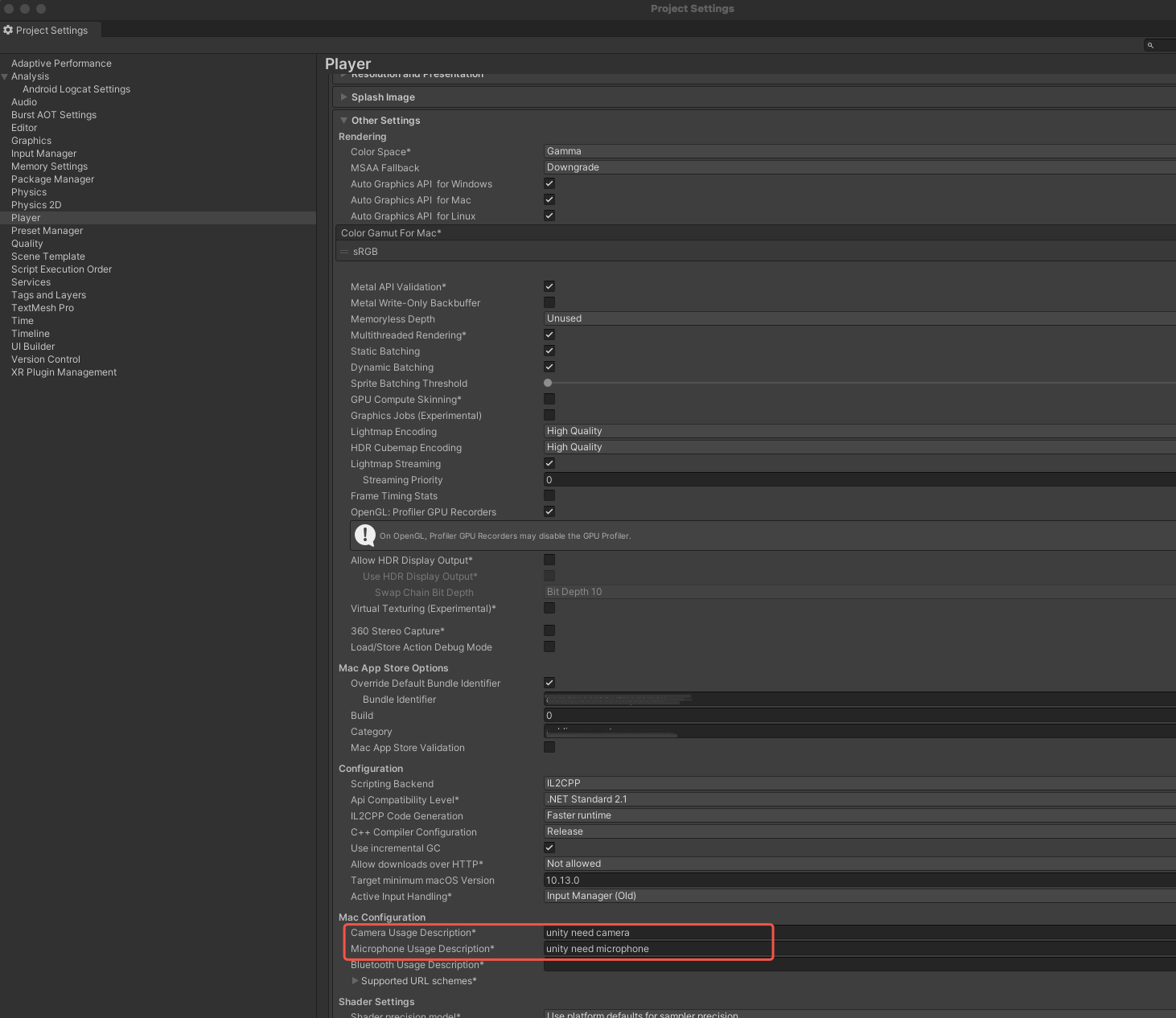
AndroidManifest.xml file in your project.<uses-permission android:name="android.permission.INTERNET" /><uses-permission android:name="android.permission.ACCESS_NETWORK_STATE" /><uses-permission android:name="android.permission.ACCESS_WIFI_STATE" /><uses-permission android:name="android.permission.RECORD_AUDIO" /><uses-permission android:name="android.permission.MODIFY_AUDIO_SETTINGS" /><uses-permission android:name="android.permission.BLUETOOTH" /><uses-permission android:name="android.permission.CAMERA" /><uses-feature android:name="android.hardware.camera.autofocus" />
using trtc;
public class AppExample : MonoBehaviour,ITRTCCloudCallback {private ITRTCCloud mTRTCCloud; // Declare the TRTCCloud member variable#region ITRTCCloudCallbackpublic:public void onError(TXLiteAVError errCode, String errMsg, IntPtr arg) {} // Listen for the 'onError' eventpublic void onWarning(TXLiteAVWarning warningCode, String warningMsg, IntPtr arg) {} // Listen for the 'onWarning' eventpublic void onEnterRoom(int result) {} // Listen for the result of 'onEnterRoom' eventpublic void onExitRoom(int reason) {} // Listen for the result of 'onExitRoom' event// to do other event.........#endregion}
mTRTCCloud = ITRTCCloud.getTRTCShareInstance();
addCallback interface to add listeners for TRTCCloud events.mTRTCCloud.addCallback(this);
TRTCParams and call enterRoom to successfully enter the room.Parameter | Type | Description |
sdkAppId | UInt32 | |
userId | String | User ID specified by you. |
userSig | String | |
roomId | UInt32 | Room ID specified by you, usually a unique room ID. |
TRTCParams trtcParams = new TRTCParams();trtcParams.sdkAppId = 1400xxxxx;trtcParams.roomId = 345;trtcParams.userId = "123";trtcParams.userSig = "";TRTCAppScene scene = TRTCAppScene.TRTCAppSceneLIVE;mTRTCCloud.enterRoom(ref trtcParams, scene);public void onEnterRoom(int result) {} // Listen for the result of 'onEnterRoom' event
RawImage: videoView in the Unity project as the value of the startLocalPreview interface parameter view.startLocalPreview to open the camera preview, you can set the local preview rendering parameters by calling the interface setLocalRenderParams.// Set local preview rendering parametersprivate TRTCRenderParams renderParams = new TRTCRenderParams();renderParams.fillMode = TRTCVideoFillMode.TRTCVideoFillMode_Fit;renderParams.mirrorType = TRTCVideoMirrorType.TRTCVideoMirrorType_Disable;renderParams.rotation = TRTCVideoRotation.TRTCVideoRotation0;mTRTCCloud.setLocalRenderParams(renderParams);// Local preview of the content captured by the front cameramTRTCCloud.startLocalPreview(true, videoView);// Local preview of the content captured by the rear cameramTRTCCloud.startLocalPreview(false, videoView);
stopLocalPreview to close the camera preview and stop pushing local video information.mTRTCCloud.stopLocalPreview();
startLocalAudio to turn on microphone capture. Select one of the following sound Quality parameters according to your requirements.// Enable microphone acquisition and set the current scene to: Voice mode// For high noise suppression capability, strong and weak network resistancemTRTCCloud.startLocalAudio(TRTCAudioQuality.TRTCAudioQualitySpeech);
// Enable microphone acquisition, and set the current scene to: Music mode// For high fidelity acquisition, low sound quality loss, recommended to use with professional sound cardsmTRTCCloud.startLocalAudio(TRTCAudioQuality.TRTCAudioQualityMusic);
stopLocalAudio to turn off microphone collection and stop pushing local audio information.mTRTCCloud.stopLocalAudio()
onUserVideoAvailable before entering the room. When you receive the onUserVideoAvailable(userId, true) notification, it indicates that playable video frames are available for that user's video stream.public void onUserVideoAvailable(String userId, bool available) {}
startRemoteView/stopRemoteView to play or stop the remote video.mTRTCCloud.startRemoteView(“denny”, TRTCVideoStreamType.TRTCVideoStreamTypeBig, videoView);// videoView is the RawImage component of Unity
stopRemoteView to stop playing the remote image.mTRTCCloud.stopRemoteView(”denny“, TRTCVideoStreamType.TRTCVideoStreamTypeBig); // Stop playing denny's videomTRTCCloud.stopAllRemoteView(true); // Mute all remote users
muteRemoteAudio to mute or unmute the remote sound.// MutemTRTCCloud.muteRemoteAudio("denny", true); // Mute dennymTRTCCloud.muteAllRemoteAudio(true); // Mute all remote users
// UnmutemTRTCCloud.muteRemoteAudio("denny", false); // Unmute dennymTRTCCloud.muteAllRemoteAudio(false); // Unmute all remote users
exitRoom to exit the current room.mTRTCCloud.exitRoom();
onExitRoom callback event after exiting the room.public void onExitRoom(int reason) {} // Listen for the result of 'onExitRoom' event
info_rtc@tencent.com.피드백