Delivering to Splunk
Baixar
Modo Foco
Tamanho da Fonte
This document describes how to deliver security product logs from the log analysis module to Splunk in real time, including complete configuration steps for both single-account and multi-account scenarios.
Feature Overview
The log delivery feature supports real-time delivery of security product logs to Splunk, meeting user requirements for data flow in scenarios such as log archiving, cross-platform collaborative analysis, and building a self-managed security operations system. It also supports configuration synchronization in multi-account scenarios, allowing administrators to synchronize delivery configurations to other member accounts with one click.
Prerequisites
1. An account that has purchased the Log Analysis Service.
2. The current logged-in account is an account that has been granted storage capacity.
Operation Steps
1. Log in to the CSC console. In the left-side navigation pane, click Log analysis.
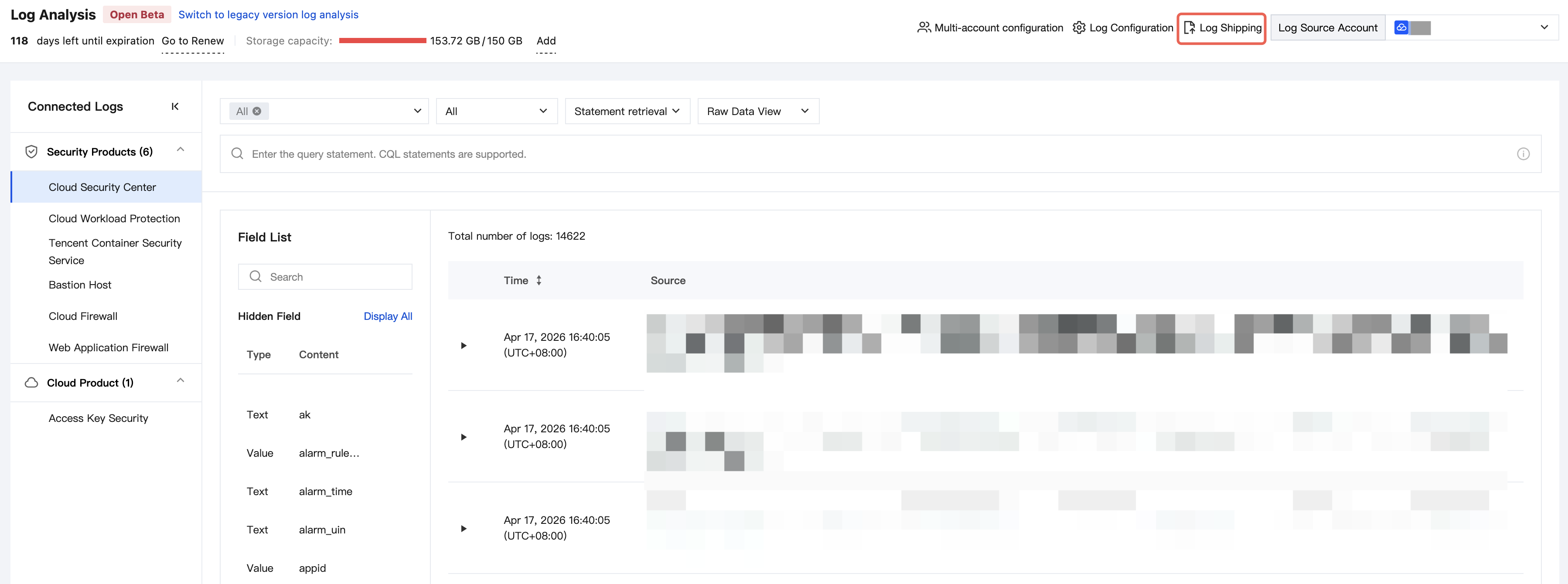
2. On the Log Analysis page, click Log Shipping > Shipping to Splunk in the upper-right corner.
3. On the Deliver to Splunk page, the upper section displays Splunk configuration information (delivery destination), and the lower section contains log type configuration items (specifying which logs to deliver).
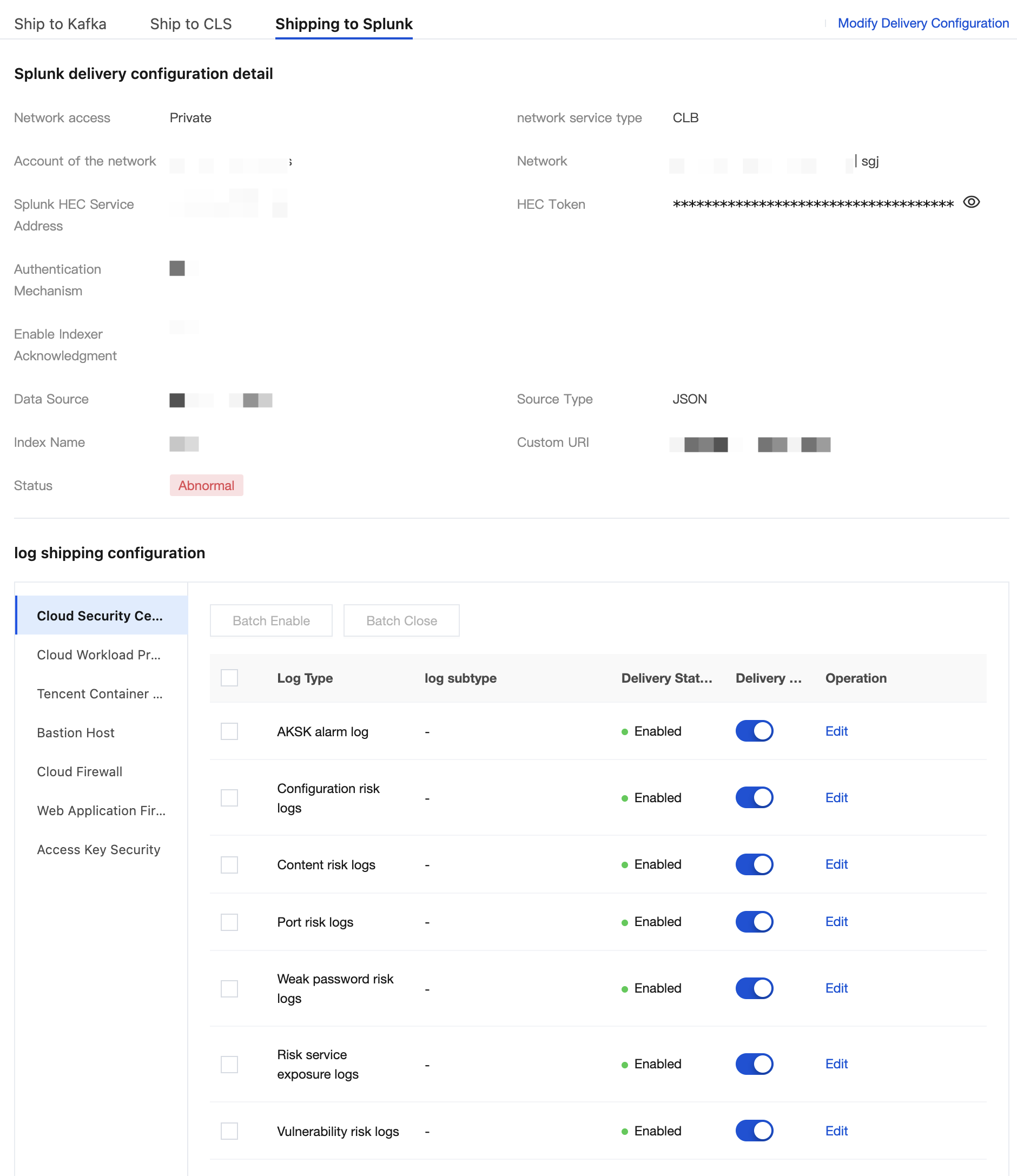
4. On the Deliver to Splunk page, click Modify Delivery Configuration in the upper-right corner.
5. On the Delivery Configuration - Deliver to Splunk page, you first need to edit the Splunk configuration information.
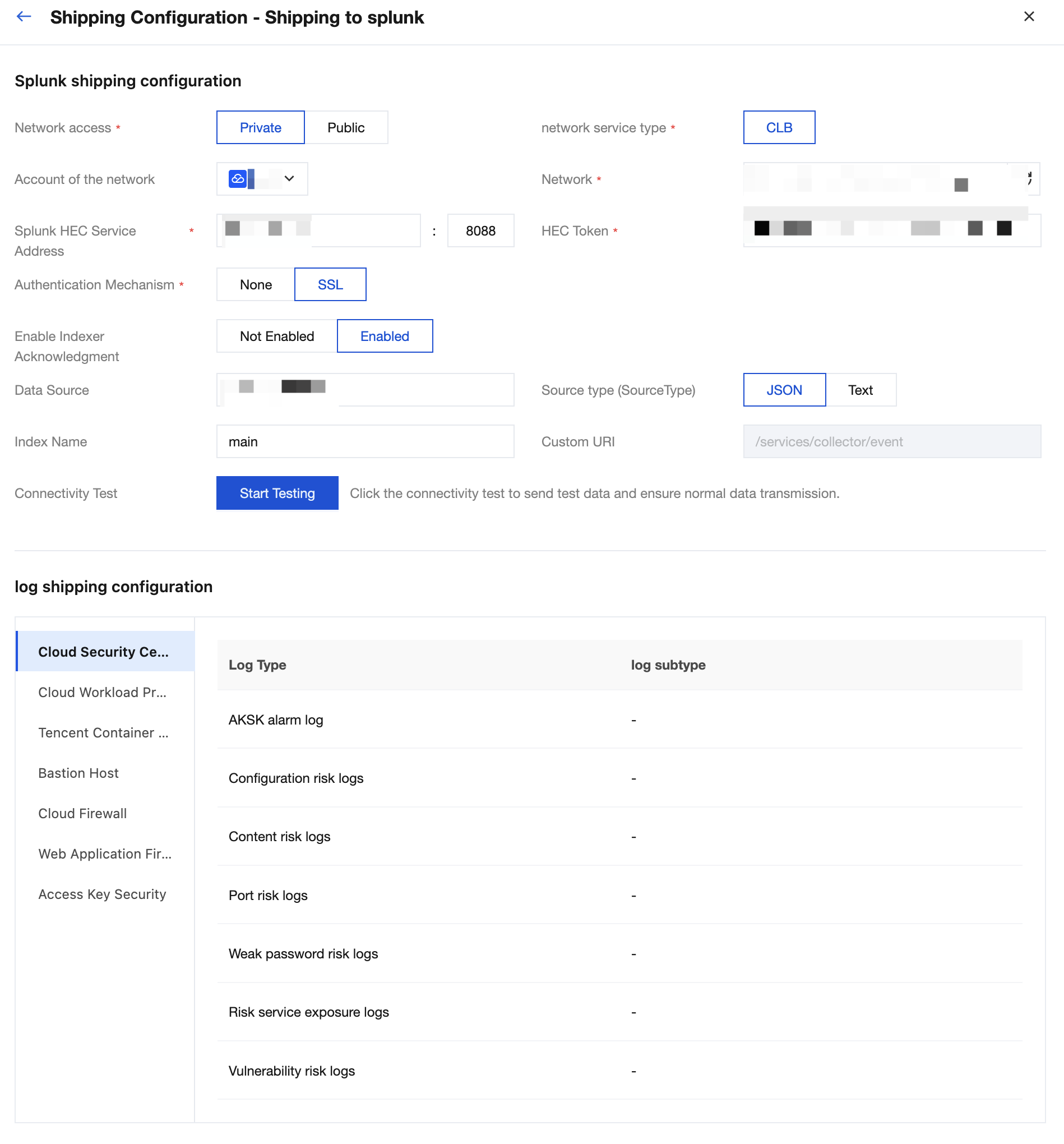
The following describes how to fill in the configuration information:
Configuration Item | Description | Example |
Network access | Private network: Splunk is deployed in Tencent Cloud or connected via Direct Connect or CCN. Public network: generally refers to Splunk Cloud Platform, accessed over the public network. | Intranet/Internet |
network service type | Currently supports CLB. Traffic is forwarded through CLB (load balancer), as delivery targets typically have multiple nodes, requiring load balancing. | CLB |
Account of the network | Splunk is deployed in the network environment of the current account or another account. | Normal scenario: The currently logged-in account does not need to be selected. Multi-account scenario: You can select other accounts. |
Network | Select the VPC of the current account from the drop-down list. Format: VpcId|VpcName|CidrBlock. | vpc-r5ABC123 |
Splunk HEC Service Address | 10.0.0.113:8088 | |
HEC Token | 59f9bXXc-ae2f-43c1-8c93-4360XXXX3ef1 | |
Authentication Mechanism | If you have enabled SSL authentication in the HEC configuration of Splunk, select SSL. | SSL |
Enable Indexer Acknowledgment | Splunk processes the next batch of data only after confirming that the data from HEC has been written to the index. If you have enabled indexer acknowledgment in the HEC token, select Enable. | Enabling log access |
Data Source | The location where logs are generated, such as a directory, network port, or program name. | /var/log/syslog |
Source type (SourceType) | The format/structure of log data determines how Splunk parses the data. | JSON, text |
Index Name | Writing data to this index. | test_index |
Custom URI | Destination delivery path. | Fixed as /services/collector/event |
Connectivity Test | A connectivity test is required, and delivery can proceed only after the test succeeds. | Test data: hello world |
6. In the log delivery configuration, you need to edit which logs are to be delivered.
If no log subtype is specified, all are selected by default, and no action is required.
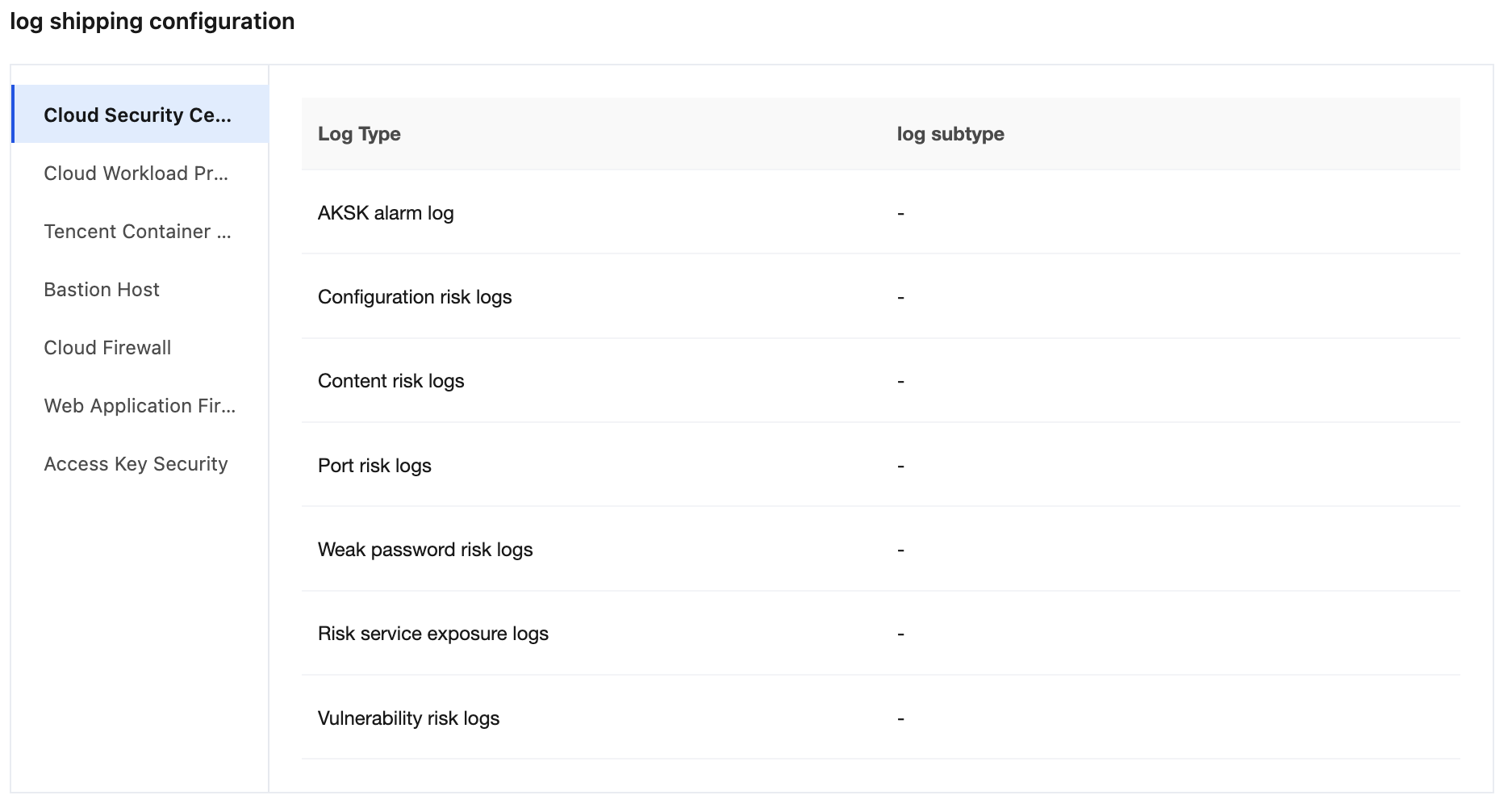
For products that have log subtypes, you need to select which log subtypes are to be delivered.
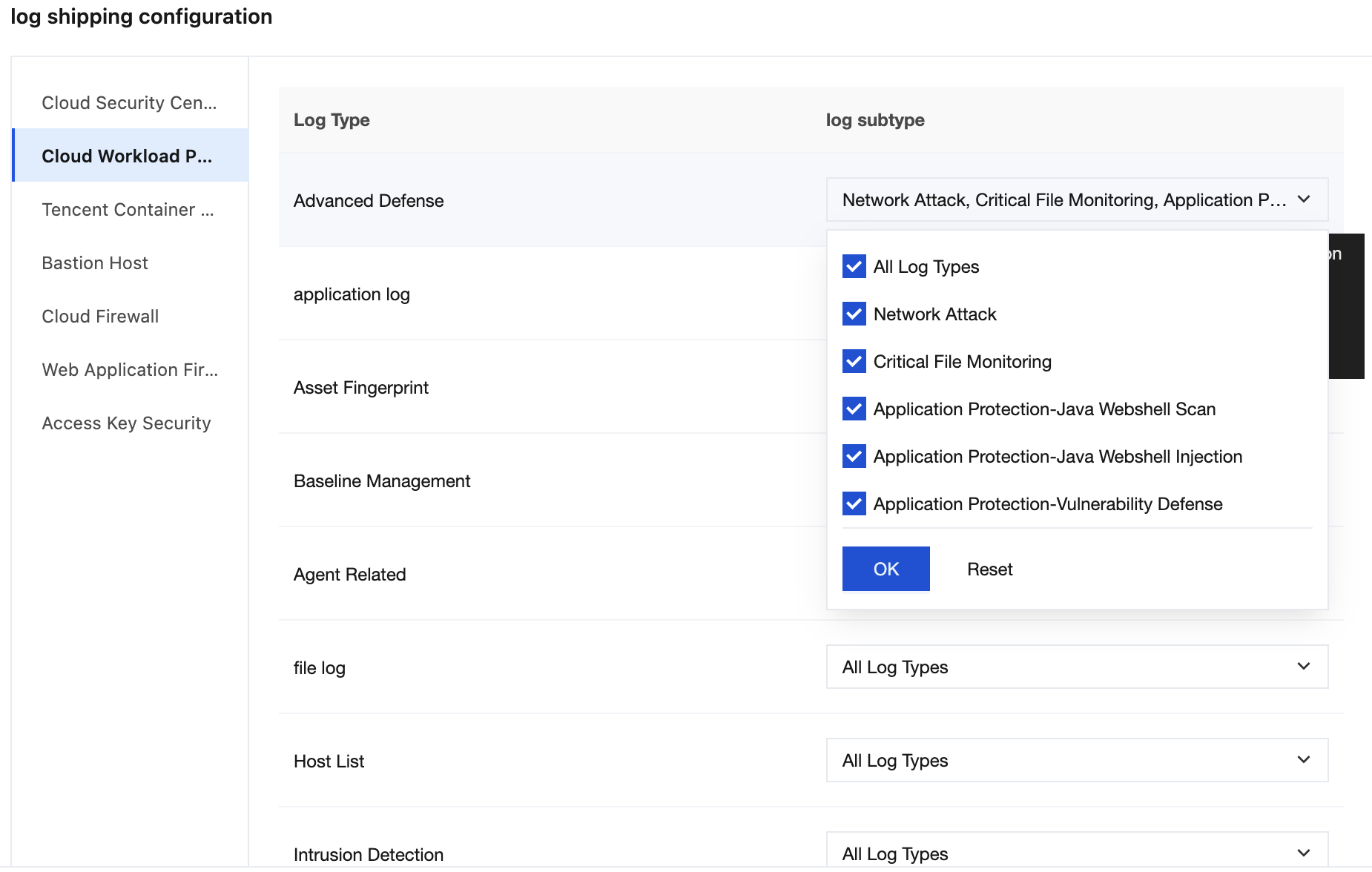
7. After OK is clicked, you return to the details page, where single or batch operations are supported.
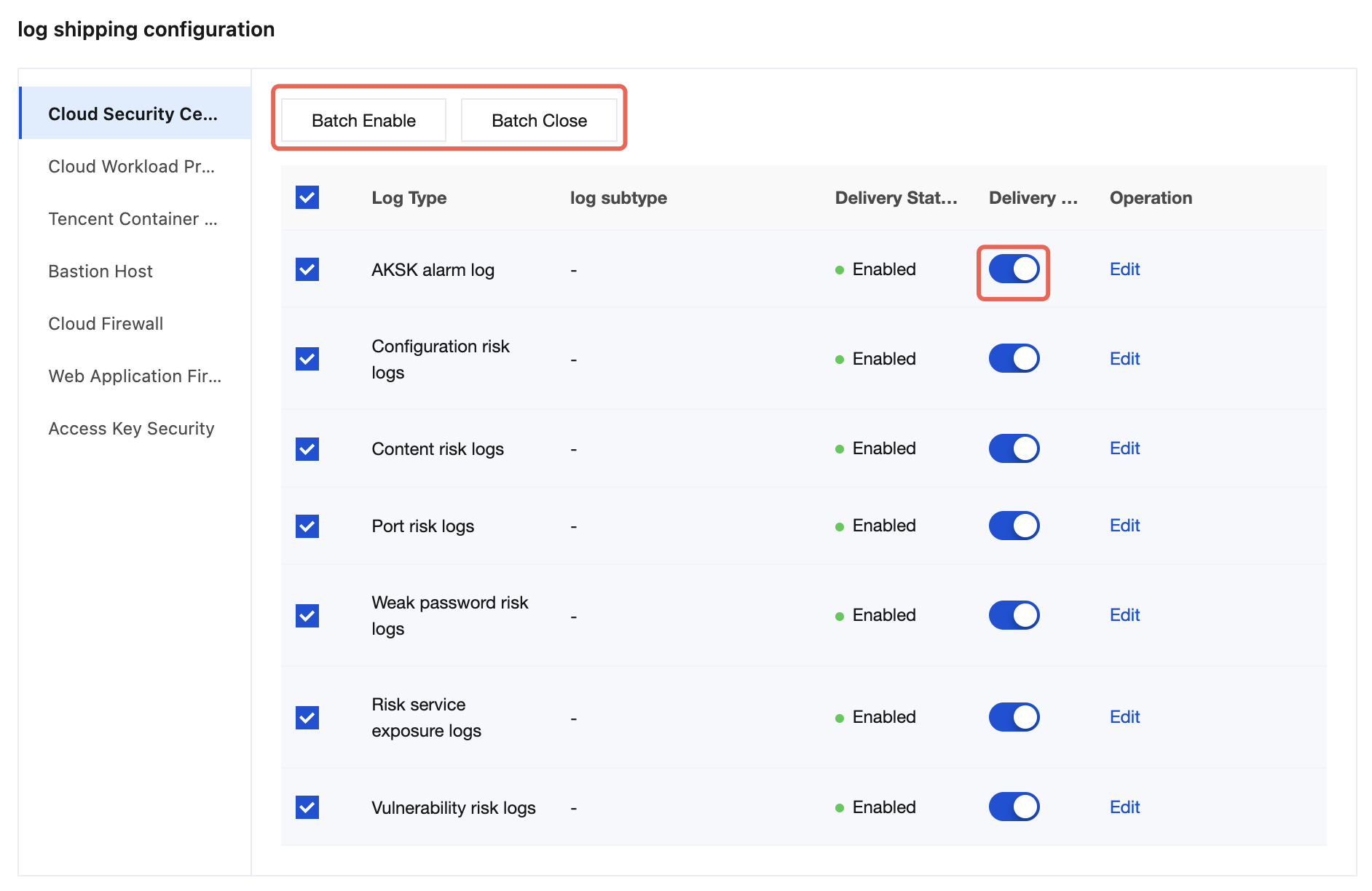
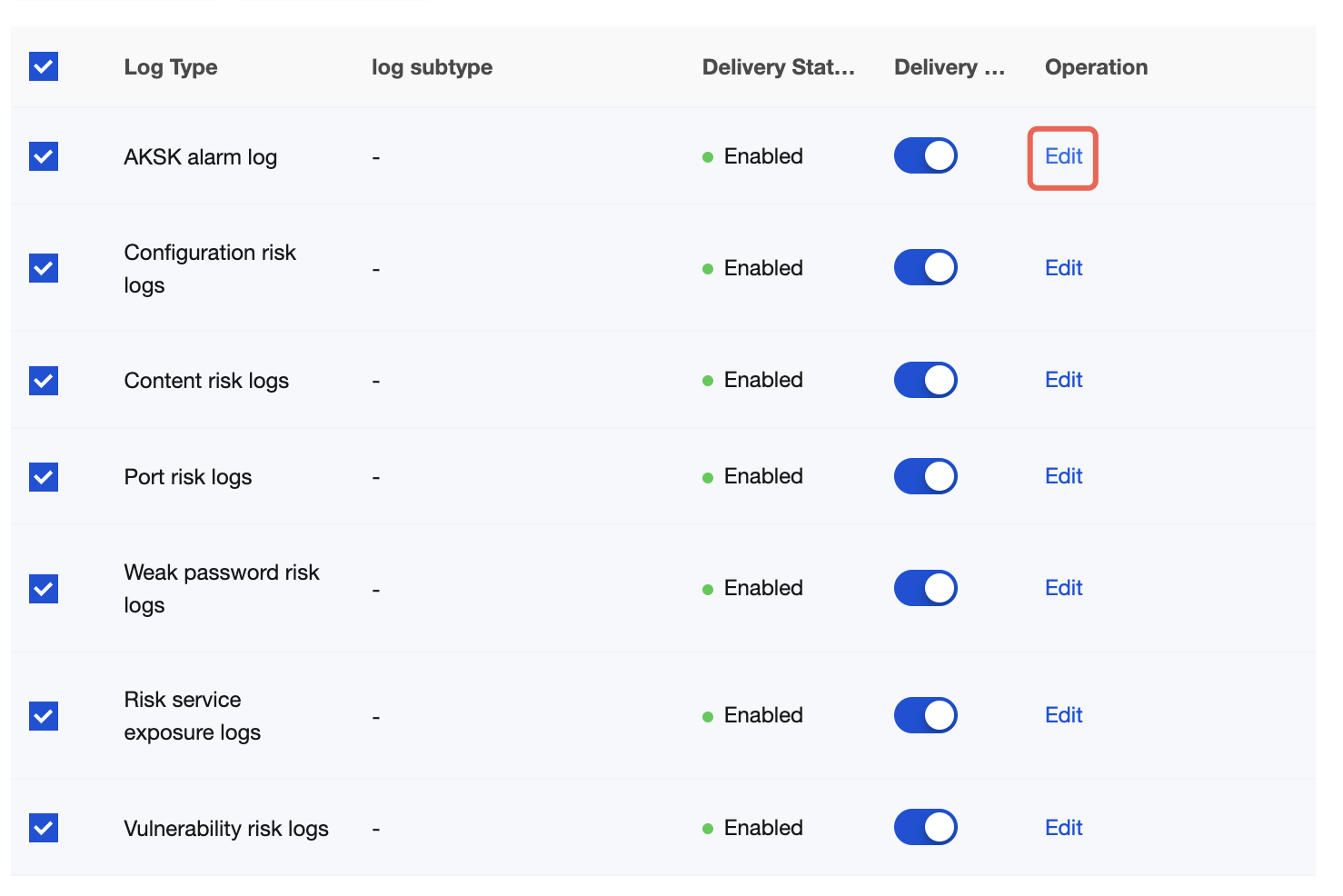
8. You can also modify the log types to be delivered on the Deliver to Splunk page, but only logs with subtypes are supported for modification.
Note:
Delivery to Splunk must pass a connectivity test to ensure the path is functional; otherwise, delivery will fail. During the connectivity test, a piece of test data is sent to the target Splunk for testing.
Multi-Account Scenario Overview
In a multi-account scenario, if you log in using an administrator account or a delegated administrator account, you can configure delivery policies for member accounts in the log delivery module. Unlike in a regular usage scenario, you need to pay special attention to the following configuration item: the log source account (which specifies the account to which the logs to be delivered belong).
1. Log in to the CSC console. In the left-side navigation pane, click Log analysis.
2. On the Log Analysis page, click Log Shipping > Shipping to Splunk in the upper-right corner.
3. On the Deliver to Splunk page, configure the log source account.
Log source account: Click the log source account in the upper-left corner, select the required member, and then click OK to configure a delivery policy for the logs of the current member account.
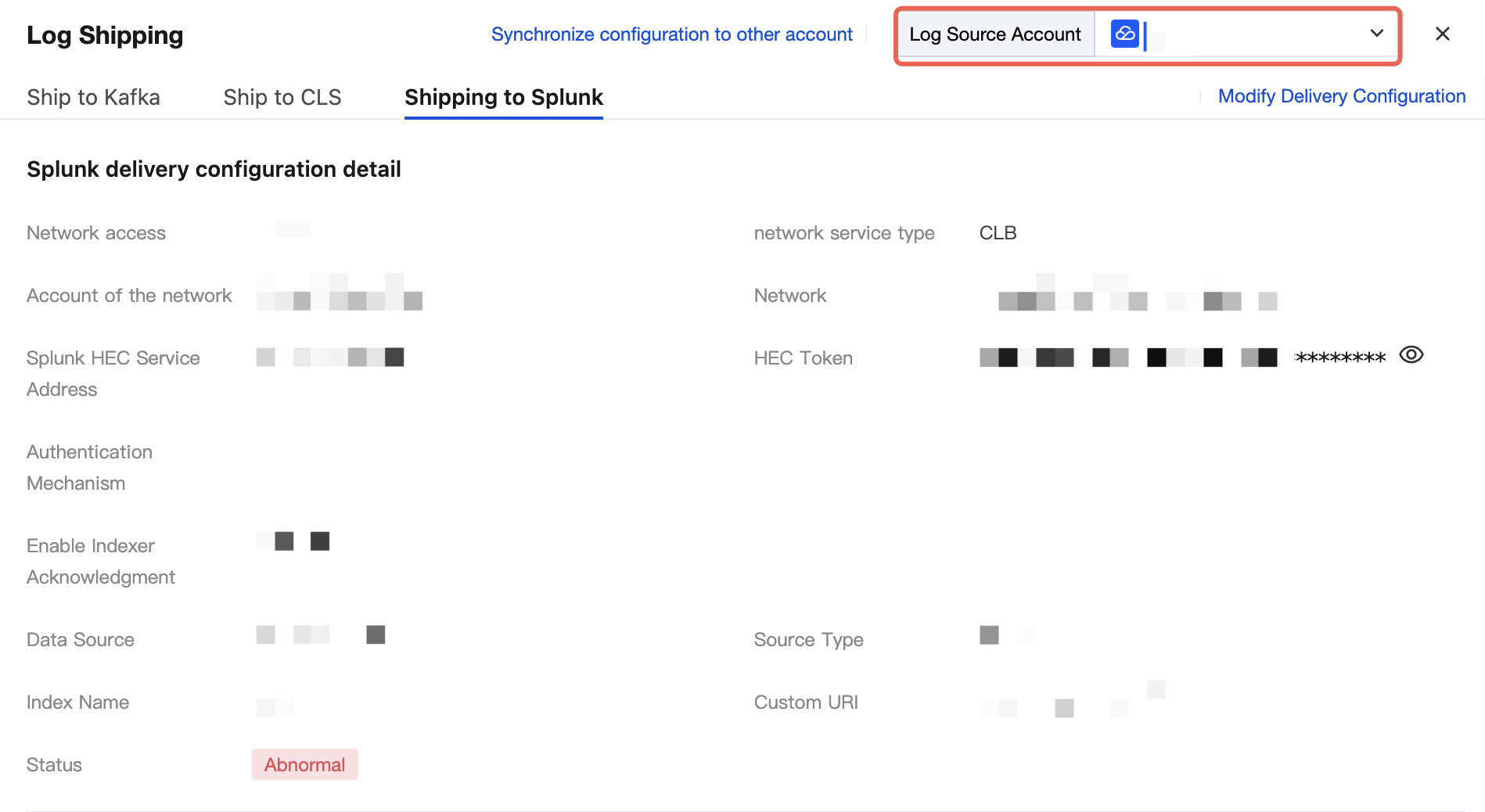
4. The procedure for configuring a log delivery policy is the same as in a regular scenario.
Ajuda e Suporte
Esta página foi útil?
Você também pode entrar em contato com a Equipe de vendas ou Enviar um tíquete em caso de ajuda.
comentários