This document provides you with an example of Single Sign-On (SSO login) between Microsoft Entra ID (also known as Azure AD) and Tencent Cloud Identity Center.
Background
All configuration operations in Microsoft Entra ID require an administrator (granted global administrator permissions) to execute. For instructions on creating users and granting administrator permissions in Microsoft Entra ID, please refer to the Microsoft Entra documentation.
Preparations
Before configuring SSO login, you need to complete user creation: synchronize users from Microsoft Entra ID to Identity Center or create a user with the same name in Identity Center.
Synchronize users from Microsoft Entra ID to Identity Center: Suitable for scenarios with a large number of users in Microsoft Entra ID. For detailed operations, please see Example of Synchronizing Microsoft Entra ID via SCIM.
Create a same-name user in the identity center: Suitable for situations where there are only a small amount of users in Microsoft Entra ID. Can be used for rapid verification. Upon creation, the username in the identity center needs to be consistent with the username in Microsoft Entra ID. For specific operations, please refer to Manage Users.
2. In the left sidebar, click User Management > Settings.
3. In the SSO login area, click
, then click to enable in the popup window to enable SSO login.
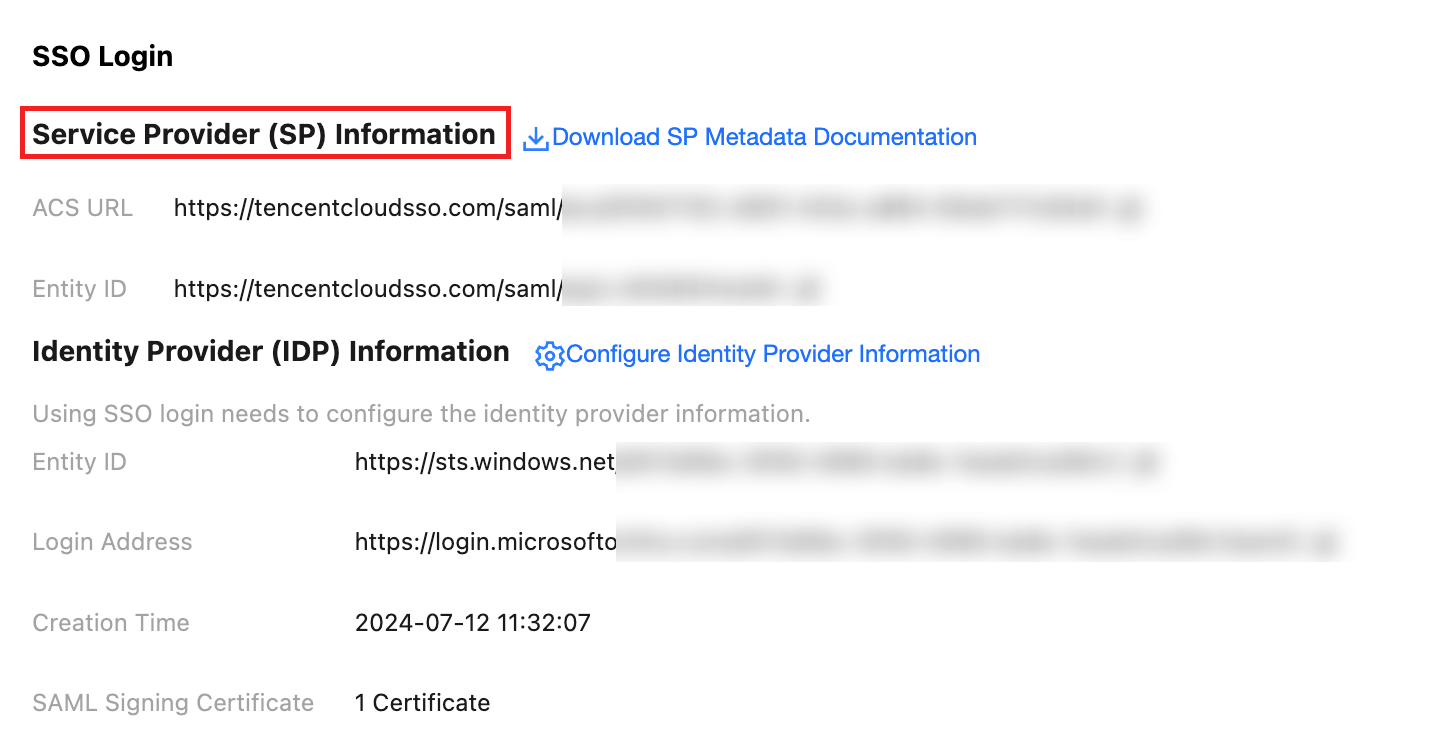
Step 2: Copy the Service Provider (SP) Information
In the Service Provider (SP) Information section, view and copy the ACS URL and Entity ID, and use them directly for manual configuration of the external IdP.
Configuring in Microsoft Entra ID
Step 1: Create an Application in Microsoft Entra ID
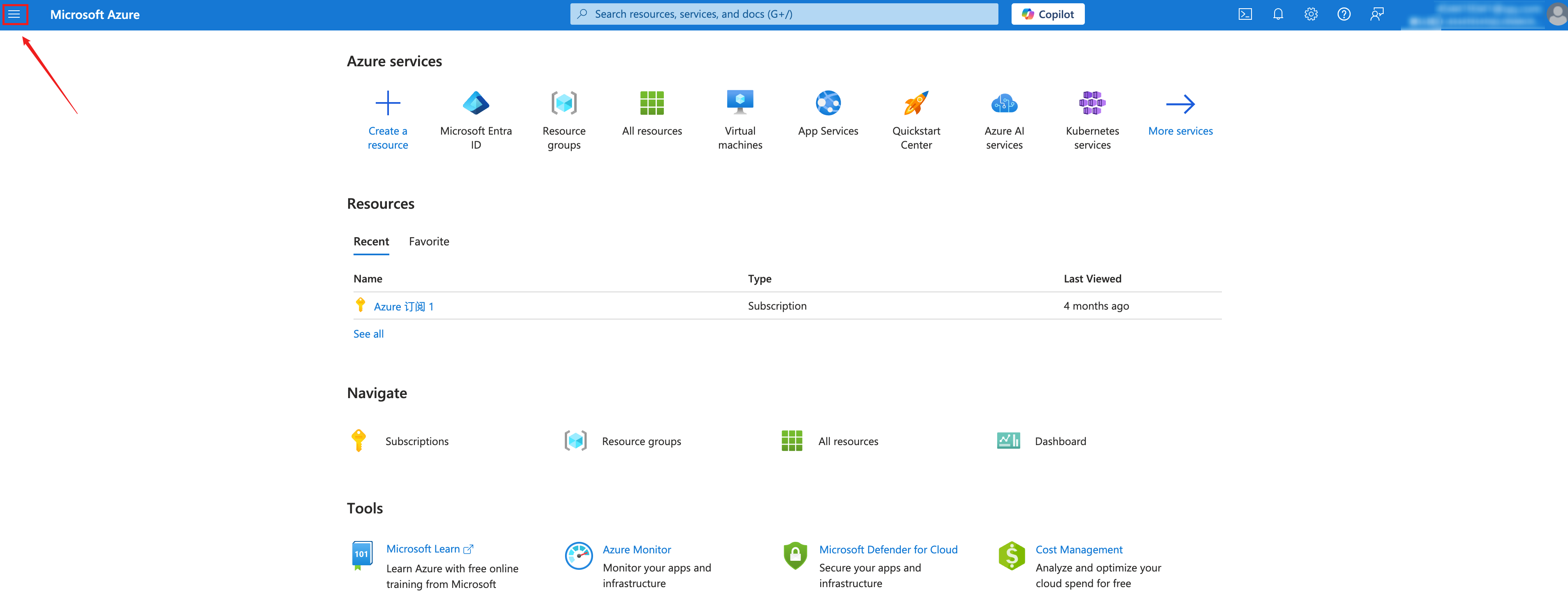
1. Log in to the Azure portal as an administrator and click the menu icon in the top-left corner.
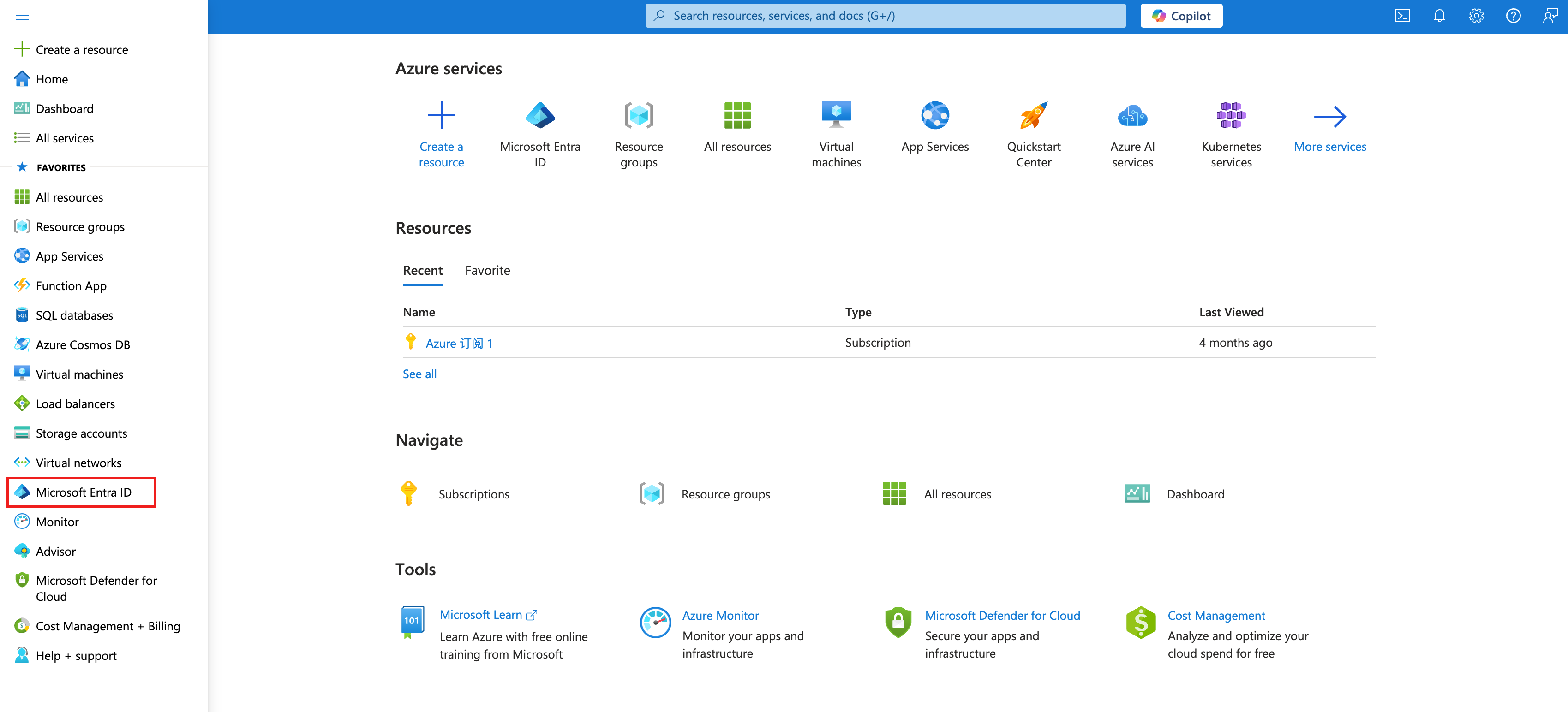
2. In the left navigation bar, select Microsoft Entra ID.
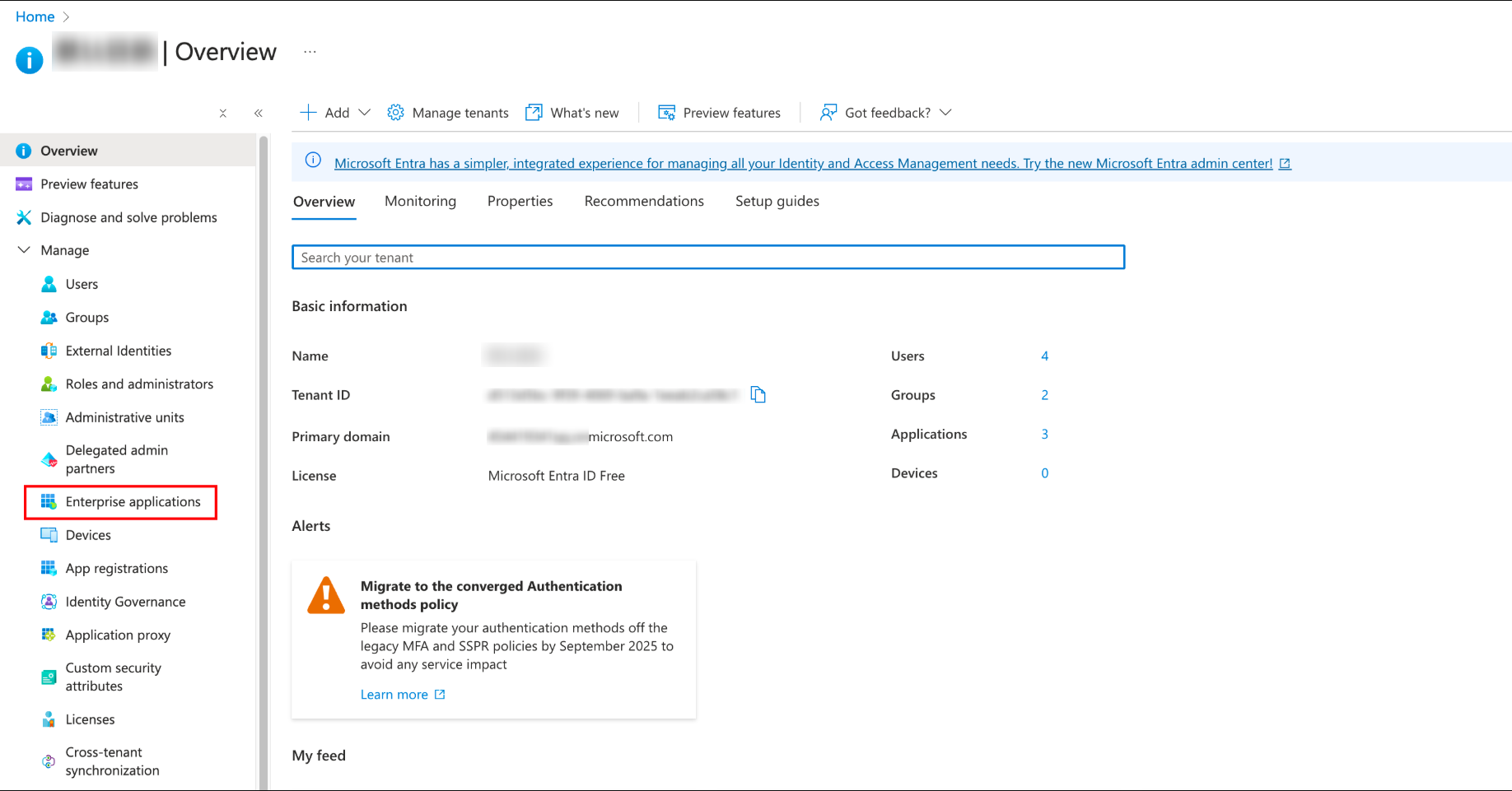
3. In the left navigation bar, select Manage > Enterprise applications and then go to All applications.
4. Click New application.
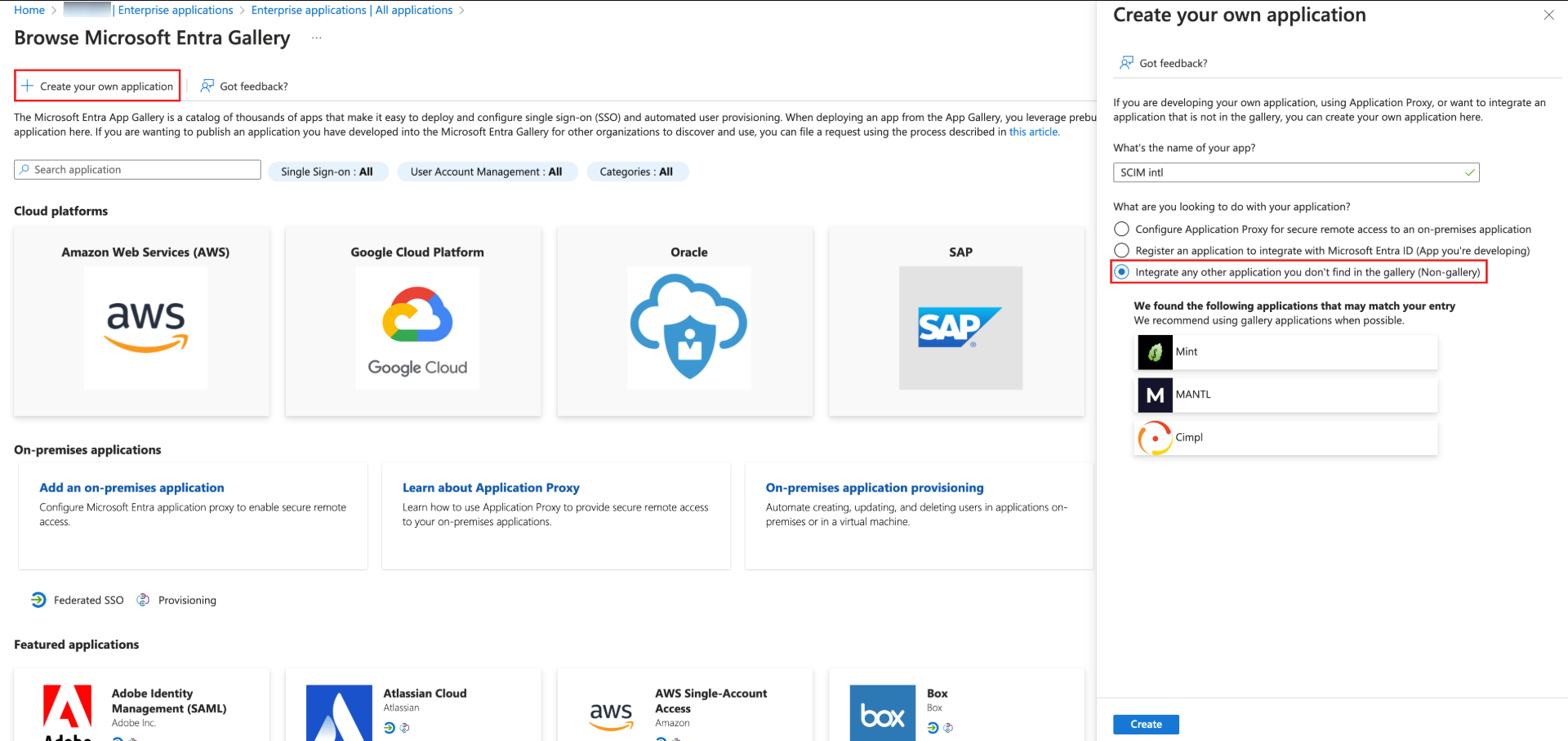
5. On the Browse Microsoft Entra Gallery page, click Create your own application, enter the name of your app (such as SCIM intl) in the right window, select Integrate any other application you don't find in the gallery (Non-gallery),and then click Create.
Step 2: Set Up Single Sign-On in Microsoft Entra ID
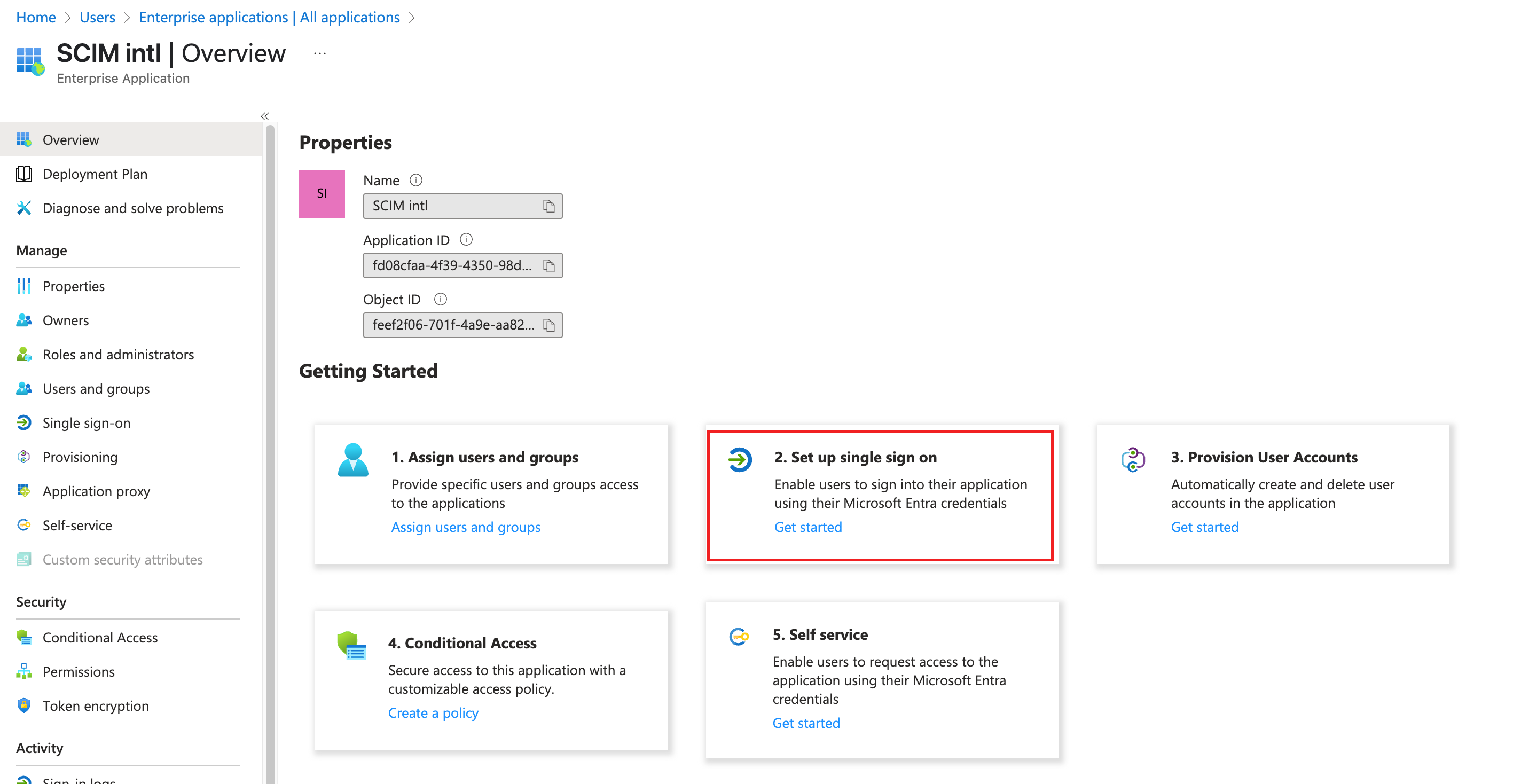
1. On the SCIM intl application page, click Getting started in Set up single sign on card.
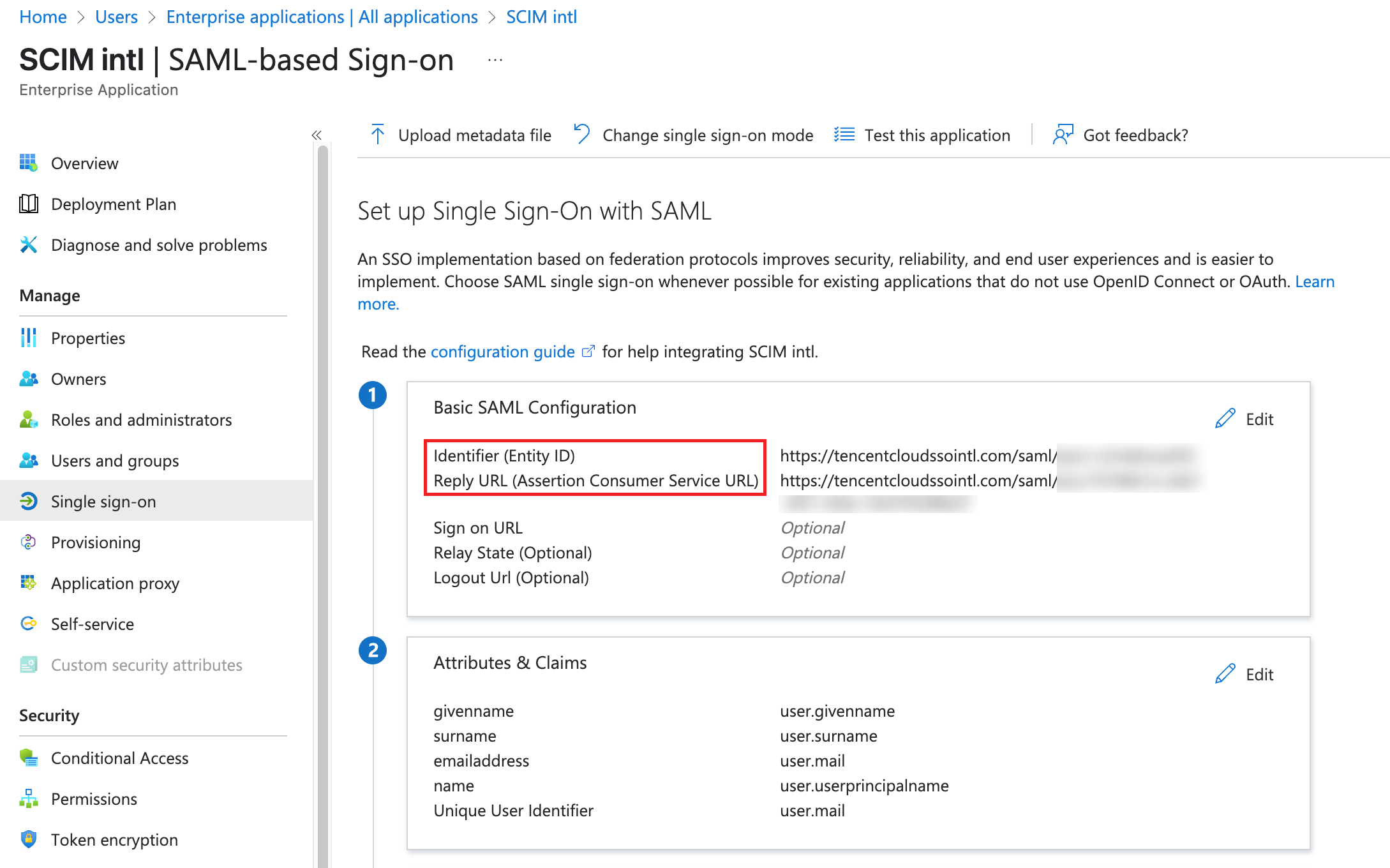
2. In the Basic SAML Configuration module, click Edit, fill in the Identifier (Entity ID) with the Entity ID from Step 2, and complete the Reply URL (Assertion Consumer Service URL) with the ACS URL.
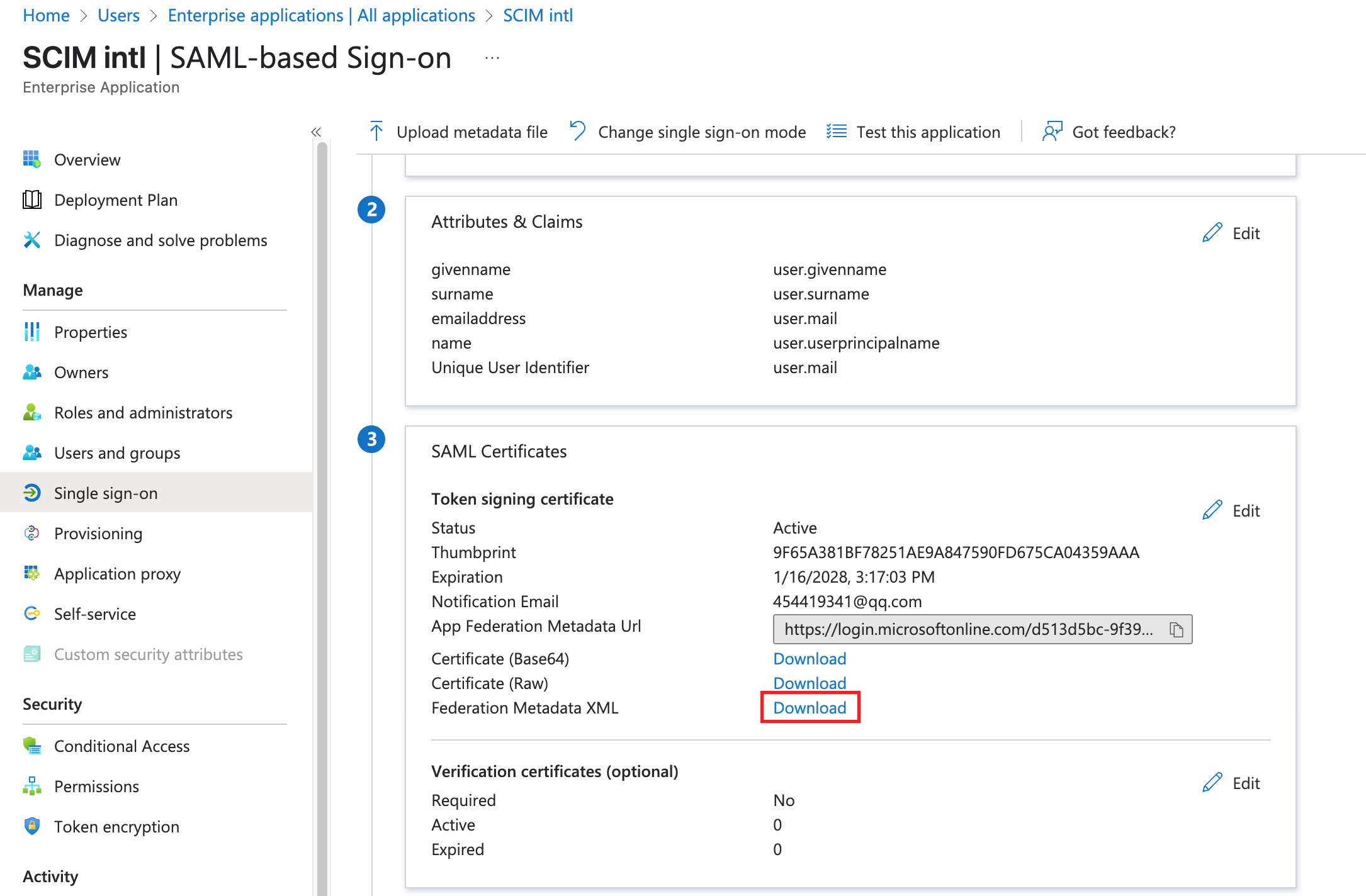
3. Download the Federation metadata XML from the SAML Certificates module.
4. Assign users and groups in the SCIM intl application.
4.1 Click Assign users and groups in Getting Started.
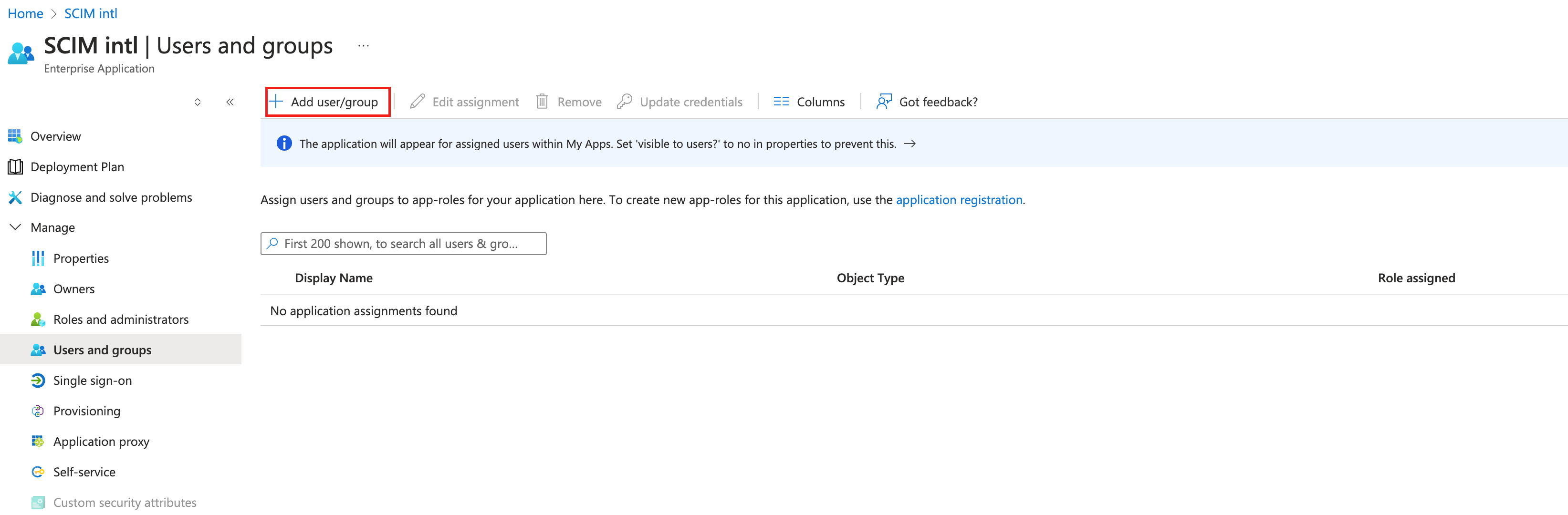
4.2 On the Manage > Users and groups page, click Add user/group.
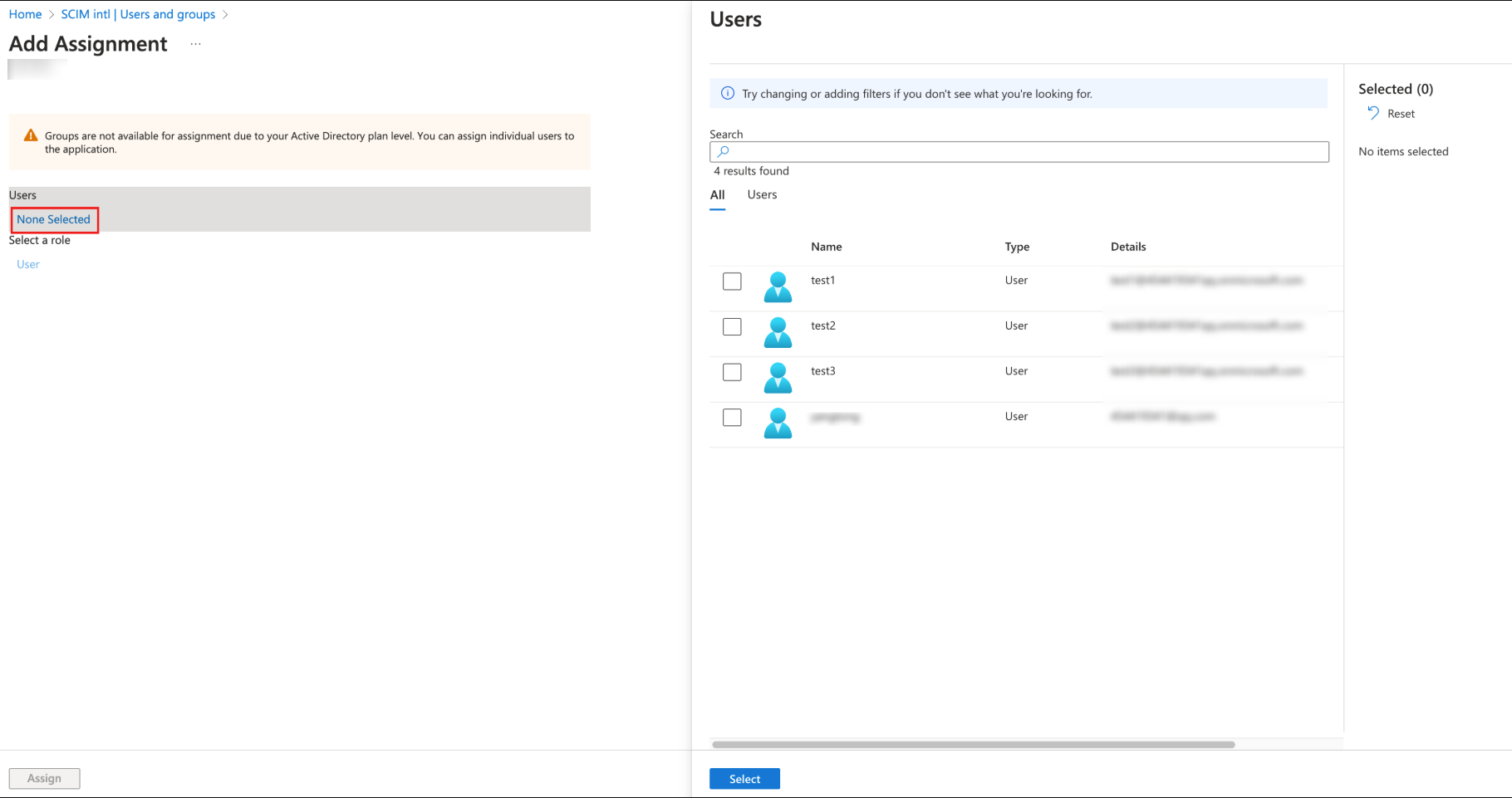
4.3 On the Add Assignment page, select users or groups, click Select.
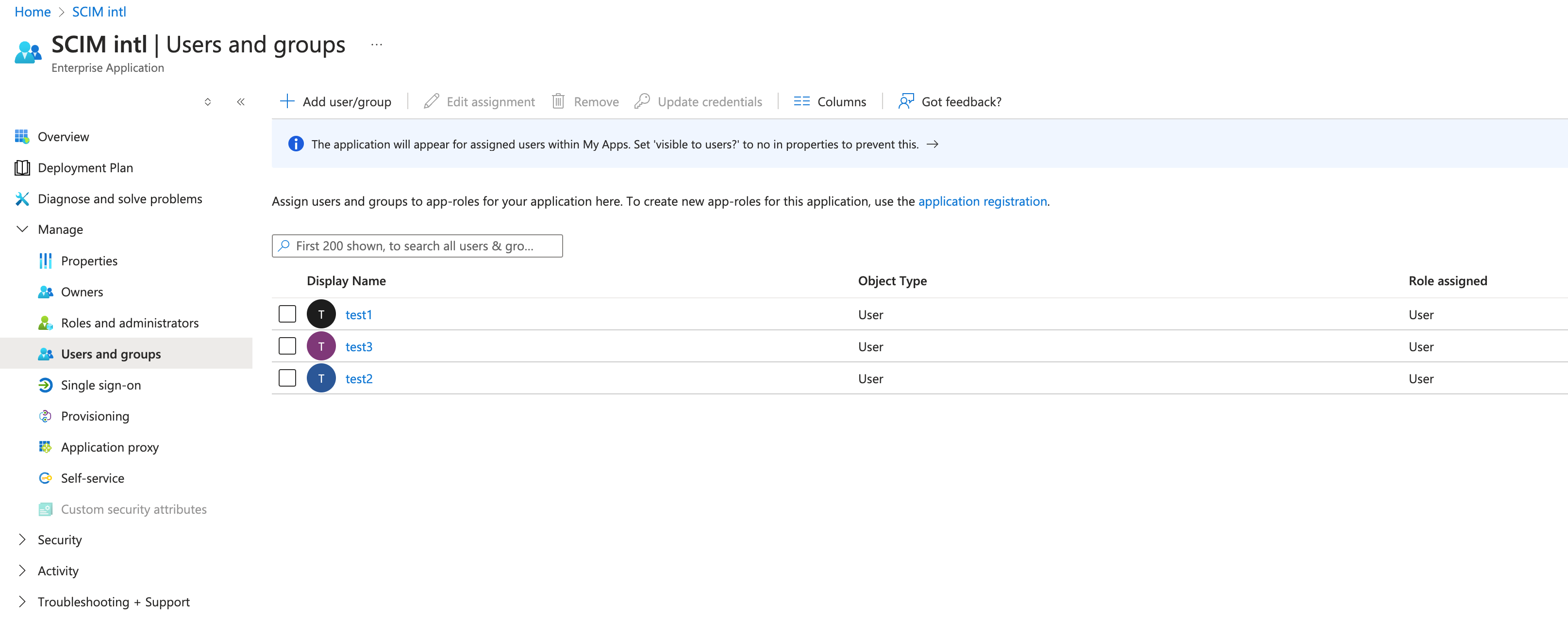
4.4 The successfully assigned users/groups will be displayed in the Users and groups page.
Step 3: Upload Federation Metadata XML in the Identity Center
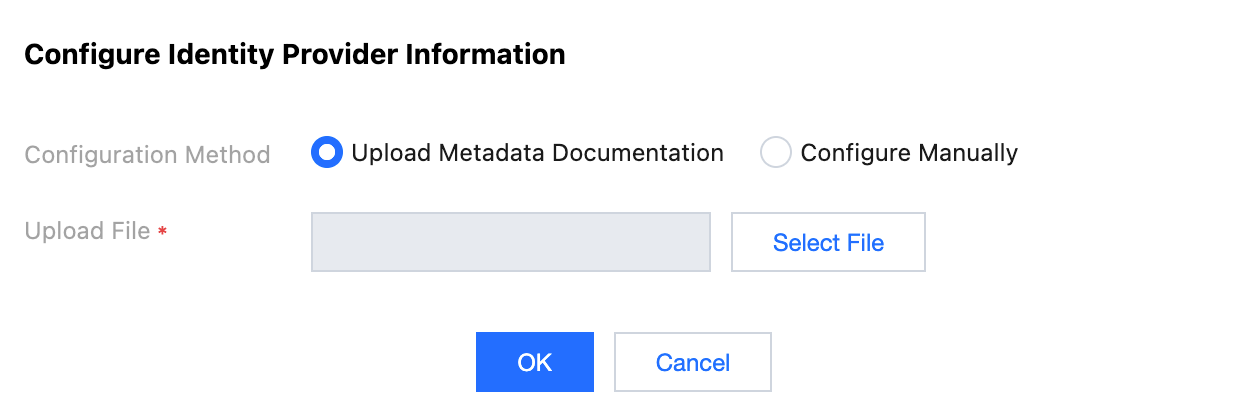
1. In the Identity Provider (IDP) Information section of Tencent Cloud Organization > Identity Center Management >Settings>SSO Login, click Configure Identity Provider Information.
2. Click Select File to upload the Federation Metadata XML downloaded from Microsoft Entra ID.
Result Verification
After completing the SSO login configuration, you can initiate SSO login from Tencent Cloud.
Note: In the Identity Center, you need to create a user with the same name as the one in the Microsoft Entra ID application. Enter TCO > Identity Center Management > User to create the user.
Login process:
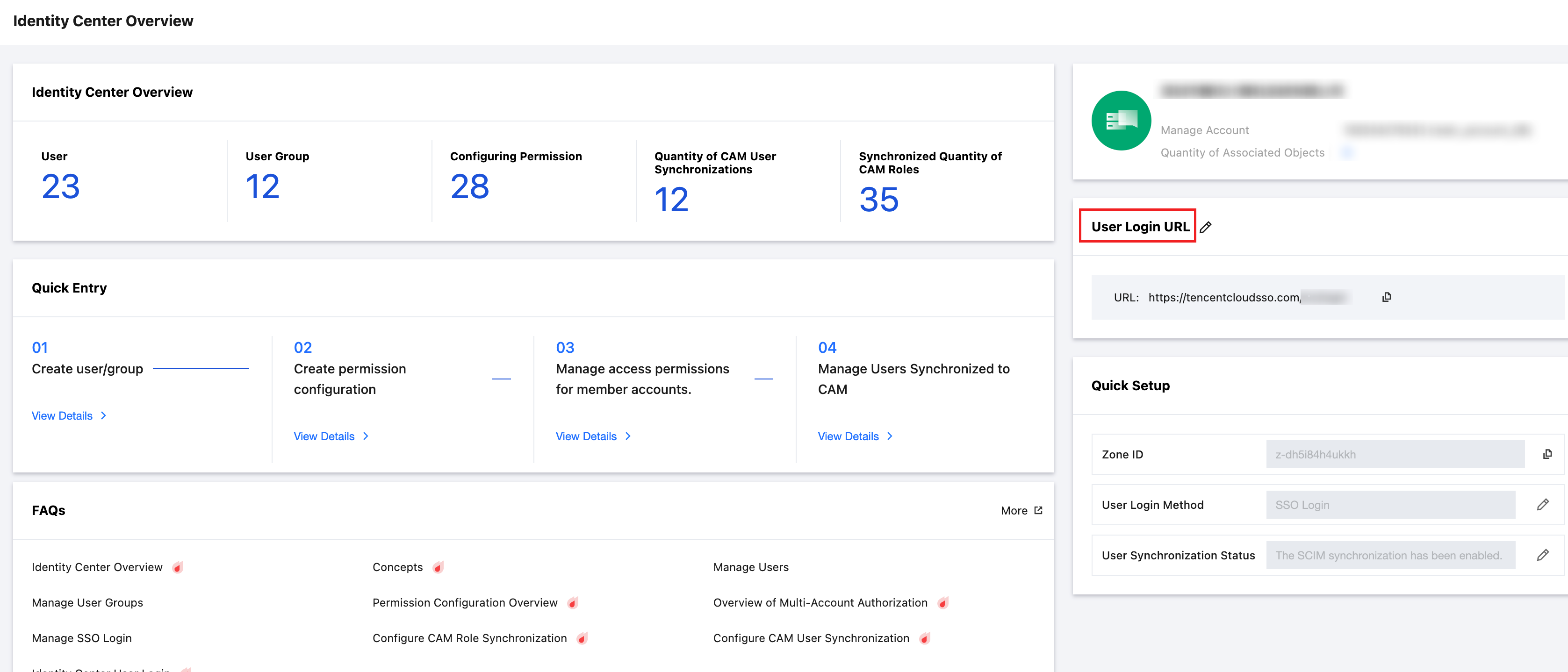
1. The Identity Center administrator enters the page of Tencent Cloud Organization > Identity Center Management > Identity Center Overview, views and copies the User Login URL.
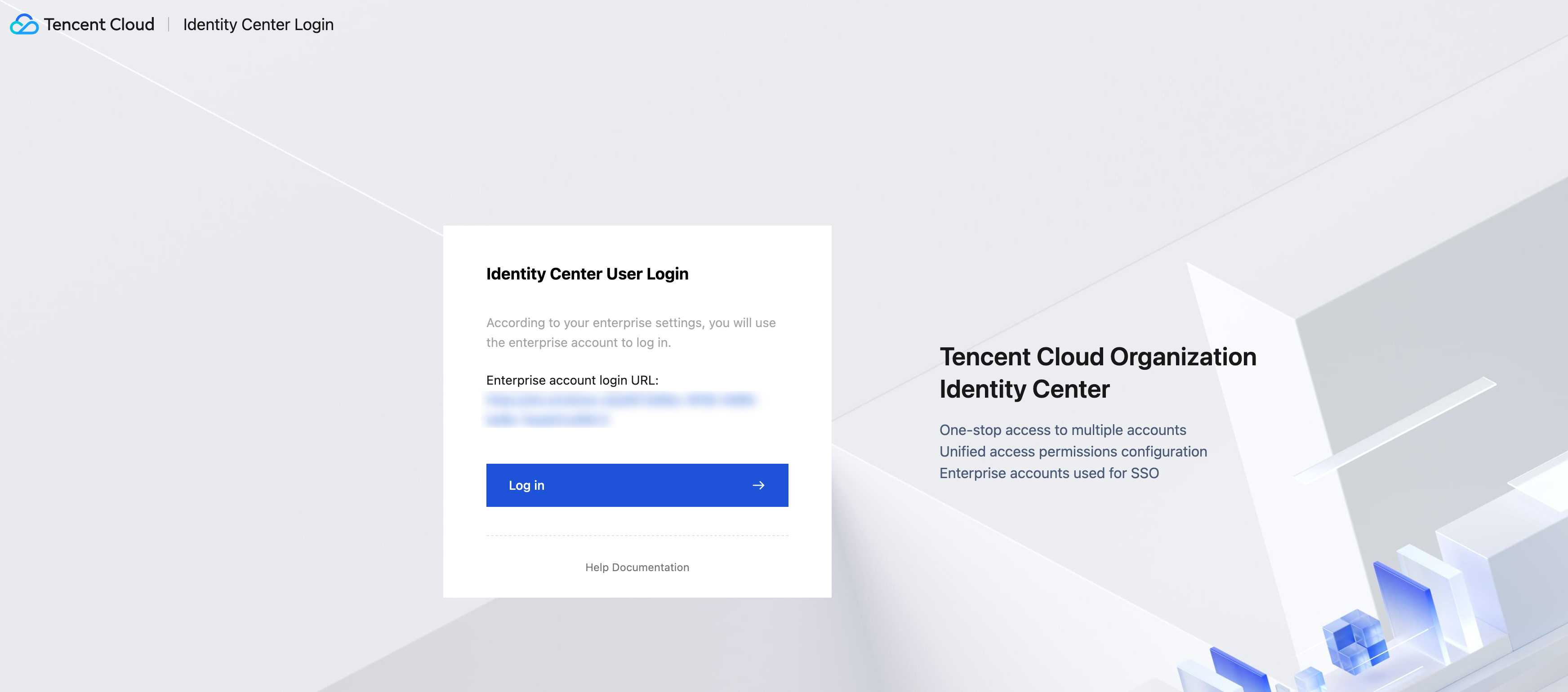
2. Visit User Login URL, then click Log in.
3. Redirect to the Microsoft login page, select an account, and enter the password to log in.
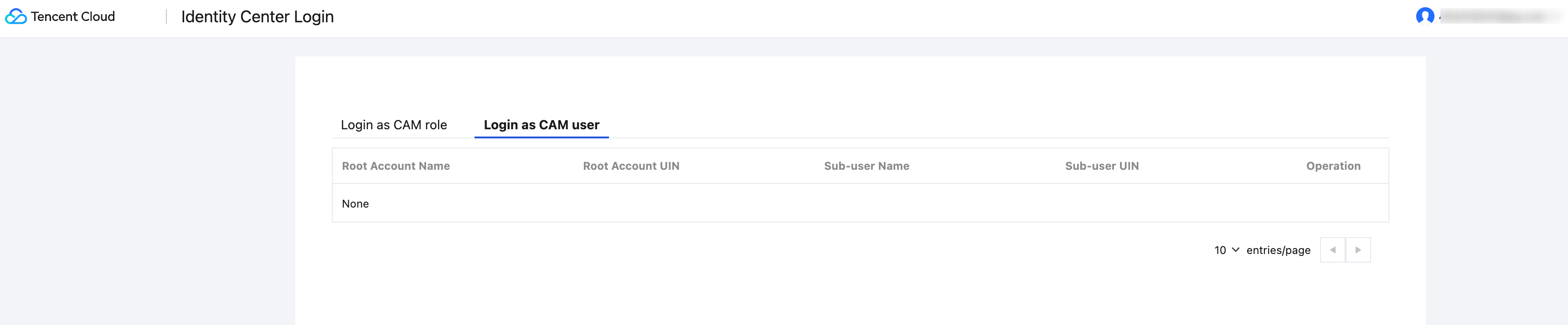
4. Successful login, enter the Identity Center account list page.