The TCO Identity Center supports SAML 2.0-based single sign-on (SSO). Tencent Cloud is a service provider (SP), and the enterprise's own identity management system is an identity provider (IdP). Through SSO, enterprise employees can use users in the IdP to directly log in to the Identity Center.
Directions
Enabling SSO
After enabling SSO, you can configure identity provider information.
1. Log in to the TCO > Identity Center Management >Settings page, in the SSOLogin area, turn on the SSO switch.
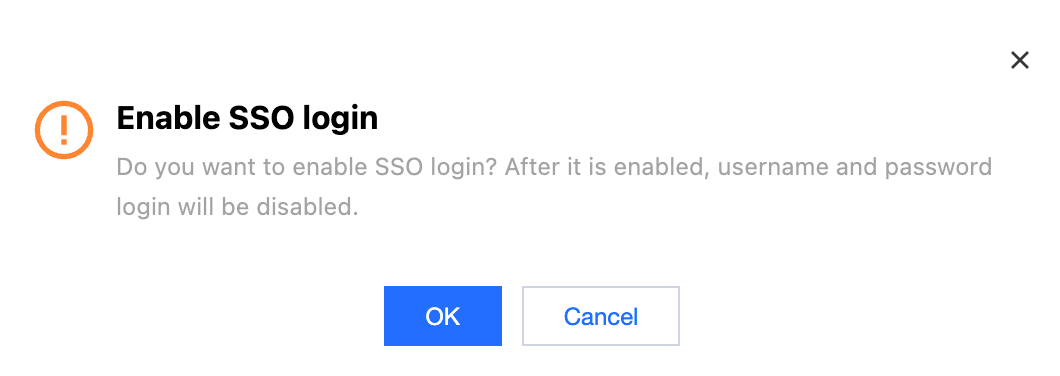
2. In the Enable SSOLogin dialog box, click OK.
Managing Service Provider (SP) Information
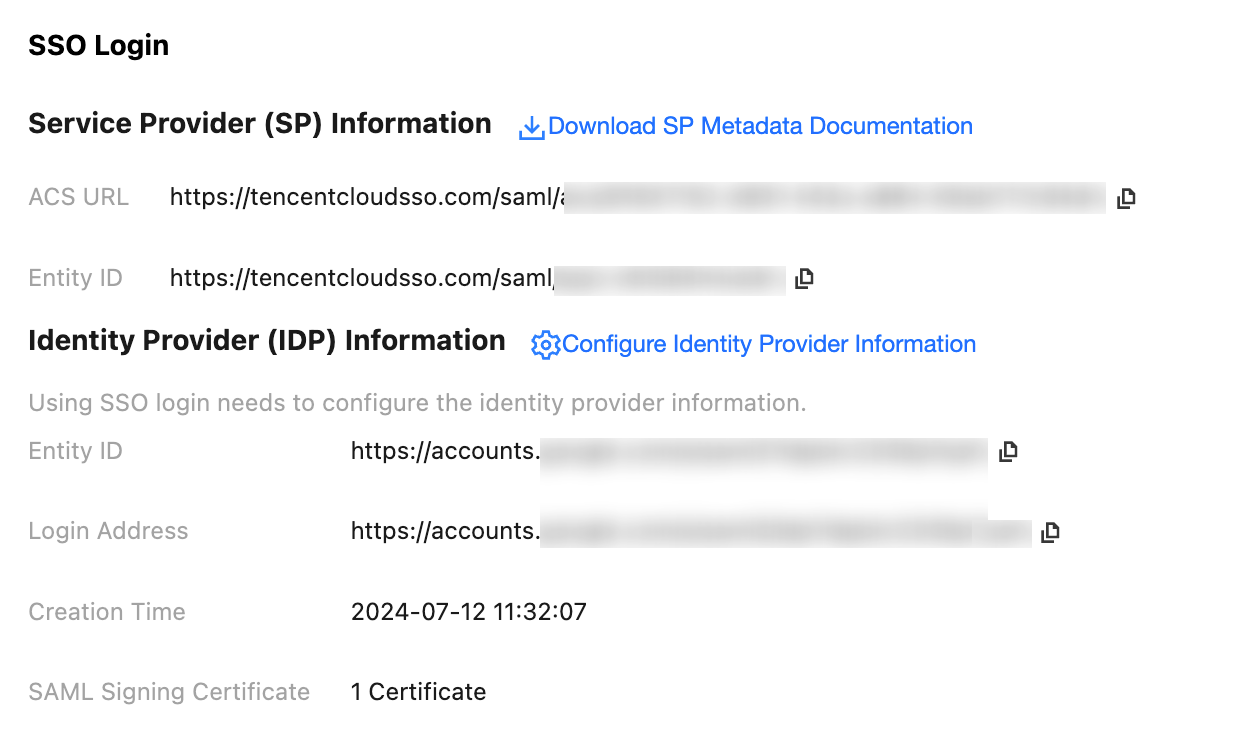
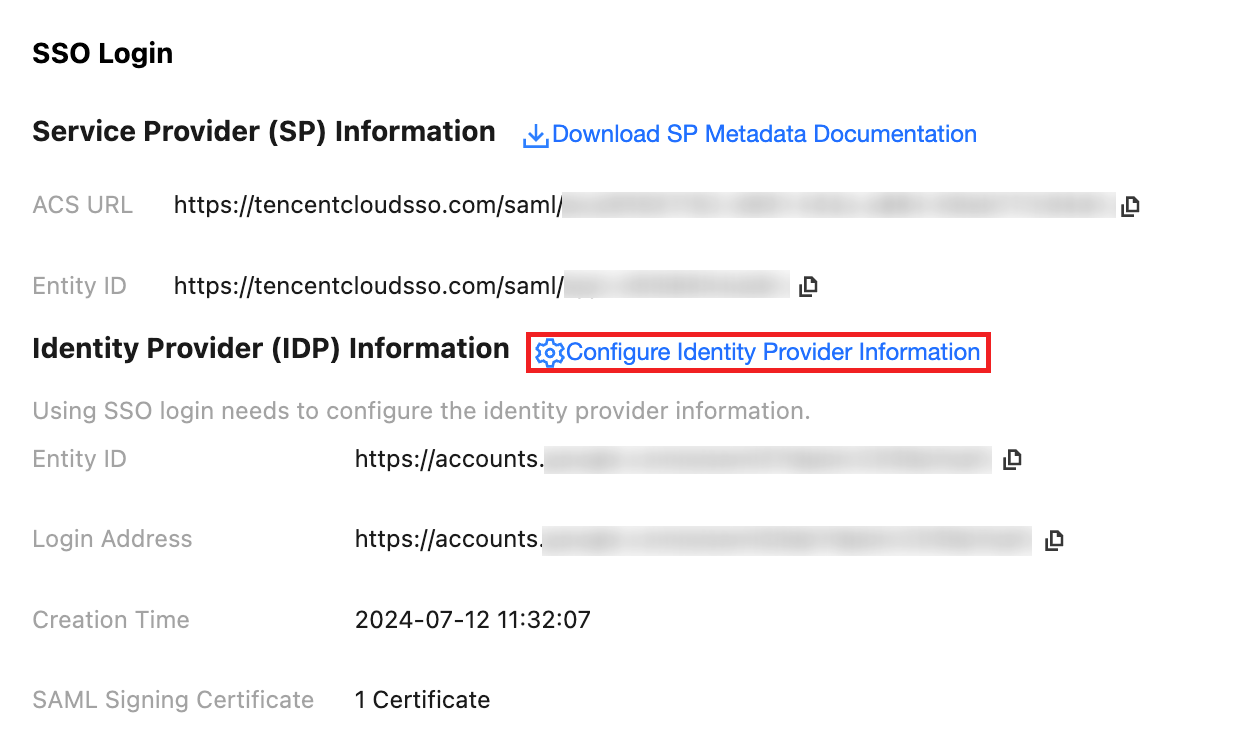
When configuring SSO in an external IdP, you will need the SP metadata file. You can download the SP metadata file by clicking Download SP Metadata Documentation in the Service Provider (SP) Information area of the TCO > Identity Center Management >Settingspage. You can also view or copy ACS URL and Entity ID for manual configuration in an external IdP.
Managing Identity Provider (IdP) Information
You need to configure identity provider (IdP) information and enable the SSO switch to use the SSO feature normally.
Both manual configuration and metadata file upload are supported to configure identity provider information.
Manual configuration can only be used to configure essential attributes for SSO: Entity ID, Login Address, and SAML Signing certificate.
If you need to configure more IdP information, generate a metadata file on the IdP side and use the metadata upload method for configuration.
Configuring Identity Provider (IdP) Information
You need to configure identity provider information before enabling SSO.
1. You have logged in to TCO >Identity Center Management > Settingspage.
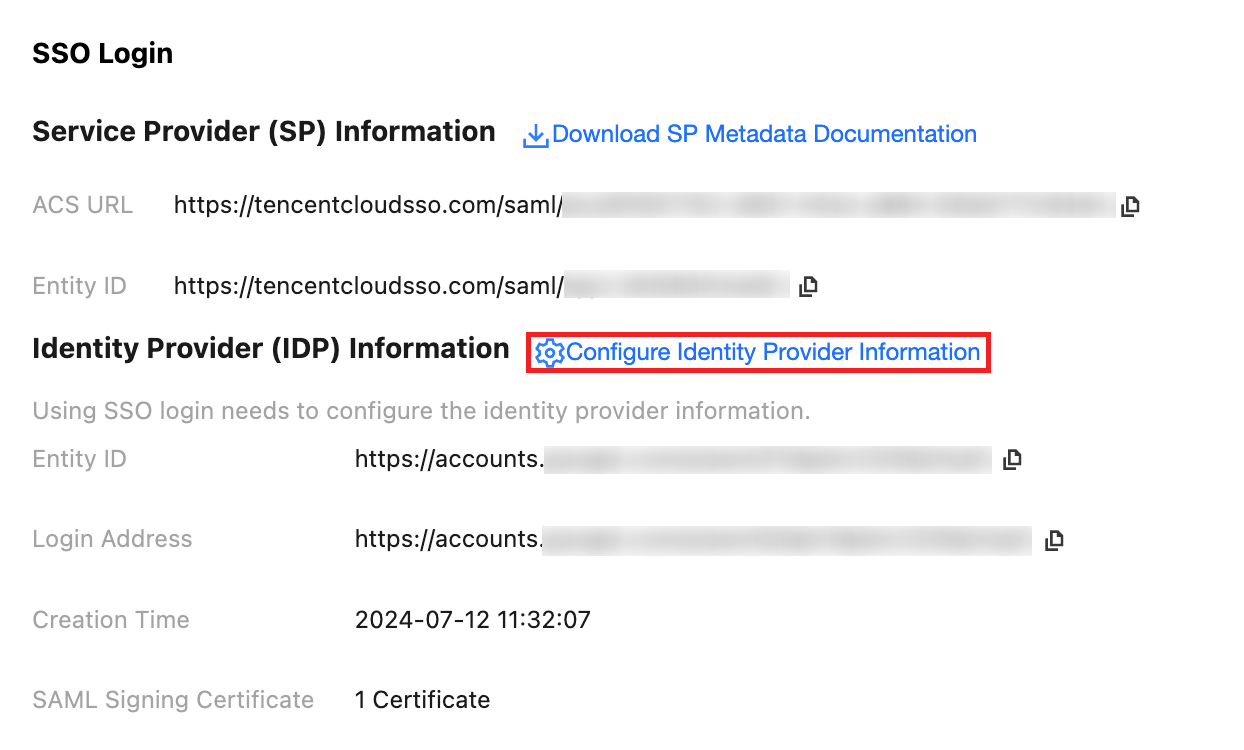
2. In the SSO Login's Identity Provider (IdP) Information area, click Configure Identity Provider Information.
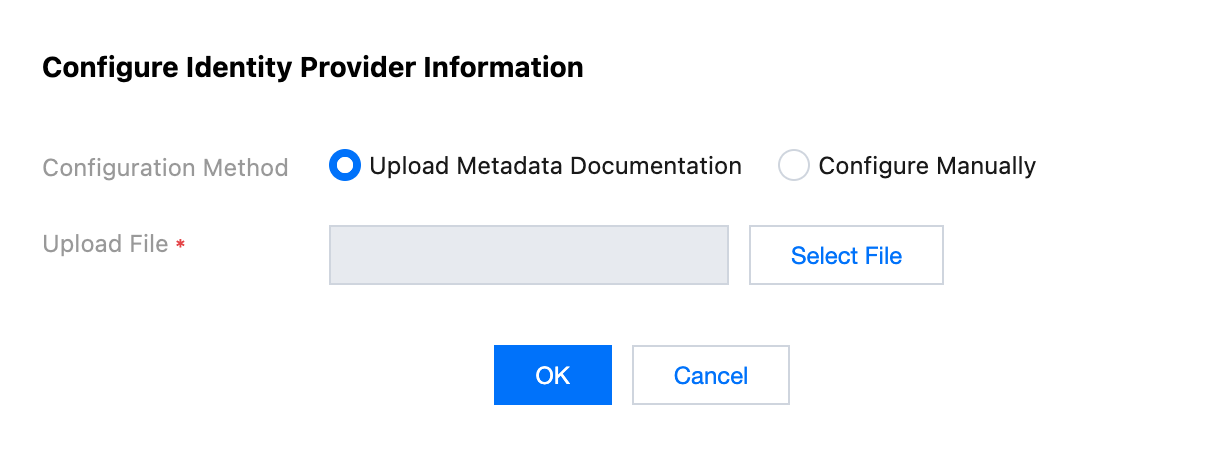
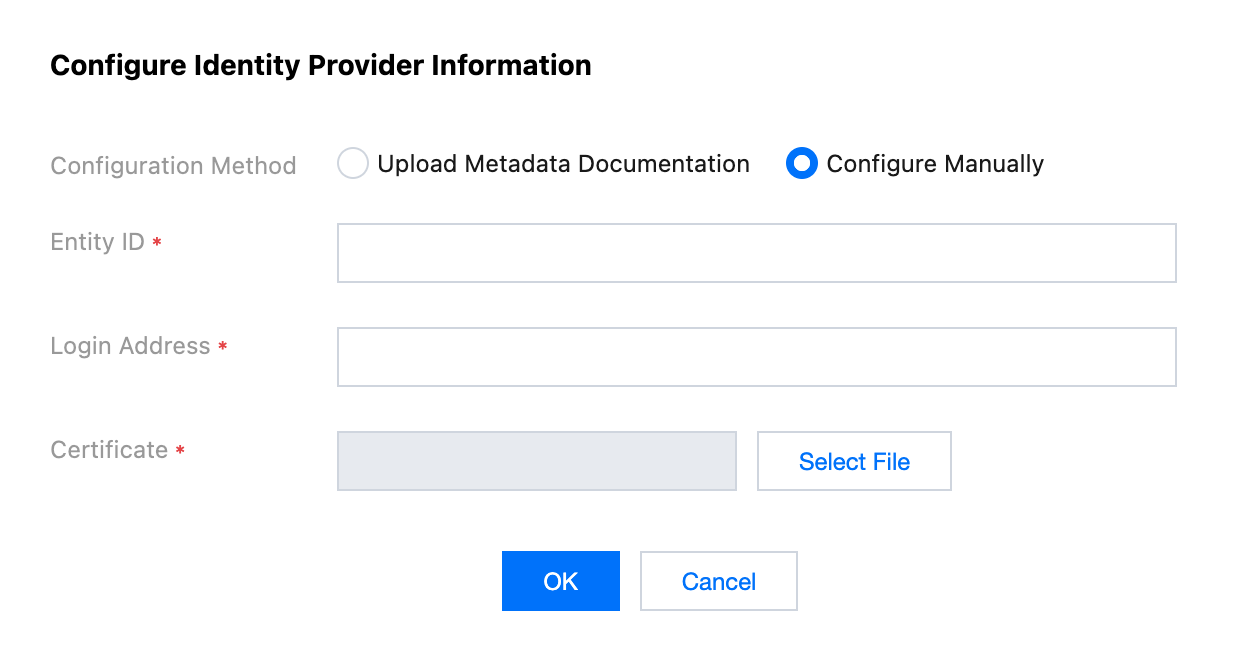
3. In the Configure Identity Provider Information dialog box, select Upload Metadata Documentation or ConfigureManually to configure identity provider information.
You can choose either of the following two methods for configuration. Obtain the relevant metadata file or configuration information from your identity provider.
Upload Metadata Documentation
Click Select File to upload the identity provider's metadata documentation.
Configure Manually
Entity ID: Identity provider identifier.
Login Address: Identity provider login address.
Certificate: a certificate used by the identity provider for SAML response signature. You can click Select File to upload the identity provider's certificate.
4. Click OK.
Updating Identity Provider (IdP) Information
You can update identity provider information whether SSO is enabled or disabled. However, for an update when SSO is enabled, inconsistencies between new and existing identity provider information may cause SSO failure. Proceed with caution.
1. In the SSO Login's Identity Provider (IdP) Information area, click Configure Identity Provider Information.
2. In the Configure Identity Provider Information dialog box, select the configuration method, modify the configuration information, re-upload the certificate or metadata file, and click OK.