Granting Resource-Level Permissions to Sub-accounts
Baixar
Modo Foco
Tamanho da Fonte
Scenarios
You can grant TDMQ for RocketMQ resources owned by a root account to its sub-accounts through the policy feature in the Cloud Access Management (CAM) console. A sub-account that obtains permissions can use the resources. This document describes how to grant permissions for resources in a cluster to a sub-account. The operation steps for other types of resources are similar.
Prerequisites
A sub-account has been created for an employee using the Tencent Cloud root account. For detailed operations, see Creating a Sub-account.
At least one TDMQ for RocketMQ cluster is available.
Operation Steps
Step 1: Obtaining the Resource ID of the TDMQ for RocketMQ Cluster
1. Use the root account to log in to the TDMQ for RocketMQ console.
2. In the left sidebar, select Cluster, select a region, and copy the ID of the target cluster.

Step 2: Creating an Authorization Policy
1. Log in to the CAM console.
2. In the left sidebar, select Policies, click Create a custom policy, and select Create by policy builder for the policy creation method.
3. In the visualized policy generator, keep Effect as Allow, and select the Service. The service is selected as follows:
4.x version: Enter tdmq for filtering, and select TDMQ from the results.
5.x version: Enter trocket for filtering, and select RocketMQ (trocket) from the results.
4. Select All actions for Action. You can also select an appropriate operation type based on actual business requirements.
Note:
Certain APIs do not support resource authorization temporarily. For the APIs that support resource authorization, those displayed on the console page shall prevail.
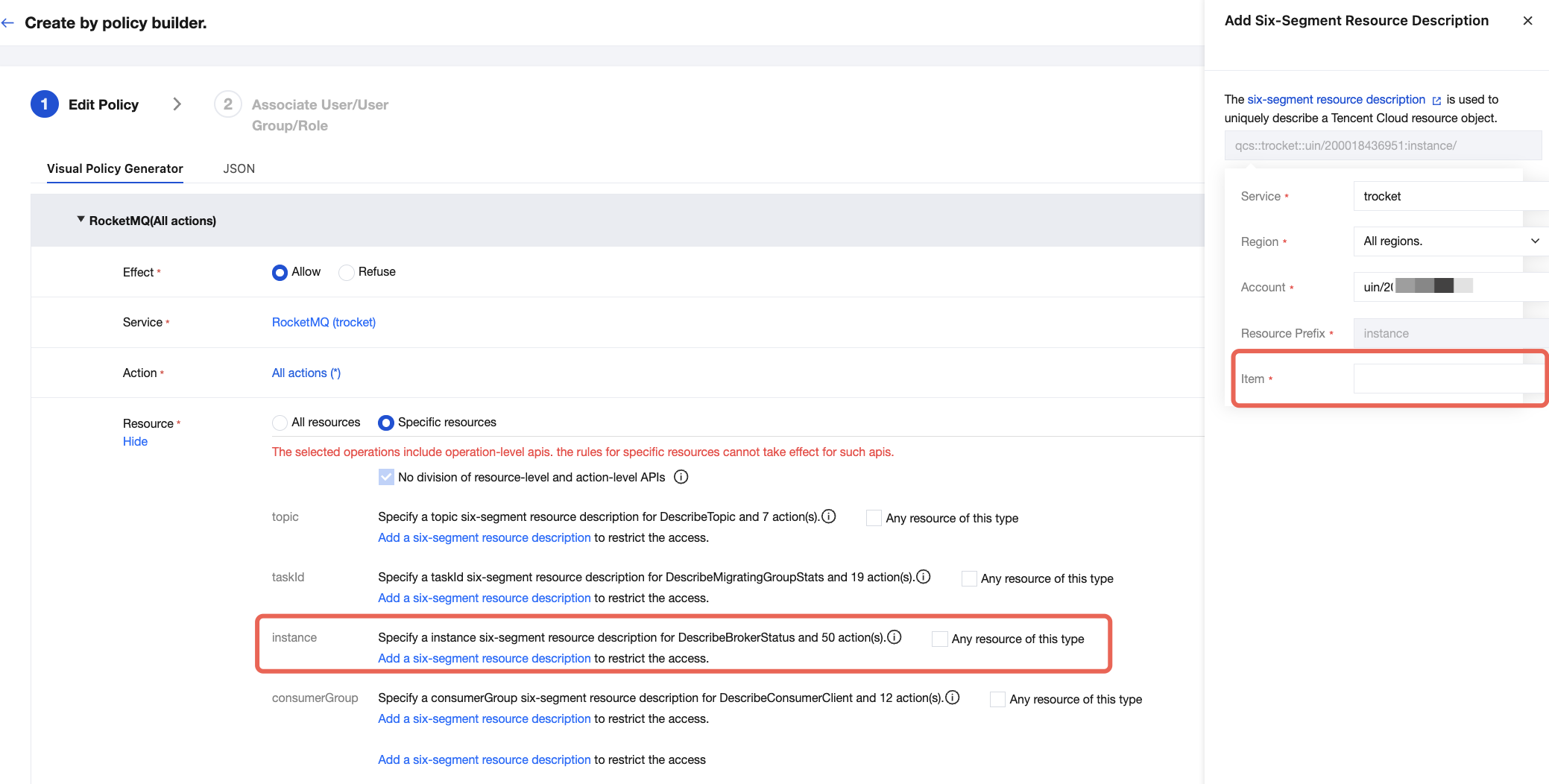
5. Select Specific Resource for Resource, and locate the instance resource type. You can select Any resource of this type (authorize all cluster resources) on the right, or click Add a six-segment resource description (authorize specific cluster resources). In the pop-up sidebar dialog box, specify Cluster ID of the resource.
6. In the Condition section, select whether to specify the source IP addresses based on actual business requirements. After source IP addresses are specified, access to the specified operation is allowed only when requests come from the specified IP addresses.
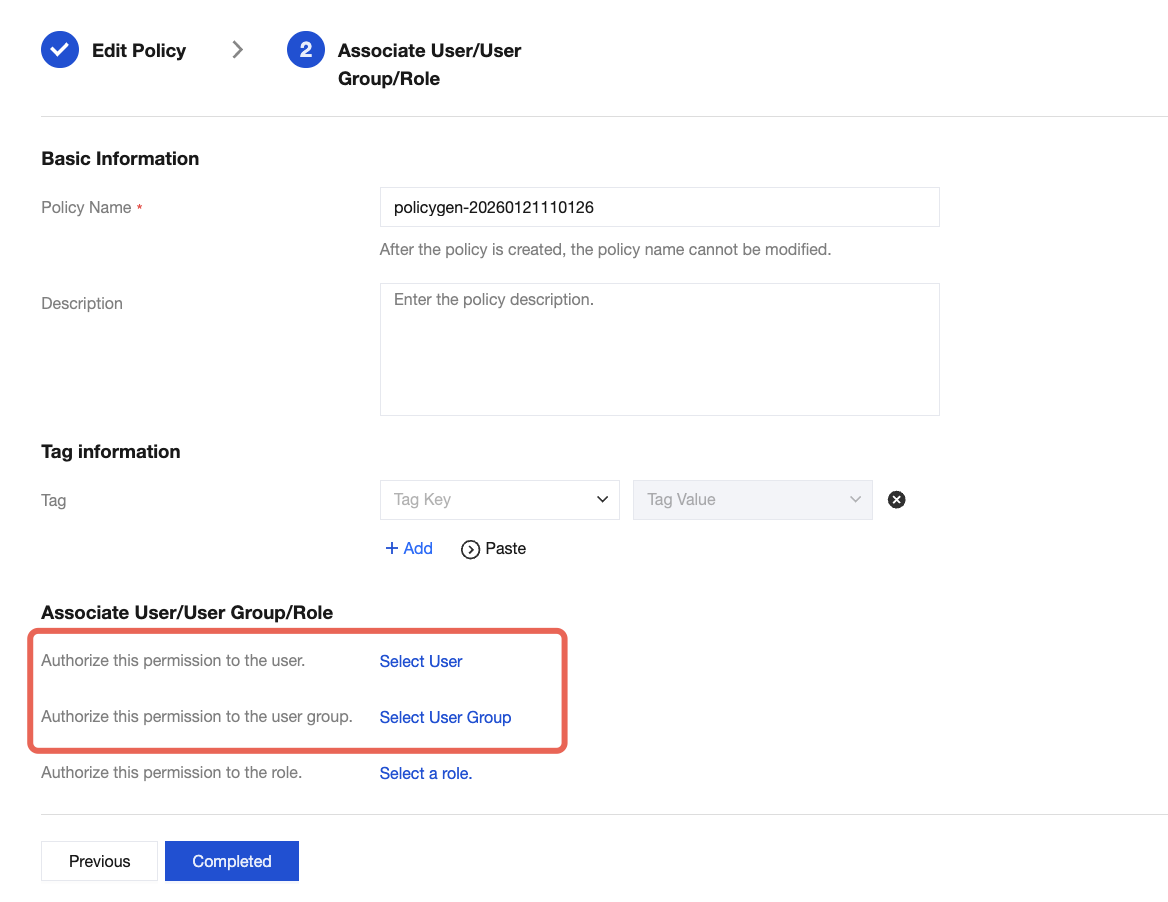
Click Next and set the policy name. The policy name is automatically generated by the console and is set to policygen by default, with a suffix number generated based on the creation date. You can customize it.
7. Click Select User or User Group to grant resource permissions.
8. Click Completed. The sub-account granted resource permissions can access relevant resources.
Ajuda e Suporte
Esta página foi útil?
Você também pode entrar em contato com a Equipe de vendas ou Enviar um tíquete em caso de ajuda.
comentários