The Tencent Cloud TCHouse-D Console provides a visual interface for convenient and efficient account and privilege management of clusters.
Account Management
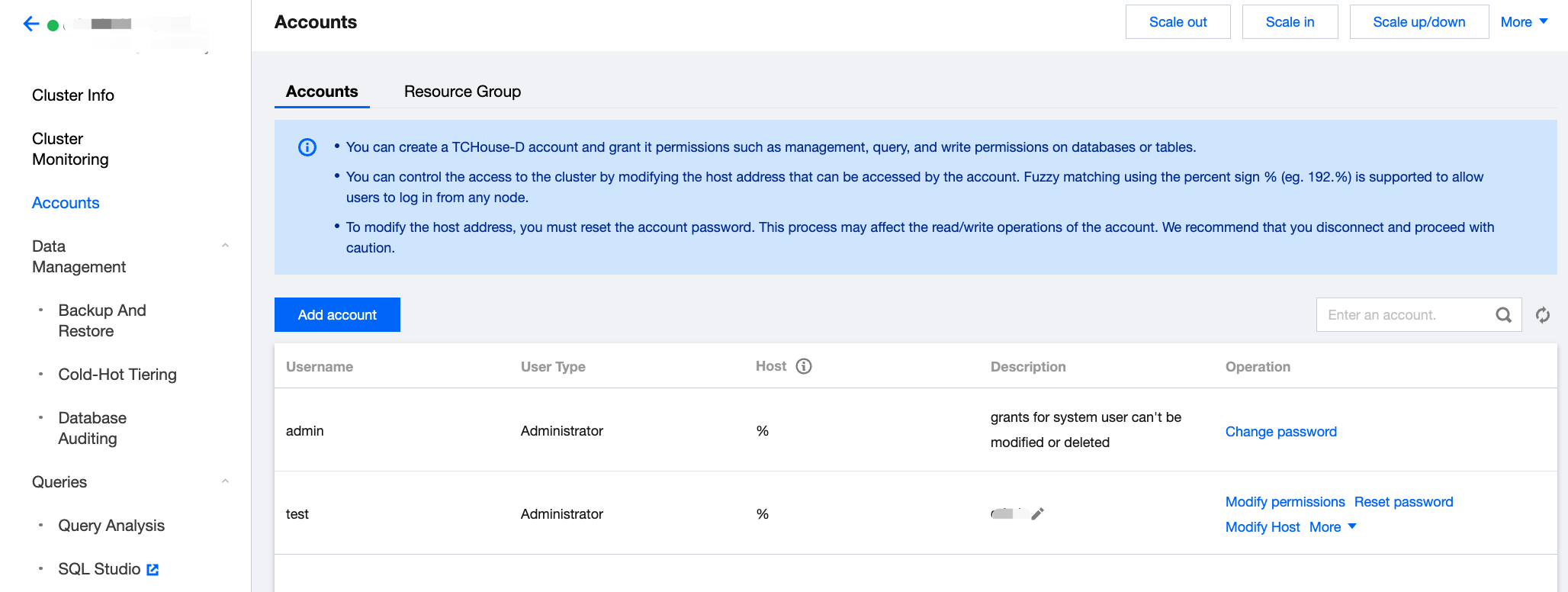
1. Log in to Tencent Cloud TCHouse-D Console, click the target Cluster ID/Name and you can find the Accounts menu in the left list.
2. The Accounts page provides features for adding/deleting accounts, modifying privileges, resetting passwords.
Adding Account
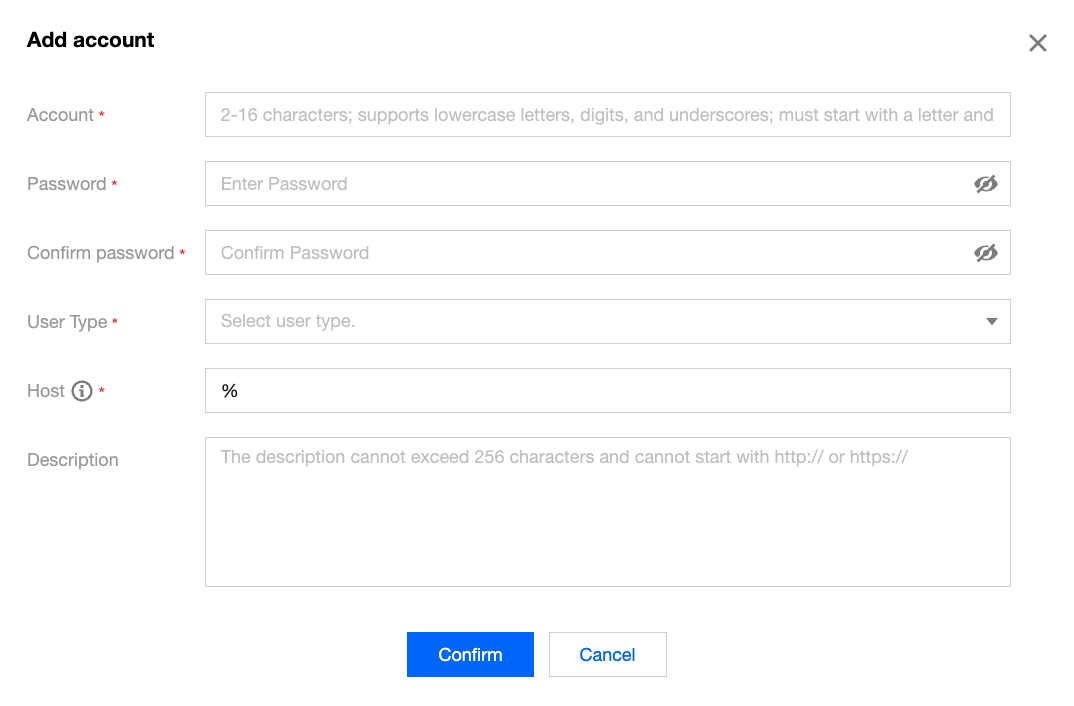
1. Click the Add Account button, fill in the account name, password, host, and description (optional), and click OK to add the account.
2. By default, new users have only read privileges for the information_schema library and its tables.
3. User type: You can select Administrator or Regular User. The administrator has access to all databases and tables without additional authorization.
4. Host: Supports individual IP addresses, or use % to imply no restrictions.
Deleting Account
Deletion is irreversible. Please confirm that this account will not be used in the future before deleting.
After deletion, even if you immediately add an account with the same name, the privileges will be initialized.
Resetting Password
Tencent Cloud TCHouse-D does not allow viewing existing account password, only allows password resets through the console.
If you forget your password, we suggest the following actions:
If you forget the Admin account password, please submit a ticket to Contact Us to reset the password.
If you forget the sub-account password, you can reset it through the console.
Permission Management
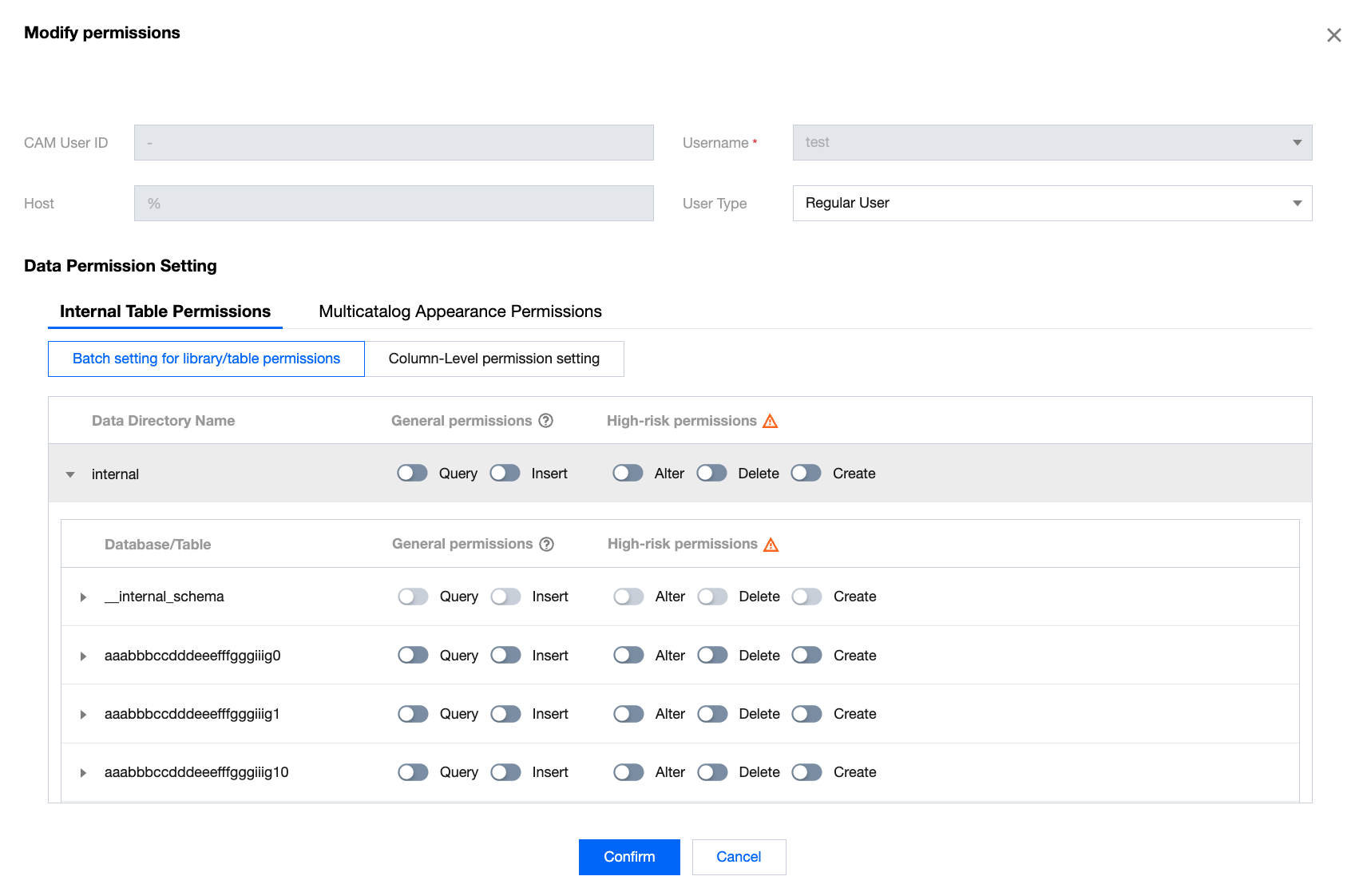
In the user list, click Modify Permissions to enter the permission modification window and grant internal table and MultiCatalog permissions to regular users. This window can also be used to view permissions.
The administrator has access to all databases and tables by default, without additional authorization.
Internal Table Permissions - Batch Settings for Database/Table Permissions:
You can choose to set internal level permissions in batch: Once the internal level permissions are authorized, the user will have access to all databases and tables under internal.
You can choose to set database-level permissions in batch: Authorize multiple databases at the same time.
You can choose to set table-level permissions in batch: Authorize multiple tables at the same time.
After selecting a specific table, you can grant additional Select permissions for specified fields in this table.
Note: Table-level permissions and column-level permissions will overlay. For example, if User 1 does not have permission for Table A, you can grant Select permission for specific columns of Table A to the user.
Muticatalog External Table Permissions:
Authorization
Authorization scope: Supports granting cluster management privileges, or global, data catalog, database/table privileges.
Granting cluster management privileges:
Once this privilege is activated, it grants the user cluster management privileges (Admin_priv), including query, insertion, modification, deletion, and creation within global scope.
Granting global, data catalog, database/table privileges:
Granting global privileges: Authorization will be effective globally.
Granting data catalog privileges: Authorization will apply to all databases and tables under the data catalog.
Granting database/table privileges: You can specify databases and tables for authorization.
Note:
For external data sources with normal connectivity, we support granting query privileges to the corresponding catalog.
Privilege Category
For internal data sources (internal), the privileges available include standard and high-risk privileges, as categorized below:
Standard privileges:
Query: Read-only privilege (Select) for databases and tables.
Insertion: Write privilege (Load, Insert, Delete) for databases and tables.
High-risk privileges:
Modify: Privilege to alter database tables, including renaming databases/tables, adding/deleting/changing columns, adding/deleting partitions, etc. (Alter).
Delete: Privilege to delete databases, tables, and views (Drop).
Create: Privilege to create databases, tables, and views (Create).
For external data sources (multi-catalog), only query privileges are supported.
Modifying Access Host Address
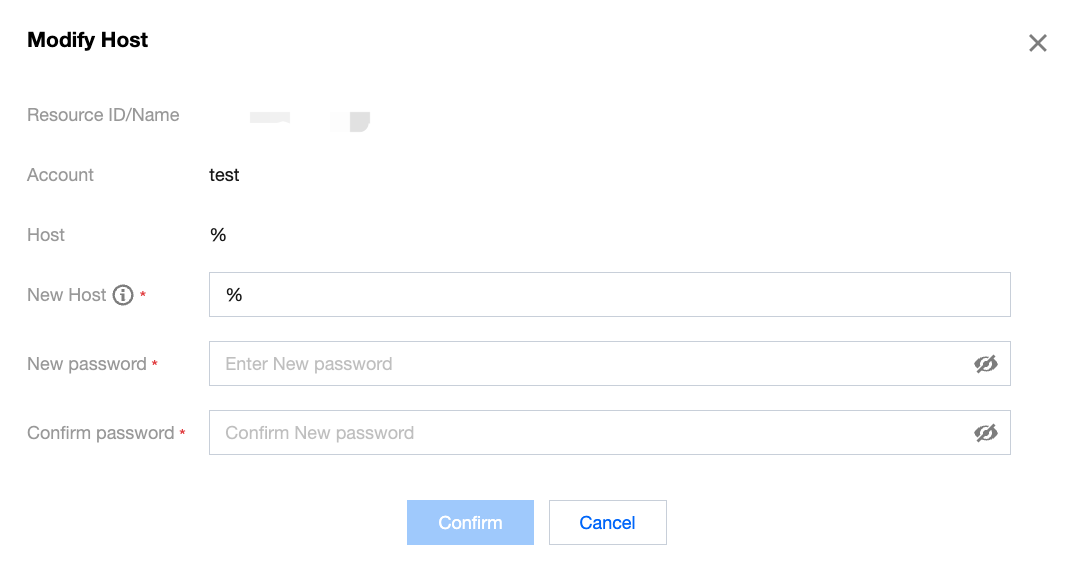
You can use the console's settings to modify the host address authorized for your account, thereby restricting access to the cluster and enhancing its security.
Note:
The admin account does not support host address modifications.
Setting Host
When creating an account, you must set the host (default is %), support for individual IP address formats, and the use of % implies no restrictions.
Allows for the creation of accounts with the same name but different hosts; privileges, and passwords are independent of each other.
Note:
Supports % for fuzzy matching (e.g., "192.%"), where "%" allows the user to sign in from any node.
Modifying Host
Modifying the host address requires resetting the account's password. The account's read and write access may be affected during the modification process, so it is advised to disconnect with caution.