Viewing Gateway Details
This document describes how to view the basic information and access address of a gateway instance after it is created.
Operation Steps
1. Log in to the Microservices Platform console. In the left sidebar, click Cloud Native Intelligent Gateway > Instance List.
2. On the Instance List page, click the ID of the created gateway instance to go to the Basic Information page, where you can view basic information and cluster group information of the instance.
Instance information: You can perform the following operations in the basic info section:
Click Edit in the upper right corner of the Basic Information module to modify the instance name and description.
Click the edit icon next to Public Network Billing Mode to modify the public network billing mode.
Click the edit icon next to Tag to modify the bound tag information of the gateway instance.
Cluster Group: A cluster group allows multiple clusters to share the same route configurations, facilitating unified management of multiple cloud native gateway instances. A default group is generated for each gateway instance upon its creation.
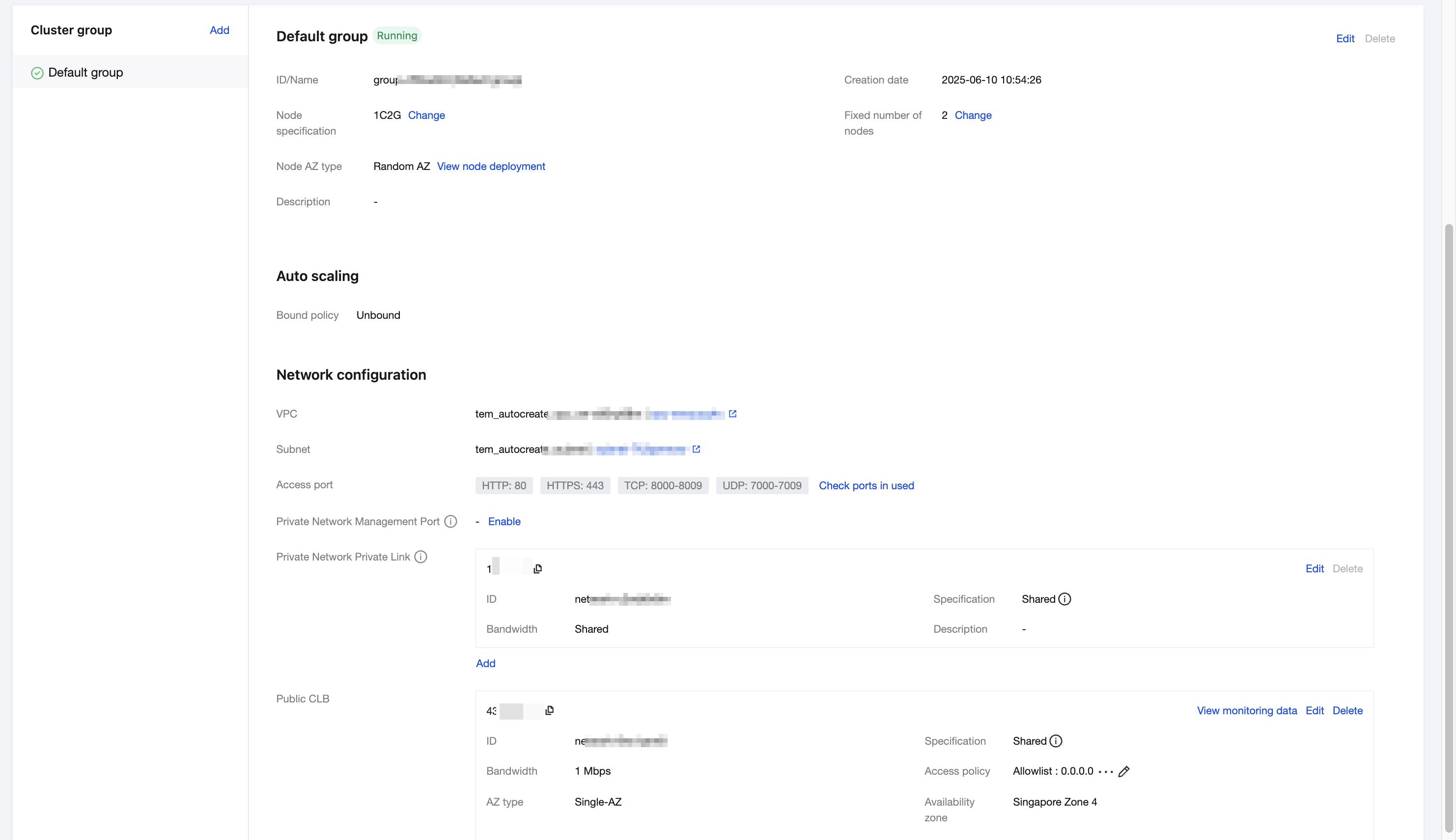
Group Information: For detailed descriptions and operations about cluster groups, see Cluster Group Management.
Network configuration:
Access Port: The access port of the cloud-native gateway.
Internal Management Port: The management port of the cloud-native gateway. No access control is configured on the management port, and it can be accessed only through a private network Private Link.
Private Network Private Link: The private network address of the cloud-native gateway. Clients can access the gateway nodes of the cloud-native gateway through the private network node addresses.
Public Load Balancer(CLB): public load balancer instance configured for the gateway instance. You can modify the public network bandwidth and configure access policies. You are advised to set access security policies for public network access.
Note:
You can select the CLB specification for Private Link and Public Load Balancer. Click Add, set the CLB specifications, and click OK.
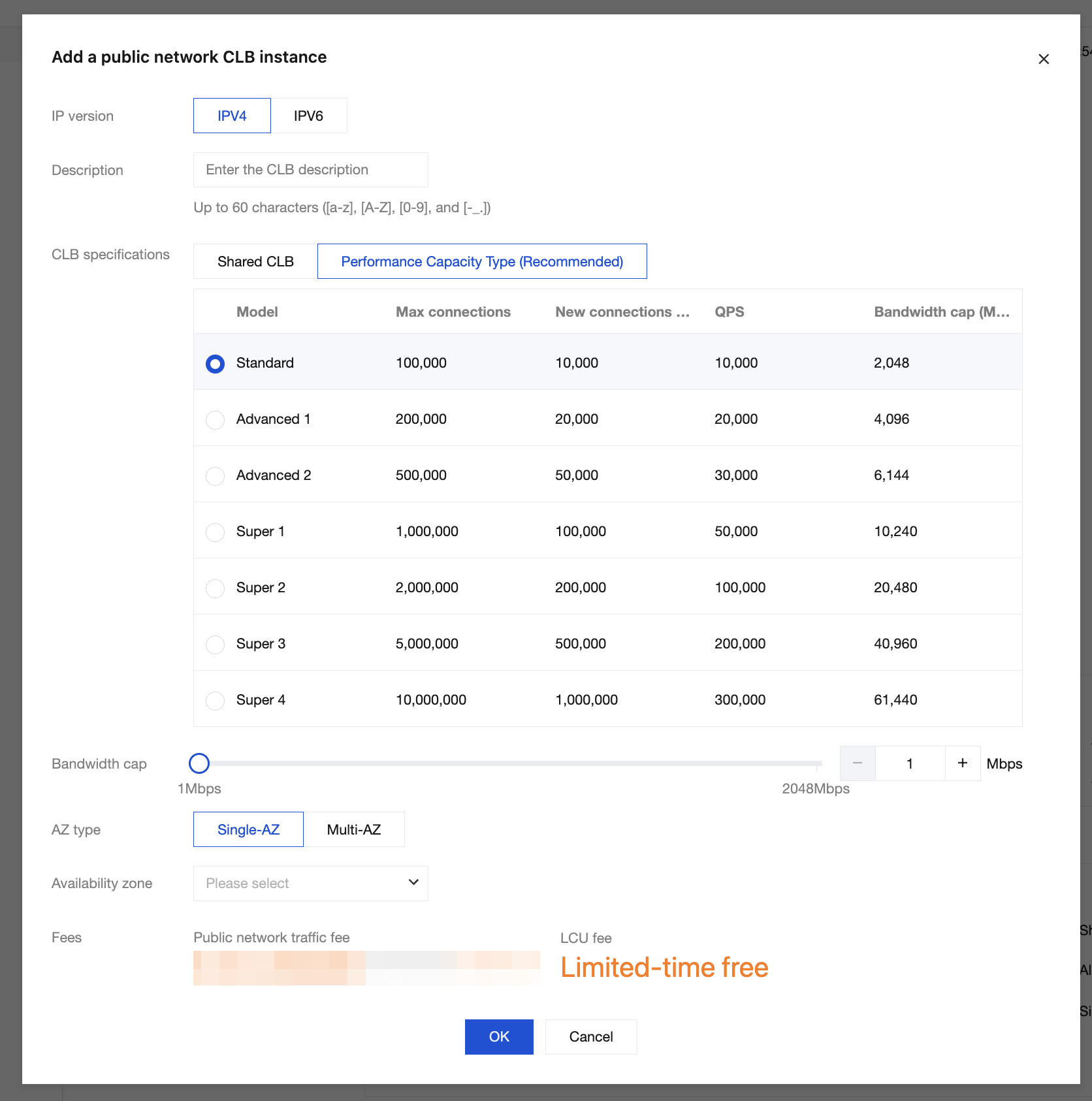
3. On the instance details page, click the Deployment Architecture tab, which displays the status and AZ information of gateway nodes under the selected group.
Click the view icon to switch to the deployment architecture diagram, which displays the deployment of the access layer (CLB) and gateway nodes under the selected group.
Note:
In the Cloud Native Gateway Standard and Pro Editions, nodes are deployed in multiple AZs by default.
Ajuda e Suporte
Esta página foi útil?
Você também pode entrar em contato com a Equipe de vendas ou Enviar um tíquete em caso de ajuda.
comentários