Cluster and group management
Scenarios
Cloud Native Gateway cluster groups allow multiple groups to share the same route configurations, facilitating unified management of multiple groups.
Cluster groups apply to the following scenarios:
1. Allocating resources of different specifications to the same business: Different resources, including the number of nodes and node specifications can be configured for different groups. You can configure fewer nodes and lower node specifications for development groups and more nodes and higher node specifications for production groups to achieve on-demand resource purchase.
2. Providing multiple gateway access entrances: Different groups can use different Cloud Load Balancer (CLB) instances to provide multiple entrances. You can configure different access policies for different CLB instances and bind them to different roles to implement permission control.
Remarks:
A default group is generated after each gateway instance is created, and you can add custom groups as required.
prerequisite
Operation steps
Step 1: Adding a Group
1. Log in to the Tencent Service Framework (TSF) console.
2. In the left sidebar, click Instance List to go to the Cloud Native API Gateway instance list page.
3. Click the ID or name of the target instance to enter the instance details page.
4. Click Add Group and specify information about the newly added group.
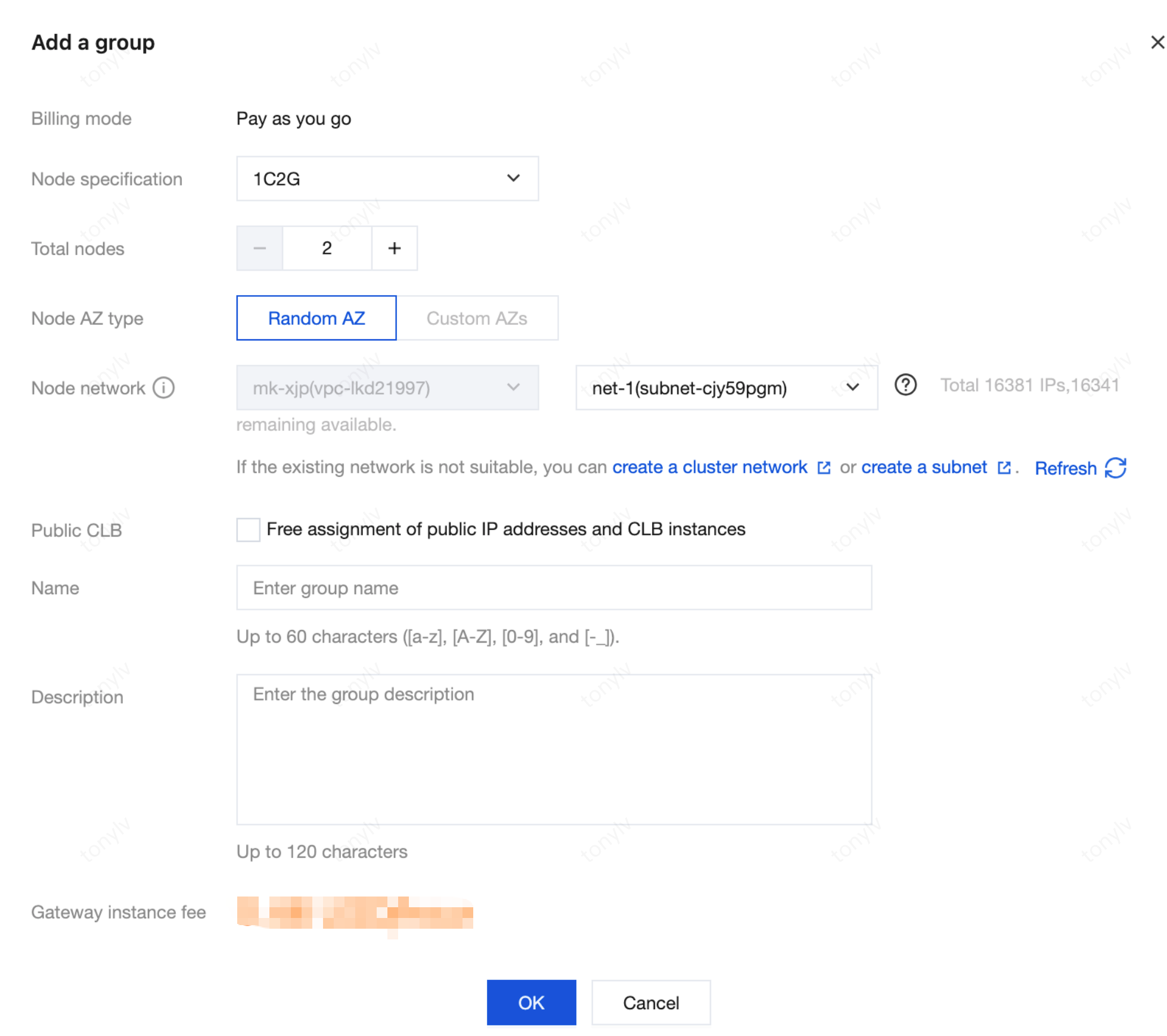
parameter | Required | Remarks |
Billing Modes | - | It is the same as the billing mode of the Cloud Native API Gateway instance by default and cannot be modified. |
Node specification | Yes | Specification of each node in the cluster group. |
Node Quantity | Yes | Number of nodes in the cluster group. |
Node AZ Type | Yes | When the number of nodes in the cluster group is 2, only Random AZ can be selected.
When the number of nodes is greater than or equal to 3, Random AZ and Specified AZ can be selected. (At least two AZs need to be selected, and up to three AZs can be selected.) |
Node Network | Yes | Select the Tencent Cloud Virtual Private Cloud (VPC) and subnet where the cluster group is deployed. The VPC is the same as that of the Cloud Native API Gateway instance by default, and you can select a Tencent Cloud subnet. |
Subnet | Yes | Select the Tencent Cloud subnet where the current cloud-native gateway is deployed. The subnet belongs to a VPC network. |
public network bandwidth | Yes | Select the public network bandwidth of the cluster group. |
Group Name | Yes | Enter the cluster group name. |
description | No | Enter the description of the cluster group. |
5. Click OK and wait for the group to be created.
Step 2: Modifying Basic Information of a Cluster Group
1. In the Group Information area, click the edit icon next to Description.
2. Modify the group name/description in the Modify Group Name/Description dialog box.
3. Click Confirm to complete the modification.
Step 3: Changing the Group Specifications
1. In the Group Information card, find the node count and click Change on the right.
2. Modify the number of nodes in the Change Node Count dialog box.
3. Click Confirm to complete the modification.
Step 4: Deleting a Group
You can manually delete a cluster group in the console if you no longer need it.
1. In the Group Information area, click Delete on the right.
2. In the displayed dialog box, confirm the information and click Delete to delete the group.
Remarks
Only groups in the Running/Failed state can be deleted.
After a group is deleted, nodes under the group and their data are deleted. Proceed with caution.
Step 5: Accessing a Route
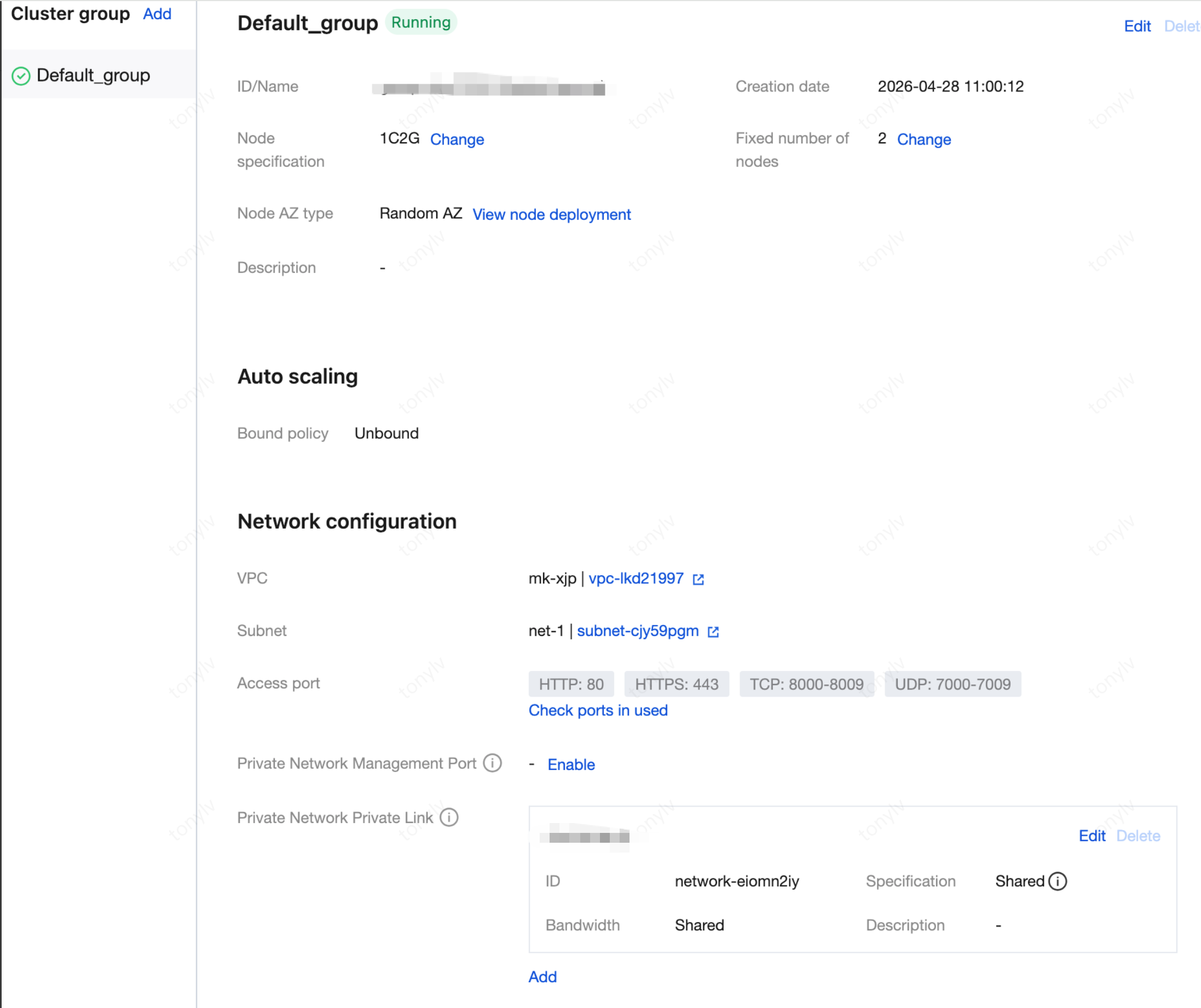
To access a route, concatenate the access URL using Public Load Balancer/Private Link IP address of the group + Route path.
Ajuda e Suporte
Esta página foi útil?
Você também pode entrar em contato com a Equipe de vendas ou Enviar um tíquete em caso de ajuda.
comentários