Grayscale release
Scenarios
Grayscale release is a common software release method that allocates traffic with certain characteristics or of a certain proportion to a version to be verified to check the online running status of the new verified version. Compared with full release, grayscale release is a more cautious release form. When the online call link is complex, end-to-end gray release ensures a separate running environment for each service.
By leveraging the grayscale policy capability of Cloud Native Gateway, you can visually configure grayscale rules without modifying any business code, enabling easy-to-use, end-to-end grayscale release in the cloud. This document describes how to configure a grayscale release policy on the Kong Cloud Native Gateway console, covering the following two scenarios:
Configuring parameter-based routing to forward requests based on request features (such as header, query, cookie, path, and method)
Configuring percentage-based routing to forward requests to different services based on the ratio
prerequisite
A cloud-native gateway instance has been purchased. For details, see Operations.
Backend services and routes are configured. For details, see Service & Route.
Operation steps
Step 1: Updating the Route Plugin
Before a grayscale release policy is configured, ensure that the tse-route (route forwarding) plugin is upgraded to the latest version.
1. Log in to the Tencent Service Framework (TSF) console.
2. In the left sidebar, choose Cloud Native Intelligent Gateway > Plugin Management, and then select a gateway instance at the top of the page.
3. Click the System Plugins tab, and check whether the plugins are upgraded to the latest versions. If not, click Install Latest Version in the Operation column.
Step 2: Create a Global Configuration (Optional)
Remarks:
If Logical Relationship is set to IN or NOT IN for the grayscale release policy, Parameter Value can be set to Global configuration. In this case, a global configuration needs to be created in advance.
1. In the left sidebar, select Service & Route, click the Global Configuration tab, and click Create.
2. On the Create Configuration page, enter the configuration name and configuration content. You can click Import File to import the configuration content.
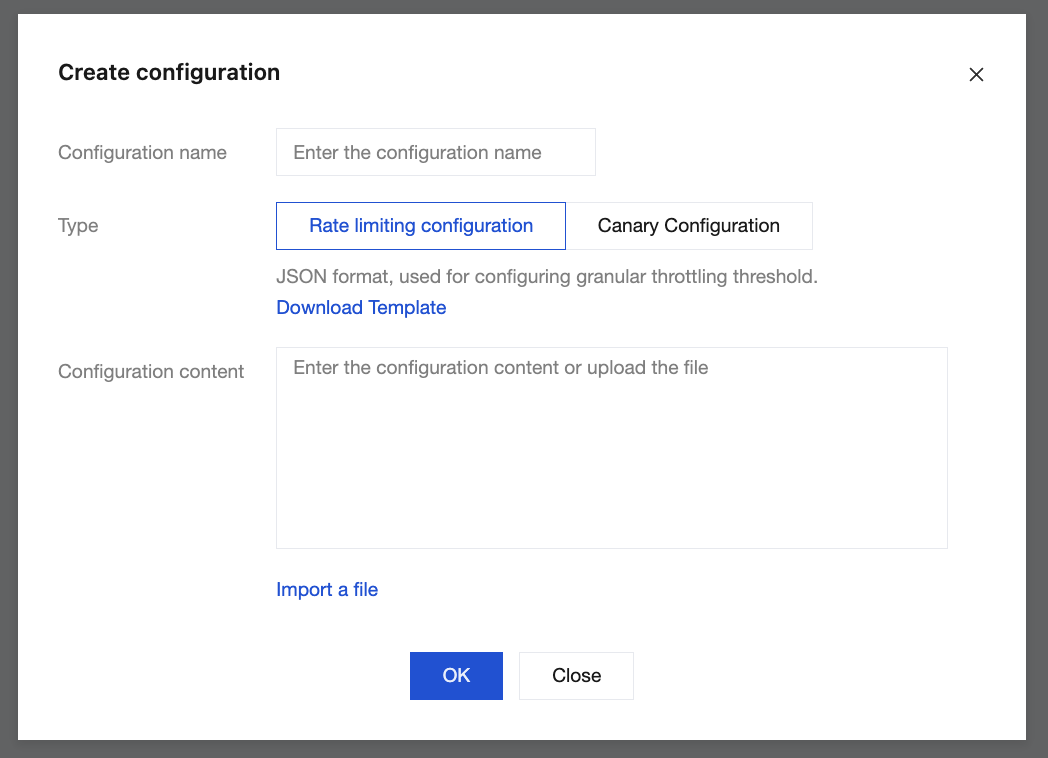
3. Click Submit to complete the creation.
Step 3: Configuring a Grayscale Release Policy
1. In the left sidebar, select Service & Route, click the Service tab, and click a service name to go to the service details page.
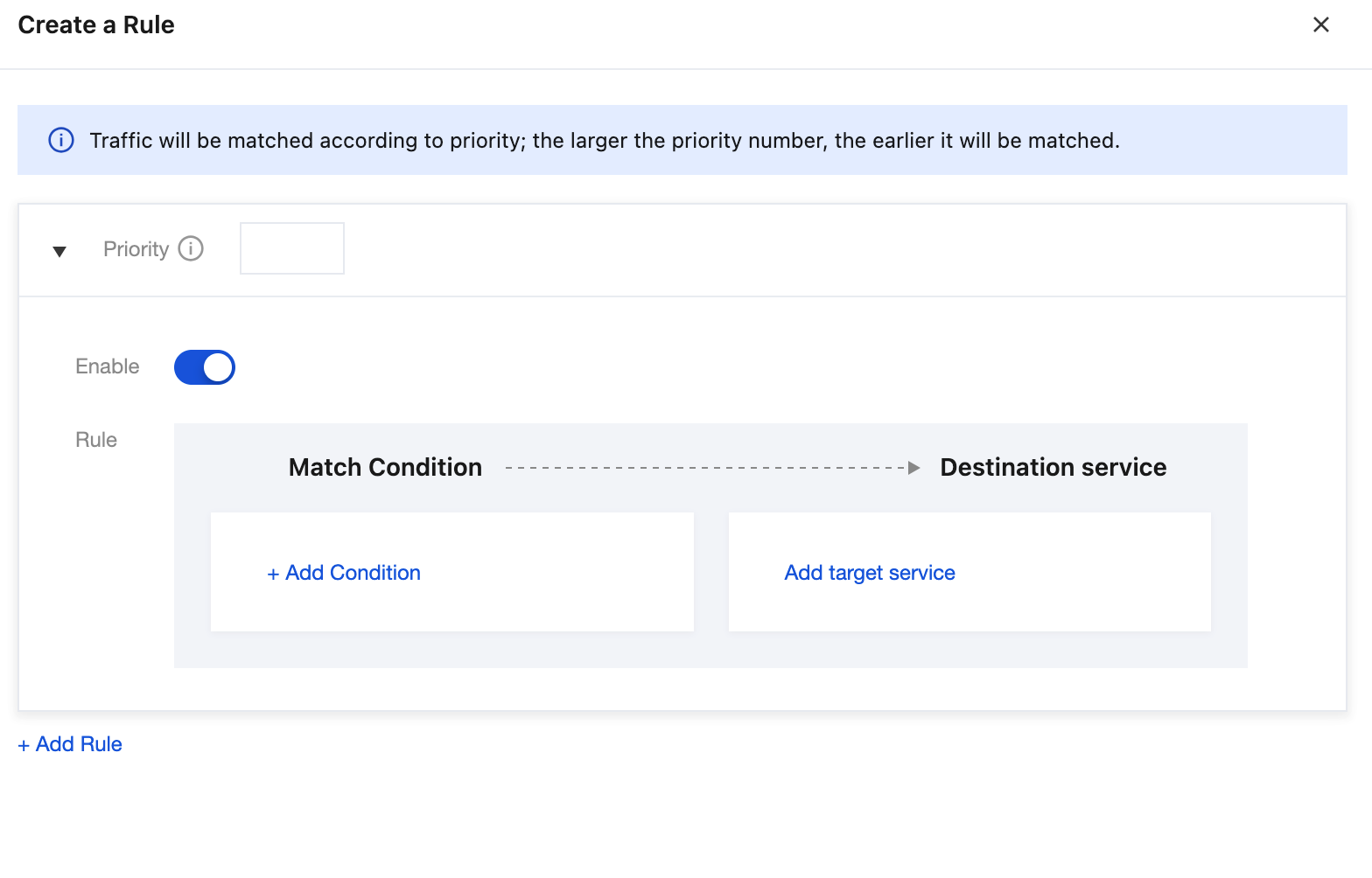
2. Select the Grayscale Policy tab, select standard gray release rules, click Create Rule, and configure the rule information.
Priority: The value range is 0 to 100. A larger value indicates a higher priority. The priority of each rule should be unique. Multiple rules can be configured, and the gateway matches rules by priority. Once a rule is matched, the gateway forwards requests to the target backend service.
Whether to enable: After this option is enabled, the created grayscale policy will take effect.
Match condition: The logical relationship between multiple conditions in a routing rule is AND. A request is forwarded to the backend service only if all conditions in the routing rule are met.
Parameter | Description |
Parameter Type | Select the parameter type. Descriptions of the supported parameter types are as follows: Request parameters in specific locations: Currently, only the Header, Path, Body, Query, and Cookie parameters are supported. Note: Body parameters are parameters in the request JSON and are only supported when the content-type is application/json. Only the level-1 JSON parameters in the response body are parsed. If keys with the same name exist, the latter parameter value is selected. Request method matching: Only one method in the array needs to be matched. Constant parameters: STRING: string type, enclosed with single or double quotes, for example, "Hello" and 'hello'. NUMBER: number type, for example, 0.1, 100.0, and 1. System parameters: domain: domain name of a request. clientIp: IP address of the client. httpScheme: request protocol, which can be HTTP, HTTPS, WS, or WSS. clientUa: UserAgent field uploaded by the client. |
Parameter Name | Enter the parameter name. |
Logical Relationship | Select the logical relationship. Supporting existence and regular expressions Supporting operators less than (<), less than or equal to (<=), greater than (>), greater than or equal to (>=), equal to (==), and not equal to (!=) IN and NOT IN are supported. Binary operations are not supported. Mathematical operations are not supported. |
Parameter Value | Enter the parameter value. When Logical Relationship is set to IN or NOT IN, Parameter Value can be manually entered or set to the global configuration. If no global configuration exists, create a global configuration by referring to Global Configuration. |
Target service: backend service to which requests are forwarded after all conditions in the routing rule are met. One or more backend services can be configured, and the percentage sum of all backend services must be 100%.
3. Click Confirm to complete the rule creation.
Step 4: Verifying Whether the Policy Takes Effect
Send a backend service access request. The gateway dynamically routes the request to the target backend service based on request parameters.
Ajuda e Suporte
Esta página foi útil?
Você também pode entrar em contato com a Equipe de vendas ou Enviar um tíquete em caso de ajuda.
comentários