This article demonstrates the full process of the application using spring-cloud-eureka-client to access the PolarisMesh governance center hosted by the microservice engine through a demo, helping you quickly learn how to use PolarisMesh.
Download the Github demo source code to your local machine and extract it.
The local build environment has the Java JDK and Maven installed and can access the Maven Central Repository.
Based on your business needs, the resources for business deployment have been prepared. Choose one of the methods: virtual machine deployment, containerized deployment, or TEM deployment.
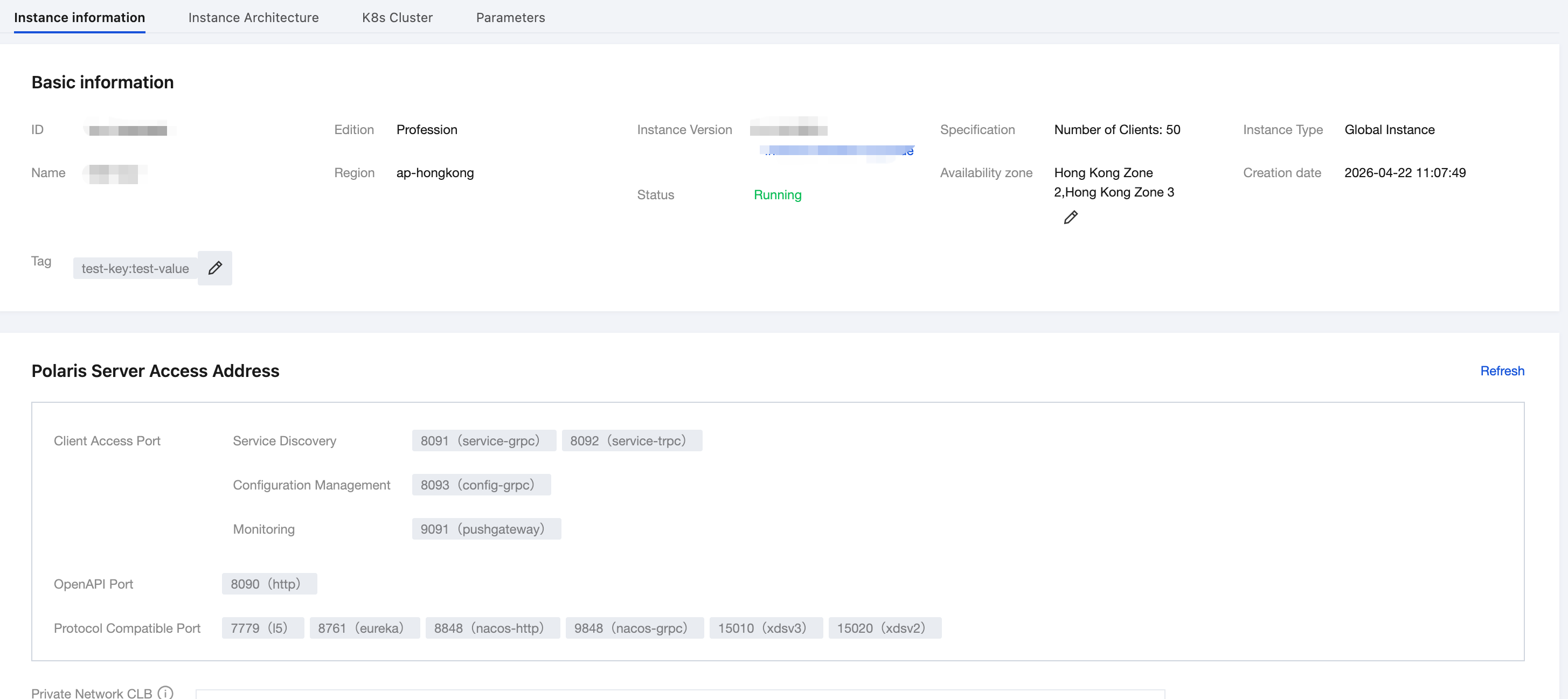
2. On the polarismesh page under PolarisMesh, click the drop-down list in the upper left corner and select the target region.
3. Click the "ID" of the target engine to go to the basic information page.
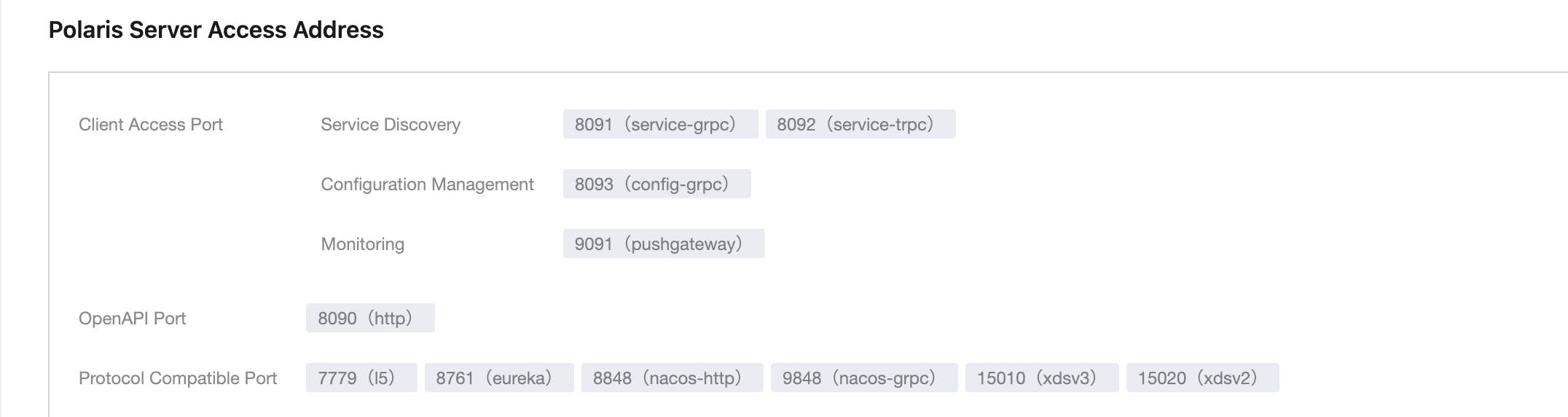
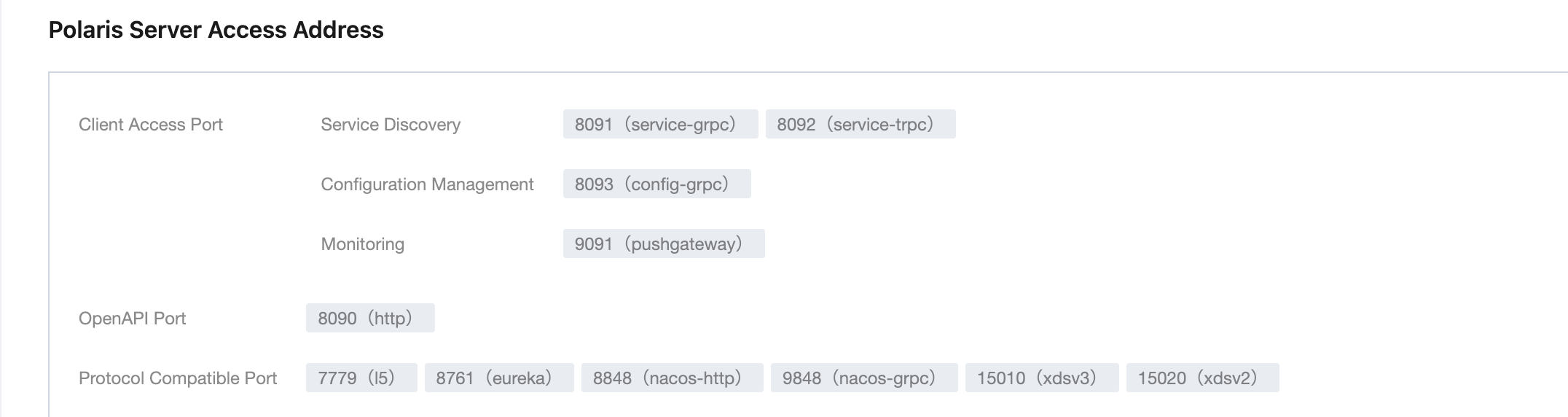
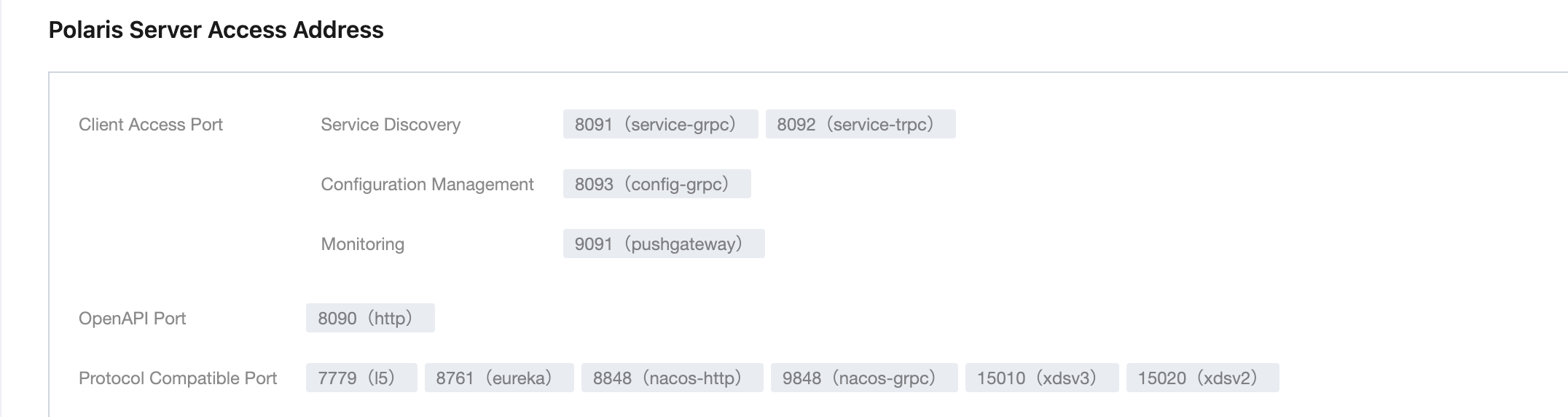
4. View the IP address. The eureka-client application accesses using the eureka port (8761):
5. Modify the registry center IP address in the demo.
In the downloaded local demo source code directory, locate the two files respectively:
eureka/eureka-java/consumer/src/main/resources/application.yml and eureka/eureka-java/provider/src/main/resources/application.yml.
Add the Microservices Engine PolarisMesh address to the project configuration file (taking eureka/eureka-java/consumer/src/main/resources/application.yml as an example).
eureka:
client:
serviceUrl:
defaultZone: http://10.0.4.6:8761/eureka/
6. Package the demo source code into a jar file.
6.1 Under the root directory of the eureka-java source code, open a command prompt and execute the command `mvn clean package` to package and compile the project.
6.2 After successful compilation, two Jar packages are generated as shown in the following table.
Software Package Directory
Software Package Name
Description
\\eureka-java\\provider\\target
eureka-provider-${version}-SNAPSHOT.jar
service provider
\\eureka-java\\consumer\\target
eureka-consumer-${version}-SNAPSHOT.jar
service consumer
7. Deploy the provider and consumer microservices applications. Choose one deployment method from VM deployment, containerized deployment, or TEM deployment based on your actual business needs.
7.1 VM deployment Deploy the provider and consumer microservices applications.
Upload the Jar package to the Cloud Virtual Machine (CVM) instance.
Run the start command to launch:
nohup java -jar [jar package name]&
7.2 Containerized deployment Deploy the provider and consumer microservices applications.
Write the dockerfile to build the image. Refer to:
7.3 TEM deployment Deploy the provider and consumer microservices applications.
Select the TEM environment. Note that the VPC on which the selected environment depends must be the same as the VPC on which the PolarisMesh instance created above depends:
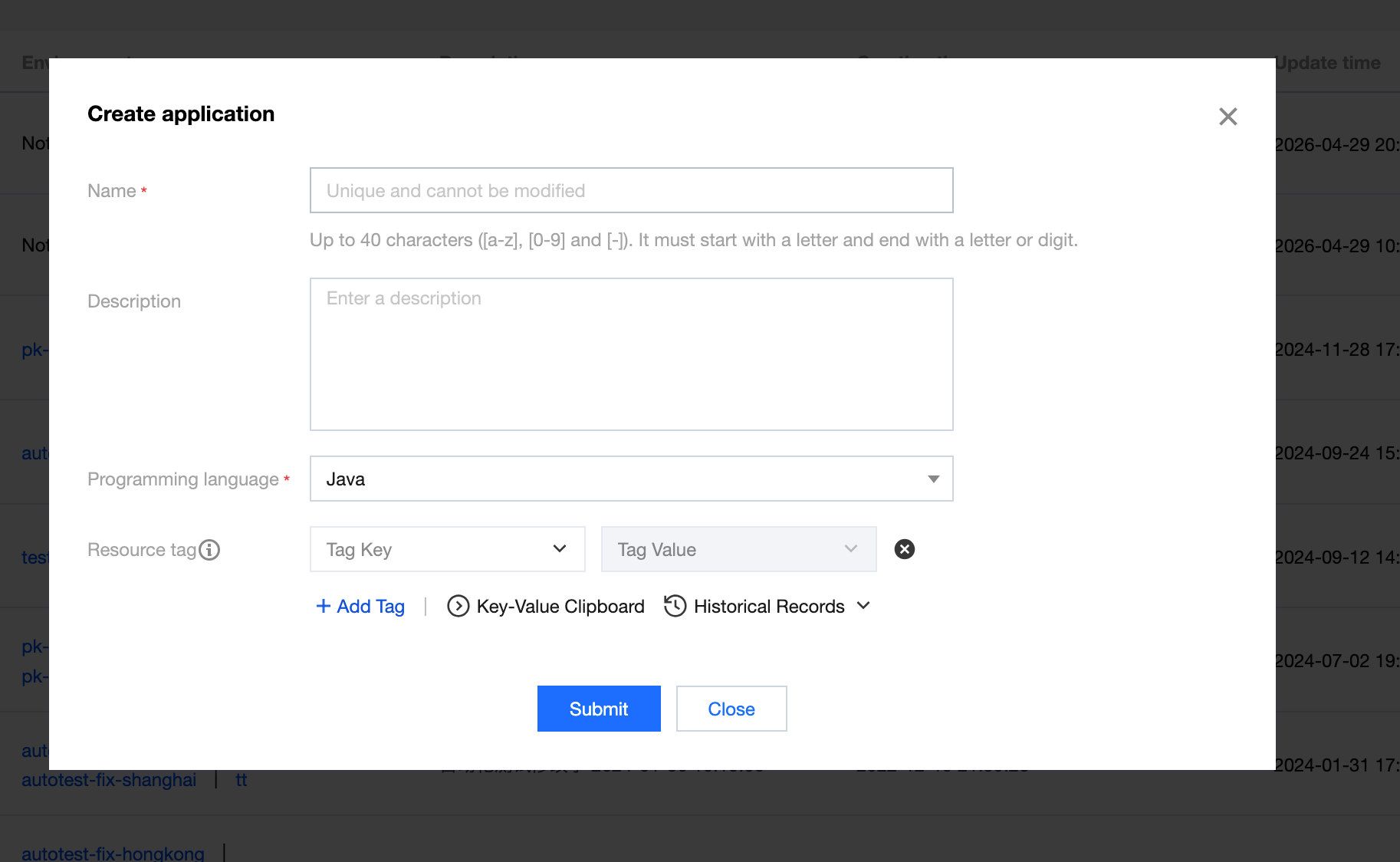
In the selected environment, create a new TEM application. Refer to the following for parameter configuration:
Deploy the application. For parameter configuration, see (port mapping: the default port for consumer is 20002, and for provider is 20001):
Check the access path. After the consumer application is deployed, view the access IP address in Basic Information > Access Configuration. To enable public network access, edit and update to enable public network access:
8. Verify the deployment results.
8.1 Go to the Micro PolarisMesh instance page mentioned earlier.
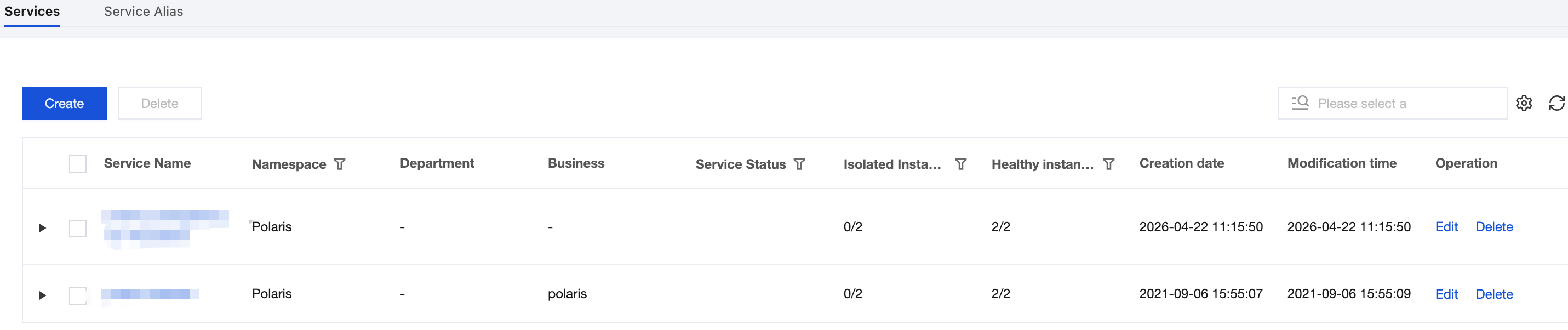
Choose Service Management > Service List to view the number of instances for the EUREKA-CONSUMER-SERVICE and EUREKA-PROVIDER-SERVICE microservices:
If the number of instances is not zero, it indicates that the microservices engine has been successfully connected.
If the number of instances is zero or the specific service name cannot be found, it indicates that the microservice application failed to connect to the microservice engine.
8.2 Invoke the HTTP interface of the consumer. Execute the http call, replacing ${app.port} with the listening port of the consumer (default: 20002), and ${add.address} with the exposed IP address of the consumer.
curl -L -X GET 'http://${add.address}:${app.port}/echo?value=hello_world''