This document describes how to prepare an image for the Windows Server 2012 operating system. You can also refer to this document for other versions of Windows Server.
Directions
Preparations
Before preparing and exporting a system disk image, complete the following checks.
Nota:
If you need to prepare and export a data disk image, skip this operation.
Checking the partitioning and starting mode of the OS
1. On the desktop, click
to open the Windows PowerShell window.
2. In the Windows PowerShell window, enter diskmgmt.msc and click Enter to open the Disk Management window.
3. Right-click the disk to be checked, click Properties, and select the Volume tab to check the disk partitioning mode.
4. Check whether the disk partitioning mode is GPT.
If it is, submit a ticket because service migration currently does not support the GPT partition.
If not, go to the next step.
5. Start CMD as the admin user and run the following command to check whether the operating system starts in EFI mode:
bcdedit /enum {current}
A result similar to the following will be returned:
If path contains "efi", the operating system starts in EFI mode. In this case, submit a ticket.
If path does not contain "efi", go to the next step.
Uninstalling software
Uninstall the conflicting drivers and software (including VMware tools, Xen tools, Virtualbox GuestAdditions, and other software that comes with underlying drivers).
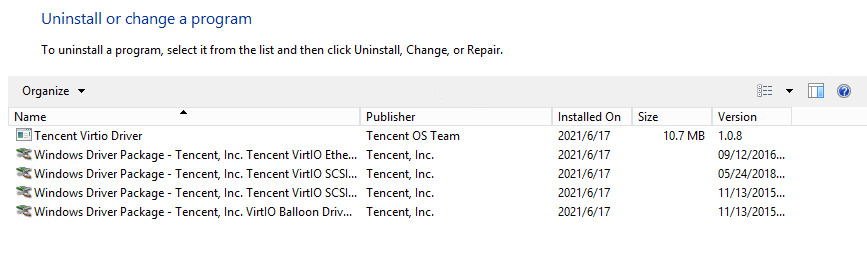
1. Click Control Panel > Programs and Features, and enter "Virtio" in the search box.
If the result as shown in the following figure is returned, the Virtio driver has been installed.
If the Virtio driver is not installed, you need to manually install it.
For Microsoft Windows Server 2008 R2 (Standard Edition, Datacenter Edition, and Enterprise Edition), Microsoft Windows Server 2012 R2 (Standard Edition), Microsoft Windows Server 2016 (Datacenter Edition), and Microsoft Windows Server 2019 (Datacenter Edition), download Virtio for Tencent Cloud at:
Public network download address: http://mirrors.tencent.com/install/windows/virtio_64_1.0.9.exe
After the migration to the cloud, hardware changes include but are not limited to:
The graphics card is changed to Cirrus VGA.
The disk is changed to Virtio Disk.
The ENI is changed to Virtio Nic, and Local Area Connection is used by default.
Exporting an image
You can use various tools to export an image according to your requirements.
Using a platform tool to export an image
Using disk2vhd to export an image
For more information on how to use the image export tools of virtualization platforms, such as VMWare vCenter Convert and Citrix XenConvert, see the document for the respective platform.
Nota:
Tencent Cloud’s service migration supports images in qcow2, vhd, raw, and vmdk formats.
If you need to export the system on a physical machine or if you do not want to use a platform tool to export an image, use disk2vhd instead.
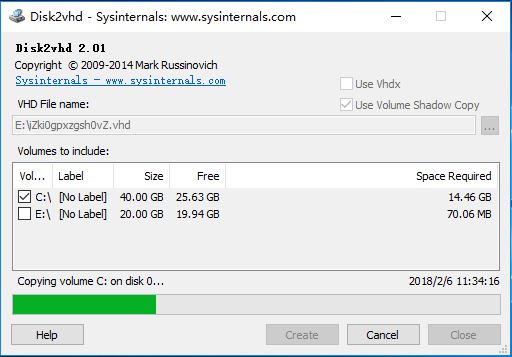
2. Select the storage path of the image to export, select the volumes to copy, and click Create, as shown in the following figure.
Atenção:
Disk2vhd can be started only after the Volume Shadow Copy Service (VSS) is installed in the Windows system. For more information about the VSS features, see Volume Shadow Copy Service.
Do not select "Use Vhdx" because the system currently does not support VHDX images.
We recommend that you select "Use volume Shadow Copy" to better ensure data integrity.
Checking the image
Nota:
The image file system that you prepare may be corrupted because you prepared the image without stopping the service or due to other reasons. Therefore, we recommend that you check the image after preparing it.
If the image format is supported by the current platform, you can directly open the image to check the file system. For example, the Windows platform supports images in the vhd format; the Linux platform allows you to use qemu-nbd to open images in the qcow2 format; and the Xen platform allows you to directly open files in the vhd format.
This document describes how to check the VHD images through Attach VHD in Disk Management on a Windows server.
1. On the desktop, right click
, and select Computer Management in the pop-up menu.
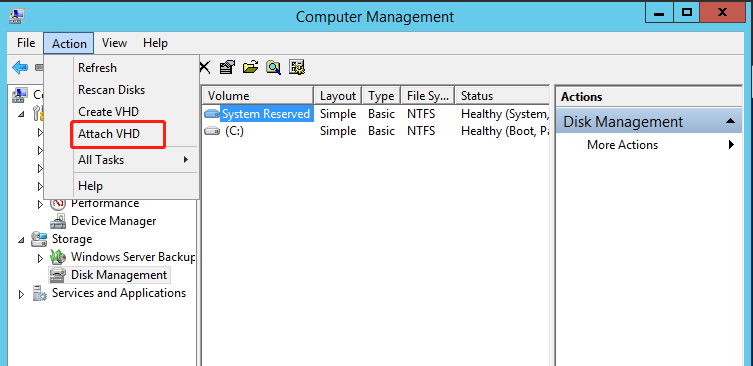
2. Select Storage > Disk Management to enter the disk management interface.
3. Select Action > Attach VHD at the top of the window.
If the result similar to the following figure appears, the image has been created.